
 Join our Discord
Troubleshoot cookie configuration errors in Website Scanner
Fix Website Scanner cookie configurations that fail the verify check, or scanned pages that still show a cookie banner.
Website Scanner sets the cookies you configure on every page in the domain before it scans. A wrong cookie name, an expired value, or a wrong domain leaves the page as a first visit sees it. The scan then captures a consent banner or a signed-out view. Before you save a configuration, click Verify cookies in the Configure cookies dialog. The check loads a URL you choose with your cookies set and shows one of the results on this page. It takes about a minute. For the full procedure, see Verify cookies before you save.
Check finished, but the snapshot still shows the banner
The browser loaded the URL with your cookies set. The result reads Check finished, followed by We loaded the page with your cookies and captured what it looked like. It does not mean the cookies had the effect you want. Website Scanner cannot tell a dismissed banner from a visible one, so you make that call from the snapshot.
Below the snapshot, the dialog reads Here’s the page with your cookies applied. If the banner is gone, they’re working.
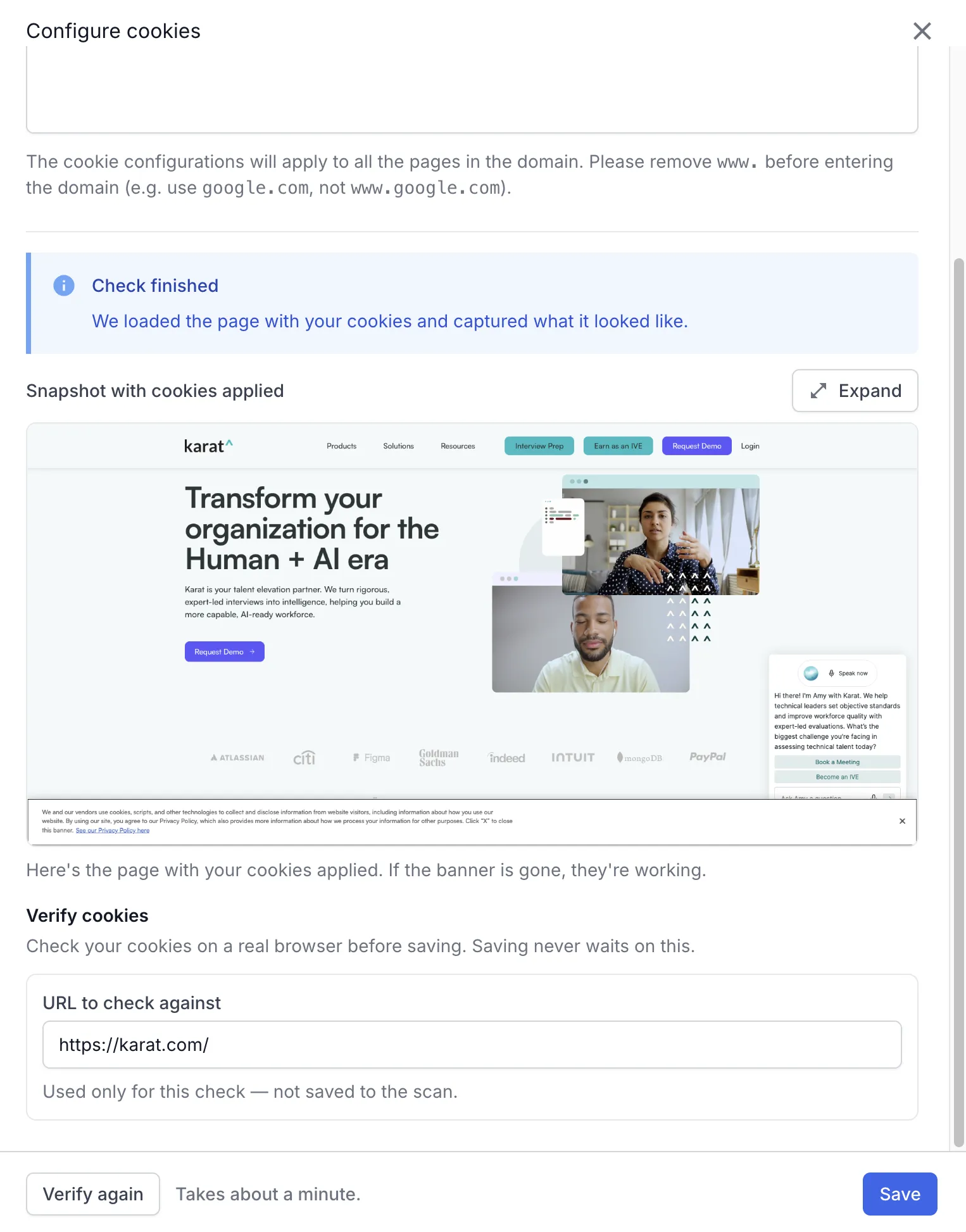
Click Expand to see the snapshot at full size. If the cookie banner is still there, or the page shows the signed-out view, the cookies did not take effect.
To fix this result:
- Check the Domain name. It must match the domain that sets the cookie, without the
www.prefix. A cookie forexample.comis not sent toshop.example.comif the site sets it on the subdomain. - Check each cookie name and value against the cookie your browser stores after you dismiss the banner or sign in. Open the browser developer tools, select the Application tab, and read the cookie under Cookies. The format is
key=value, with a semicolon between cookies. - Click Verify again.
A session cookie copied from your browser expires when that browser session ends. If a check that passed earlier now shows the signed-out page, copy a fresh cookie value before you change anything else.
The check could not be completed
The browser did not finish loading the URL, so Website Scanner captured nothing useful. The result reads The check could not be completed, followed by We could not finish checking this cookie configuration. Check the URL you are validating against and try again. The snapshot shows the browser error page, such as This site can’t be reached.
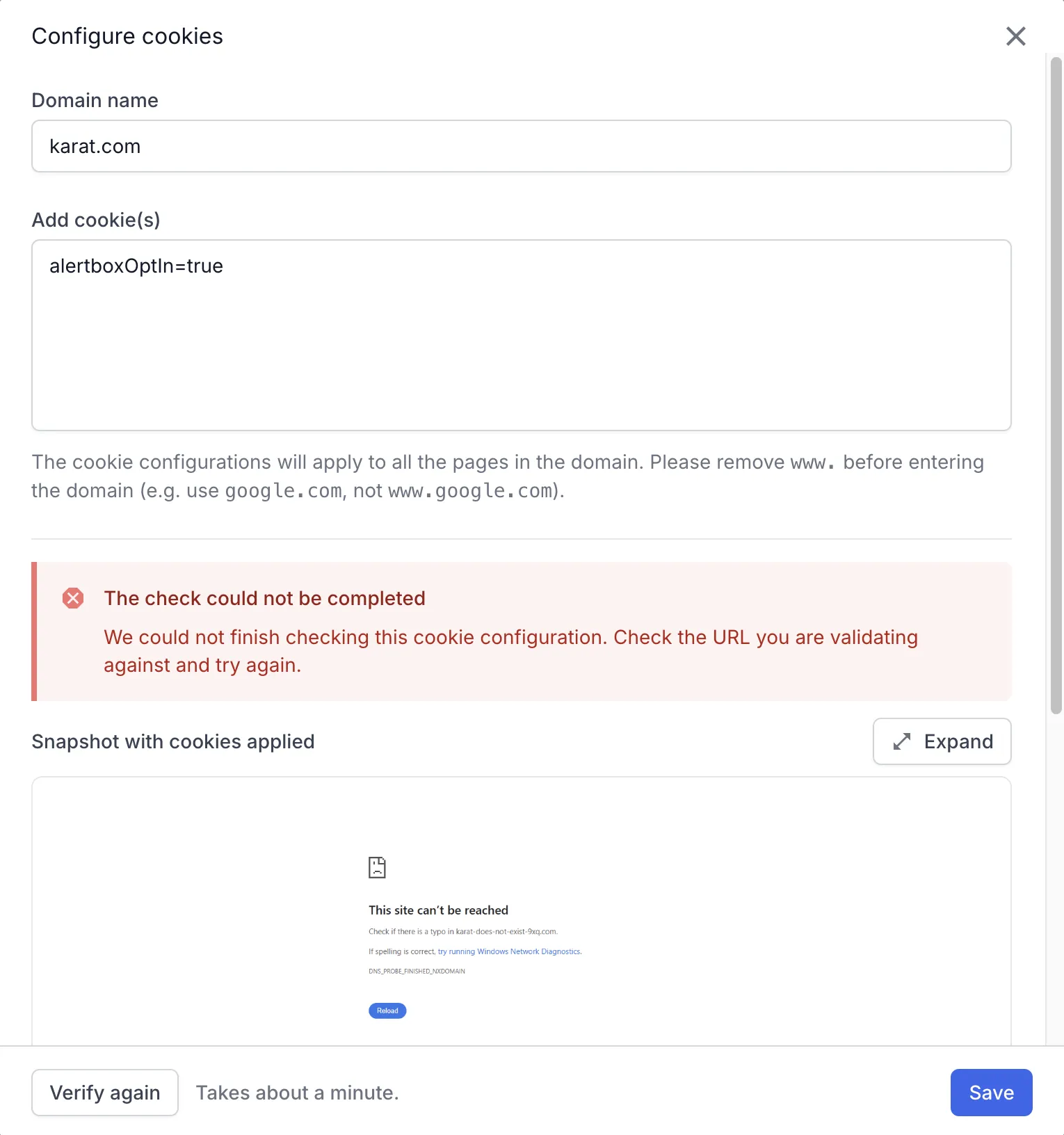
To fix this error:
- Open the URL to check against in your own browser. Fix any typo in the address.
- If the page is on your internal network, use Local Testing in the scan. The verify check does not reach pages that are not public.
- Click Verify again.
Verification limit reached
You can run the check 10 times in 30 minutes. The limit applies to your account, across every cookie configuration and login configuration you verify in that window. When you reach the limit, wait for the window to pass before you click Verify again.
Scanned pages show a cookie banner
Wrong cookies do not fail a scan. The scan completes, and the visual or accessibility results show a cookie banner with no error reported. The cookie configuration applies to every page in the Domain name you entered, and to no other domain.
To fix this result:
- Open the scan settings and click the cookie configuration under Cookie configuration.
- Check that the Domain name matches the domain of the affected pages.
- In URL to check against, enter one of the affected pages and click Verify cookies.
- Fix the configuration based on the result, using the sections on this page.
- Click Save, then run the scan again.
Related topics
- Cookie configuration to add cookies to a scan and verify them.
- Test pages behind login to sign in with credentials instead of a session cookie.
- Troubleshoot Website Scanner for other scan failures.
We're sorry to hear that. Please share your feedback so we can do better
Contact our Support team for immediate help while we work on improving our docs.
We're continuously improving our docs. We'd love to know what you liked
We're sorry to hear that. Please share your feedback so we can do better
Contact our Support team for immediate help while we work on improving our docs.
We're continuously improving our docs. We'd love to know what you liked
Thank you for your valuable feedback!