
 Join our Discord
View Spell scan results
Learn how to view, interpret, and fix spelling and grammar errors detected across your scanned pages.
The Spell scanner extracts visible text content from each scanned page and checks it for spelling mistakes and grammar issues. It handles dynamic content rendered through JavaScript and extracts text from standard HTML elements. The scanner supports English only.
For each error, the report shows the affected text, a suggested correction, and the surrounding context, so you can locate the issue in your page content.
Access the Spell scan report
- Open All Scans and locate the scan you want to review.
-
In the scan summary, find the Spell card. The card displays the total issue count, broken down by spelling errors and grammar errors.
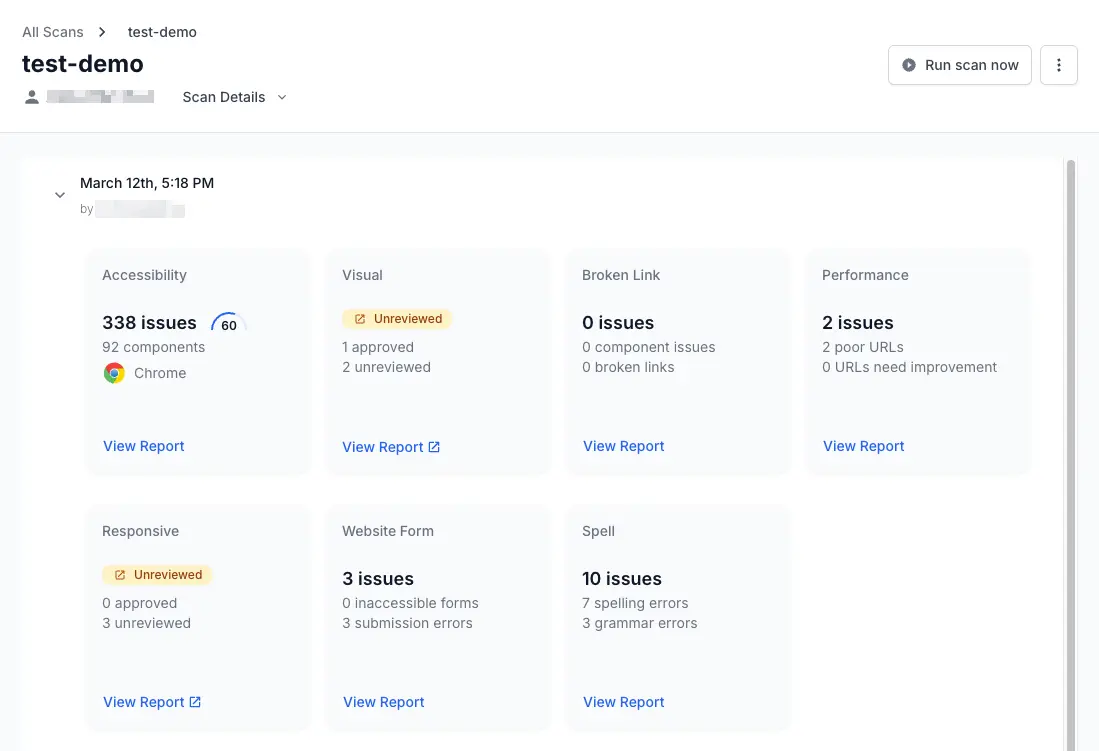
- Click View Report.
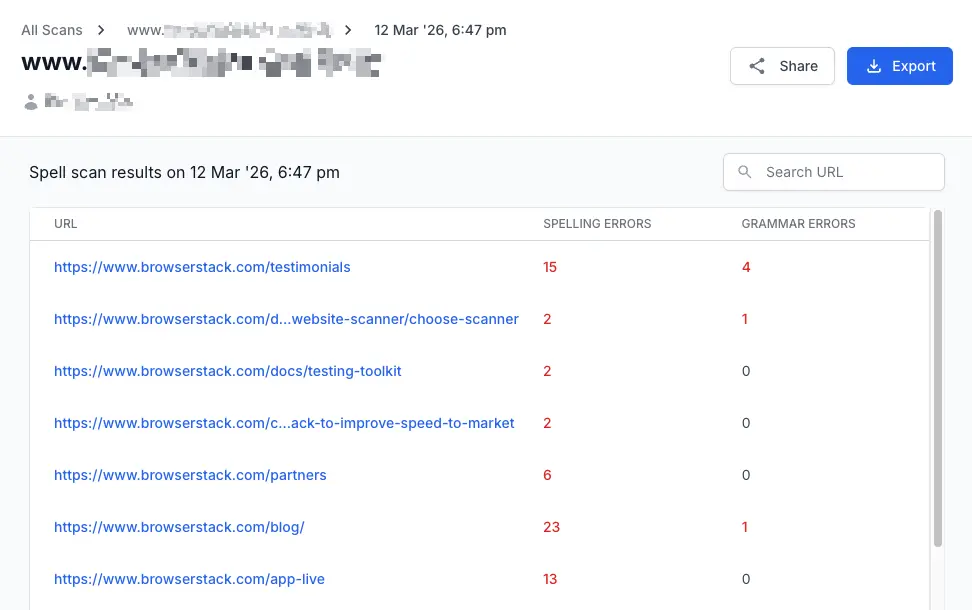
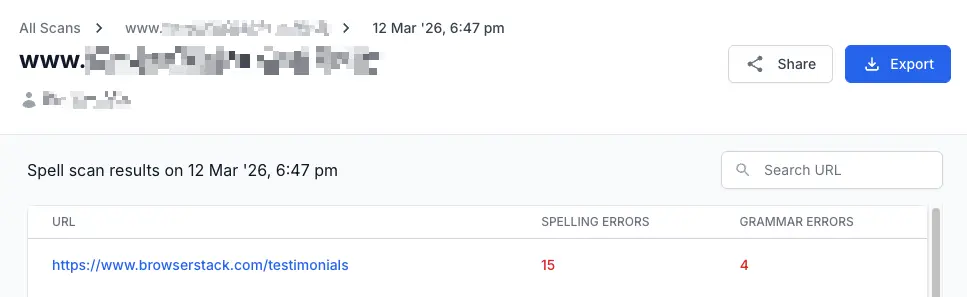
The Spell scan results page opens with a list of scanned URLs and their issue counts.
Understand the results page
The results page shows each scanned URL and the number of spelling and grammar issues found on that page. Click a URL row to open the Spell Issues detail panel on the right side of the page.
Review spell issues
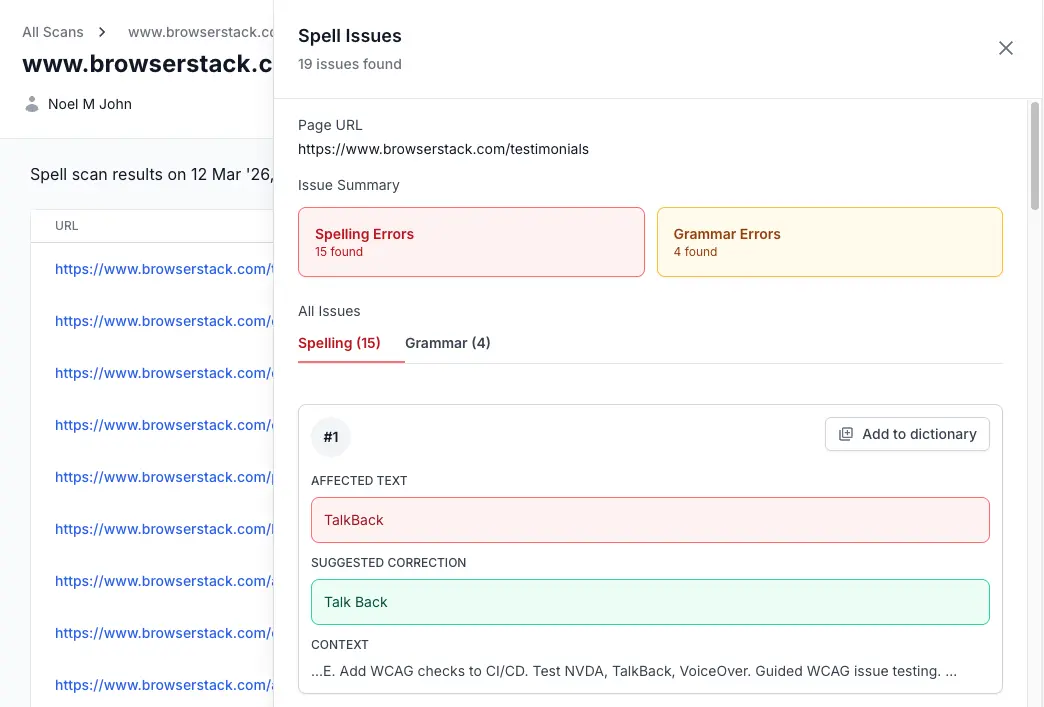
The Spell Issues panel displays the following information for the selected URL.
- Page URL: The URL of the page where the issues were found.
- Issue Summary: Two color-coded summary boxes appear at the top of the panel. The red Spelling Errors box shows the count of spelling mistakes found. The yellow Grammar Errors box shows the count of grammar issues found.
-
All Issues: Below the summary, two tabs let you switch between issue types:
- Spelling tab lists all spelling errors found on the page.
- Grammar tab lists all grammar errors found on the page.
Understand individual error cards
Each error is displayed as a numbered card. Every card contains three fields:
AFFECTED TEXT: The word or phrase flagged as an error, highlighted in red. For grammar errors, the affected text may include a longer passage with the specific problem word or phrase shown in bold.
SUGGESTED CORRECTION: The recommended replacement text, highlighted in green. Review the suggestion before applying the fix to your source content. Not every suggestion applies to every context.
CONTEXT: A snippet of the surrounding text from the page. Use this to find the error in your page content and verify whether the flagged text is a true error or intentional usage (for example, a brand name or technical term).
For grammar errors, the affected text may include a longer passage. The specific word or phrase that triggers the grammar issue appears in bold within the affected text block.
Add words to the dictionary
Brand names, product names, and technical terms often appear as spelling errors even though they are correct. Add these words to your group-level dictionary to suppress them across all future scans for your account.
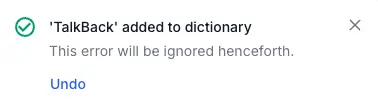
Click Add to dictionary on any spelling error card to add the flagged word. The word no longer appears as an error in future scan runs for any user in your group.
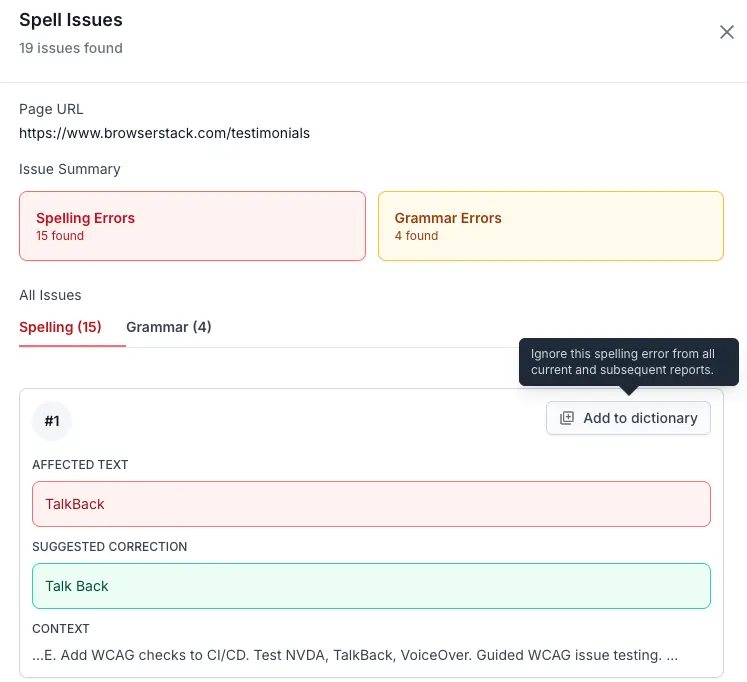
Only the report author can add words to the dictionary. Other team members who view the shared report see the option but cannot use it.
The Add to dictionary option appears only on spelling error cards. Grammar errors do not support this action. If you add a word by mistake, click Undo in the confirmation toast that appears after the action. You can also manage all dictionary entries from the group-level dictionary.
Share and export spelling errors
Use the Share icon at the top right of the report to share your scan results with team members or external stakeholders. You can also use the Export button to download the report as a CSV file for offline analysis.
- Learn how to share scan reports with your team and external stakeholders.
- Learn how to export scan results as CSV for offline analysis.
All users who can view the report can export spelling errors.
Known limitations
The Spell scanner has the following limitations in this release:
- English language only. Multi-language support is not available.
- Placeholder text detection (for example, “Lorem ipsum”) is not included.
- Repetitive word detection (for example, “the the”) is not included.
- Empty heading detection is not included.
Next steps
- Set up a new scan to include the Spell scanner in your next scan.
- View Website Form scan results to check form functionality across your pages.
- Configure scan settings to adjust scheduling and other scan options.
We're sorry to hear that. Please share your feedback so we can do better
Contact our Support team for immediate help while we work on improving our docs.
We're continuously improving our docs. We'd love to know what you liked
We're sorry to hear that. Please share your feedback so we can do better
Contact our Support team for immediate help while we work on improving our docs.
We're continuously improving our docs. We'd love to know what you liked
Thank you for your valuable feedback!