
 Join our Discord
Run Workflow Analyzer on mobile browsers
Test your websites for accessibility issues interactively on mobile browsers using real Android devices on the BrowserStack cloud.
You can test a workflow on your website in the Chrome browser on a real Android device using Workflow Analyzer. Workflow Analyzer scans different states of a website as you traverse it and finds accessibility issues in real time.
Mobile browser testing in Workflow Analyzer is in Beta. It currently supports Chrome on Android devices only.
Prerequisites
Before you start, make sure you have the following:
- A BrowserStack account with access to Accessibility Testing.
- A publicly accessible URL for the page you want to test.
Run a workflow scan on a mobile browser
To scan a user workflow on a mobile browser, follow these steps:
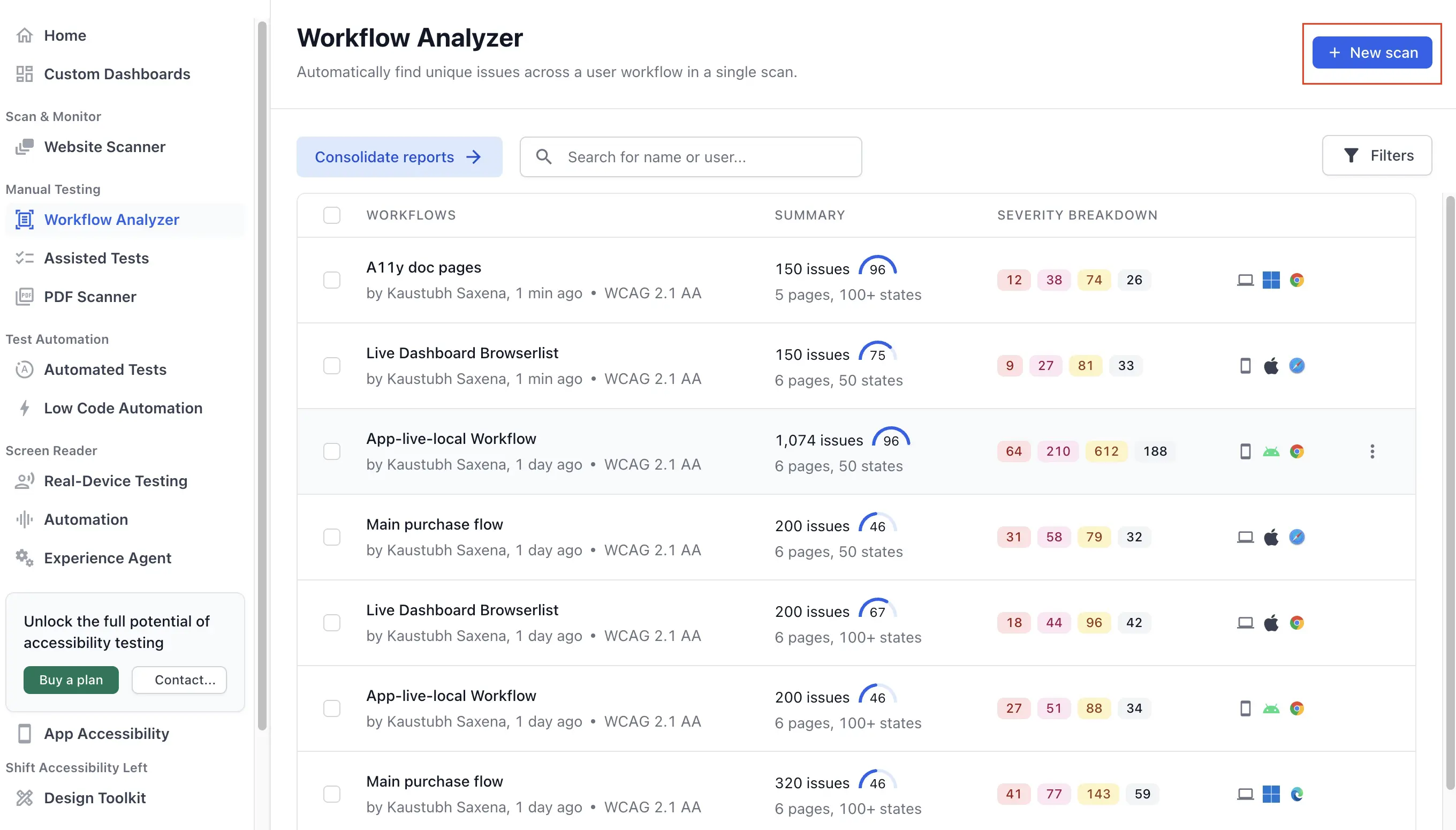
On the Workflow Analyzer page of the Accessibility Testing dashboard, click New scan.
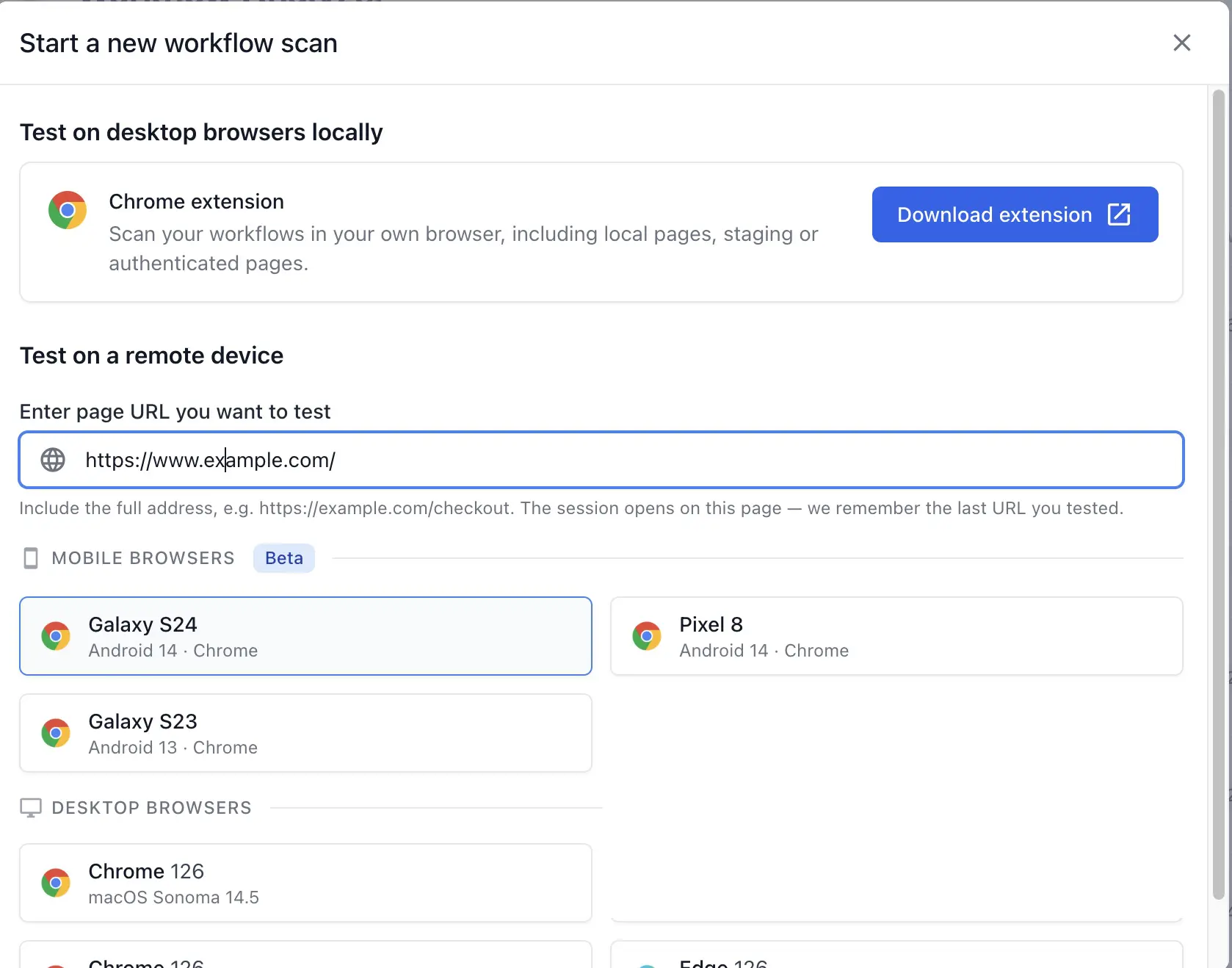
Enter the URL of the page you want to test under Test on a remote device, For example, https://example.com/contact.
Under Mobile browsers, select the device you want to test on.
The device appears on the left and the Workflow Analyzer panel appears on the right.
In the Workflow Analyzer panel, configure the scan:
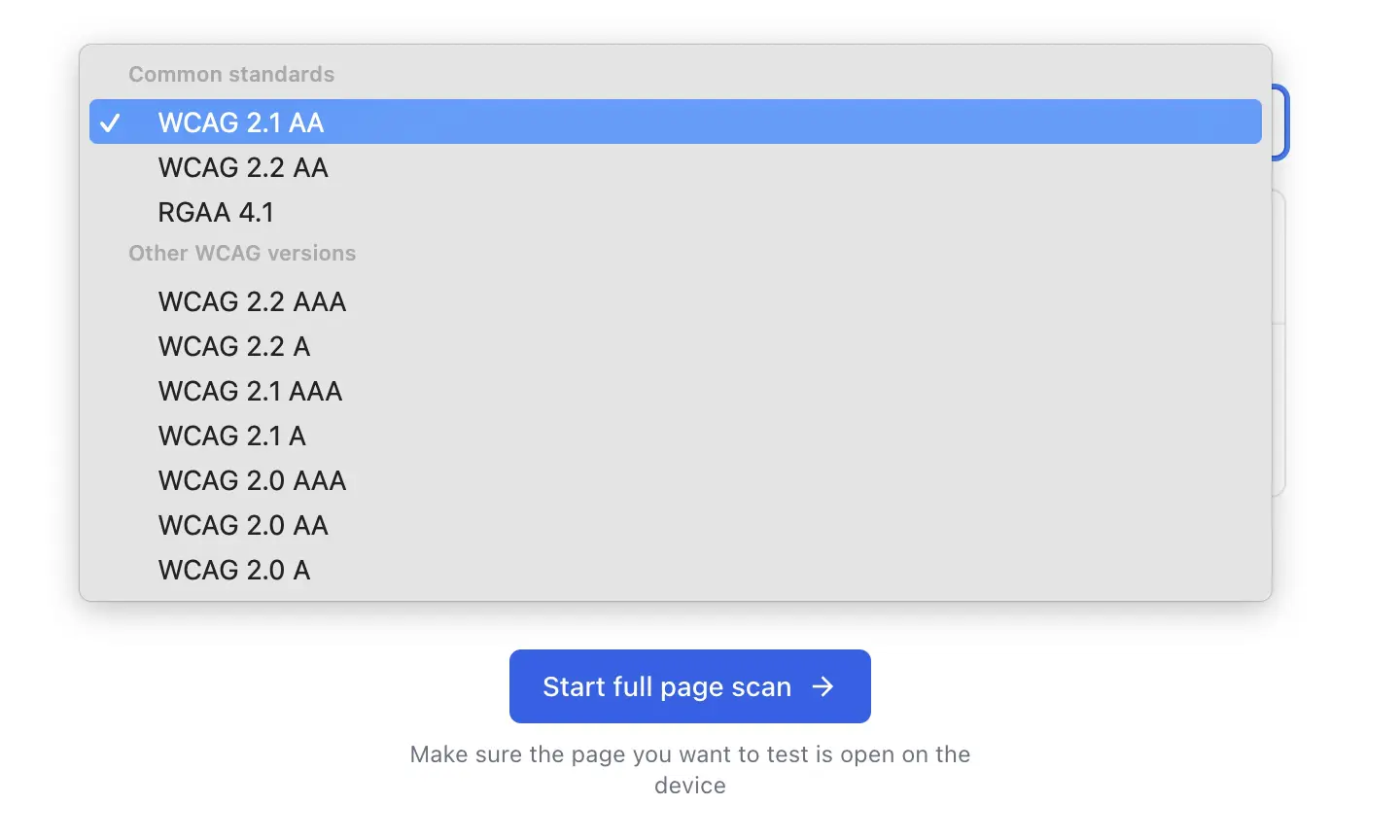
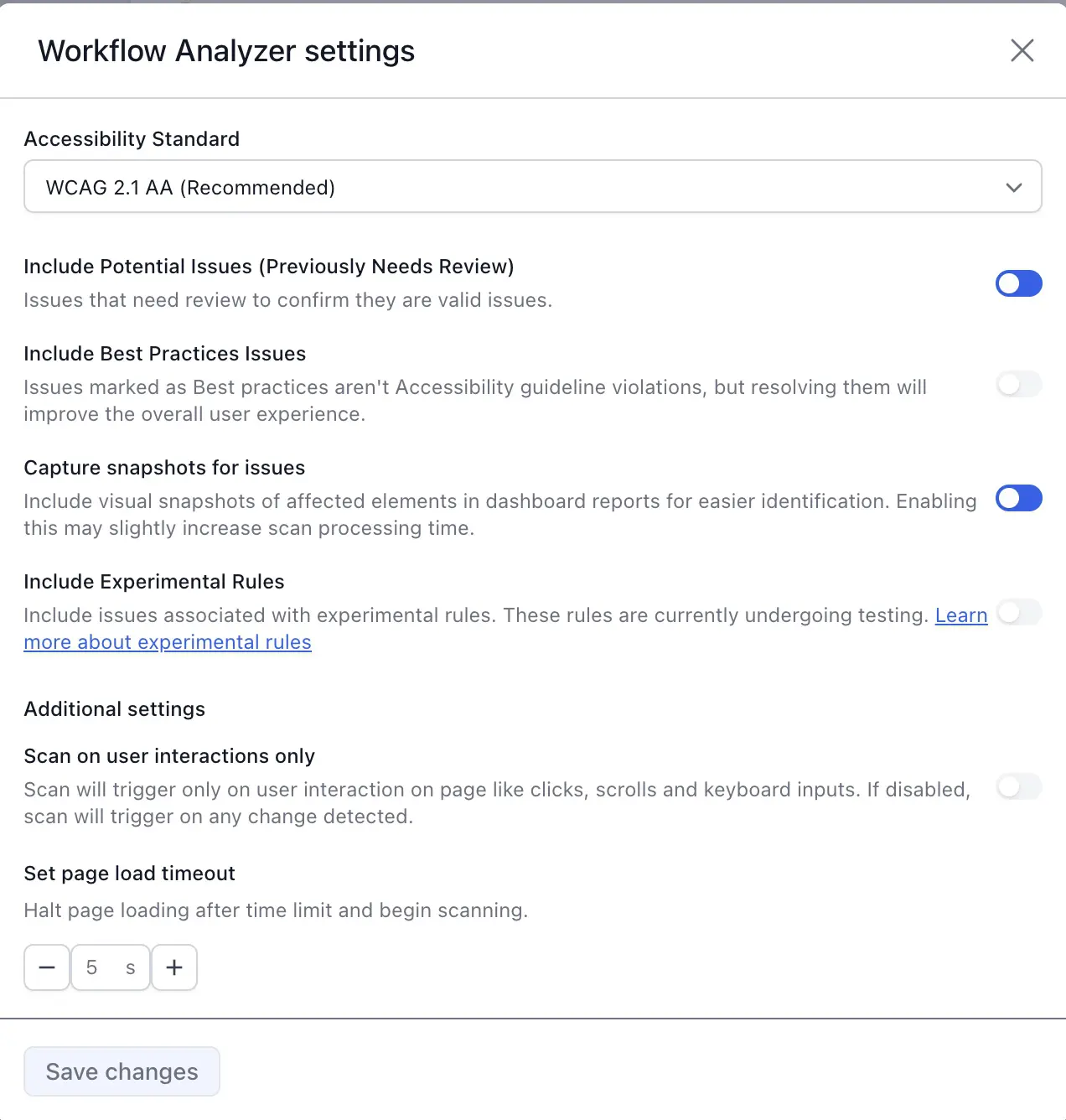
- From the Accessibility standard drop-down, select the WCAG or RGAA version.
- To include issues that need a manual review, switch on Include Potential issues.
-
To include issues that aren’t violations but affect user experience, switch on Include Best Practices issues.
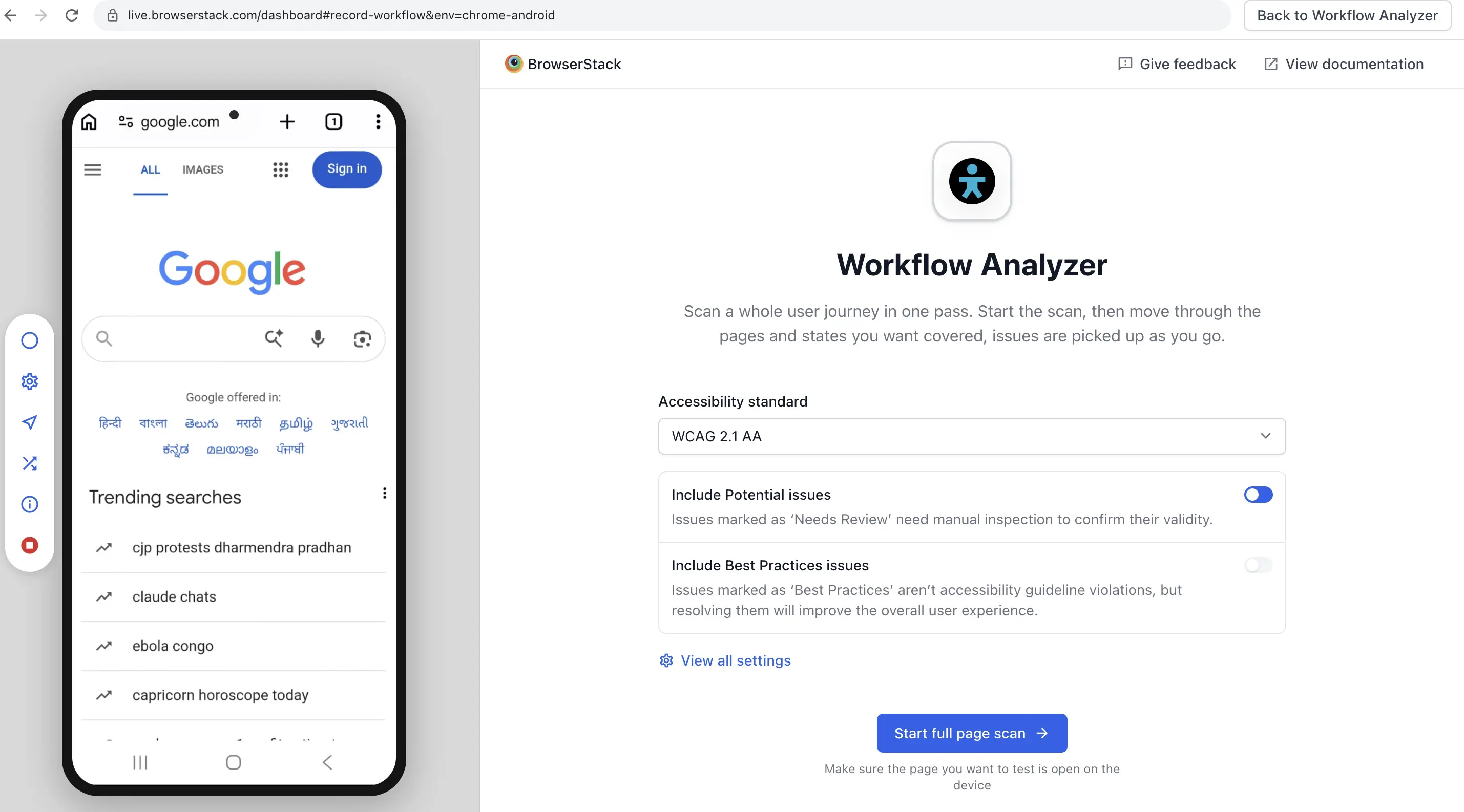
Click View all settings to configure more settings, such as snapshots of affected elements, experimental rules, scanning on user interactions only, and page load timeout. Click Save changes.
For details on each setting, read Configure Workflow Analyzer settings.
Mobile browser testing on Workflow Analyzer does not support advanced scans.
Click Start full page scan.
Ensure that the webpage you want to test is open on the device before you begin the scan.
Interact with the page or move to other pages in your website. Workflow Analyzer scans each new page state and shows the detected issues in real time in the following tabs:
- Issue summary: Shows the number of issues found, the pages and states scanned, the duplicate issues excluded, and a severity breakdown.
- Workflow log: Shows the scan history.
Click an issue type to view its details.
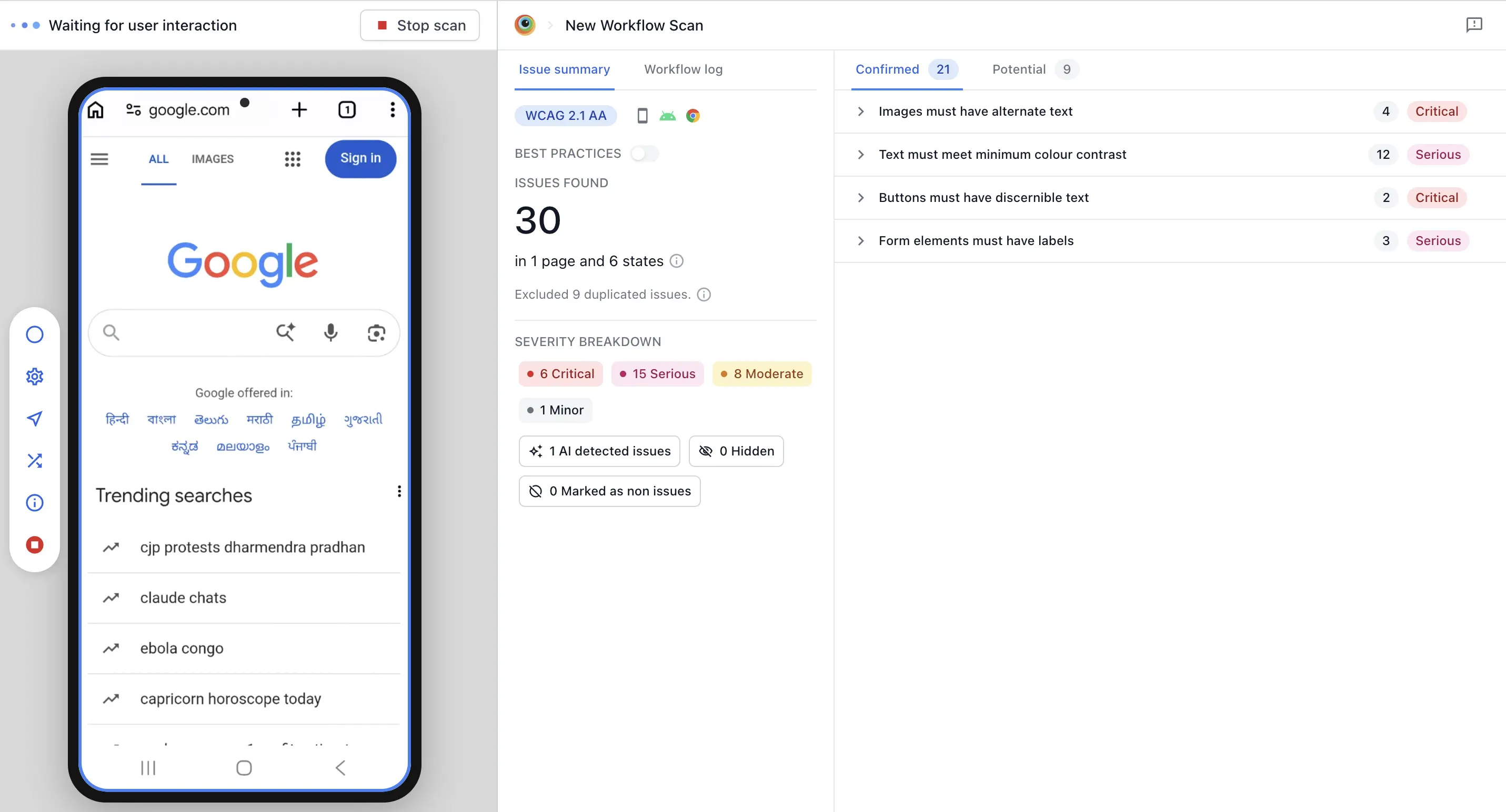
When you have completed your tests, click Stop scan. Review the scan results and save the report.
View the reports
View and analyze your reports in Workflow Analyzer reports.
Related topics
We're sorry to hear that. Please share your feedback so we can do better
Contact our Support team for immediate help while we work on improving our docs.
We're continuously improving our docs. We'd love to know what you liked
We're sorry to hear that. Please share your feedback so we can do better
Contact our Support team for immediate help while we work on improving our docs.
We're continuously improving our docs. We'd love to know what you liked
Thank you for your valuable feedback!