
 Join our Discord
Test Firebase apps
Test Firebase apps for accessibility issues using BrowserStack App Accessibility testing.
Firebase is an app development, testing, and distribution platform, which enables you to distribute your apps with your testers. By integrating your Firebase projects with BrowserStack, you can test your apps for accessibility on BrowserStack App Accessibility testing.
App Accessibility uses BrowserStack App Live’s Firebase integration to import your Firebase projects. Therefore, to test Firebase apps with App Accessibility, you must first integrate your Firebase projects with App Live.
Supported file formats
The following file formats are supported:
-
Android:
.apkand.aab -
iOS:
.ipa
Prerequisites
Complete the following steps in Firebase:
- (Recommended) Create a separate Firebase project for the apps you want to test with App Accessibility, and add the required apps to the project.
- Ensure that you have at least Viewer access to the Firebase project you want to integrate.
- Create credentials for an OAuth 2.0 Client ID. For step-by-step instructions, see Setting up OAuth 2.0.
- Set Application type as Web Application.
- Add the authorized redirect URI:
https://app-accessibility.browserstack.com/firebase/oauth.
- After setting up OAuth, download the OAuth client configuration JSON file, or note the project ID, client ID, and client secret for later use.
If your Firebase refresh token is expired or revoked, you must re-authenticate. Tokens are issued and managed by Firebase, and BrowserStack cannot control the validity period of these tokens.
For troubleshooting expired or revoked tokens, see Troubleshoot OAuth expiry when using Firebase integration.
Integrate Firebase with App Live
To test a Firebase app in an App Accessibility test session, you must first integrate your Firebase projects with BrowserStack App Live:
- Log in to the App Live dashboard.
- Follow the steps in Integrate Firebase with App Live to integrate Firebase with App Live and add your Firebase project.
Launch an App Accessibility test session with a Firebase app
To launch an App Accessibility test session with a Firebase app:
- After integrating your Firebase projects with App Live, navigate to the App Accessibility dashboard.
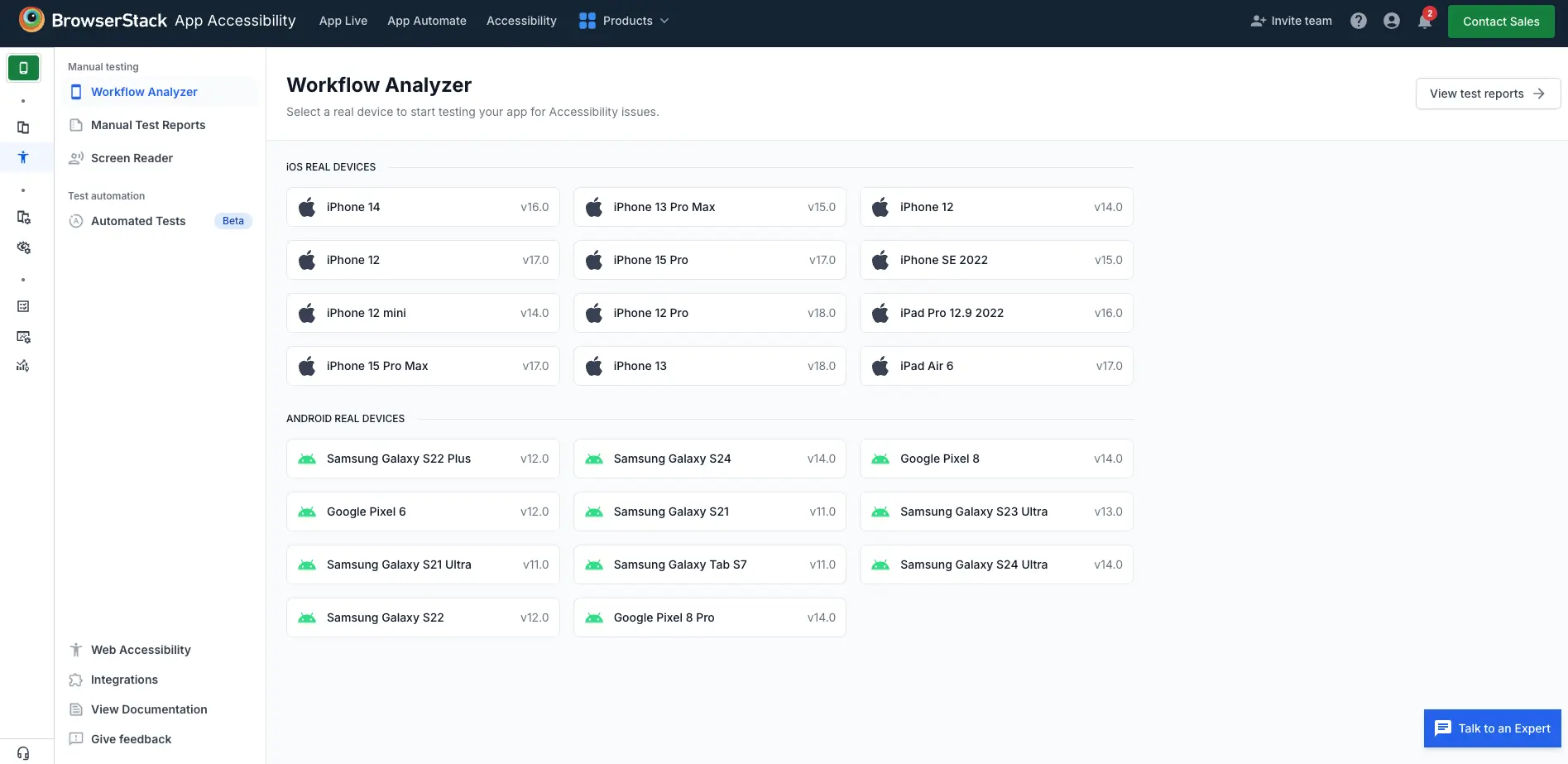
- From the Workflow Analyzer dashboard, select a device and OS combination to launch the test session.
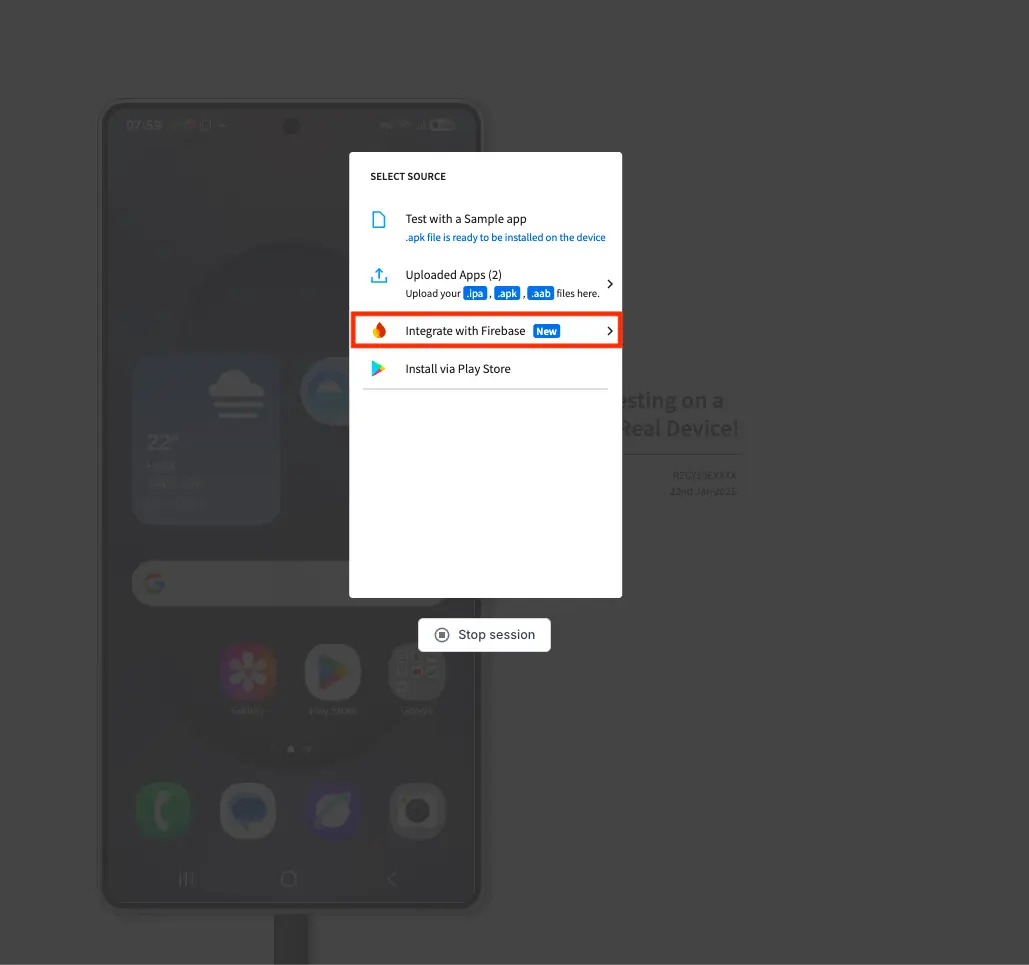
- On the Select Source screen, select Integrate with Firebase.
- From the Project dropdown at the top of the screen, select the Firebase project you added in App Live.
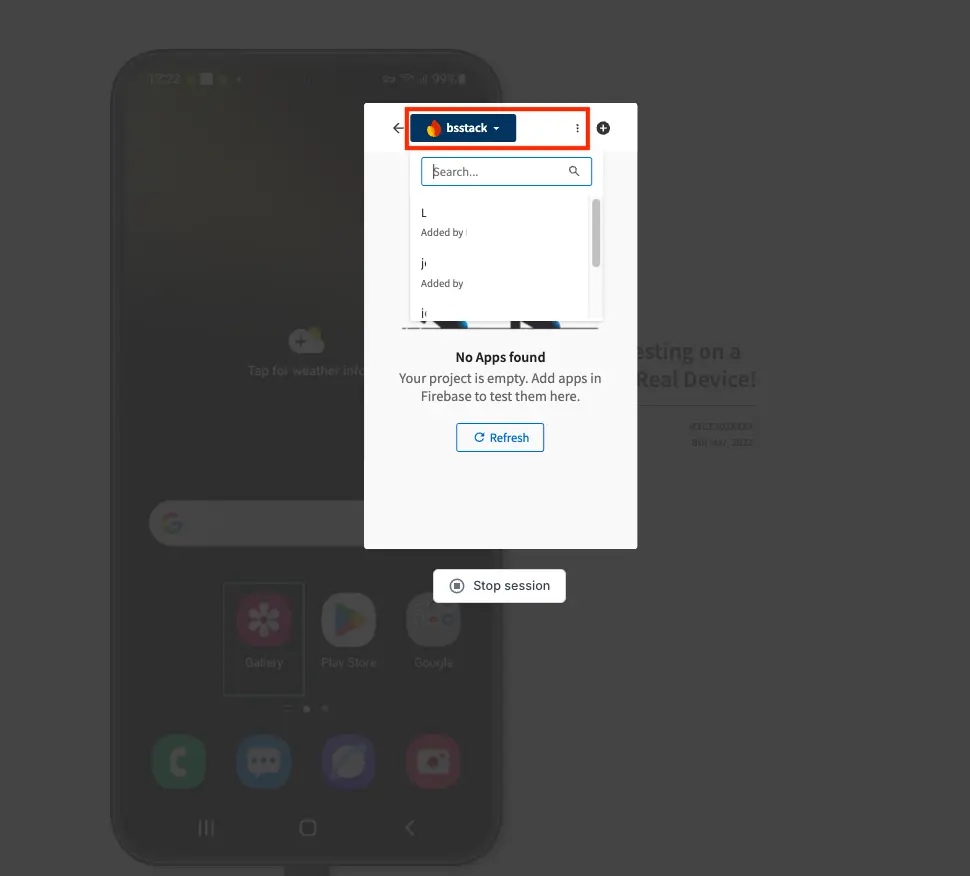
- From the list of apps in the selected Firebase project, select the app you want to test. The session starts on the selected device with the selected app installed.

- Configure options for Workflow Analyzer.
- Click Start scanning to start the test session.
Additional resources
- For additional Firebase integration options and instructions, see Integrate Firebase with App Live.
We're sorry to hear that. Please share your feedback so we can do better
Contact our Support team for immediate help while we work on improving our docs.
We're continuously improving our docs. We'd love to know what you liked
We're sorry to hear that. Please share your feedback so we can do better
Contact our Support team for immediate help while we work on improving our docs.
We're continuously improving our docs. We'd love to know what you liked
Thank you for your valuable feedback!