
 Join our Discord
Test with native apps on iOS devices
Test your app’s integration with iOS apps and Gmail by installing and configuring native apps on BrowserStack real iOS devices.
This is a beta feature and is available only under Team Pro and Enterprise Pro plans. To activate it for your account, contact BrowserStack Support.
To comprehensively test your app’s integration with iOS apps and Gmail, you can install and configure native apps like Apple Mail, Apple Calendar, and Gmail on real iOS devices in BrowserStack App Live. This allows you to test your app for workflows such as accessing and sending emails, synchronizing calendar events, or third-party authentication.
Use cases
Use native apps access to test how your app integrates with core iOS functionality:
- Test email workflows triggered from your app, such as Send Feedback buttons, email sharing, or support contact flows.
- Verify calendar integrations like Add to Calendar features, event reminders, and deep links from calendar events back to your app.
- Test Sign in with Google authentication and Firebase apps that require Gmail access.
- Validate email-based user verification and authentication workflows.
Supported devices and OS versions
| Device | Supported iOS versions |
|---|---|
| iPhone | 17, 18 |
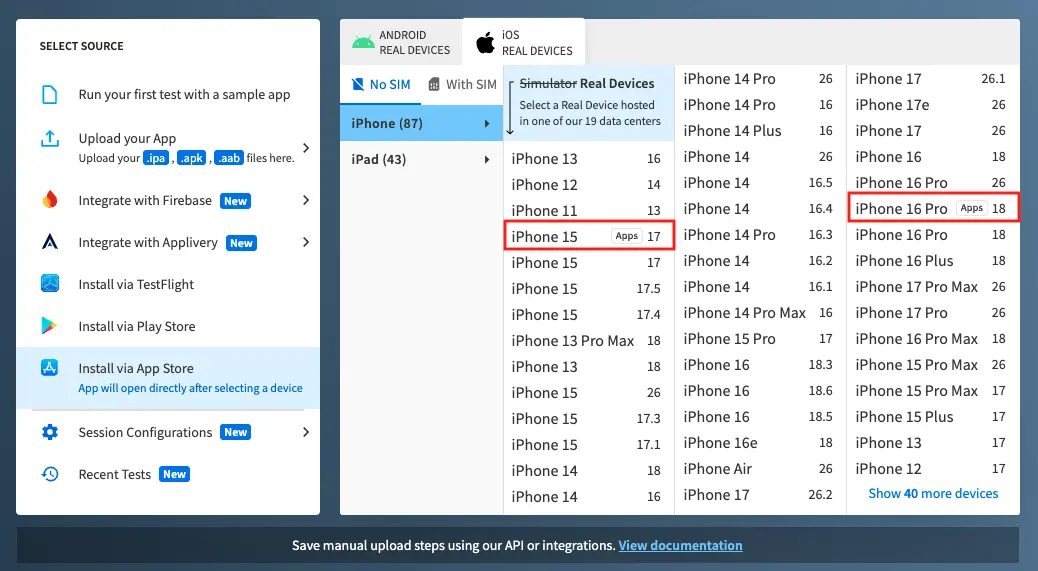
Devices that support native apps are marked with an Apps icon on the device selection screen.
Supported apps
| App | Availability |
|---|---|
| Apple Mail | Pre-installed on iOS devices. |
| Apple Calendar | Pre-installed on iOS devices. |
| Gmail | Download the app from the App Store during your test session. |
Considerations and limitations
- Native apps access cannot be used in the same session with Apple Pay or eSIM-enabled devices.
- To ensure user data is completely erased, devices with native apps access undergo a full cleanup process after a test session ends.
- Currently, iCloud accounts are not supported for Apple Mail and Apple Calendar. Use alternative email and calendar providers such as Gmail, Outlook, Yahoo, or Exchange to configure mail and calendar settings.
Prerequisites
Before you begin, ensure the following:
- You have a BrowserStack account with Team Pro or Enterprise Pro plan. If you don’t have an account, sign up for free and purchase a plan.
- Your account is enabled for native apps access. Contact BrowserStack Support to request access to this beta feature.
Start a session with native apps access
To test with native apps, you need to select a device that supports this feature:
- Navigate to the App Live dashboard.
- Upload your app or select an already uploaded app to test. For more information, see Select app sources.
- From the list of devices, select an iOS 17 or iOS 18 device marked with the Apps icon to start a session with native apps access.
Access app settings
To configure Apple Mail, Apple Calendar, or Gmail settings:
- In your test session, click iOS Settings on the vertical toolbar. The iOS Settings panel opens with various configuration options for the device.
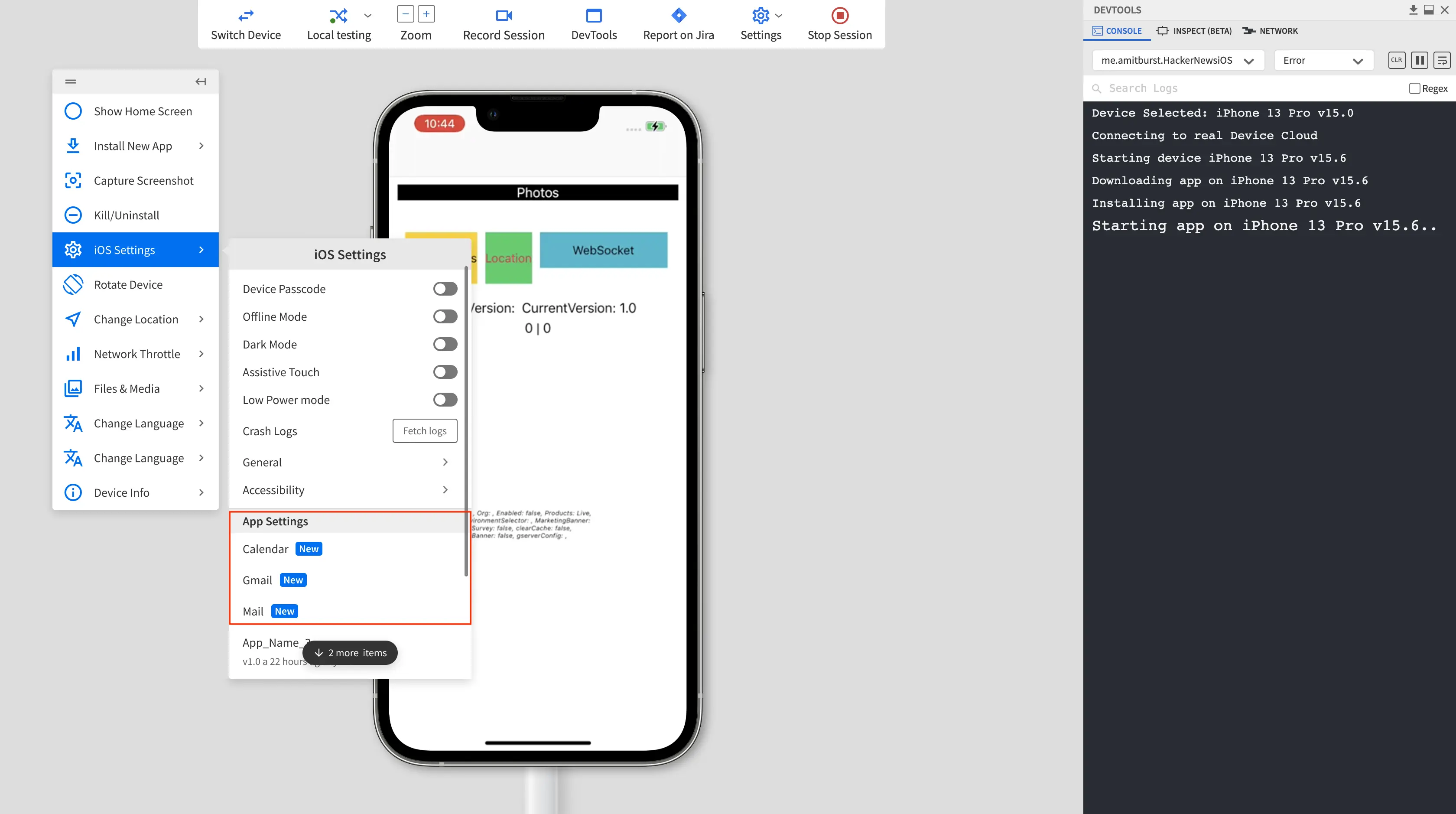
- In the App Settings section, select the app you want to configure:
- Mail - Sign in and configure mail accounts and mail-specific settings.
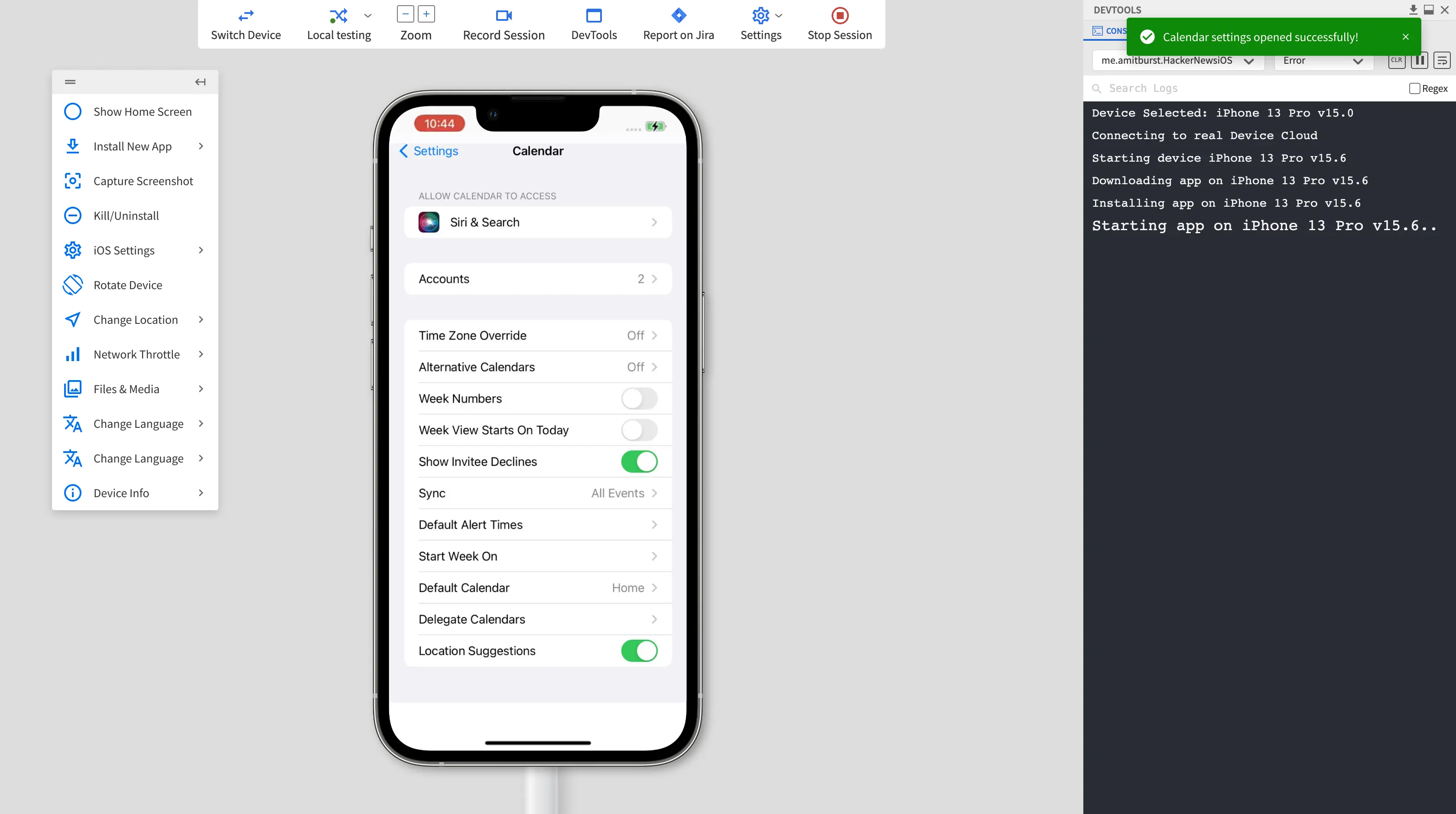
- Calendar - Sign in and configure calendar accounts and calendar-specific settings.
- Gmail - Sign in and configure Gmail app settings. If Gmail is not installed, a warning message appears prompting you to install Gmail from the App Store.
The app settings screen opens with various configuration options depending on the app.
We're sorry to hear that. Please share your feedback so we can do better
Contact our Support team for immediate help while we work on improving our docs.
We're continuously improving our docs. We'd love to know what you liked
We're sorry to hear that. Please share your feedback so we can do better
Contact our Support team for immediate help while we work on improving our docs.
We're continuously improving our docs. We'd love to know what you liked
Thank you for your valuable feedback!