
 Join our Discord
Biometric Authentication on remote devices
This feature is available only under Team Pro and Enterprise Pro plans. For more details, check out our pricing page.
Biometric authentication is a process of enhancing security of applications by using biological or behavioral attributes of individuals to verify their identity. Examples of biometric authentication include fingerprint scanning, facial recognition, DNA matching, retina scanning, etc.
App Live enables you to test your apps that require biometric authentication, by using the Biometric Authentication setting on select remote BrowserStack devices.
You can enable the Biometric Authentication, Image Injection, and Device Passcode settings together in the same test session on App Live.
Supported apps and devices
App Live supports Biometric Authentication on the following apps and devices:
| Device Type | OS Version |
|---|---|
| Android | v6 and later |
| iOS | v13 and later |
BrowserStack disables the Settings app on the following devices for security reasons. As a result, you cannot test apps that require biometric authentication on these devices:
- Xiaomi devices
- Vivo devices
- Huawei devices
Enable Biometric Authentication setting for your app
App Live does not support testing of apps that use code obfuscation tools like Proguard, using Biometric Authentication. Ensure that you disable obfuscation before uploading your app on App Live.
To enable Biometric Authentication:
- Log in to the App Live dashboard.
- On the App Live dashboard, upload your app from the left panel.
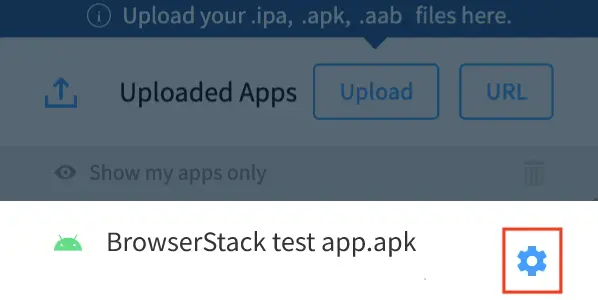
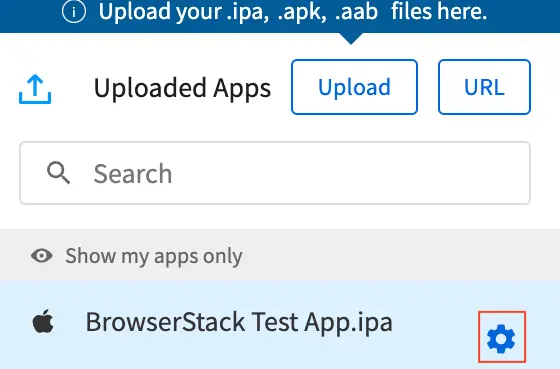
- After your app is uploaded, click the configuration icon next to the file name of your app.
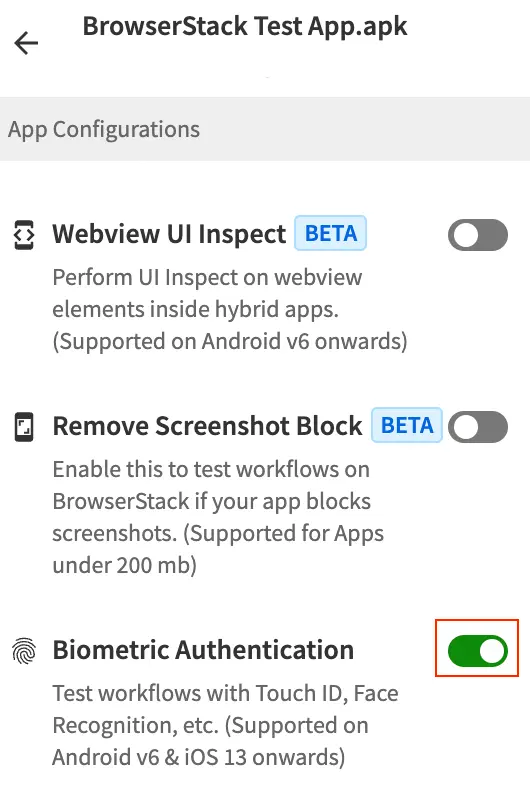
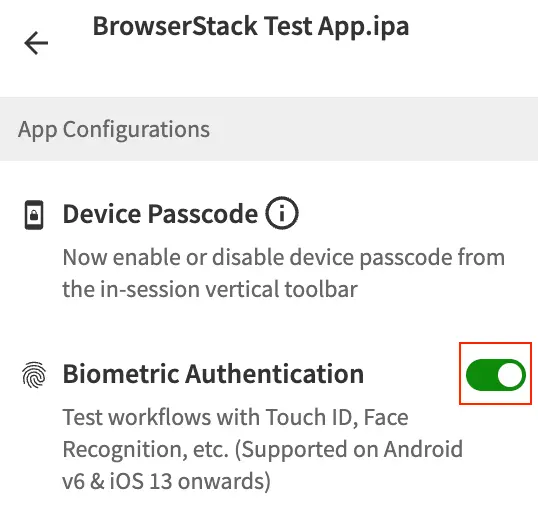
- Under App Configurations, enable Biometric Authentication.
- Select your device from the list of available devices in the device listing on the right panel, to launch your test session.
Your setup session takes up to 60 seconds to complete.
Test your app using Biometric Authentication
After you enable Biometric Authentication, follow these steps to test your app:
- In your app, trigger the biometric authentication workflow.
- On the Biometric Authentication prompt, click Pass, Fail, or Cancel to test authentication success or failure scenarios. BrowserStack App Live attempts to closely mimic the biometric authentication behavior on real devices. See the table in the Supported app behavior section for more details.

Supported app behavior
Based on your platform, refer to the following tables to understand the scenarios supported by BrowserStack App Live for Biometric Authentication:
| Scenario | Action | Behavior |
|---|---|---|
| Pass biometric authentication | To pass biometric authentication, click Pass on the pop-up. | The biometric authentication is passed and the app behaves as designed. |
| Fail biometric authentication | On real Android devices, biometric authentication fails after five incorrect/unsuccessful attempts. Hence, on BrowserStack Android devices, click Fail five times to actually fail biometric authentication. | The biometric authentication is considered failed and - if you do not have a fallback defined, you should see the error code, ERROR_LOCKOUT. Also, you will not experience the 30-sec wait period like on real Android devices.- if you have a fallback defined in your app, BrowserStack App Live displays another pop-up to simulate device passcode. This pop-up can be closed by clicking either Pass or Cancel. 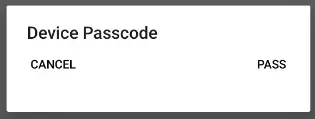 Note: On real devices running Android above version 15, the device locks itself after five failures. However, in such cases, on BrowserStack devices, biometric authentication will directly get canceled with the ERROR_LOCKOUT error code.Similarly, for devices running Android versions lower than 10, since Android does not offer a default fallback mechanism, the device passcode screen is not displayed. |
| Cancel biometric authentication | To cancel biometric authentication, click Cancel on the pop-up. | When you click Cancel on BrowserStack devices, biometric authentication is canceled and the BIOMETRIC_ERROR_USER_CANCELED error code is sent. If you have defined custom logic for cancellation after a certain number of failures, biometric authentication is canceled and the BIOMETRIC_ERROR_CANCELED error code is sent. |
We're sorry to hear that. Please share your feedback so we can do better
Contact our Support team for immediate help while we work on improving our docs.
We're continuously improving our docs. We'd love to know what you liked
We're sorry to hear that. Please share your feedback so we can do better
Contact our Support team for immediate help while we work on improving our docs.
We're continuously improving our docs. We'd love to know what you liked
Thank you for your valuable feedback!