
 Join our Discord
Troubleshoot Local Testing setup issues
Fix issues that stop BrowserStack Local from downloading, installing, or connecting to your App Live session.
Setup issues occur in a fixed order. Each checkpoint on this page depends on the one before it, so start at the first checkpoint that describes your issue:
If BrowserStack Local is connected and the green indicator appears beside Local Testing on the App Live toolbar, your setup is complete. If your app still can’t reach your internal servers, see Troubleshoot Local Testing traffic issues.
BrowserStack Local isn’t downloaded
App Live needs BrowserStack Local running on a machine that can reach your internal servers. If you haven’t connected Local Testing before, click Local Testing on the App Live toolbar. The Local Testing menu prompts you to download the BrowserStack Local app.
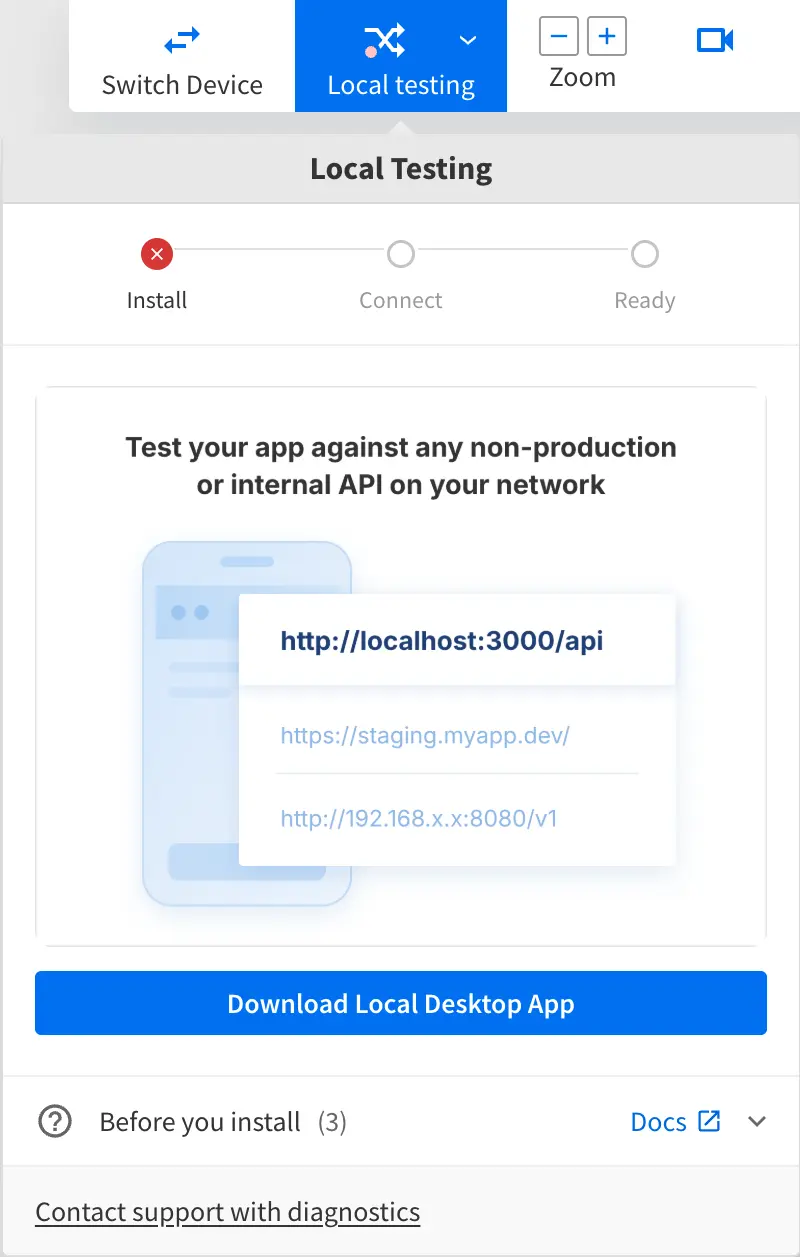
To get BrowserStack Local, choose one of the following methods:
- BrowserStack Local app: A desktop app for Windows and macOS. Download the BrowserStack Local app.
- Local binary: A command-line binary for Windows, macOS, and Linux that needs no installation. Download the Local binary.
If you’ve connected Local Testing before, you don’t need to download BrowserStack Local again. Start the app or run the binary that’s already on your machine.
BrowserStack Local is downloaded but isn’t installed or running
If BrowserStack Local doesn’t connect within a few minutes, App Live shows that Local hasn’t connected yet. This usually means that the app isn’t installed, isn’t running, or was blocked during installation.
To check whether the BrowserStack Local app is running, follow these steps:
Look for the BrowserStack Local icon in the Windows system tray or the macOS menu bar. Click the icon to see the app menu and its connection status.
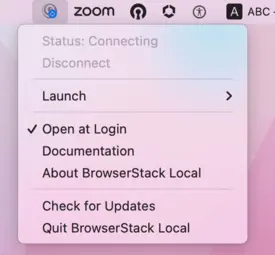
If the menu shows Status: Disconnected, click Connect. When BrowserStack Local connects, App Live detects it, and the Local Testing menu in your session shows that the app is connected.
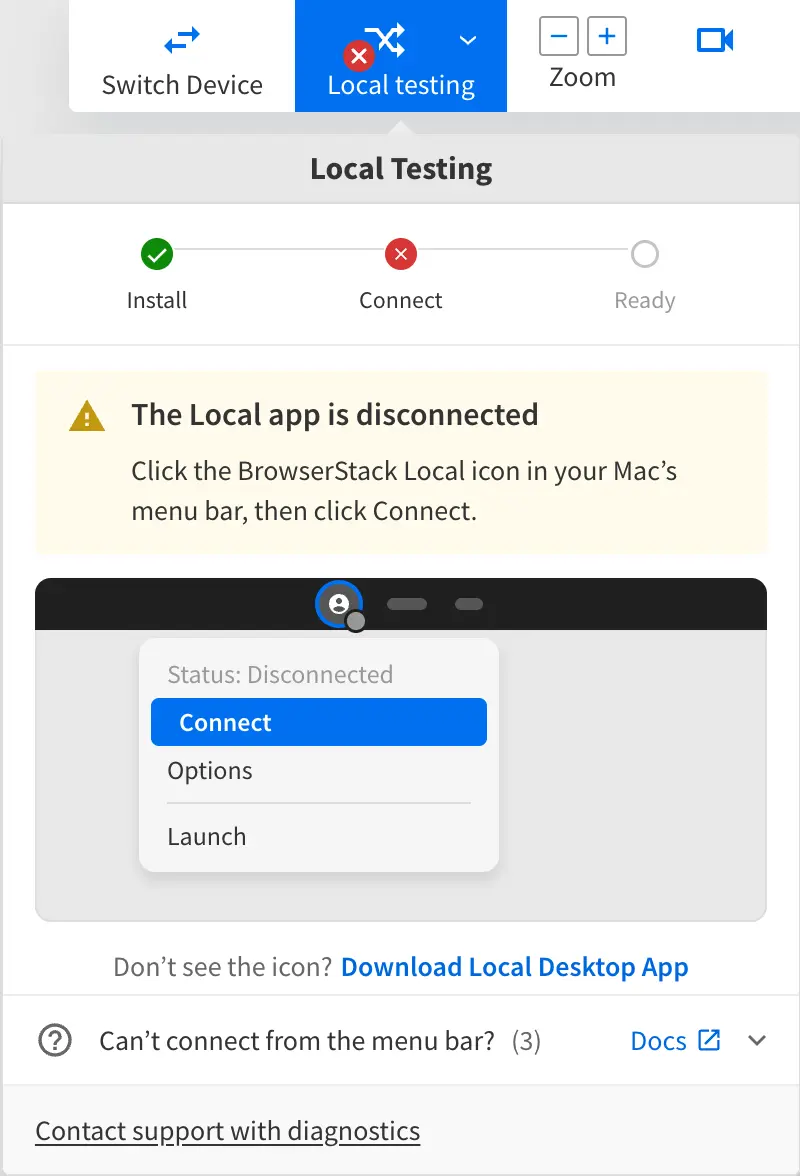
If the icon isn’t there, launch the app.
If the app isn’t installed, install the app.
If your organization blocks app installation, run the Local binary instead. The binary doesn’t need installation. Keep the command-line window open while you test. If the app doesn’t connect after you download it, the Local Testing menu also offers the binary. Click Download Local Binary, or click Try the desktop app again.
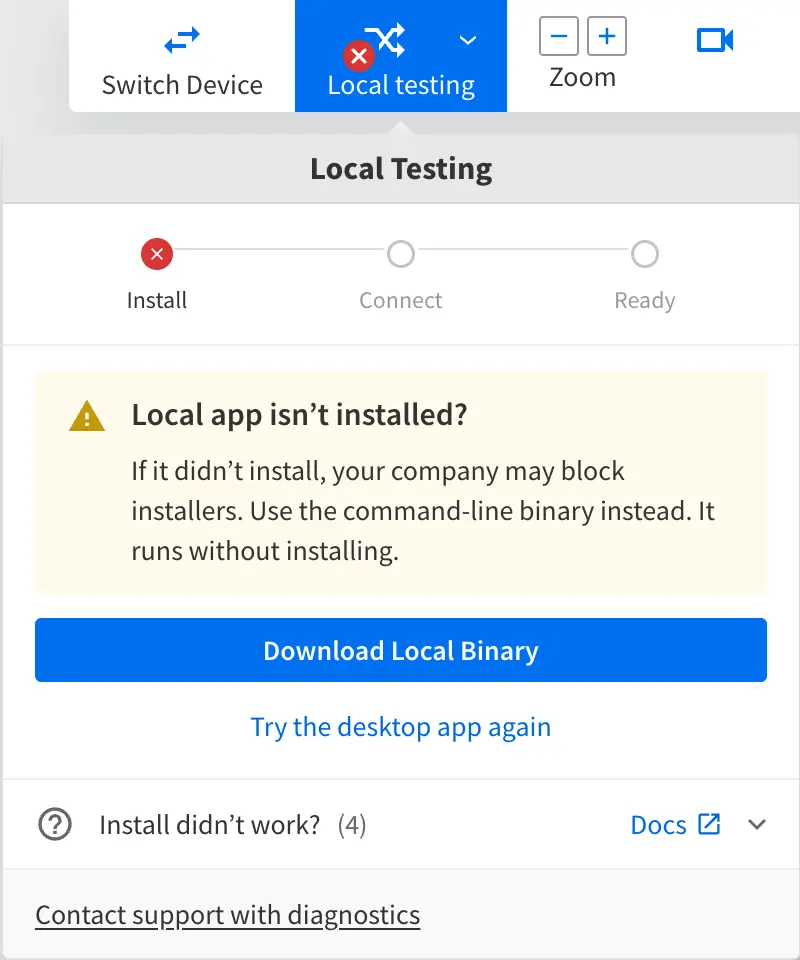
The following are known installation issues and their resolutions:
A security warning blocks the installation
This issue applies to Windows only.
After you double-click the BrowserStack Local app installer, you might see the following security warning:

Cause: The ClickOnce trust prompt behavior on Windows controls whether ClickOnce apps downloaded from a website, such as the BrowserStack Local app, can be installed.
Resolution: To allow the installation, update the Windows registry by following these steps:
Click the Start menu, type Run, and press Enter.
Type regedit and press Enter to open the Registry Editor.
In the left navigation pane, find the \HKEY_LOCAL_MACHINE\SOFTWARE\MICROSOFT\.NETFramework\Security\TrustManager\PromptingLevel registry key. If the key doesn’t exist, create it.
Add the following String Value sub-keys to the key:
-
MyComputer:Enabled -
LocalIntranet:Enabled -
TrustedSites:Enabled -
Internet:Enabled -
UntrustedSites:Disabled
If you can’t edit the registry, contact the IT administrator of your organization, or run the Local binary instead.
App files can't be downloaded during installation
This issue applies to Windows only.
During installation, you might see an error that indicates some app files couldn’t be downloaded:

Cause: Your network restricts apps from downloading files from the internet, or blocks the URLs that the installer uses.
Resolution: Use the Local binary for your OS, which doesn’t need installation. To allow the app installation instead, contact the IT administrator of your organization.
Another BrowserStack Local instance is running
Cause: Another BrowserStack Local instance is running on the same machine. This can be an older version of the app, an instance started by a different user profile, or another process that uses the ports BrowserStack Local needs.
Resolution: Find and stop the conflicting process. For steps on each OS, see Local app troubleshooting guide.
The browser blocks App Live from reaching BrowserStack Local
The App Live page in your browser communicates with BrowserStack Local on your machine. Chrome and Edge ask for permission before a website can reach apps on your device. If you deny or dismiss this permission, BrowserStack Local shows Connected, but the Local Testing menu in your session shows Can’t reach the Local app.
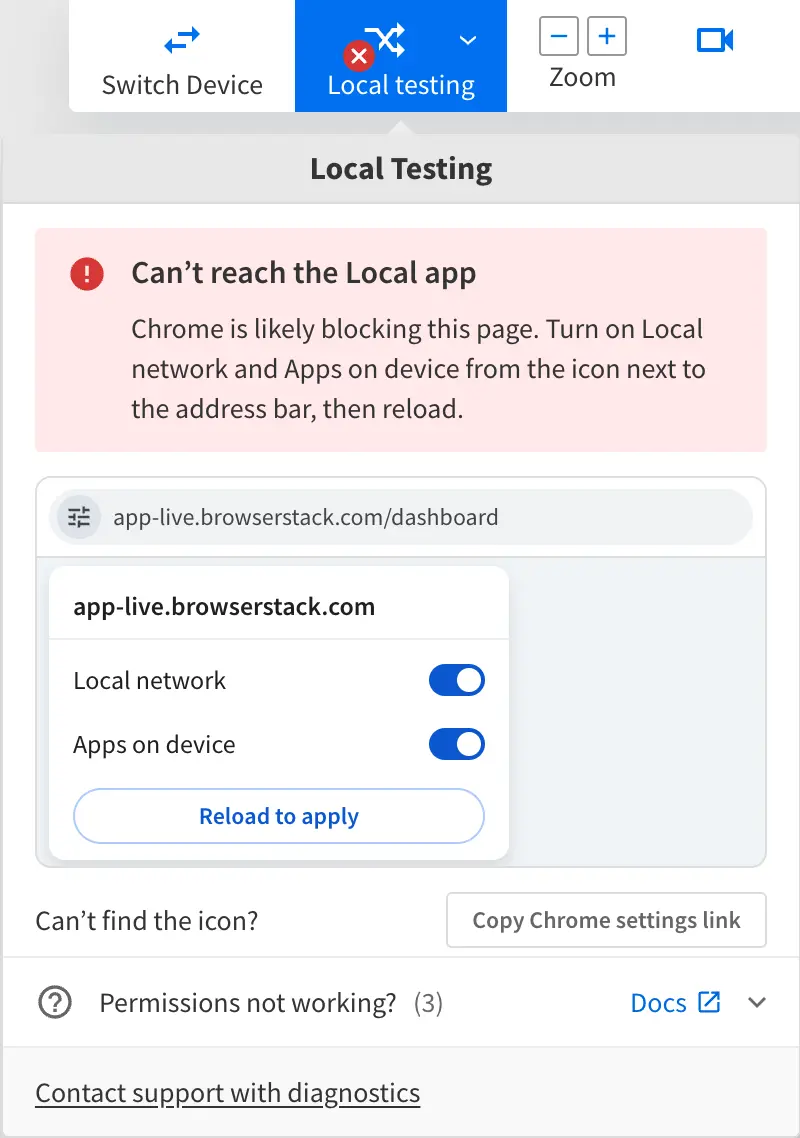
To allow App Live to reach BrowserStack Local, follow these steps:
In the address bar of the App Live tab, click the padlock or Tune icon.
Turn on Local network and Apps on device. App Live needs both permissions to reach BrowserStack Local.
Reload the App Live tab.
If the Local network or Apps on device option isn’t listed, update your browser to the latest version and reload the App Live tab.
BrowserStack Local can’t connect through your corporate proxy or network
If the BrowserStack Local app is running but shows the Disconnected status, or the Local binary shows a connection error in the command line, your network is likely blocking the connection between BrowserStack Local and BrowserStack. If you haven’t clicked Connect in the app menu yet, do that first. For steps, see BrowserStack Local is downloaded but isn’t installed or running. If the app still doesn’t connect, the Local Testing menu in your session shows The tunnel isn’t connecting.
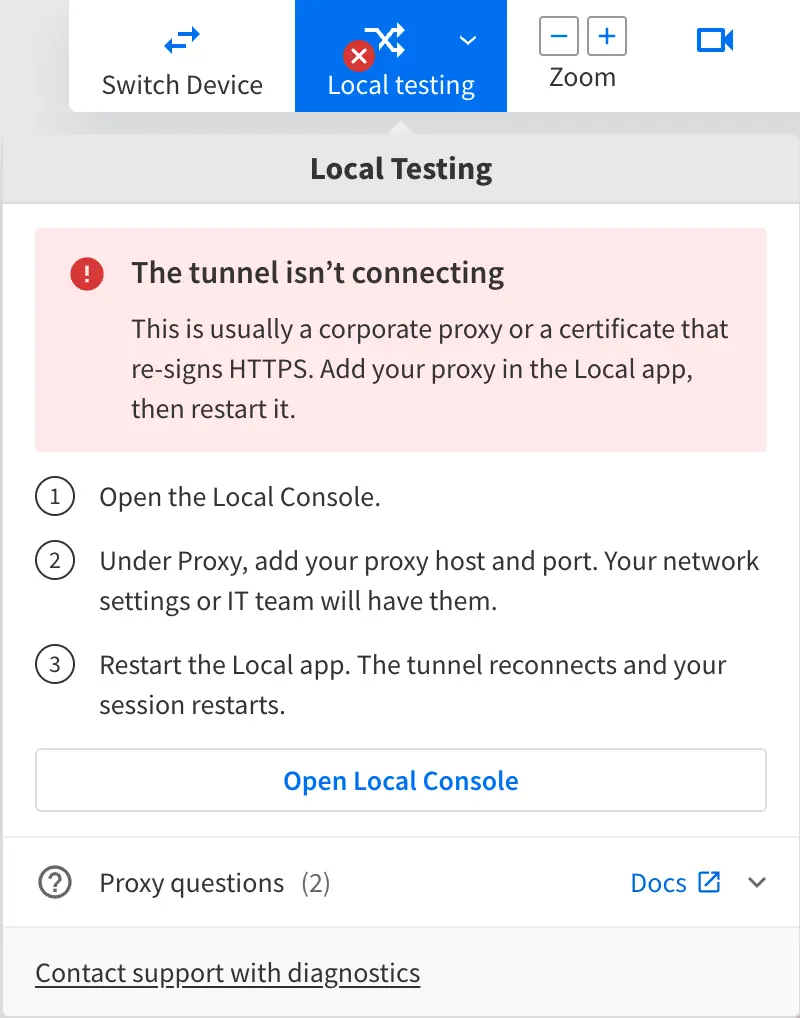
The following are the common causes and their resolutions:
A proxy server is used to access the internet
Cause: Your machine reaches the internet through a proxy server that’s configured at the OS or browser level. BrowserStack Local needs the proxy details to connect. If you’re not sure whether your network uses a proxy, see Proxy settings for Local Testing.
Resolution: Get the proxy host and port from your network or IT team. If the proxy requires authentication, also get the username and password. Then, configure the proxy in BrowserStack Local:
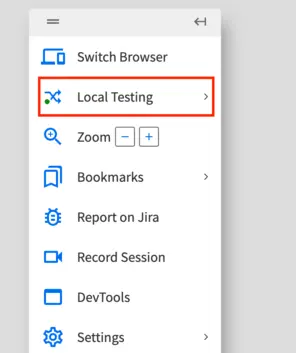
In your App Live session, check the Local Testing option on the App Live toolbar. If the green indicator doesn’t appear beside it, BrowserStack Local isn’t connected to your session.
In the Local Testing menu, click Open Local Console. The Local Console opens in a new tab. You can also click the BrowserStack Local icon in the Windows system tray or the macOS menu bar, and then click Options. If Options isn’t listed, open http://localhost:45454 in your browser.
If the Local Console asks for your access key, enter it and click Connect. To find your access key, click Click Here beside Don’t have your key?, or see Get your access key. If your network uses a proxy, the Local Console shows a proxy connection error.

For the Is your network restricted by an enterprise firewall or proxy? question, click Yes, I have a proxy.

On the Settings prompt, enter the proxy details and click Connect.

Restart the BrowserStack Local app. The tunnel reconnects, and your App Live session restarts.
BrowserStack Local shows the Connected status.
The network blocks WebSocket traffic
Cause: BrowserStack Local connects to BrowserStack servers through a WebSocket connection. If your network restricts this traffic, the connection fails. To learn how BrowserStack Local connects, see Network requirements and internal architecture.
Resolution:
Ask the IT team of your organization to allow all traffic to the *.browserstack.com wildcard domain, or to allow WSS traffic on ports 80 and 443.
A firewall or VPN blocks the connection
Cause: A firewall or VPN on your network blocks the connection between BrowserStack Local and BrowserStack.
Resolution: Configure your network to allow connections to BrowserStack. For steps, see Test behind a firewall or VPN.
After you resolve the connection issue, BrowserStack Local shows the Connected status. Open the App Live dashboard and start a session. The green indicator beside Local Testing on the App Live toolbar confirms that Local Testing is enabled.
An IP location turns off Local Testing
You can’t use IP Geolocation and Local Testing in the same session. If you set an IP location with Change Location during a session, Local Testing turns off and the Local Testing menu shows IP location is blocking Local Testing.
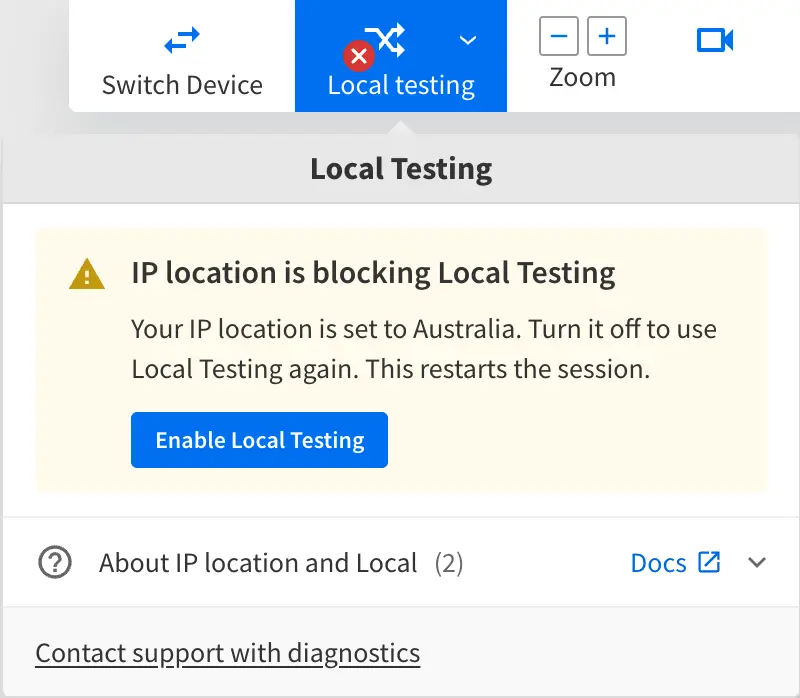
To use Local Testing again, click Enable Local Testing in the menu. This turns off the IP location and restarts your session.
Next steps
- If your app still can’t reach your internal servers, see Troubleshoot Local Testing traffic issues.
- To return to all checkpoints, see Troubleshoot Local Testing in App Live.
We're sorry to hear that. Please share your feedback so we can do better
Contact our Support team for immediate help while we work on improving our docs.
We're continuously improving our docs. We'd love to know what you liked
We're sorry to hear that. Please share your feedback so we can do better
Contact our Support team for immediate help while we work on improving our docs.
We're continuously improving our docs. We'd love to know what you liked
Thank you for your valuable feedback!