
 Join our Discord
Integrate your Puppeteer test suite with BrowserStack Automate
A guide to running your existing Puppeteer tests on BrowserStack using the BrowserStack Node SDK.
The BrowserStack Node SDK provides plug-and-play integration. Run your entire Puppeteer test suite in parallel across 100+ browsers with no changes to your test code.
Prerequisites
- An existing Puppeteer test suite using Jest as the test runner.
- Node.js 14 or later and npm installed.
- A BrowserStack account with your username and access key. Find these in your account settings.
Integration steps
Your username and access key are available in your account settings. If you don’t have an account yet, sign up for a free trial.
Set your BrowserStack credentials as environment variables:
export BROWSERSTACK_USERNAME="YOUR_USERNAME"
export BROWSERSTACK_ACCESS_KEY="YOUR_ACCESS_KEY"
Install the BrowserStack Node SDK as a development dependency and run the setup command to generate the browserstack.yml config file:
npm install -D browserstack-node-sdk
npx setup --username "YOUR_USERNAME" --key "YOUR_ACCESS_KEY"
Update your BrowserStack config file
When you install the SDK, a browserstack.yml file is created at the root of your project. Update it with the following settings:
Specify platforms to test on
Set the browsers and OS you want to test on under the platforms key. Select from 100+ browser and OS combinations from the list of supported browsers and OS:
Increase parallelsPerPlatform to run more tests per platform at the same time.
 Configure AI agents
Enable the following AI agents by adding the respective configurations to browserstack.yml:
Enable BrowserStack Local
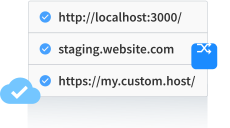
Test localhost/internal servers in your network
BrowserStack’s Local Testing feature connects with test suites pointing to your localhost URL
BrowserStack Reporting
Set a build name and project name to organize your test runs on the Automate dashboard:
Set a name to your build (usually the same as the build ID that’s on your CI/CD platform). Accepted characters: A-Z, a-z, 0-9, ., :, -, [], /, @, &, ', _. All other characters are ignored.
Character limit: 255

Set a project name for your project.
Keep projectName and buildName static across runs of the same build. Test Reporting and Analytics uses these values to group build runs automatically. Restrict characters to alphanumeric, underscores (_), colons (:), square brackets ([, ]), and hyphens (-). Any other character is replaced with an underscore.
Use additional debugging features
By default, BrowserStack provides prettified session logs and video recordings of failed tests. Enable the following features as needed:


Update browserstack.yml file with selected capabilities
Copy the following configuration and replace the contents of browserstack.yml at the root of your project:
Run your test suite using the BrowserStack Node SDK. Prefix your existing Jest command with npx browserstack-node-sdk:
npx browserstack-node-sdk jest
After the run completes, view your results on the BrowserStack Automate dashboard.
Next steps
- View your test results on the Automate dashboard
- Run cross-browser Puppeteer tests in parallel
- Test locally hosted websites
- Organize tests with build and project names
We're sorry to hear that. Please share your feedback so we can do better
Contact our Support team for immediate help while we work on improving our docs.
We're continuously improving our docs. We'd love to know what you liked
We're sorry to hear that. Please share your feedback so we can do better
Contact our Support team for immediate help while we work on improving our docs.
We're continuously improving our docs. We'd love to know what you liked
Thank you for your valuable feedback!