
 Join our Discord
BrowserStack AI agents with the MCP server
Use natural language prompts in your AI assistant to run BrowserStack AI agents for failure analysis and test case generation with the BrowserStack MCP server.
Use the BrowserStack MCP server to access AI-powered testing tools directly from your AI assistant, such as GitHub Copilot, Claude, or Cursor. BrowserStack AI agents are automation tools that support your testing workflows through failure analysis, test case generation, self-healing, and visual testing automation.
To set up the server, see get started with the BrowserStack MCP server.
To use AI agents, you need to activate your AI preferences in your BrowserStack account. For more information, see the activate BrowserStack AI documentation.
Enhance testing workflows with AI agents
Use the following AI agents to automate and optimize your testing processes through natural language prompts in your AI assistant:
Test failure analysis agent
Automatically analyze test failures and provide detailed insights to help you quickly identify and resolve issues. It works for Automate, App Automate, and Test Reporting and Analytics. This agent was previously called the RCA agent.
Example prompt: Fetch the root cause analysis for Automate session ID session_9482 and suggest fixes using MCP
Self-healing agent
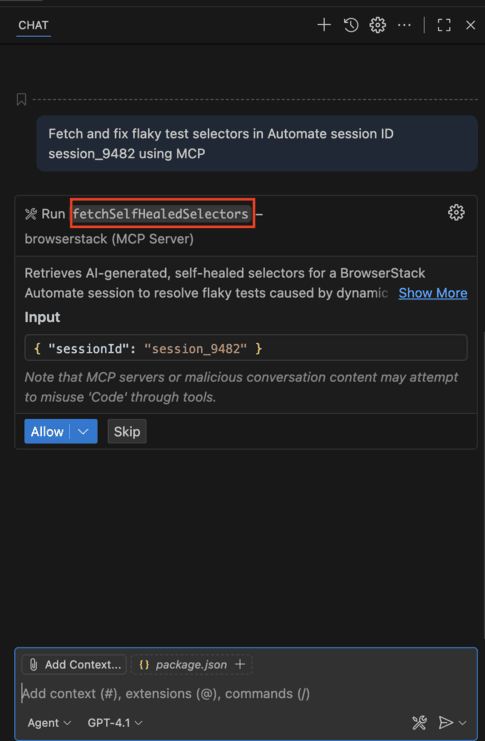
Automatically fix flaky tests by retrieving AI-generated selectors that adapt to dynamic DOM changes. Available for both Automate and App Automate to maintain stable test automation scripts over time.
Example prompt: Fetch and fix flaky test selectors in Automate session ID session_9482 using MCP
Test case generator agent
Generate comprehensive test cases from product requirements documents (PRDs) or convert manual test cases into Low-Code Automation (LCA) steps for teams adopting low-code frameworks.
Example prompt: Convert the manual test case ‘Add to Cart’ in the ‘Shopping App’ project into LCA steps
Visual review agent
This agent shows a single summary of all visual changes between the latest Percy build and the previous one. It collates the per-snapshot AI summaries. Use it after a Percy scan to quickly see what changed.
Example prompt: Fetch visual change summary for the latest Percy build in shop-web.
Visual test integration agent
This agent provides full onboarding for new Percy users with complete setup and demo workflows.
Example prompt: Integrate Percy in project shop-web and show a two-build visual diff demo
Tool reference
Use these AI agent tools to automate testing processes, analyze failures, generate test cases, and implement self-healing test automation through natural language prompts.
| Example prompt | Description | Input parameters | Invoked tool |
|---|---|---|---|
| Fetch and fix flaky test selectors in Automate session ID session_9482 using MCP | Retrieves AI-generated, self-healed selectors for a BrowserStack Automate session to resolve flaky tests caused by dynamic DOM changes. This helps maintain stable test automation scripts over time. | • Session ID (required) • Product type (optional) |
fetchSelfHealedSelectors |
| Convert the manual test case ‘Add to Cart’ in the ‘Shopping App’ project into LCA steps | Creates Low-Code Automation (LCA) steps from a manual test case in Test Management. Useful for teams adopting low-code frameworks. | • Test case name (required) • Project name (required) • Test case ID (optional) |
createLCASteps |
| Upload PRD from /Users/username/Desktop/login-flow.pdf and use BrowserStack AI to generate test cases | Uploads a product requirements document (PRD) or any relevant file, such as a PDF or a screenshot, and returns a file mapping ID. The MCP server then calls createTestCasesFromFile, which uses this file mapping ID to create test cases. Both these tools work in sync. |
• File path (required) • File type (optional) • Project context (optional) |
uploadProductRequirementFile |
| “Integrate Percy for this project using percyVisualTestIntegrationAgent” “Integrate Percy in project shop-web and show a two-build visual diff demo” |
Full onboarding for new Percy users. Detects tech stack, installs SDK and dependencies, adds snapshots, runs Build 1, simulates a safe UI change, runs Build 2, shows diffs, then reverts the demo changes. Works on a separate branch. Offers to expand coverage after. | • Project name (optional) • Project path (optional) • Branch name (optional) • Tech stack (auto-detected) |
percyVisualTestIntegrationAgent |
| Fetch visual change summary for the latest Percy build in shop-web. | Shows a summary of all visual changes between the latest Percy build and the previous one. Returns: AI-generated summary of changes, per-snapshot diffs. |
• projectName (required): Project name | fetchPercyChanges |
The following example shows GitHub Copilot in VS Code calling the fetchSelfHealedSelectors tool:
Related topics
For more help, see the following pages:
We're sorry to hear that. Please share your feedback so we can do better
Contact our Support team for immediate help while we work on improving our docs.
We're continuously improving our docs. We'd love to know what you liked
We're sorry to hear that. Please share your feedback so we can do better
Contact our Support team for immediate help while we work on improving our docs.
We're continuously improving our docs. We'd love to know what you liked
Thank you for your valuable feedback!