
 Join our Discord
Ramping throughput
Raise and lower the target request rate in stages and let BrowserStack scale virtual users to follow it.
The Ramping throughput load profile moves the request rate through stages. For example, ramp up to your peak, hold it, then ramp down. Use it to find the rate where your system starts to slow down, or to model traffic that builds up and falls off.
To hold one rate for the whole test, use Constant throughput. To control how many script iterations start instead of how many requests are sent, use Ramping iterations.
Ramping throughput is available only for API load tests and for the API side of Hybrid load tests that use k6.
Depending on your preferred method, select any one of the following to set a ramping throughput:
Configure Ramping throughput
To set a ramping target rate in the UI Builder, follow these steps:
- Select Ramping throughput from the Load Profile dropdown. BrowserStack fills in three stages for you: Ramp-up, Hold, and Ramp-down.
- Configure the following fields:
- Max VUs: Set the maximum number of VUs the engine can allocate to follow the stages. For more information, see Max VUs.
-
Stages: Add or remove stages as needed. For each stage, select a Type, enter a Duration, and enter a Target RPS. Each type changes the rate as follows:
- Ramp-up: The rate rises from the previous stage’s target to the Target RPS over the stage duration.
- Hold: The rate stays steady. After the first stage, a Hold keeps the previous stage’s target, so Target RPS is filled in for you. In the first row, enter the rate to start at.
- Ramp-down: The rate falls from the previous stage’s target to the Target RPS over the stage duration.
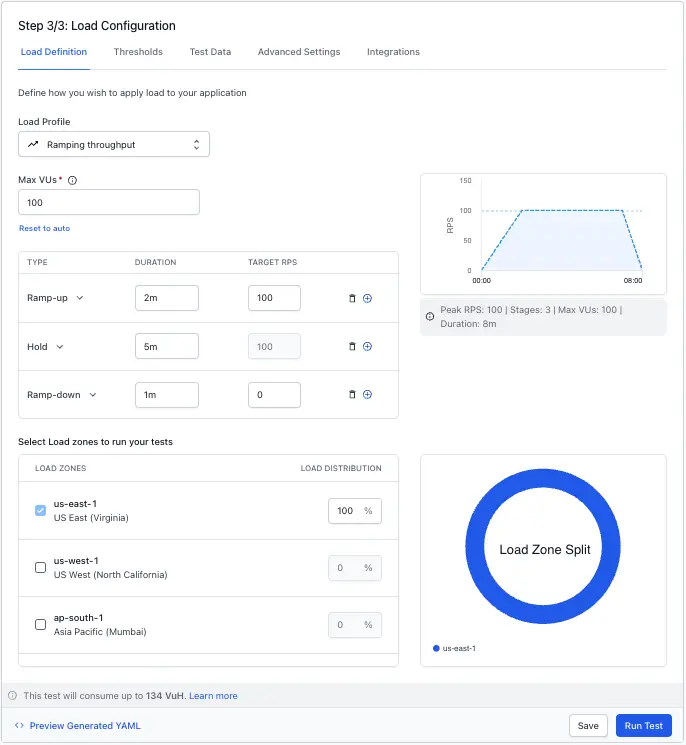
- Select your load zones, then click Save or Run Test.
How the stages run
The test starts at 0 requests per second, unless the first stage is a Hold, in which case it starts at that stage’s target rate. Each stage moves the rate from the previous stage’s target to its own target over its duration. The total duration of the test is the sum of the stage durations.
For example, consider the following three stages:
- Ramp up to 100 over 2 minutes.
- Hold at 100 for 5 minutes.
- Ramp down to 0 over 1 minute.
The rate climbs to 100 requests per second, holds for 5 minutes, then falls back to 0, for a total test duration of 8 minutes.
Max VUs
Max VUs is the highest number of virtual users (VUs) BrowserStack can run at once to follow your stages. Each VU starts a new request only when its previous one has finished, so the slower your system responds, the more VUs you need. For example, if each request takes 4 seconds, you need about 400 VUs to send 100 requests per second. If the engine reaches the Max VUs ceiling, the achieved rate falls below the target.
Max VUs must be at least the number of load zones you select. BrowserStack splits the rate and Max VUs evenly across load zones.
BrowserStack fills in Max VUs for you based on the highest stage target rate. If you enter your own value, a Reset to auto link appears below the field. Select it to go back to the suggested value. You can set a value below the suggestion. The test still runs but might not reach the target.
Expected rate in the report
The HTTP Performance Timeline in your API test results draws Request Rate (Expected) following your stages, next to Request Rate (Actual).
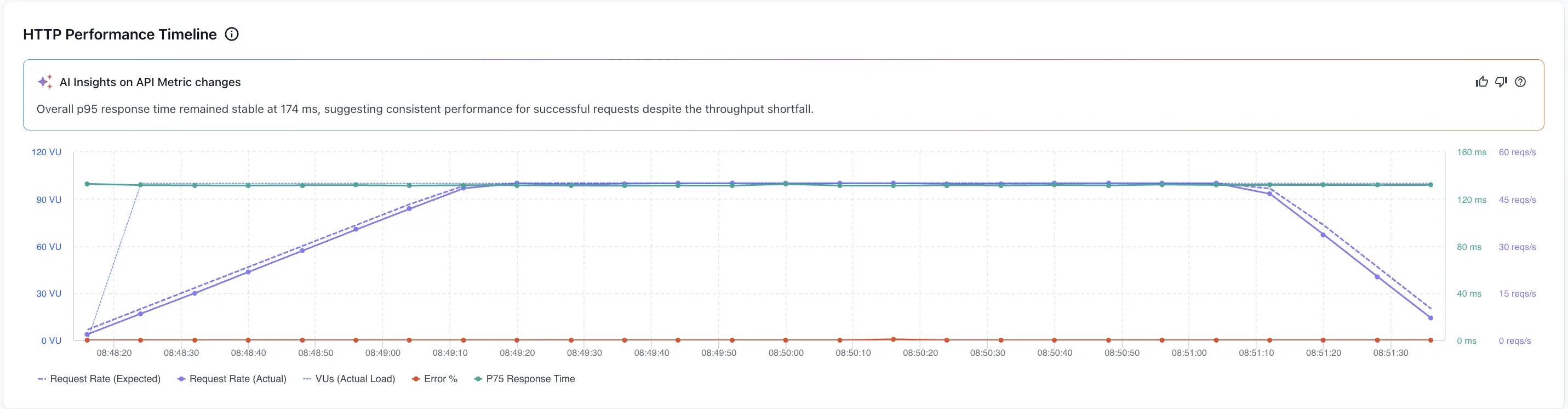
When a stage delivers much less than its target, a warning above the chart names the stage and the share of its target it reached. For example, Stage 3 (hold at 100 RPS) delivered 9% of its target rate. If you see this warning, raise Max VUs or check whether your system under test is keeping up.
Limits
The Ramping throughput load profile has the following limits:
- 1 to 30 stages, each at least 1 second long.
- A total duration between 10 seconds and 8 hours.
- Target rates that are whole numbers of 0 or more, with at least one above 0.
Switch from another throughput load profile
If you switch to Ramping throughput in the UI Builder, BrowserStack carries your settings over as follows:
- From Constant throughput, it fills in three stages at your current rate: Ramp-up, Hold, and Ramp-down.
- From Ramping iterations, it keeps your stages and changes only the unit.
Validation errors
BrowserStack doesn’t save a test that breaks one of the following rules. The message appears next to the field in the UI Builder or in the CLI output:
| Rule | Message |
|---|---|
| Total duration is at least 10 seconds | Throughput duration ‘5s’ is less than minimum (10s). |
| Total duration is at most 8 hours | Throughput duration ‘30000s’ exceeds the maximum (28800s). |
| Max VUs is at least the number of load zones | Max Virtual Users (1) must be at least the number of selected load zones (2). |
| At most 30 stages | ‘stages’ exceeds maximum allowed stages (30) in throughput load profile. Provided: 31 |
| Each stage is at least 1 second | Throughput stage 0 duration ‘0s’ is less than minimum (1s). |
| Target rates are whole numbers of 0 or more | Invalid ‘targetRps’ in throughput stage 1. Expected non-negative integer. Got: 1.5 |
| At least one rate is above 0 | Throughput load profile must have ‘startRps’ or at least one stage ‘targetRps’ greater than 0. |
| Stages aren’t combined with a flat duration | Throughput load profile accepts either ‘stages’ or ‘duration’, not both. The total duration is the sum of the stage durations. |
FAQs
Why is the achieved rate below the target?
Usually Max VUs is too low for how long each request takes. Raise it. For more information, see Max VUs. If Max VUs is already high, your system under test might be slowing down.
Do I need to change my script?
No. BrowserStack applies the rate for you. Any sleeps in your script still count toward how long one iteration takes.
Can I use stages with JMeter, Gatling, or Locust?
No. JMeter, Gatling, and Locust support Constant throughput only.
Related topics
We're sorry to hear that. Please share your feedback so we can do better
Contact our Support team for immediate help while we work on improving our docs.
We're continuously improving our docs. We'd love to know what you liked
We're sorry to hear that. Please share your feedback so we can do better
Contact our Support team for immediate help while we work on improving our docs.
We're continuously improving our docs. We'd love to know what you liked
Thank you for your valuable feedback!