
 Join our Discord
How Local Testing works
Understand BrowserStack Local architecture, tunneling, routing, and teardown.
BrowserStack Local lets browsers and devices in the BrowserStack cloud reach websites and apps that are hosted on your private network, such as localhost, a staging server, or any host behind your corporate firewall. It works by opening a single outbound, encrypted tunnel from your machine to BrowserStack, so you never have to expose an internal server to the public internet.
This page explains what happens behind the scenes: the components involved, and the connection and teardown sequences for a Local Testing session. For the network rules your proxy and firewall need, and how the BrowserStack Local agent is built internally, see Network requirements and internal architecture.
Components involved
Four components interact during every Local Testing session:
| Component | Role |
|---|---|
| BrowserStack Local | The agent that runs on your machine as a command-line binary, desktop app, or language binding. It authenticates you, holds the tunnel open, and forwards requests to your local servers. |
| browserstack.com | The BrowserStack control plane. It authenticates requests, assigns repeaters and virtual machines, and coordinates connection setup and teardown. |
| Repeater | A relay inside BrowserStack’s cloud infrastructure. It links your BrowserStack Local agent to the remote browser and enforces an access control layer (ACL) that restricts which machines can use the tunnel. |
| Remote browser | The browser or device running on a BrowserStack virtual machine. It routes all of its web traffic through the repeater. |
Connection setup
Before any test runs, BrowserStack Local authenticates you and builds an encrypted tunnel to a repeater.
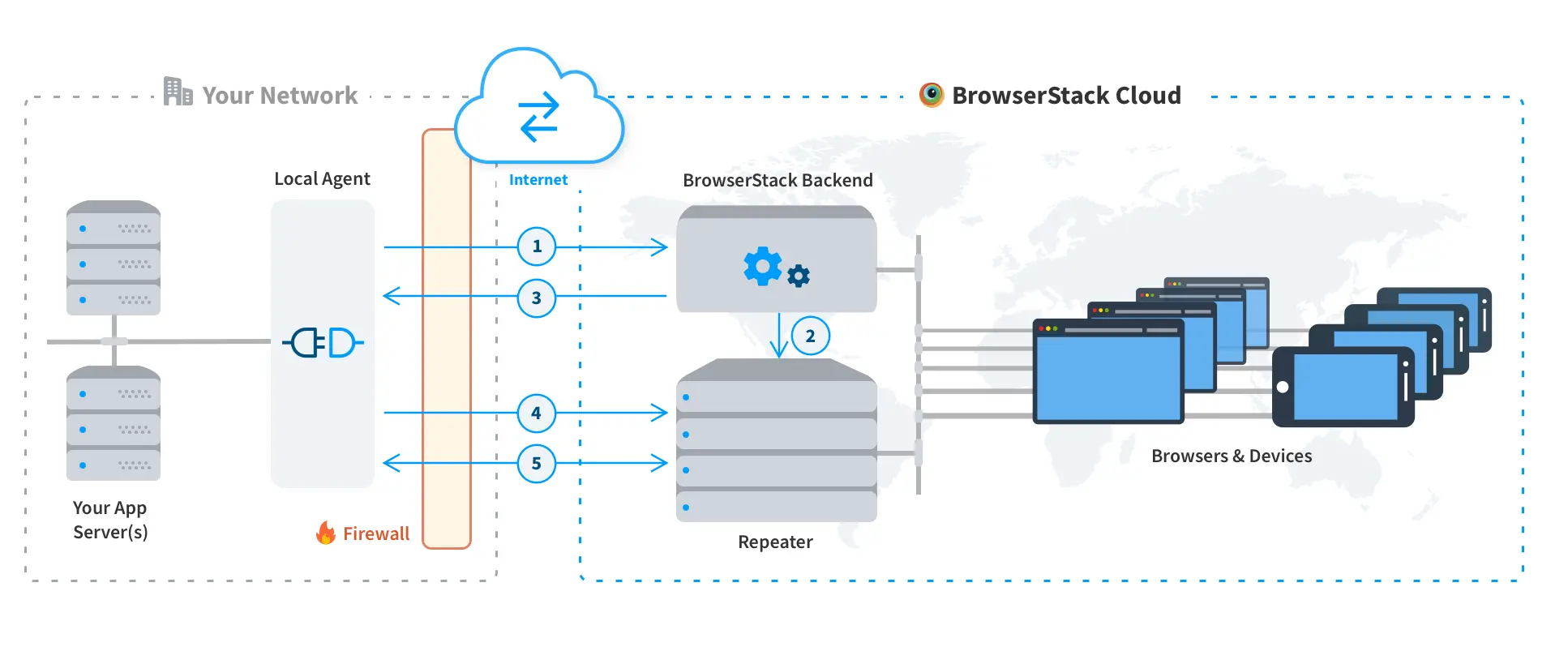
The BrowserStack Local agent on your machine initiates a call to the BrowserStack backend with your access key, and authentication takes place.
Upon successful authentication, the backend allocates a repeater instance to the Local agent. The repeater runs inside BrowserStack’s cloud infrastructure.
The backend replies to the Local agent with the information of the allocated repeater.
The Local agent contacts the repeater on port 443 using BrowserStack’s custom, SSL-encrypted protocol.
The connection is always outbound. A repeater can never initiate a connection to BrowserStack Local.
A secure and persistent connection is established between your machine and the repeater, and all further communication takes place over it. BrowserStack uses Secure WebSockets as part of its communication framework. If your enterprise firewall blocks the WebSocket protocol, BrowserStack Local falls back to a legacy protocol that is also SSL-encrypted but much slower. For the best results, allow outgoing WebSocket connections through your firewall.
The secure connection terminates at BrowserStack Local on your machine. Neither the repeater nor any other BrowserStack machine can access your local or internal servers directly. Only the servers you allow for the Local Testing connection are reachable.
Data flow during a session
Once the tunnel is up, requests from the remote browser travel to your local server and back over that same connection.
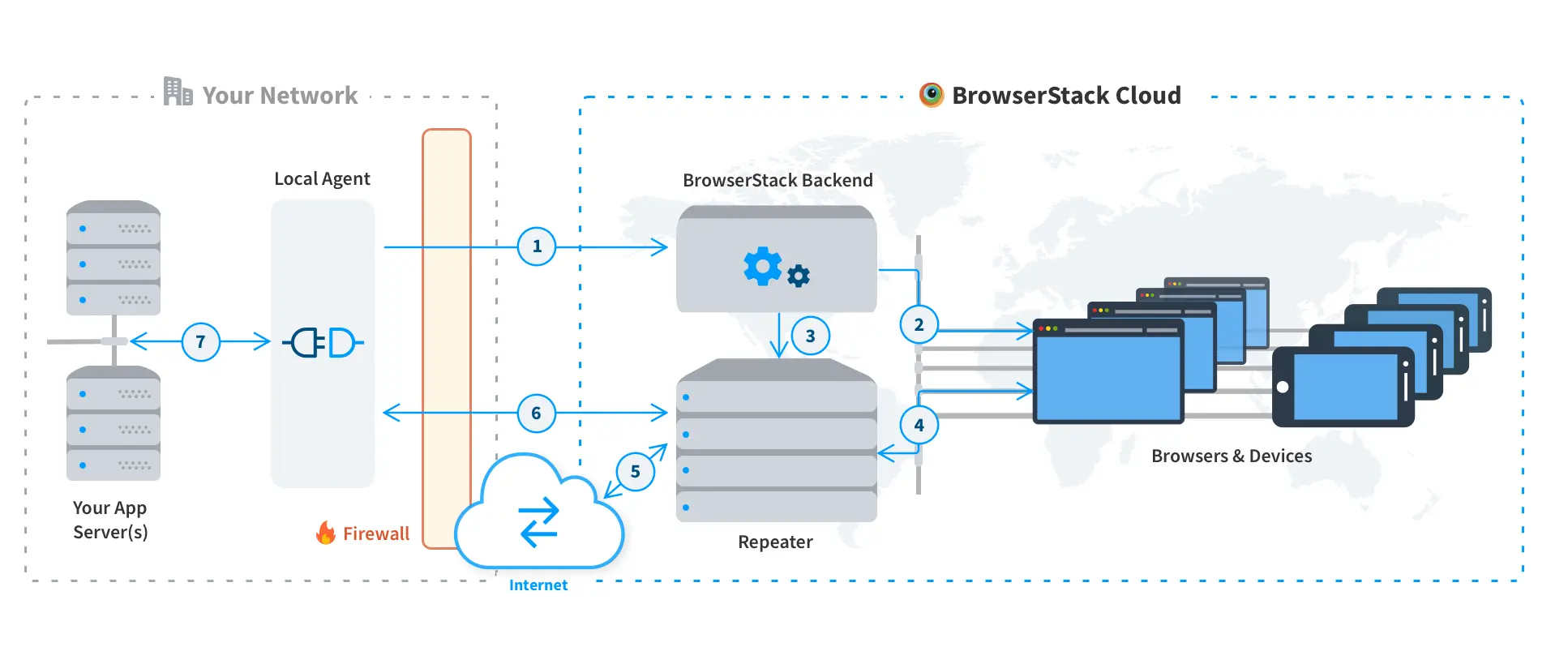
Your host machine makes a call to the BrowserStack backend, requesting to start a session.
The backend allocates an appropriate device as per the requested capabilities, and instructs the device to use the repeater as its proxy.
The backend informs the repeater about the device allocated to the session, and instructs it to allow that device to use it as a proxy.
The device starts making all its network calls via the repeater.
The repeater checks whether the request can be resolved over the public internet, or whether it needs access to your private network. You can disable this check and force everything through your network using the force-local modifier.
The repeater tries to resolve the request via the Local agent running in your network.
The Local agent, which is running in your network and can reach your application servers, passes on and resolves the request. Responses return over the same channel.
Teardown process
Teardown happens at two levels: ending a single remote browsing session, and closing the Local Testing connection itself.
Stop the remote browsing session

You send a request to browserstack.com to end the remote browsing session.
browserstack.com instructs the repeater to sever the secure connection to the virtual machine in the cloud.
The repeater severs the connection to and from the virtual machine.
browserstack.com takes the virtual machine offline and securely erases all of your information, including browser history, cookies, cache, form data, downloaded files, and saved passwords. The machine is restored to its original, pristine state, so it retains nothing from your session.
The repeater confirms to BrowserStack Local that the virtual machine has been disconnected.
BrowserStack Local closes any open connections it had established to your local servers, ending the Local Testing session.
The secure connection between BrowserStack Local and the repeater stays alive after a session ends, so it can be reused for your next test session on another browser or platform.
Stop the Local Testing connection
This applies to command-line binaries only.

You request a teardown of the Local Testing connection by pressing Ctrl + C in your command-line interface. BrowserStack Local immediately severs the secure connection with the repeater and deletes all information it held about that repeater. It cannot set up another connection unless you initiate it.
BrowserStack Local informs browserstack.com about the disconnect request.
browserstack.com makes sure the repeater closes the connection from its end as well and deletes any information about the concluded Local Testing session.
Next steps
- Network requirements and internal architecture for the proxy and firewall rules BrowserStack Local needs, and how the agent is built internally.
- Flags for Local to configure the agent for your network.
- Local App Troubleshooting Guide to resolve connection failures.
- IPsec site-to-site VPN setup guide if you prefer a network-level tunnel over a per-machine agent.
We're sorry to hear that. Please share your feedback so we can do better
Contact our Support team for immediate help while we work on improving our docs.
We're continuously improving our docs. We'd love to know what you liked
We're sorry to hear that. Please share your feedback so we can do better
Contact our Support team for immediate help while we work on improving our docs.
We're continuously improving our docs. We'd love to know what you liked
Thank you for your valuable feedback!