
 Join our Discord
Save values from tests to a test dataset
Learn how to save values that your tests generate, such as order IDs or transaction references, to a test dataset in Low Code Automation.
With a writable test dataset, your tests can save the values that they create in your application, such as order numbers, record IDs, or transaction references. The values persist after the run. You can save values from Extract Value steps, API responses in Call API steps, and custom JavaScript steps. Each saved value is added as a new row in the dataset. You can then view the values in Low Code Automation, download them, or use the dataset as input for another test.
For example, you can use a writable test dataset to:
- Collect the order IDs that many independent tests generate into a single list.
- Save a transaction reference in one test, and validate the outcome of that transaction in a separate test after an approval, a scheduled job, or an overnight sync completes.
This feature is designed to save a single value from a test, such as an order ID or a confirmation number. Each write operation adds a new row to the dataset.
Create a writable test dataset
Before a test can save values, create a test dataset that allows tests to write to it. Datasets created from a database are read-only and can’t receive values from a test. For more information, see Run database query.
You can also allow tests to write to a dataset that you upload as a CSV file, either when you name the dataset during the upload or later from Edit test dataset. For more information, see Upload a CSV file.
Expand Data configuration on the left pane and click Test dataset.
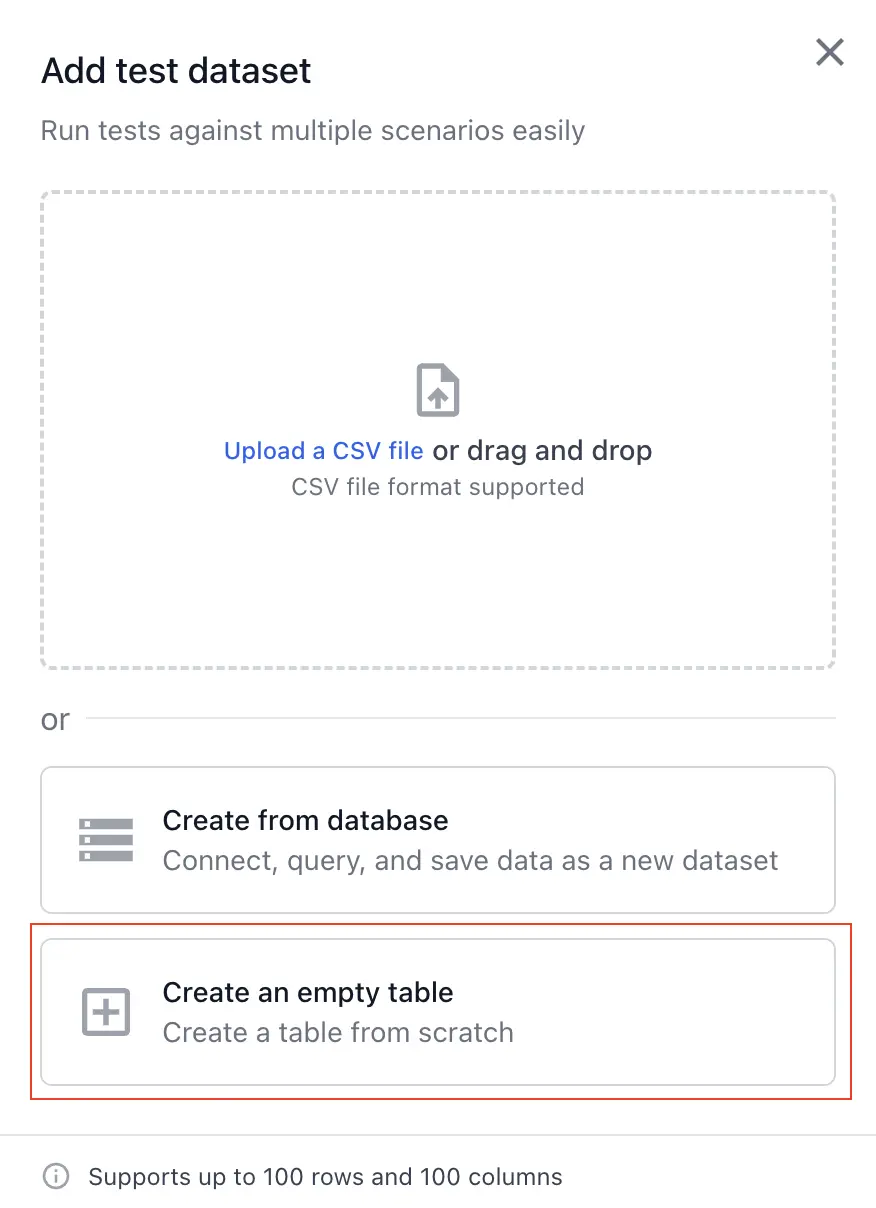
Click + Add Test Dataset and select Create an empty table.
In the Create an empty test dataset dialog, enter a Name and an optional Description for the dataset.
Ensure that the Allow tests to write to this dataset toggle is turned on.
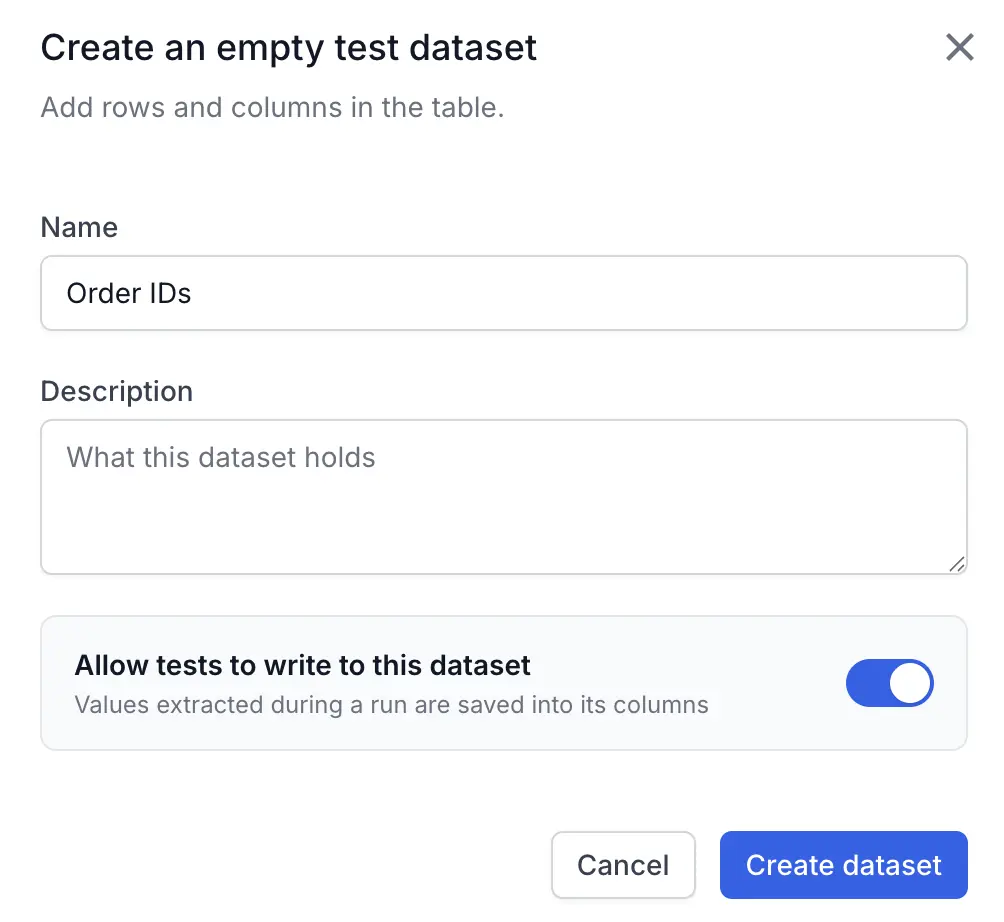
Click Create dataset.
The dataset is created with the Stores test data label and one empty column. Click Add Column to add more columns, and click a column header to rename it. Each value that a test saves goes into a column that you select when you configure the step.
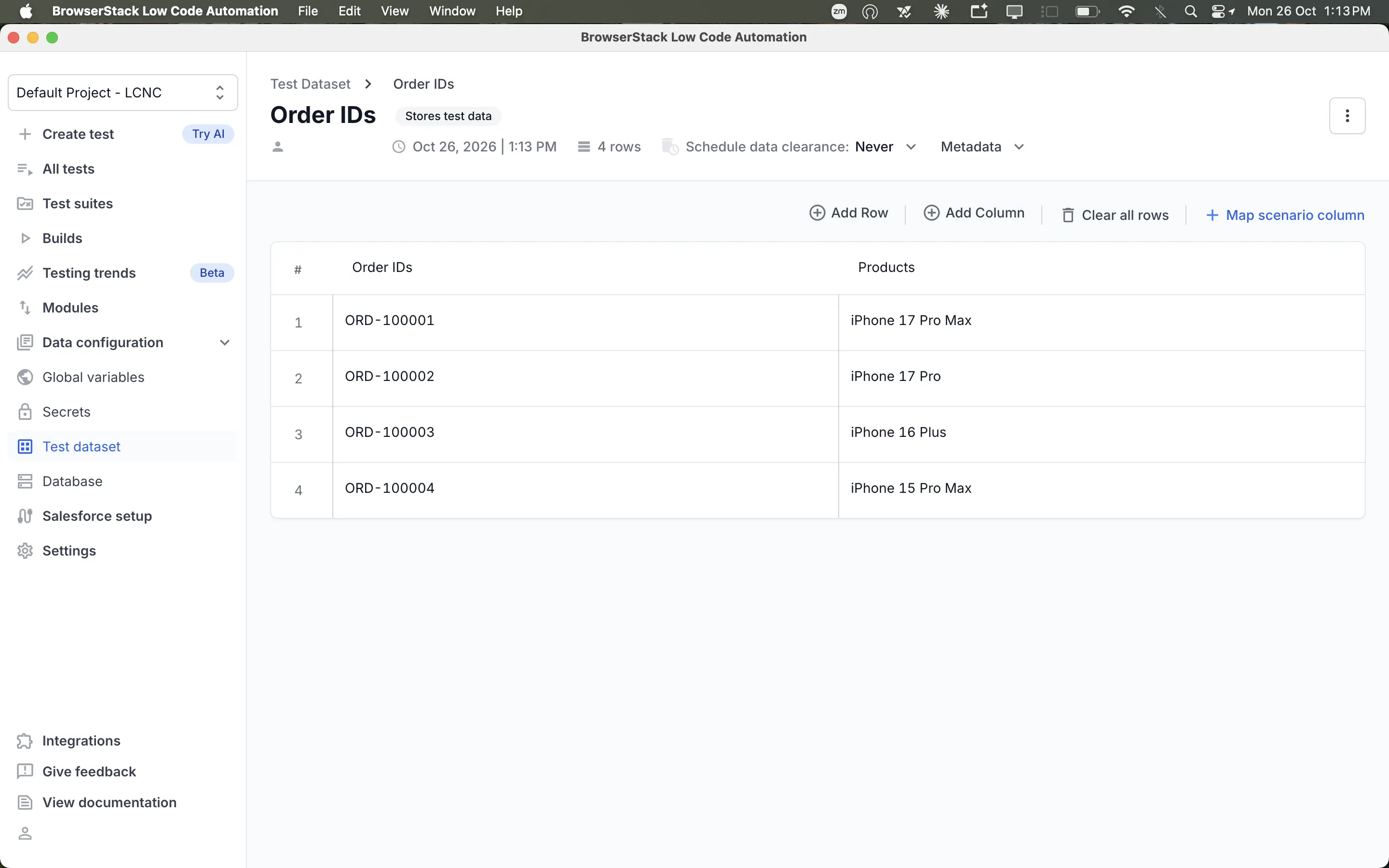
Schedule data clearance
A writable dataset keeps every row that your tests add until you clear it. To clear the dataset automatically, set a clearance schedule.
Open the dataset from Data configuration > Test dataset.
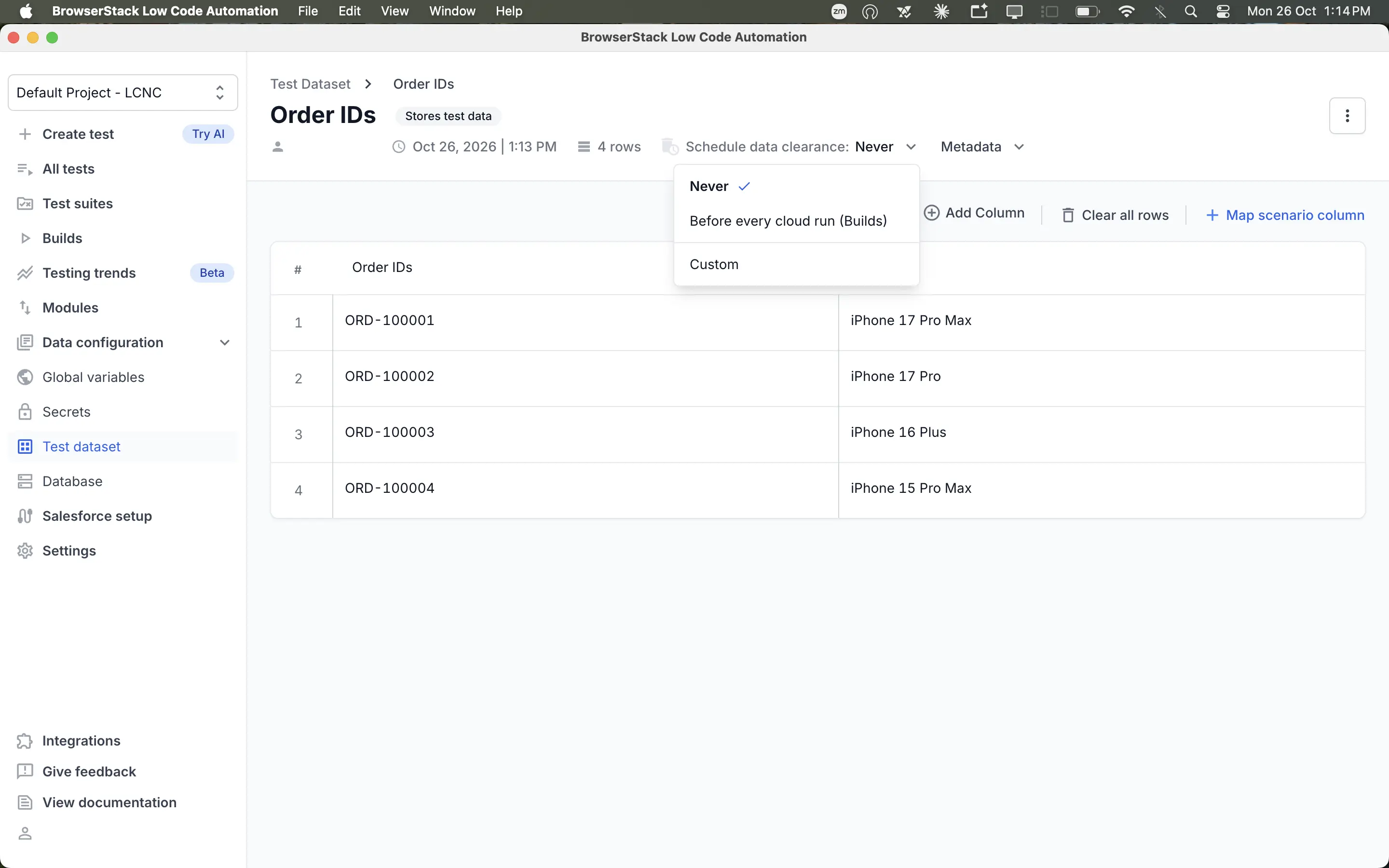
Click the Schedule data clearance drop-down menu and select one of the following options:
- Never: Rows accumulate across runs until you clear them manually. This is the default option.
- Before every cloud run (Builds): The dataset is cleared before each build that writes to it.
- Custom: The dataset is cleared on a schedule that you define.
If you select Custom, choose a Schedule type in the Schedule data clearance dialog:
- Specify exact time: Select the days and the time at which the dataset is cleared.
- Specify interval: Select the interval at which the dataset is cleared.
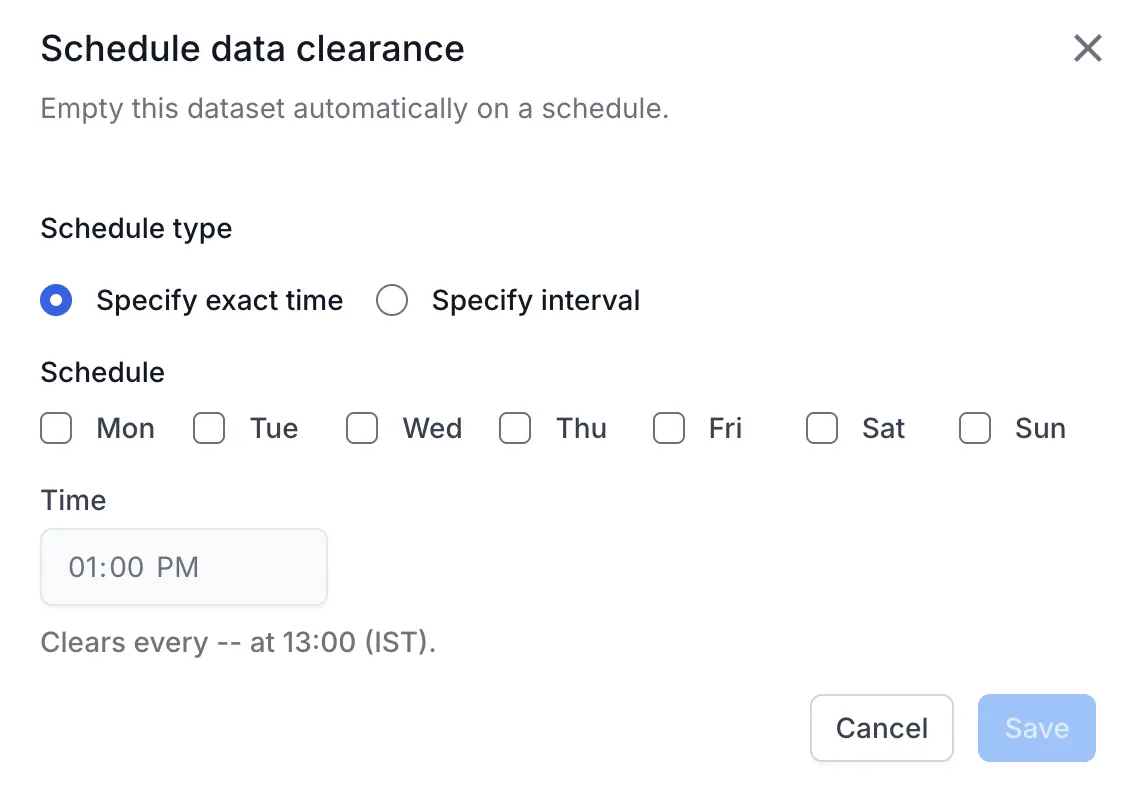
Click Save.
To clear the dataset manually at any time, click Clear all rows on the dataset page.
Save an extracted value to a test dataset
To save a value from an element on the page:
In the recorder, click the Ellipsis icon and select Extract Value.
Click the element that contains the value you want to save.
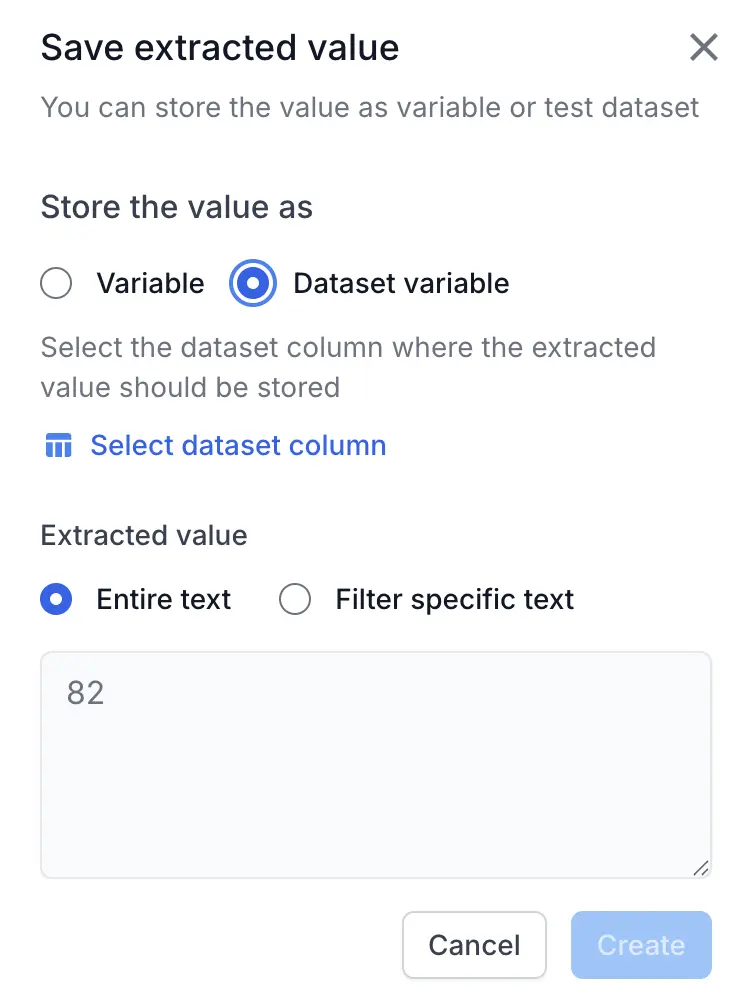
In the Save extracted value dialog, select Dataset variable under Store the value as, then click Select dataset column.
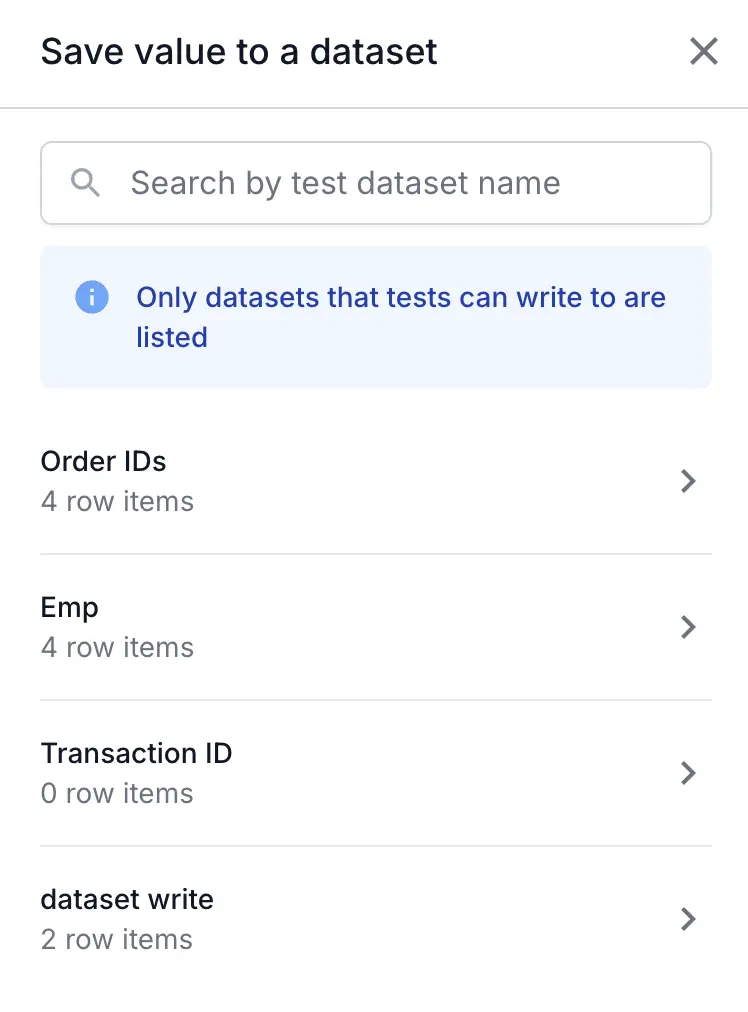
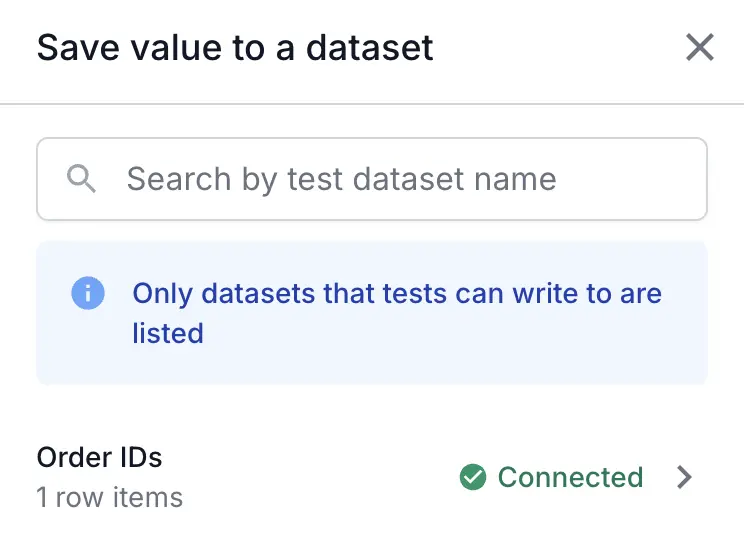
In the Save value to a dataset dialog, select the dataset you want to write to. Only datasets that tests can write to are listed.
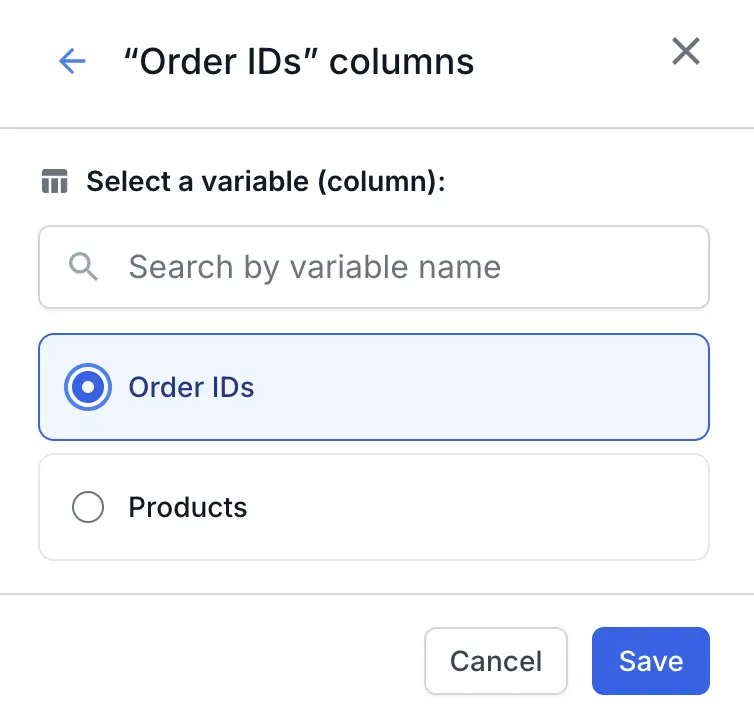
Select the column in which to store the value and click Save.
If a test dataset drives your test, you can also save a value from the driving dataset. In the Save value to a dataset dialog, turn on the Carry a value from connected dataset? toggle. The carried value is saved in a second column of the same row as the extracted value.
Under Extracted value, select Entire text to save the full content of the element, or Filter specific text to save only the text that matches a regular expression.
Click Create.
The step appears in the test as Extract value from “<element>” element into <column> dataset variable. For more information about extracting values, see Extract value from website dynamically.
A test can write to only one dataset, which is marked Connected. To write to a different dataset, remove the connected dataset from the steps that use it.
Save values from other steps
In addition to Extract Value steps, you can save values to a writable test dataset from the following steps:
- Call API step: Save a value from the API response, such as a record ID. For more information, see Add validations or extract values from API responses.
- Custom JavaScript step: Save a value that your script returns. For more information, see Configure custom actions using JavaScript.
Run the test locally
When you replay the test locally, the steps that save values pass, but no value is written to the dataset.
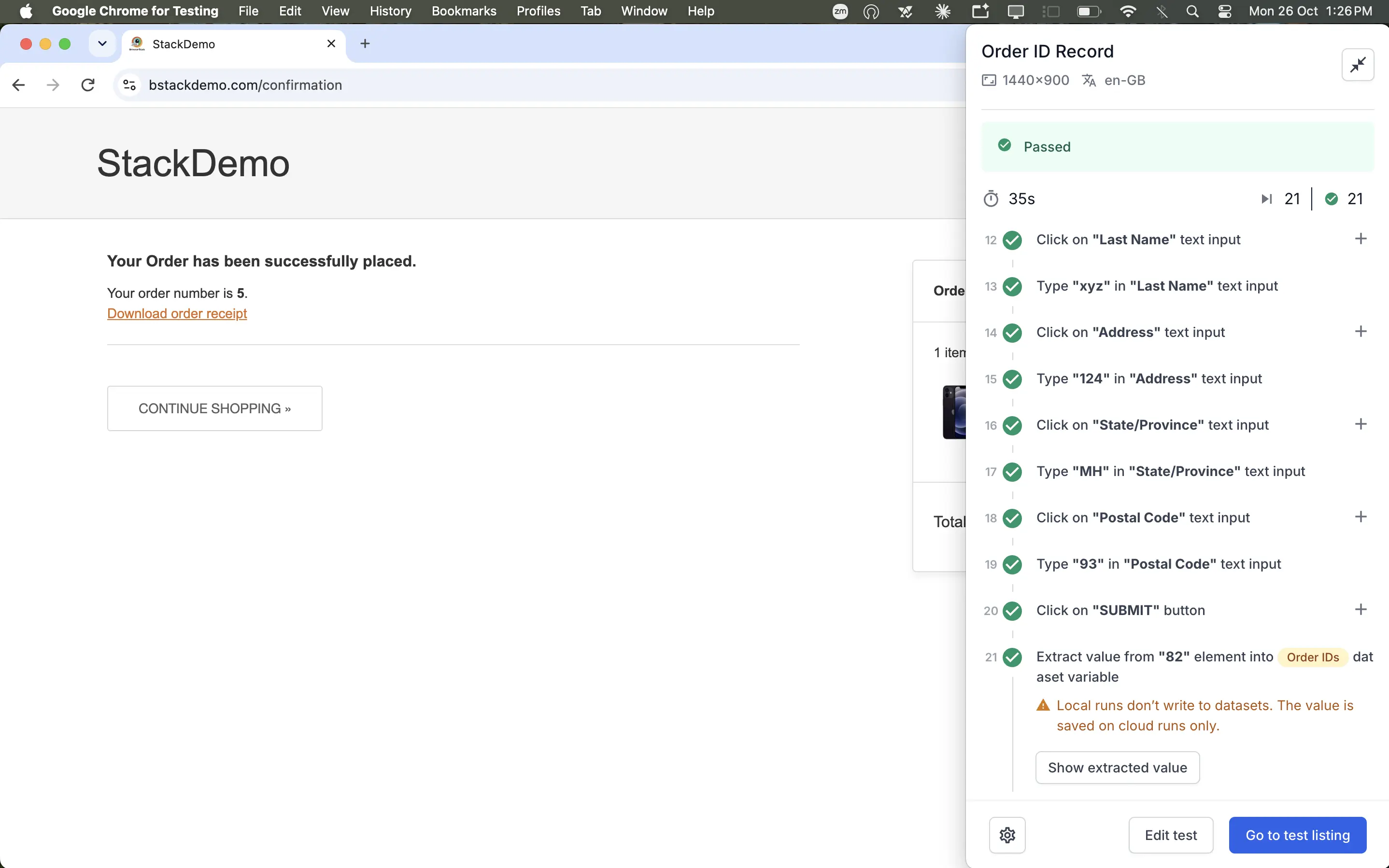
Local runs don’t write to test datasets. Values are saved only when the test runs on the cloud.
To save values to the dataset and view them:
- Run the test on the cloud. For more information, see Run tests on the cloud.
-
After the build completes, open the dataset from Data configuration > Test dataset. Each saved value appears as a new row after the last existing row. Existing rows are never updated.
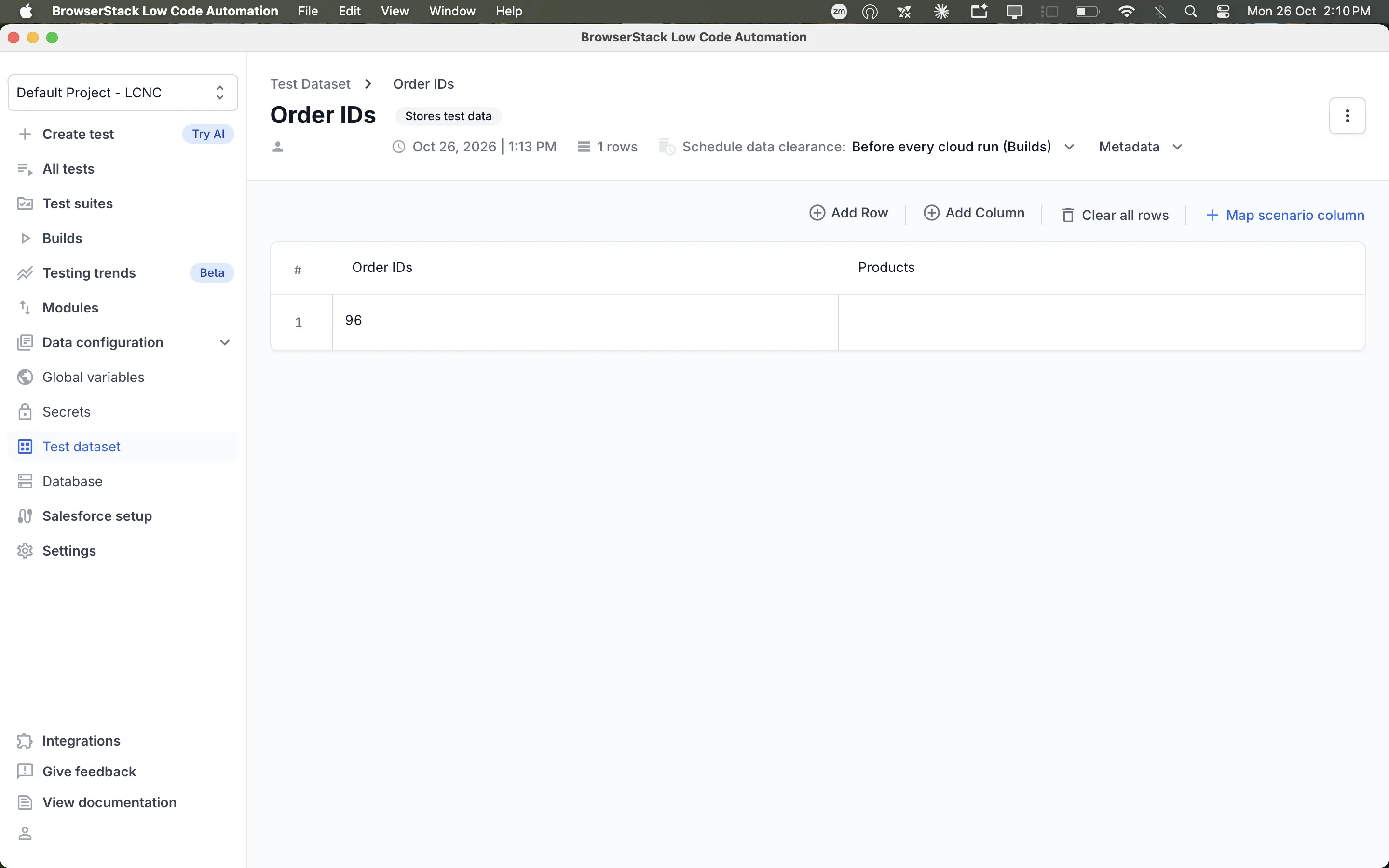
You can use the dataset as input for another test, the same way as any other test dataset. For more information, see Data driven testing.
To read the saved values from your own scripts or CI/CD pipelines, see Datasets API.
Points to remember
- By default, a writable test dataset holds up to 100 rows. To raise the limit, contact BrowserStack support. When the dataset is full, writes fail until you clear rows.
- A test dataset supports up to 100 columns.
- A saved value can have up to 1,000 characters. Saving a longer value fails.
- After a test writes to a dataset, you can’t change whether tests can write to it.
- In a test suite, tests that read the dataset must run in a later block than the tests that write to it. Otherwise, you can’t save the suite. For more information, see Customize test execution with blocks.
- A test can’t read from and write to the same dataset.
- Re-running a test adds new rows instead of updating existing rows.
We're sorry to hear that. Please share your feedback so we can do better
Contact our Support team for immediate help while we work on improving our docs.
We're continuously improving our docs. We'd love to know what you liked
We're sorry to hear that. Please share your feedback so we can do better
Contact our Support team for immediate help while we work on improving our docs.
We're continuously improving our docs. We'd love to know what you liked
Thank you for your valuable feedback!