
 Join our Discord
Canvas
Validate content rendered on an HTML canvas element in Low Code Automation using canvas region and canvas text validations.
An HTML <canvas> element, used by apps such as games and design tools, draws its content as pixels, so the elements inside it have no selectors. Low Code Automation works with canvas content by capturing the region you select during recording.
This page covers the following canvas capabilities:
To learn how the recorder captures actions such as click, hover, and drag and drop on a canvas, see Canvas elements.
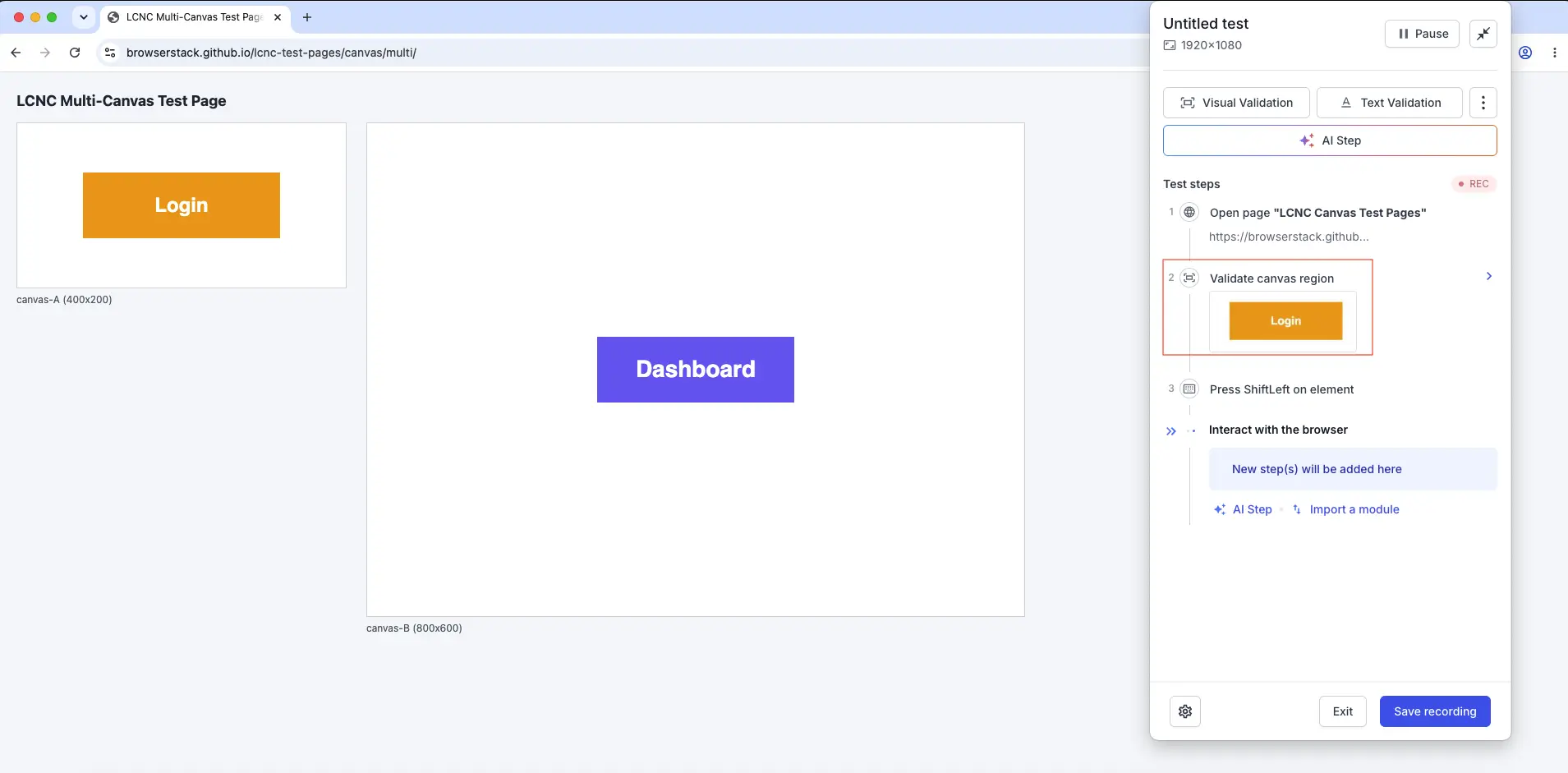
Validate a canvas region
You can validate a specific region of the canvas instead of a DOM element.
To validate a canvas region:
- While recording, click Visual Validation.
- On the canvas, drag to select the region you want to validate. Low Code Automation adds a Validate canvas region step with the selected region.
- Click Save recording.
The selected region is captured as the baseline and compared against the same region during execution, using the same Percy visual diff engine and difference threshold as element-based visual validation. For more information, see Difference threshold.
Validate canvas text
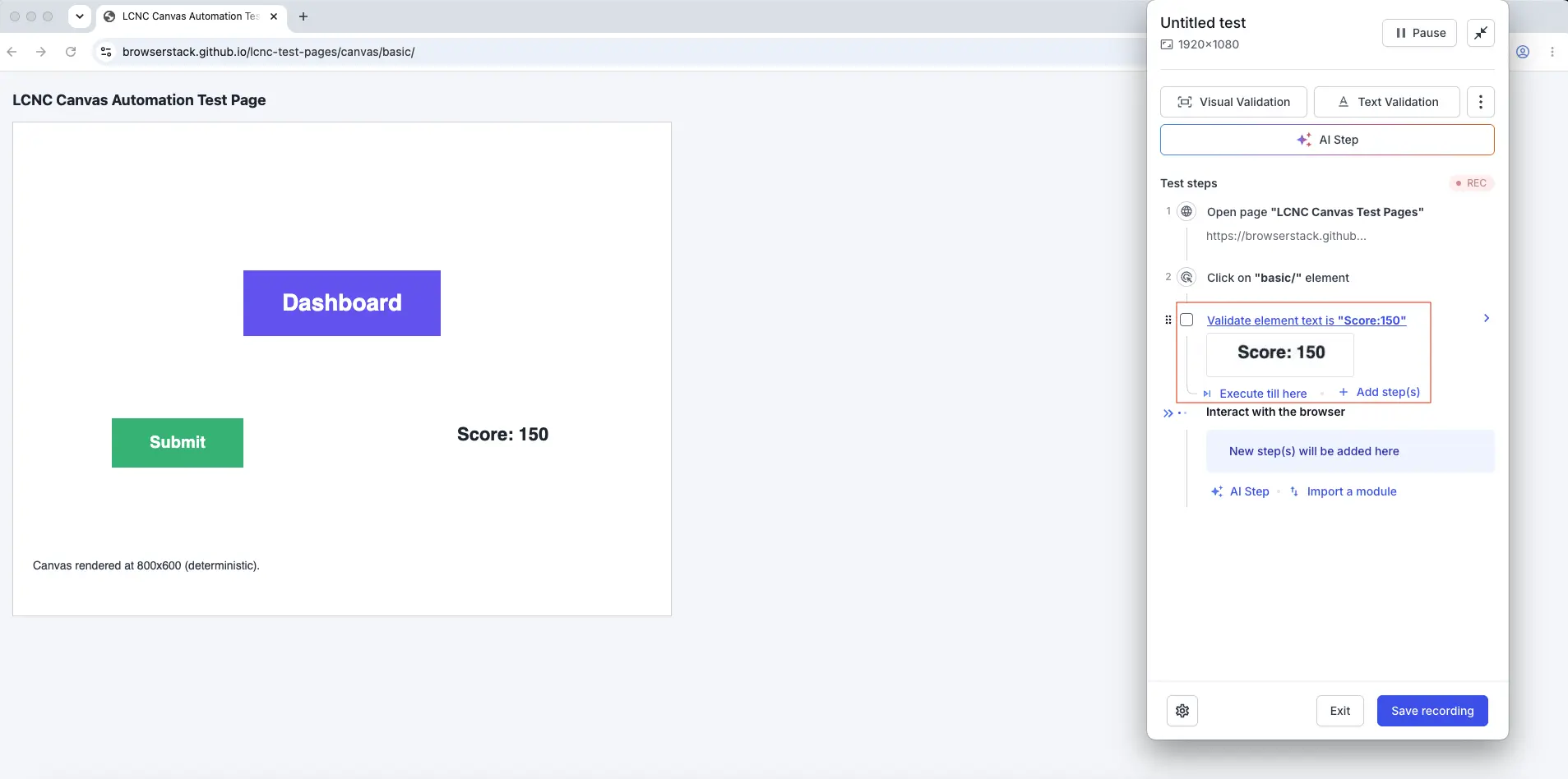
You can also validate text rendered inside a canvas. Because canvas text isn’t available in the DOM, Low Code Automation extracts it from the selected region using Optical Character Recognition (OCR).
To validate canvas text:
- While recording, click Text Validation.
- On the canvas, drag to select the region that contains the text you want to validate. Low Code Automation adds a Validate canvas text step and extracts the text from the selected region.
- Choose a comparison option, such as Equality or Contains, and set the expected value.
- Click Save recording.
During execution, Low Code Automation extracts the text from the same region. The validation passes if the extracted text matches the expected value.
Extract value
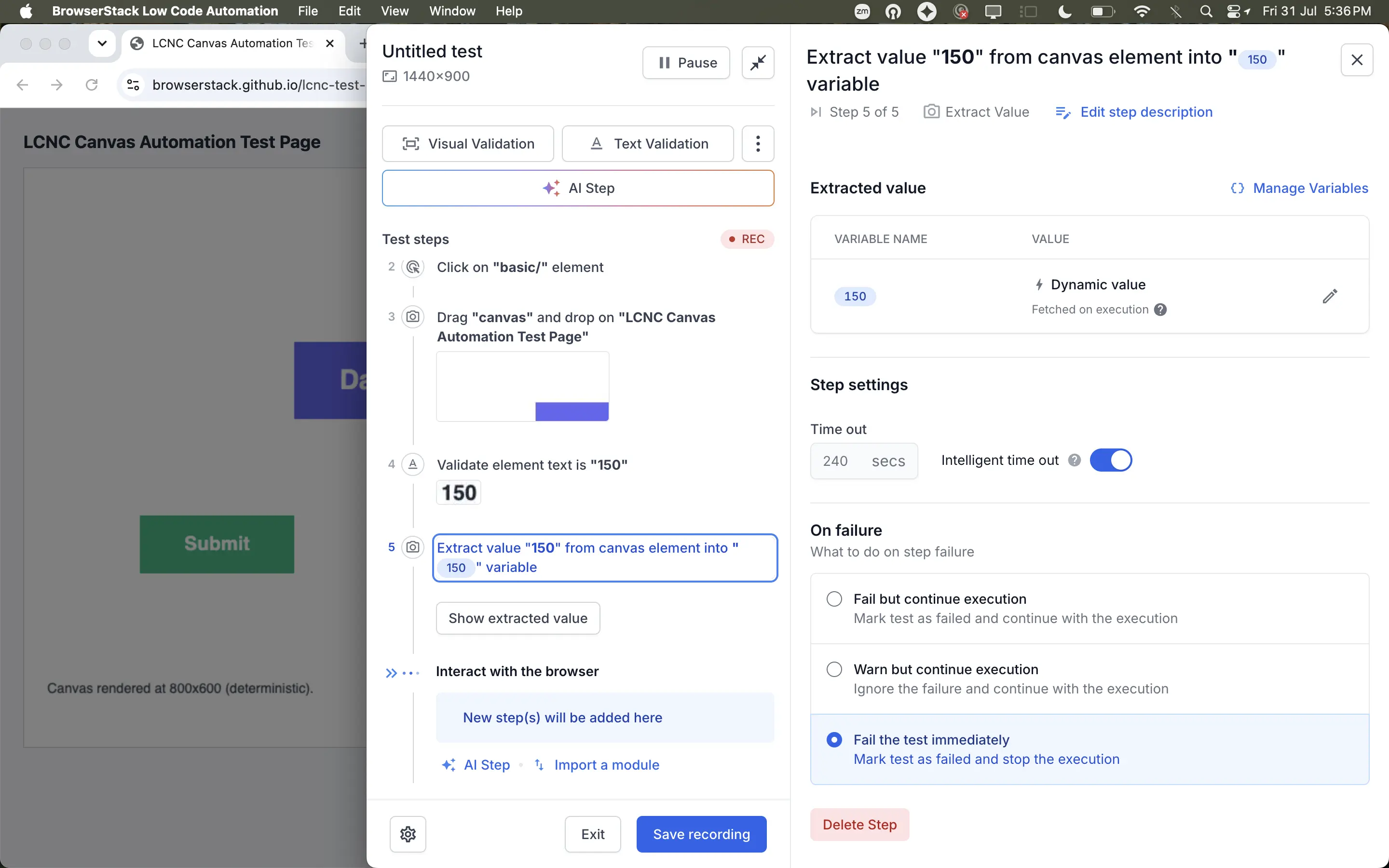
You can store text rendered on a canvas as a variable and reuse it in later steps. Low Code Automation reads the text from the selected region using OCR.
To extract a value from a canvas:
- While recording, click the three dots icon on the recorder panel, then click Extract Value.
- On the canvas, drag to select the region that contains the text. Low Code Automation adds an Extract value step and stores the text in a variable.
- Click Save recording.
The variable holds a dynamic value that Low Code Automation fetches on every execution, not the value captured during recording.
Locators for canvas steps
Custom locators identify DOM elements using XPath or CSS, so they don’t apply to canvas steps. Low Code Automation matches the region it captured during recording instead.
To configure custom locators for steps that act on DOM elements, see Configure step locator.
We're sorry to hear that. Please share your feedback so we can do better
Contact our Support team for immediate help while we work on improving our docs.
We're continuously improving our docs. We'd love to know what you liked
We're sorry to hear that. Please share your feedback so we can do better
Contact our Support team for immediate help while we work on improving our docs.
We're continuously improving our docs. We'd love to know what you liked
Thank you for your valuable feedback!