
 Ask the Community
Configure tests
Learn how to configure test settings including organization, persona, application, and resolution in Salesforce Test Automation.
Before you start creating tests in Salesforce Test Automation, you need to configure your test environment by selecting the organization, persona, application, and screen resolution. These settings determine the context in which your tests will run.
To configure your test:
- On the Salesforce Test Automation home page, configure the following options:
- Organisation: The organization represents your connected Salesforce environment. You must have at least one organization connected before you can create tests. For more information on connecting organizations, refer to Connect your Salesforce organization.
- Persona: The persona represents the Salesforce user account that will execute the test. Different personas may have different permissions, roles, and access levels, allowing you to test various user experiences. You can add multiple personas to test how different users interact with your Salesforce application. For more information on adding personas, refer to Add personas.
- Application: The application represents the Salesforce app you want to test (for example, Sales, Service, or custom apps). You can change the application during a test session if needed.
- Screen resolution: The screen resolution determines the browser viewport size for test execution. Select a resolution that matches your testing requirements. Common resolutions include:
- 1920 × 1080 (Full HD)
- 1366 × 768
- 1280 × 720
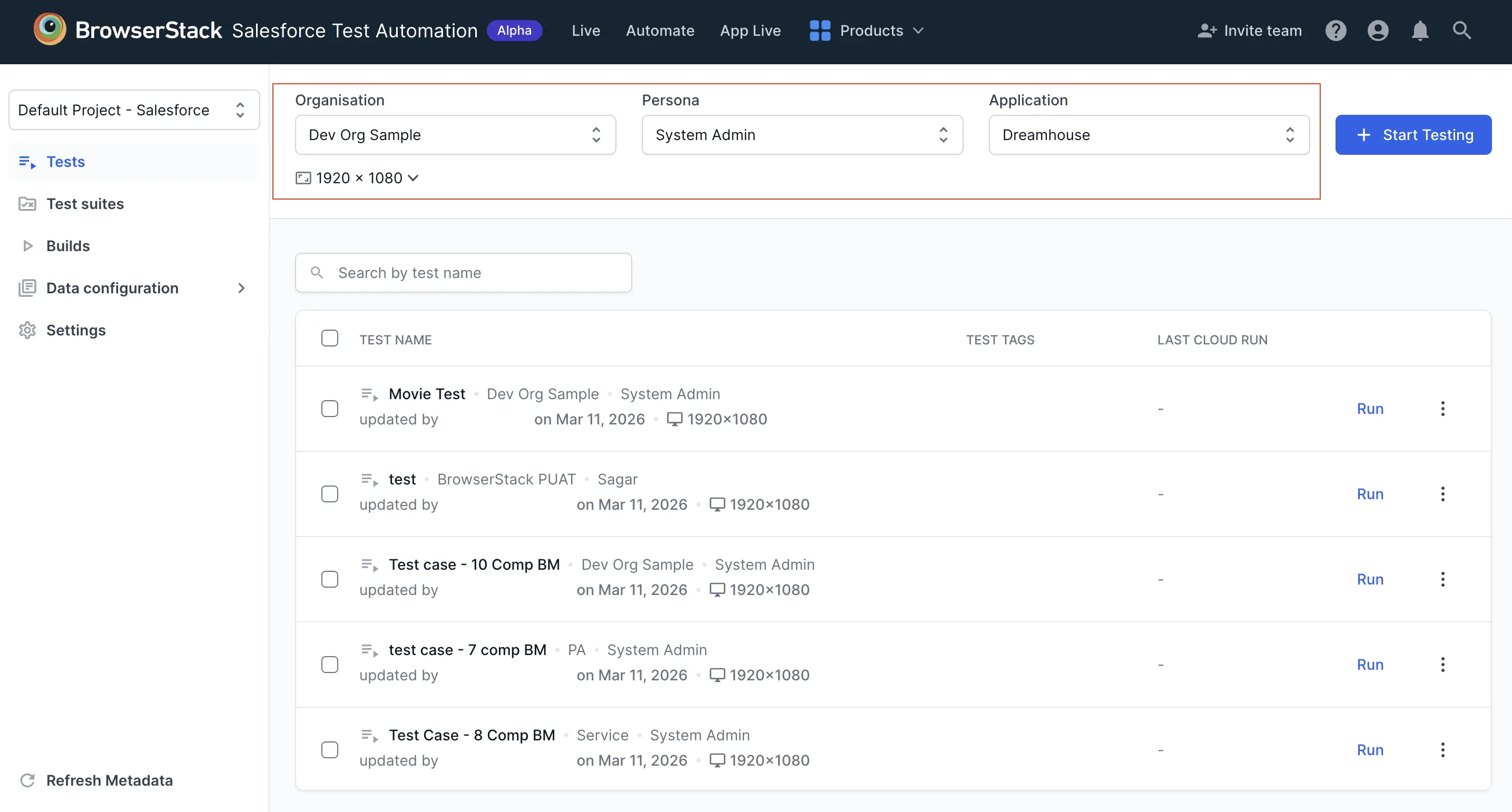
- Click + Start Testing to launch the test session with your selected configuration.
You can change the application at any time within a test session, but changing the organization, persona, or resolution requires starting a new session.
We're sorry to hear that. Please share your feedback so we can do better
Contact our Support team for immediate help while we work on improving our docs.
We're continuously improving our docs. We'd love to know what you liked
We're sorry to hear that. Please share your feedback so we can do better
Contact our Support team for immediate help while we work on improving our docs.
We're continuously improving our docs. We'd love to know what you liked
Thank you for your valuable feedback!