
 Join our Discord
Optimize app test suite
Optimize an app test suite with Test Companion to cut App Automate sessions, minutes, and runtime without losing coverage. You approve every change first.
Test Companion reads every test in your app suite and finds work that costs sessions or minutes without adding coverage. It proposes each change in a table and waits for your approval. After you approve, it applies the changes, re-runs the tests, and opens one pull request. The pull request shows the sessions, minutes, and runtime measured before and after the changes. Test Companion does not make a change unless it can show that coverage is kept.
Prerequisites
Before you optimize an app suite, make sure you have the following:
- A supported IDE with the Test Companion extension installed.
- The test suite open in your workspace, on a branch you can open a pull request from.
- The suite configured to run on BrowserStack App Automate. Test Companion measures sessions and minutes from App Automate runs. If the suite runs only locally, Test Companion can measure runtime only and reports no session or minute numbers.
- A passing baseline on the base branch. Test Companion lists tests that already fail by name and leaves them unchanged.
Optimize an app test suite
A short prompt is enough to start. Test Companion asks for any detail it cannot infer, and it works on one folder or the whole suite.
-
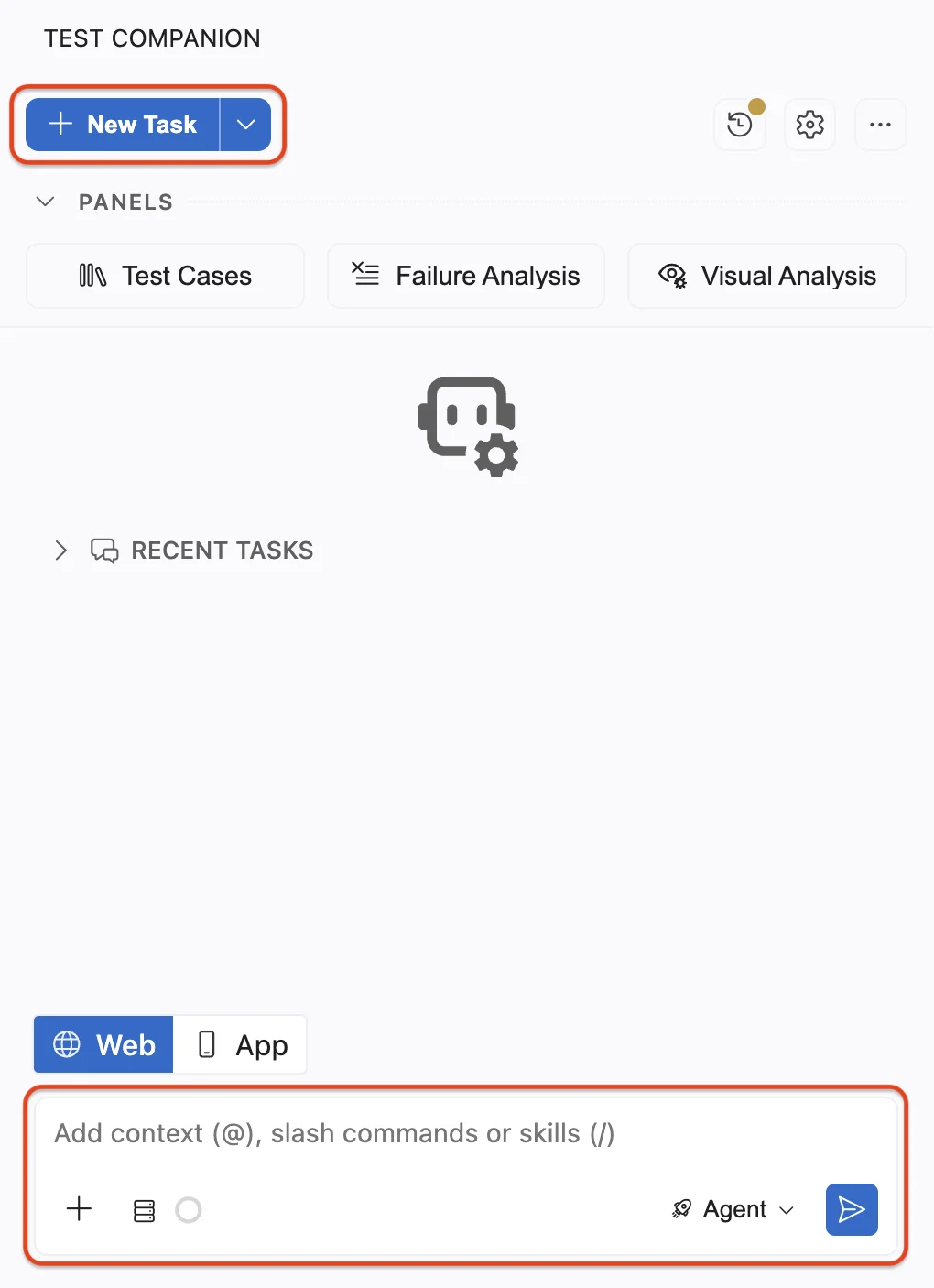
Open the Test Companion panel in the IDE.
-
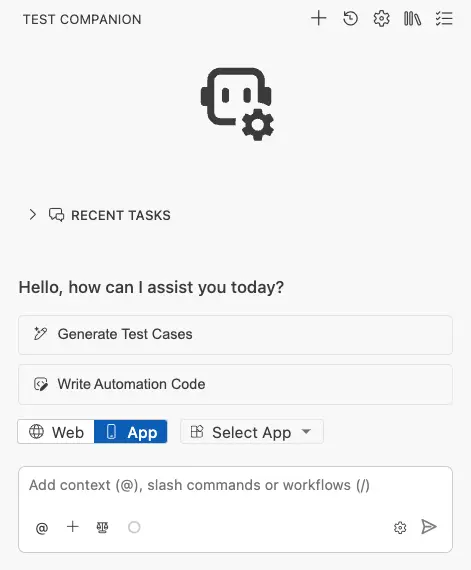
Click App at the bottom of the panel to switch to App mode.
-
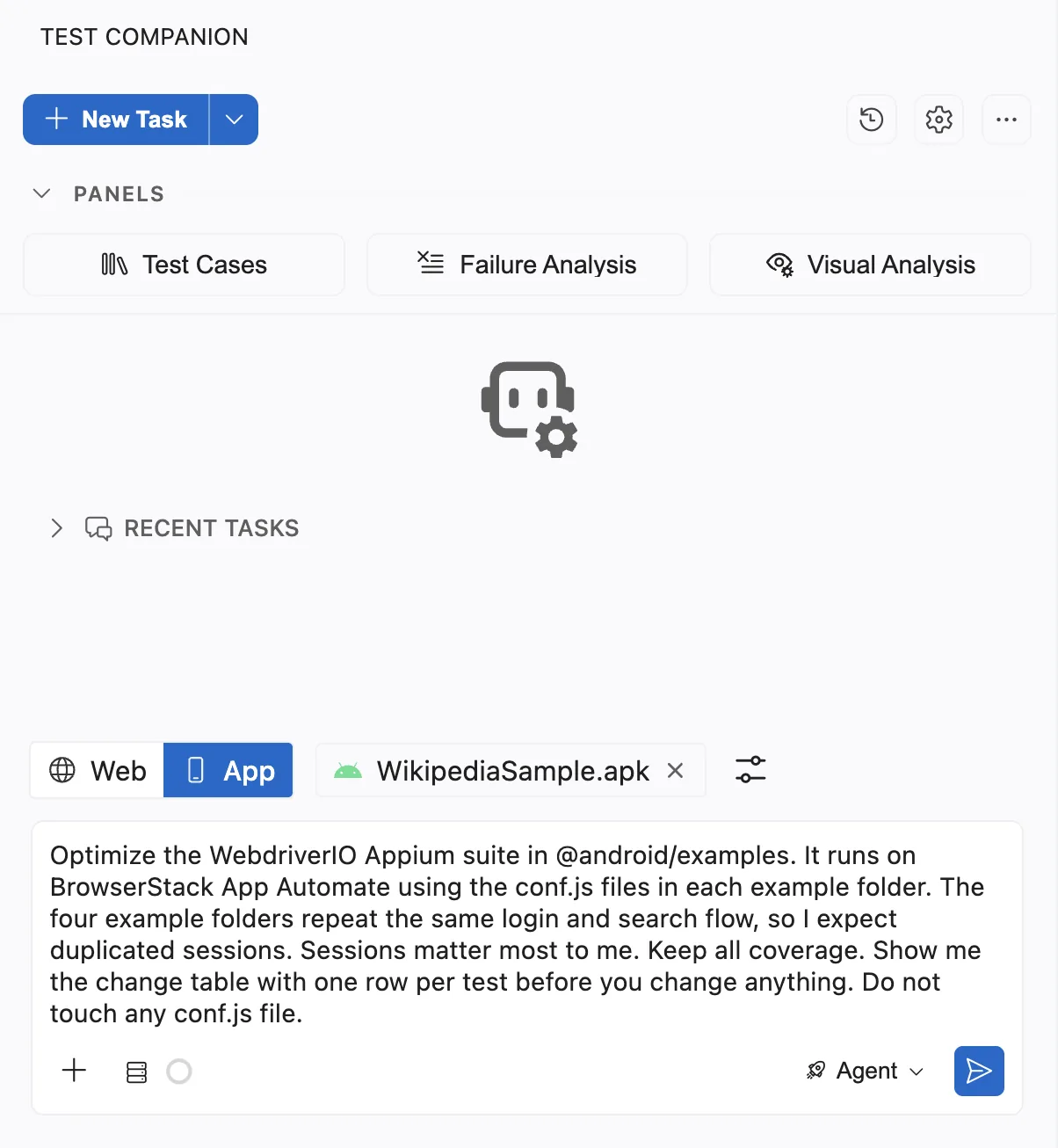
In the chat box, describe the suite and the cost you want to reduce. You can include the following details:
- The suite folder, attached or referenced with
@. - The cost that matters most to you, such as sessions, minutes, or runtime.
- Any folder or test that Test Companion must not change.
- The suite folder, attached or referenced with
-
Press Enter. Test Companion reads the suite before it proposes anything.
-
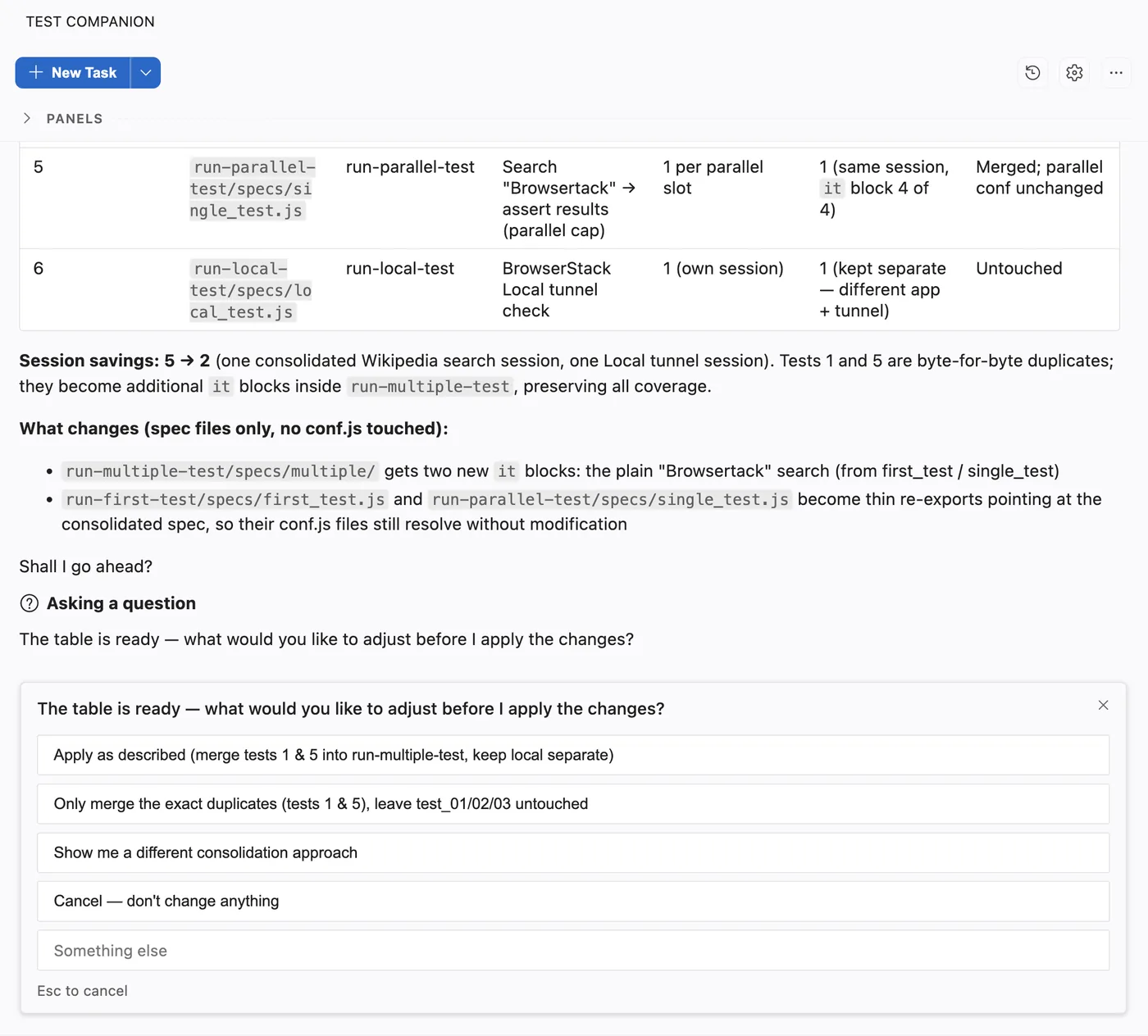
Review the change table that Test Companion posts. Approve it, or ask for changes. Test Companion changes nothing until you approve.
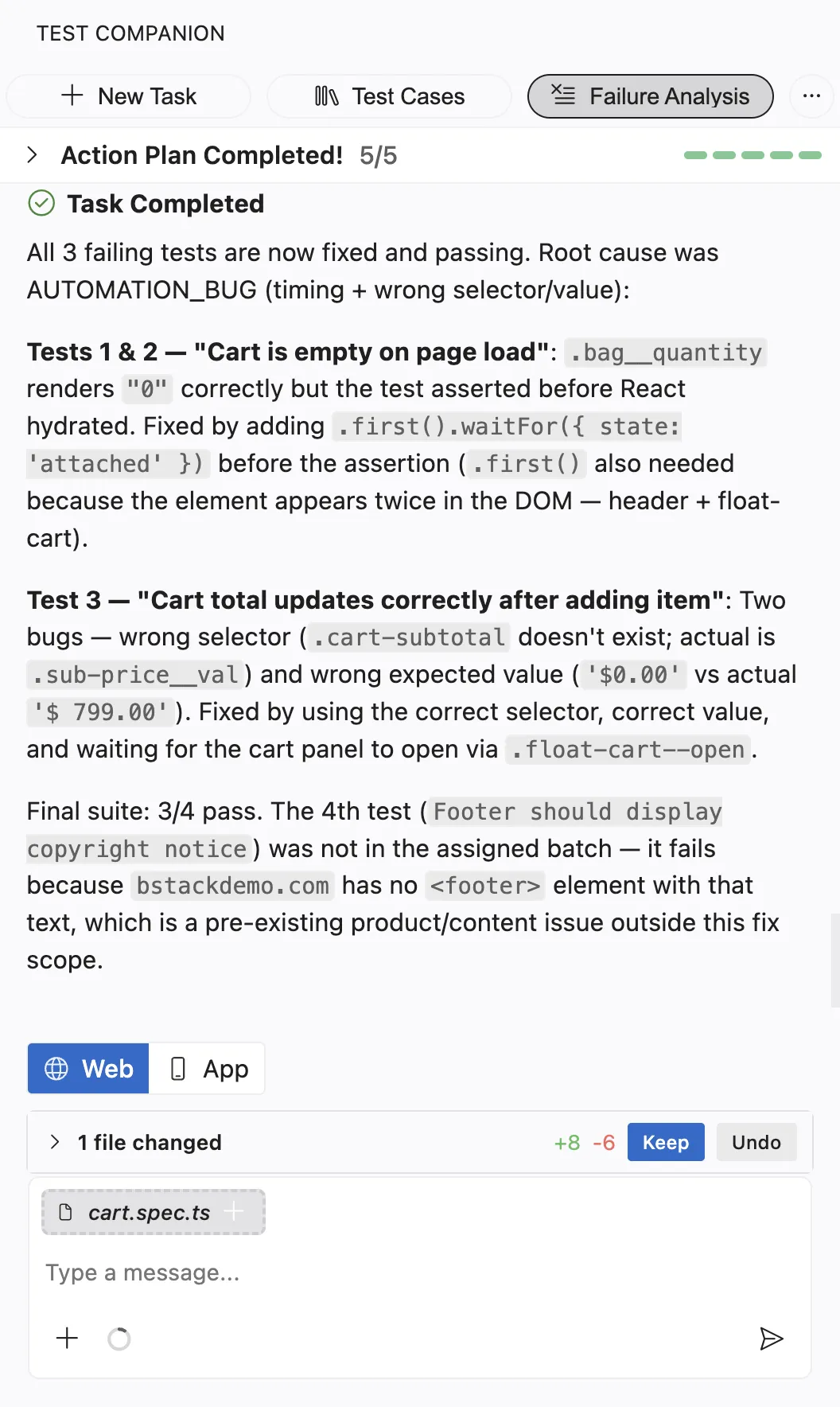
- Follow the progress in the chat. As Test Companion edits files, the changed-file row above the chat box lists them.
-
Click Keep to accept all changes or Undo to revert them. Expand the row to keep or undo one file at a time.
Example prompt
The following prompt names the suite, the cost that matters, and the files to leave alone:
Optimize the WebdriverIO Appium suite in @android/examples. It runs on BrowserStack App Automate using the conf.js files in each example folder. The four example folders repeat the same login and search flow, so I expect duplicated sessions. Sessions matter most to me. Keep all coverage. Show me the change table with one row per test before you change anything. Do not touch any conf.js file.
Review the change table
Test Companion classifies each test by what its code does, not by its name. It lists one row per test, including the tests it leaves unchanged, so you can see every decision. The column layout varies between runs. Each row states what the test does, the proposed change, and one of the following labels:
| Label | Meaning |
|---|---|
| Fewer sessions | The change removes a test run or a device row. Fewer App Automate sessions start. |
| Fewer minutes | The change shortens a test, for example by replacing a fixed sleep. Sessions finish sooner. |
| Faster only | The change shortens the total run time of the suite, for example by running independent tests in parallel. Billed sessions and minutes stay the same. |
| No saving | The change is kept for clarity and does not reduce cost. Moving a test between files is always in this group. |
A test that Test Companion cannot prove is safe to change is kept, and its row says so. The table also lists larger costs that Test Companion noticed but did not change. A sign-in repeated in every test is one example. You can decide on those separately.
What Test Companion changes
Approved changes follow the conventions of your framework and reuse your existing page objects and helpers. Each kind of change has its own coverage guard:
| Change | Details |
|---|---|
| Merge duplicates | When two tests cover the same behavior at the same or a higher tier, Test Companion keeps one. It moves any unique assertion into the kept test and deletes the other. |
| Turn near-duplicates into cases | A test that differs from another test only by one input, device, or environment becomes a case of that test. |
| Move tests off the cloud | A test that needs no device runs without an App Automate session. |
| Delete dead tests | Test Companion removes tests that can no longer run or are unreachable. |
| Run device-independent tests on one device | When the assertions of a test cannot vary by device or operating system, the test runs on one device. A pure API or data check is one example. One device is always kept per gating tier. Test Companion decides this from the assertions, never from the test name. |
| Replace fixed sleeps | A fixed wait such as driver.pause(3000) or Thread.sleep(3000) becomes a wait on the condition the test needs. Test Companion changes waits only in tests that are not flaky. |
| Run independent tests in parallel | When the suite is slow, tests that share no data, fixture, state, or order run in parallel. Dependent tests stay in sequence. Test Companion runs the group in parallel at least twice before it raises the concurrency setting of your runner, such as parallelsPerPlatform in browserstack.yml. |
Before it modifies any file, Test Companion creates a checkpoint of your workspace. Use Changes to review the edits, or Restore to revert them.
How Test Companion protects coverage
Optimization never overrides coverage. Test Companion applies the following rules:
- It never removes or weakens an assertion.
- It does not make a change unless it can show that coverage is kept.
- A test counts as covered by another test only at the same tier or higher. A smoke test is not covered by a nightly test.
- Every number comes from a before-and-after run, never from a file count. Merging two files into one that still runs every test saves nothing. The table says so.
- After the changes are applied, a second, separate agent reads every changed file and looks for lost coverage. Test Companion does not sign off on its own work.
Some work is out of scope. Test Companion does not add coverage or choose which tests to run for a change. It does not fix tests that already fail on the base branch, and it does not stabilize flaky tests. It reports each of these by name so you can handle them in the right flow. To fix failing tests, use Fix failed app tests.
Review the results
After each change, Test Companion re-runs only the changed tests, normally on your machine. After the last approved change, it runs the whole suite once on App Automate. The measured numbers come from that final run. Test Companion then opens one pull request that contains the following:
- The sessions, minutes, and runtime measured before and after the changes. A suite that runs only locally gets runtime only.
- Each change with its label.
- The costs it noticed but did not change.
- Any test that already failed on the base branch, by name.
Review the pull request as you would any other. If a test fails during a run because of the test itself, Test Companion fixes the test. If it fails because of an app bug, Test Companion reports the bug.
Supported frameworks
Test Companion optimizes Appium suites, including WebdriverIO and Java, and native Espresso, XCUITest, Flutter, and Maestro suites. Changes follow the conventions of the framework already in your suite.
Next steps
- Fix failed app tests: Analyze and fix app tests that fail outright, from the Failure Analysis panel or the chat.
- Automate tests: Generate automation scripts for your app.
- AI settings: Configure how Test Companion applies changes.
We're sorry to hear that. Please share your feedback so we can do better
Contact our Support team for immediate help while we work on improving our docs.
We're continuously improving our docs. We'd love to know what you liked
We're sorry to hear that. Please share your feedback so we can do better
Contact our Support team for immediate help while we work on improving our docs.
We're continuously improving our docs. We'd love to know what you liked
Thank you for your valuable feedback!