
 Join our Discord
Install Test Companion in IntelliJ
Install Test Companion in IntelliJ and other JetBrains IDEs to generate, automate, and fix test cases without leaving your editor.
You install Test Companion from the JetBrains Marketplace, the same way you install any other JetBrains plugin.
The setup process has three steps:
Prerequisites
Before you install the plugin, make sure you have:
- A BrowserStack account. If you do not have one, create a BrowserStack account.
- A JetBrains IDE running on IntelliJ Platform 2024.3 or later.
The plugin is supported on IntelliJ IDEA, PyCharm, WebStorm, GoLand, PhpStorm, RubyMine, CLion, DataGrip, and Rider. To check your IDE version, choose Help > About. A platform build number that starts with 243. or higher meets the requirement.
Install the plugin
Install Test Companion from the JetBrains Marketplace inside your IDE. Your IDE downloads the plugin from the marketplace it already trusts, and it updates the plugin when a new version is published.
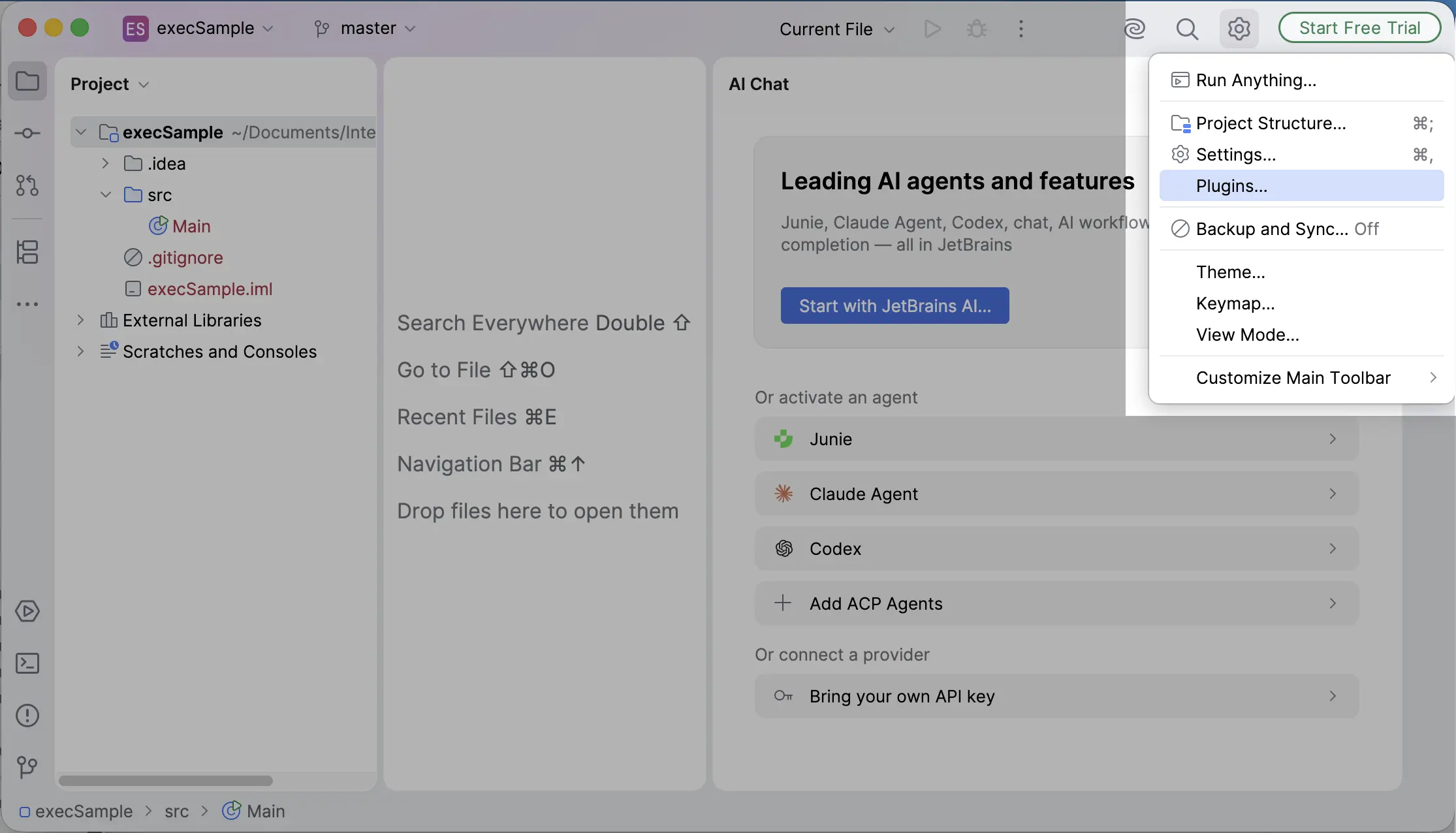
- Open the IDE settings.
-
Keyboard shortcut:
Cmd+,on macOS, orCtrl+Alt+Son Windows and Linux. - Menu: On macOS, choose IntelliJ IDEA > Settings, or the equivalent menu item in your IDE. On Windows and Linux, choose File > Settings.
-
Keyboard shortcut:
- In the left navigation, click Plugins.
- Click the Marketplace tab.
- In the search bar, type
Test Companion. -
Locate the Test Companion plugin, published by BrowserStack.
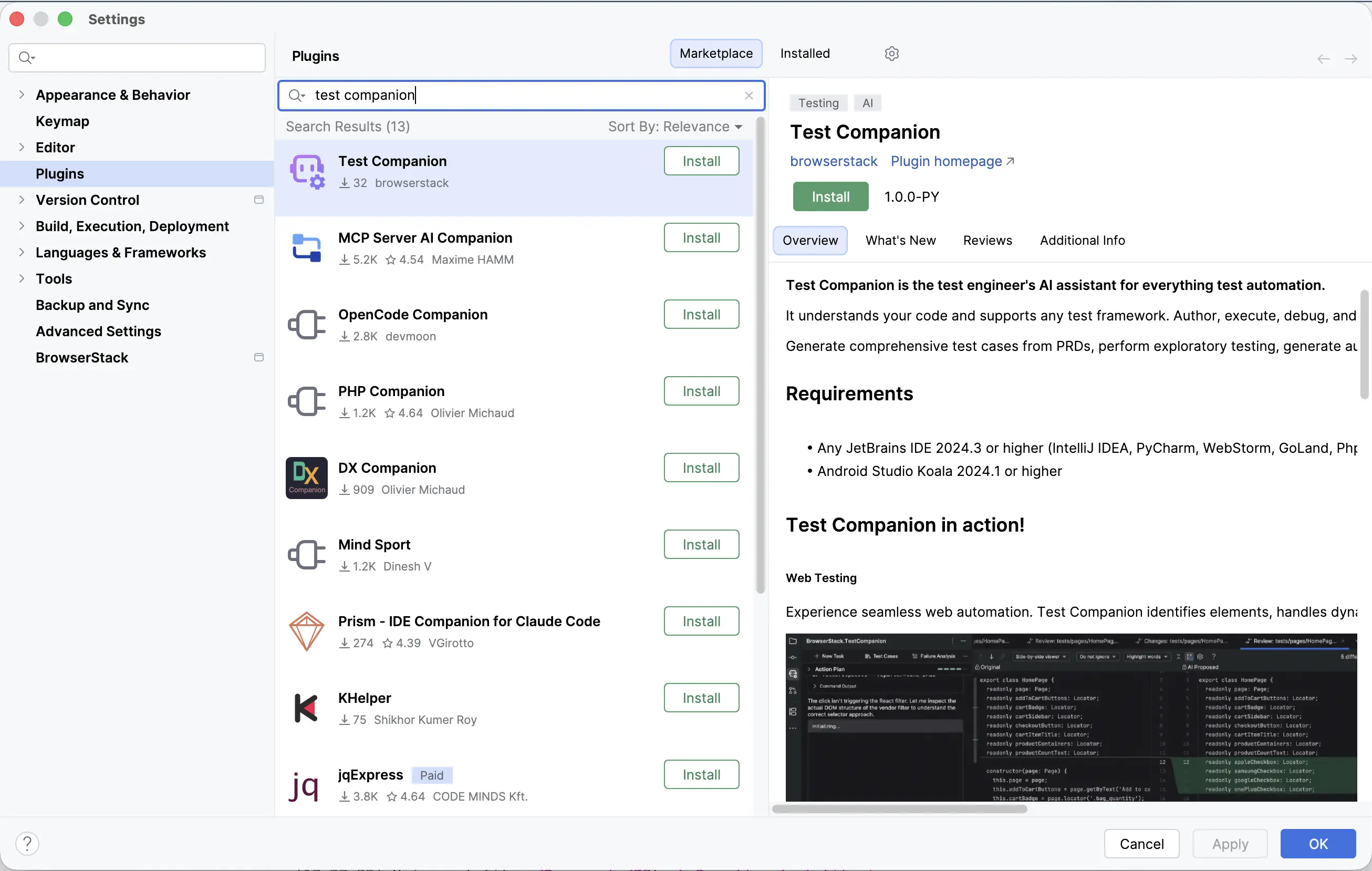
- Click Install.
- Click Apply.
- When prompted, click Restart IDE.
The plugin activates after the restart.
You can also browse the Test Companion listing on JetBrains Marketplace.
Verify the installation
After the IDE restarts, look for the Test Companion tool window stripe button. JetBrains IDEs dock new tool windows in the bottom tool window bar by default. You can drag the button to another tool window bar if you prefer.
Click the button to open the Test Companion panel.
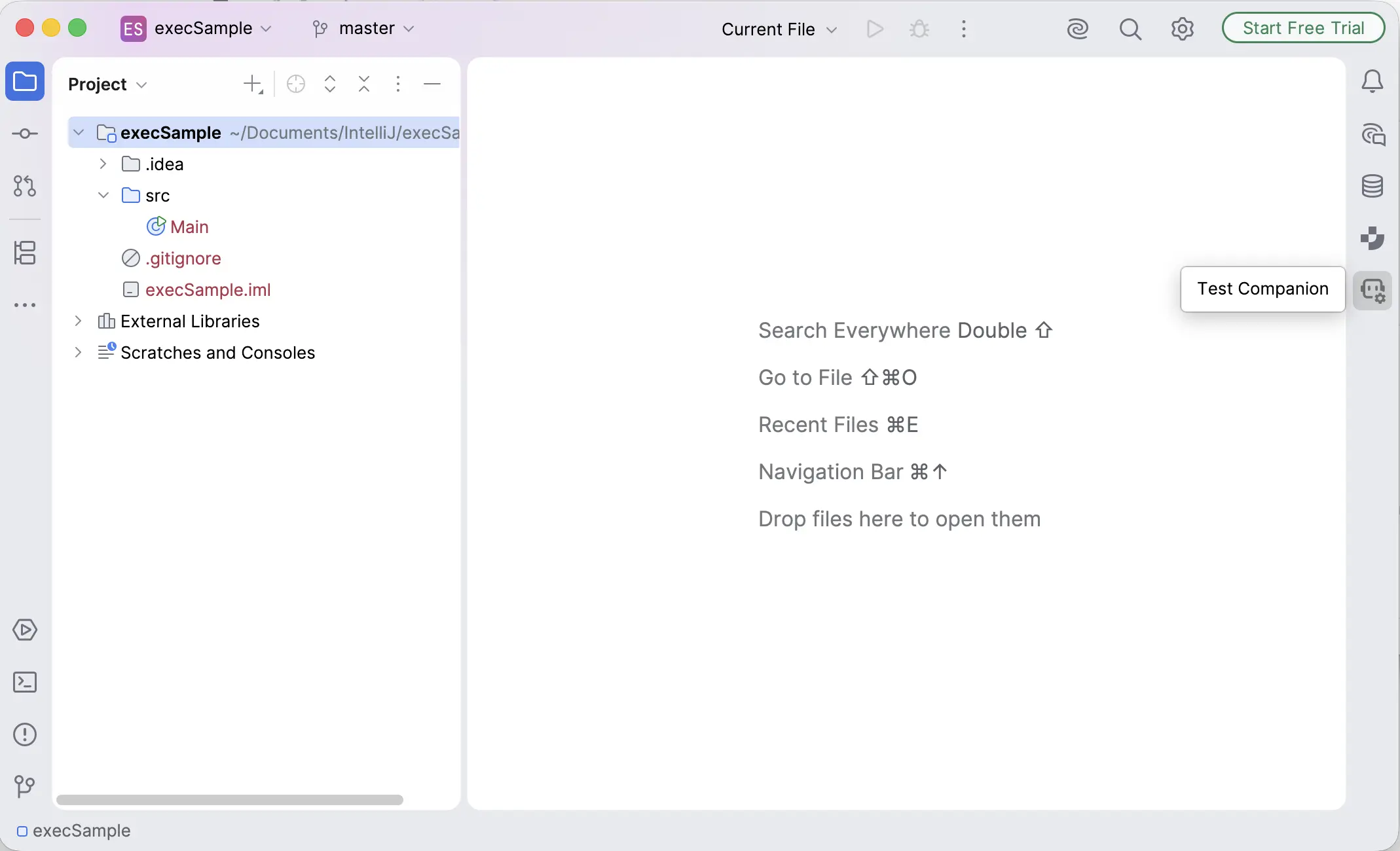
If the button does not appear, choose View > Tool Windows and select Test Companion.
To use Test Companion, enable BrowserStack AI in your account settings. For more about these settings, read Activate BrowserStack AI.
Sign in to BrowserStack
Connect the plugin to your BrowserStack account.
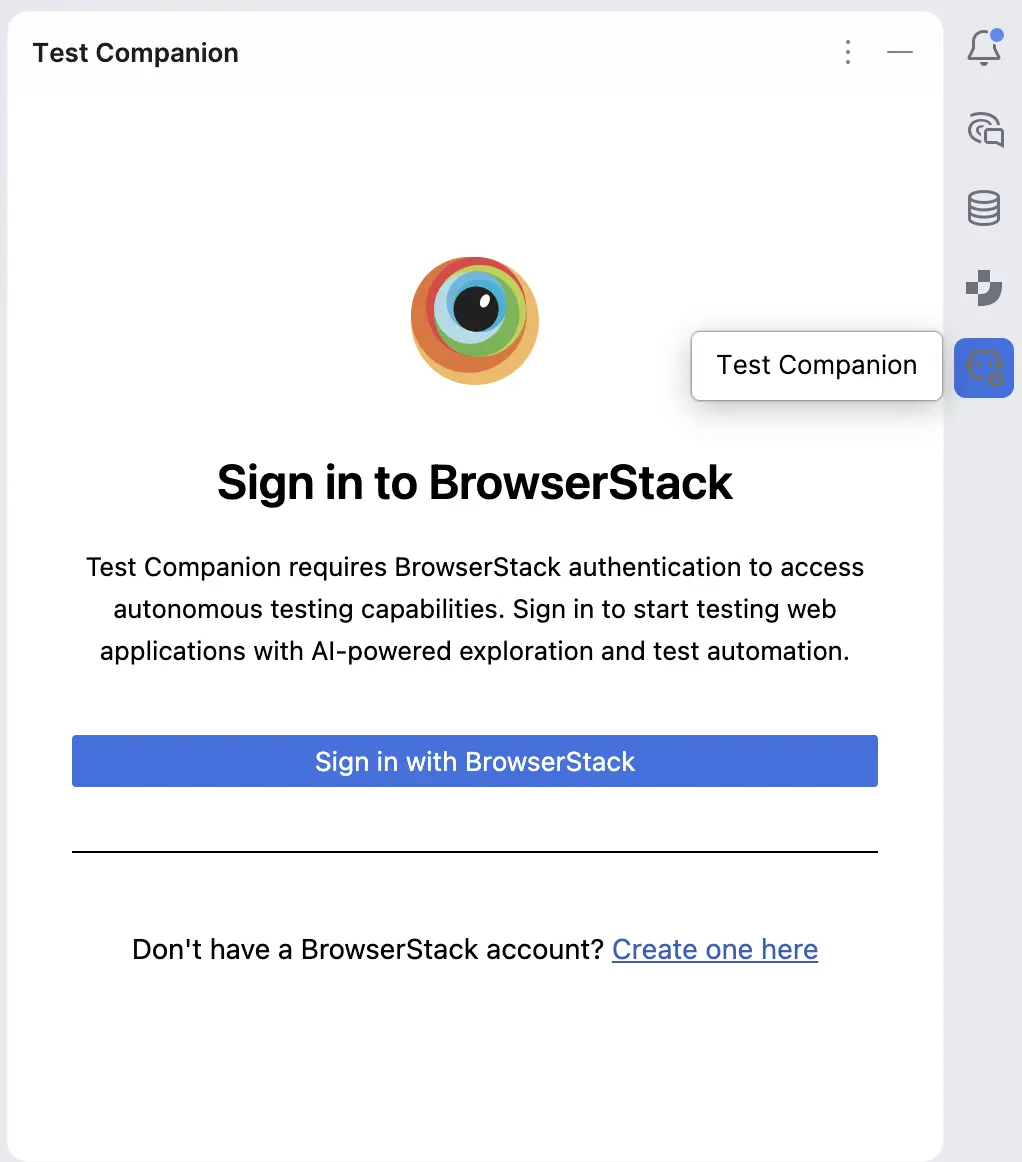
- Click the Test Companion tool window stripe button to open the panel.
-
In the panel, click Sign in with BrowserStack.
- Your default browser opens. It prompts you to authorize the plugin.
- Follow the prompts to sign in. If you do not have an account, create a BrowserStack account.
After you sign in, the browser returns you to your IDE. The Test Companion panel then shows your user information.
Test Companion is installed and configured.
Next steps
Start exploring what Test Companion can do:
- Generate test cases: Write test cases from requirements using AI.
- Automate tests with AI: Convert manual test cases into executable automation scripts.
- Fix failed tests: Debug and fix test failures using Test Reporting & Analytics.
We're sorry to hear that. Please share your feedback so we can do better
Contact our Support team for immediate help while we work on improving our docs.
We're continuously improving our docs. We'd love to know what you liked
We're sorry to hear that. Please share your feedback so we can do better
Contact our Support team for immediate help while we work on improving our docs.
We're continuously improving our docs. We'd love to know what you liked
Thank you for your valuable feedback!