
 Join our Discord
Manage MCP servers in Test Companion
Read the status of each MCP server in Test Companion, choose which tools run and which need approval, sign out, and see where credentials are stored.
Every server you connect appears in the Installed tab of the MCP Servers view. From there, you decide which tools Test Companion can call on each server, and which calls still need your approval.
MCP servers are available in Visual Studio Code only. Support for JetBrains IDEs, Visual Studio, and Eclipse is in progress.
Open the Installed tab
Click ... (more options) on the Test Companion panel, then select MCP Servers. The view opens on the Installed tab. When a server needs you to sign in, the MCP Servers menu item carries a badge such as 1 awaiting. The MCP Servers button in the chat message box shows a red dot.
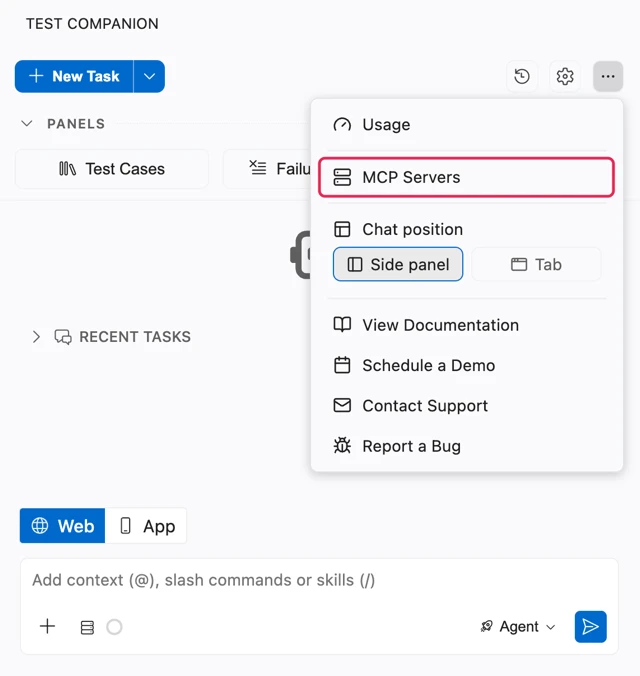
You can also click the MCP Servers button in the chat message box. Then click the settings icon in the list that opens.
Read the status of a server
Each server name carries a green, yellow, or red dot. Hover over the info icon next to the name to read the status. The tooltip also says whether the server is local or remote. The footer of the tab shows a count, such as 2 of 2 servers connected.
| Status | Dot | Meaning | Action |
|---|---|---|---|
| Connected | Green | The server is live, and Test Companion can call its tools. | None. |
| Connecting | Yellow | Test Companion is starting the server or connecting to it. | Wait a few seconds. |
| Needs sign-in | Yellow | You have not signed in, your session has expired, or you signed out. | Click Authenticate and sign in again. |
| Disconnected | Red | Test Companion cannot reach the server, or the server is turned off. | Read the message under the server name, then click Retry Connection. |
A connected server also shows a badge with its tool count, such as 9 tools.
Approve tool calls
Every MCP tool call starts as a card in the chat, unless you have auto-approved that tool. The card reads Run a tool on followed by the server name, or a short description of the action. It also names the tool and describes what it does.
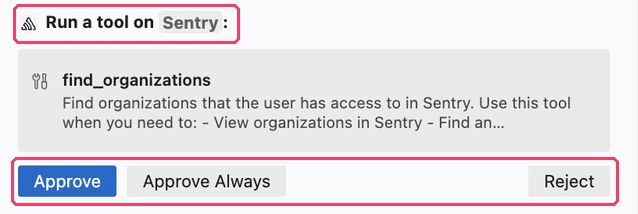
Review the card, then choose one of the following:
- Approve runs the tool once.
- Approve Always runs the tool now and auto-approves that one tool from then on. Other tools on the same server still show the card.
- Reject skips the call.
The first time you click Approve Always, Test Companion turns on auto-approval for MCP tools. The auto-approve checkboxes described in the next section then appear in the Installed tab. If you later turn off Enable auto-approve in Settings, the checkboxes disappear. Every tool call then shows the card again.
Control tools and auto-approval
Expand a server in the Installed tab to see its tools and the controls for each one. The Tools tab lists the tools with their count. The Resources tab lists any resources the server publishes.
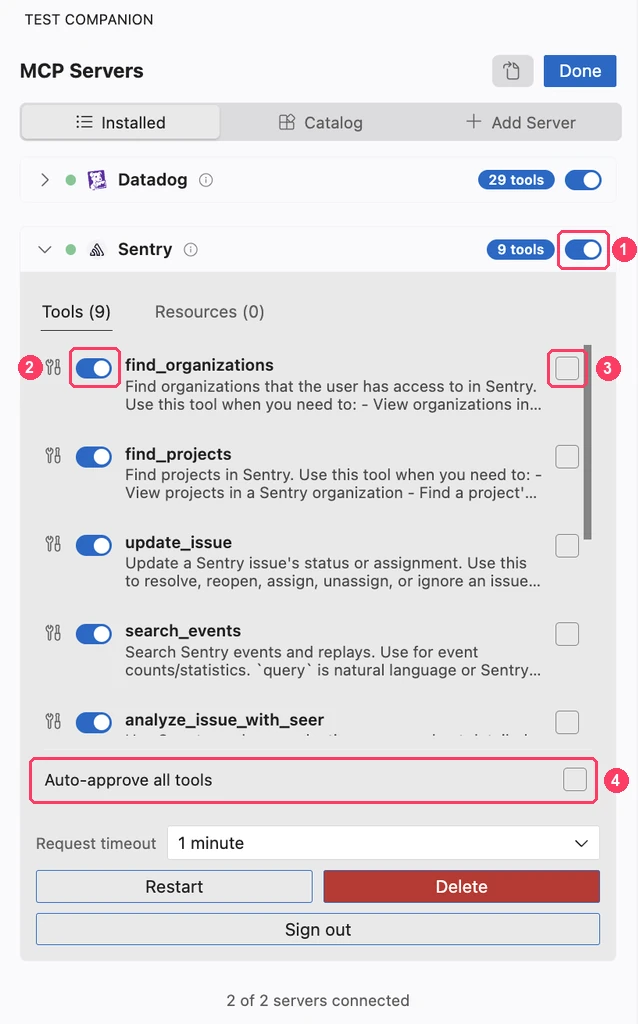
The numbers in the image mark the following controls:
- The server switch turns the whole server on or off. When the server is off, Test Companion stops offering its tools, and the server shows a red dot. Your sign-in stays in place.
- The tool switch turns one tool on or off. When a tool is off, Test Companion cannot call it. The switch does not affect resource reads from the same server.
- The checkbox next to a tool auto-approves that tool. Use it for tools that read data, such as finding a work item or a file.
- Auto-approve all tools selects the checkbox for every tool the server lists right now. A tool the server adds later still shows the card until you select its checkbox.
To bring back the approval card for a tool, clear its checkbox. Clearing Auto-approve all tools clears the checkbox for every listed tool.
The auto-approve checkboxes appear only while auto-approval for MCP tools is turned on. Clicking Approve Always on a tool call turns it on. An auto-approved tool runs with your account’s permissions in that tool, and no card appears in the chat. Take care before you auto-approve a tool that changes data. Examples are tools that send a message, update a test execution, or create a work item.
You can also turn a server on or off with the MCP Servers button in the chat message box. The button opens a list of installed servers, each with a switch.
Restart, sign out, or delete a server
The expanded server also shows the settings and actions for the connection:
- Request timeout sets how long Test Companion waits for a tool on this server to respond. Choose from 30 seconds to 1 hour. The default is 1 minute.
- Restart reconnects to the server. Use it after you change a local server’s settings, or when a server stops responding.
- Retry Connection appears when a server shows a red dot. It tries to connect again.
- Authenticate appears when a server needs sign-in. It opens your browser to sign in. Cancel sign-in stops a sign-in that is still in progress.
- Sign out appears for a remote server. It deletes your saved sign-in for the server. The server stays in the Installed tab with the message Signed out. Authenticate to use this server again.
- Delete removes the server and its settings from Test Companion. A dialog titled Delete MCP server? asks you to confirm.
When a saved sign-in expires, the server shows the message Your session for this server has expired. Sign in again to keep using it. Click Authenticate to sign in again.
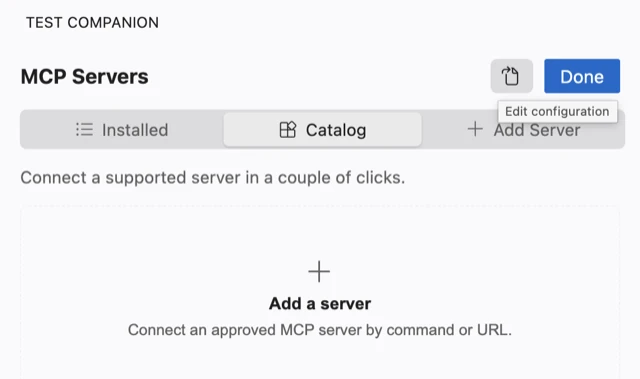
To edit the settings file by hand, click the Edit configuration icon at the top of the MCP Servers view. Test Companion applies your changes when you save the file.
Where Test Companion stores your credentials
Your credentials for connected tools stay on your machine:
- Sign-in tokens for a server are saved in the secure credential storage of your IDE on your machine. Test Companion sends them only to the server they belong to. The tokens are shared across the windows of that IDE. A sign-in in one window applies to all of them.
- The tokens are keyed by the server URL. Renaming a server keeps its sign-in. Changing the URL requires a new sign-in.
- BrowserStack does not store the sign-in tokens for your connected tools.
- The headers and environment variables of your own MCP server are saved as plain text. Test Companion stores them in its MCP settings file on your machine.
- Sign out deletes the saved tokens for a server from your machine. To revoke access on the other side as well, remove the app from your account settings in that tool.
Next steps
- Connect an MCP server to Test Companion: Connect a server from the catalog.
- Auto-approve settings: Control which other Test Companion actions run without approval.
We're sorry to hear that. Please share your feedback so we can do better
Contact our Support team for immediate help while we work on improving our docs.
We're continuously improving our docs. We'd love to know what you liked
We're sorry to hear that. Please share your feedback so we can do better
Contact our Support team for immediate help while we work on improving our docs.
We're continuously improving our docs. We'd love to know what you liked
Thank you for your valuable feedback!