
 Join our Discord
Connect an MCP server to Test Companion
Connect a server from the Test Companion catalog, such as Jira, Slack, or Sentry, then approve its first tool call in the chat.
An MCP server gives Test Companion tools in another product. For example, a tool can create a Jira issue or send a Slack message. The Catalog tab lists hosted MCP servers that BrowserStack has checked. Each card carries a Verified or Official badge and an OAuth chip. You sign in with your own account in that tool. The permissions of that account apply to everything Test Companion does there.
Select a catalog server to read what it does:
Prerequisites
Ensure you have the following:
- Test Companion is installed in Visual Studio Code and you are signed in.
- An account in the tool you want to connect. It needs access to the projects, channels, or files that Test Companion should use.
MCP servers are available in Visual Studio Code only. Support for JetBrains IDEs, Visual Studio, and Eclipse is in progress.
Open the MCP Servers view
Click ... (more options) on the Test Companion panel, then select MCP Servers.
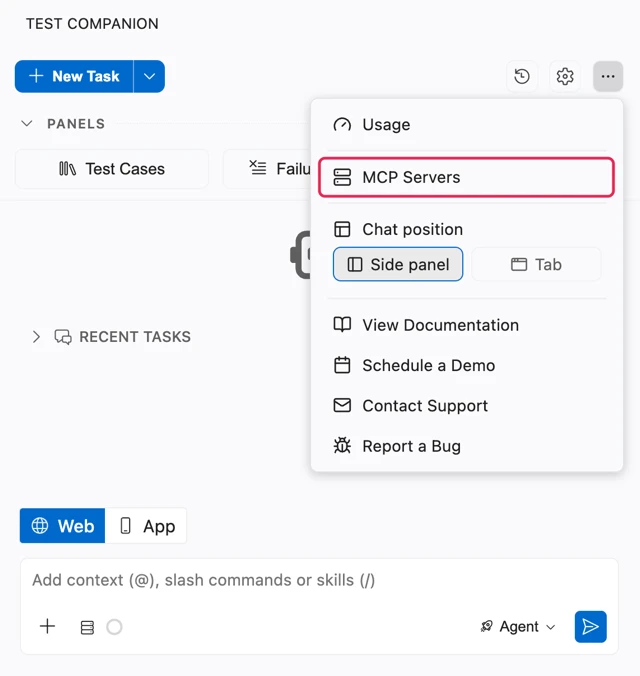
You can also open the view from the chat input area:
- Click the MCP Servers button in the chat message box.
- In the MCP Servers list that opens, click the settings icon.
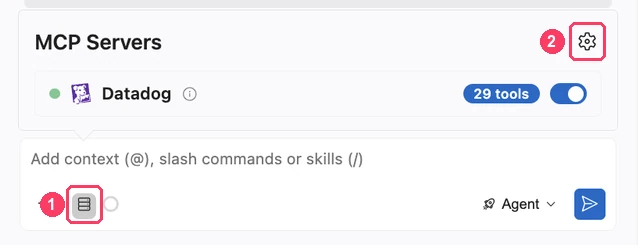
The view has three tabs:
| Tab | Contents |
|---|---|
| Installed | The servers you have added, each with a status dot, a tool count, and controls for its tools. |
| Catalog | Hosted servers that BrowserStack has checked, each with a Connect button. |
| Add Server | The Local and Remote forms for a server that is not in the catalog. |
Connect a server from the catalog
To connect a server:
-
In the MCP Servers view, select the Catalog tab.
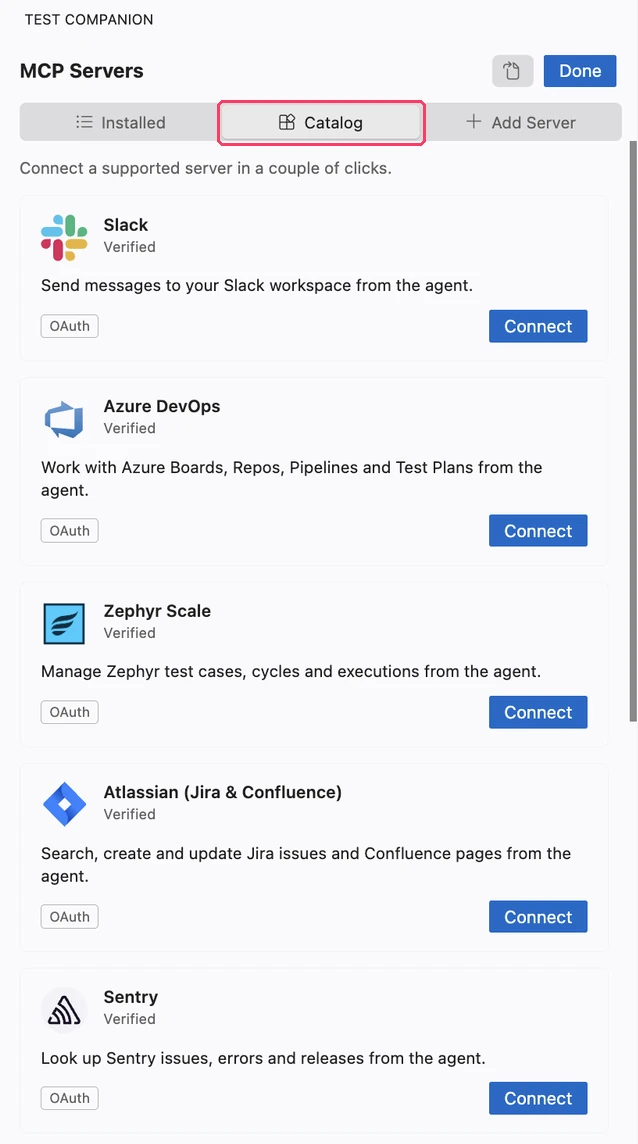
- Find the server you want and click Connect. Your browser opens the sign-in page for that tool.
- Sign in and grant the requested access. If the browser does not open, Test Companion shows a notification with the sign-in URL. Open that URL yourself.
- Return to your IDE. The view switches to the Installed tab. The server shows a green dot and a badge with its tool count, such as 9 tools.
If you open the Catalog tab again, the card reads Connected.
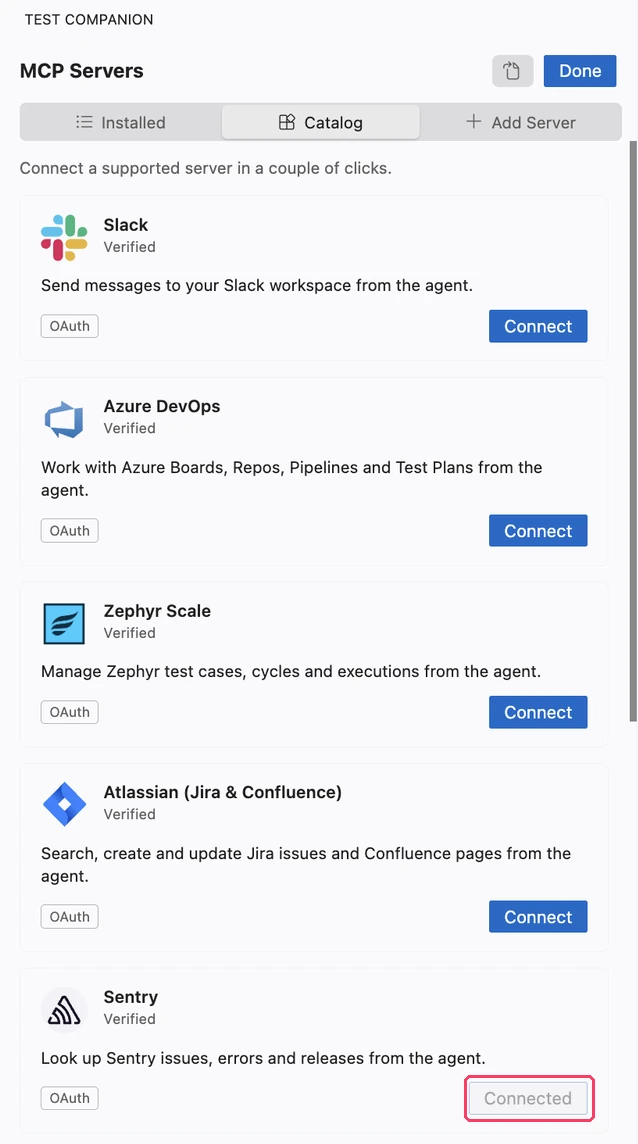
You have two minutes to finish the sign-in. If you close the browser before you finish, the server stays in the Installed tab. It shows a yellow dot and an Authenticate button. Click Authenticate to sign in again.
A card that reads Finish setup belongs to a server that is in your settings but not connected. Click Finish setup to open the Installed tab, then click Authenticate or Retry Connection.
Use a connected server in chat
Describe your task in the Test Companion chat. You do not need to name the tool. Test Companion decides when your request needs a server.
Before it calls a tool, Test Companion shows a card in the chat. The card reads Run a tool on followed by the server name. Some cards show a short description of the action instead, such as Send a Slack reminder. The card also names the tool and describes what it does.
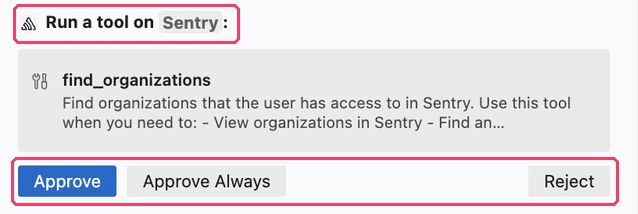
Review the card, then choose one of the following:
- Approve runs the tool once. Test Companion continues the task with the result.
- Approve Always runs the tool now and auto-approves that one tool from then on. Other tools on the same server still show the card.
- Reject skips the call. Test Companion continues without the result.
When desktop notifications are on, your desktop also shows a notification while Test Companion waits for an approval.
Turn servers on or off with the MCP Servers button
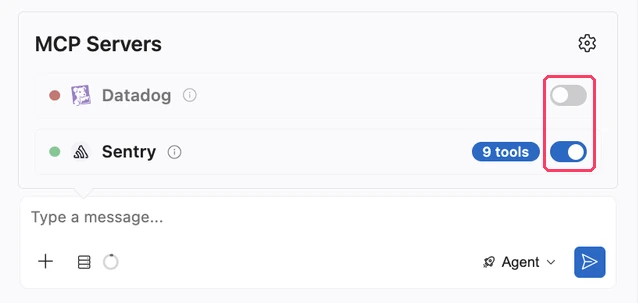
The MCP Servers button in the chat message box lists every server in the Installed tab. Each server has a switch. Turn the switch off to stop Test Companion from offering that server’s tools. The server then shows a red dot, and your sign-in stays in place. Turn the switch on to offer its tools again.
Servers in the catalog
Test Companion can do only what your account in each tool can do.
Atlassian for Jira and Confluence
The Atlassian server covers Jira issues and Confluence pages on Atlassian Cloud sites. Test Companion can search, create, and update the ones your account can reach.
Example prompts:
Get Jira issue SHOP-231 and generate test cases for its acceptance criteria.Create a bug in the SHOP project for each failed test in this run.
This MCP server is separate from the Jira integration and the Confluence integration. You can use either one, or both.
Azure DevOps
The Azure DevOps server covers Azure Boards, Repos, Pipelines, and Test Plans. You sign in with your Microsoft account. Before anyone in your organization can sign in, an Azure administrator completes a one-time setup for your Microsoft Entra tenant.
Example prompts:
Get user story 4812 from Azure Boards and generate test cases for its acceptance criteria.Here is my PR: <link>. Read the changes, go through test plan Checkout regression in Azure DevOps, and tell me which test cases are impacted. Return the test case IDs.
After you connect this server, the Test Cases panel in Visual Studio Code uses it for Azure Test Plans. Some panel actions are not available over MCP. See Connect Azure Test Plans to Test Companion. Work item links in the chat still use the Azure Boards integration.
One-time setup by an Azure administrator
Until the following steps are done, the Microsoft sign-in fails for every user in your organization. An administrator with the Cloud Application Administrator role completes them once for the tenant:
-
In the Azure portal, open Azure Cloud Shell and create the service principal for the Azure DevOps MCP application:
az ad sp create --id 2a72489c-aab2-4b65-b93a-a91edccf33b8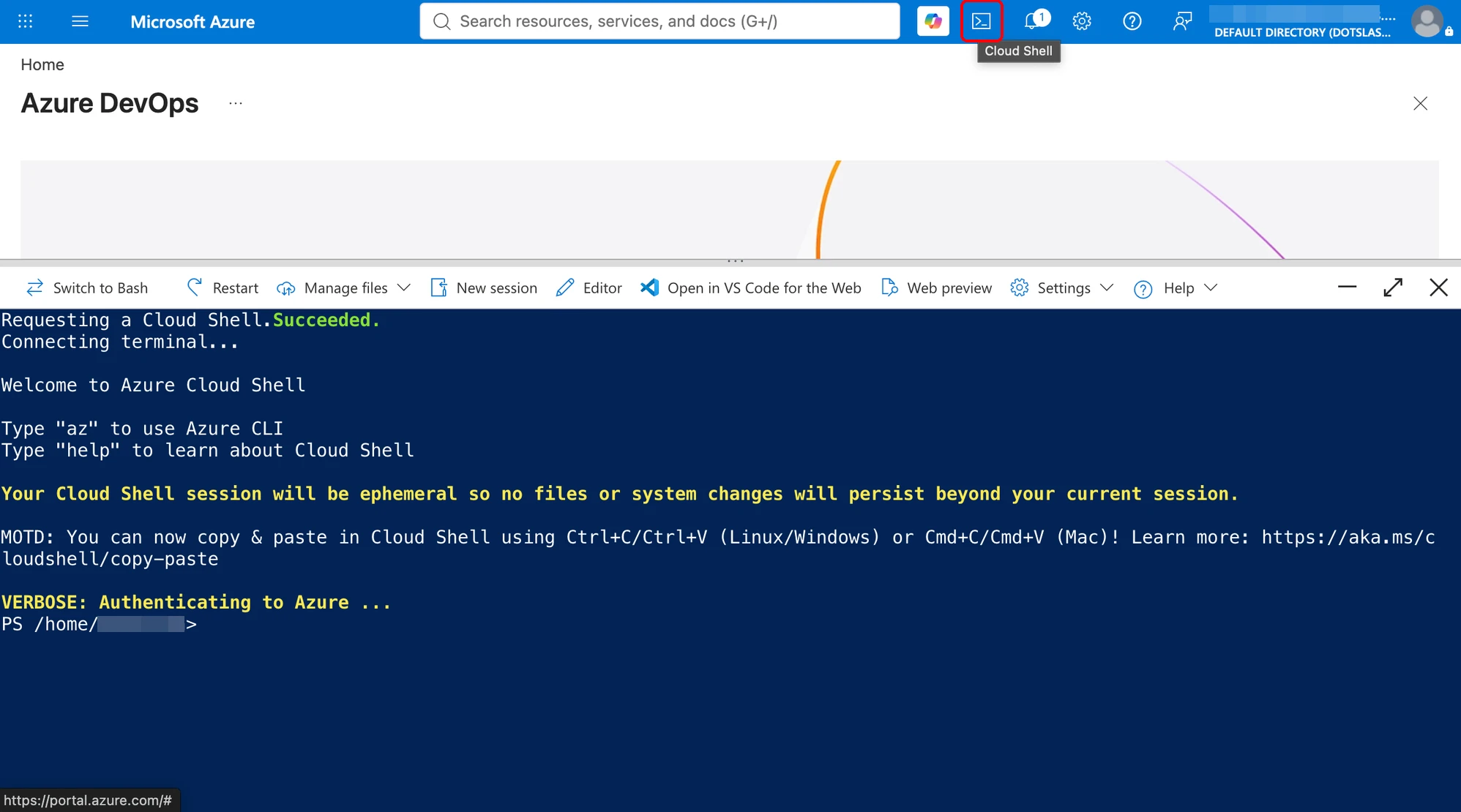
-
In a browser signed in as the administrator, open the consent URL and approve the prompt:
https://login.microsoftonline.com/organizations/adminconsent?client_id=06ee427d-6ae6-4e51-887d-ac9f8194fa31
Both IDs are fixed values, so there is nothing to look up. The first identifies Microsoft’s Azure DevOps MCP application, and the second identifies Test Companion. The consent covers everyone in the organization, so individual users do not see a consent prompt of their own.
Linear
The Linear server covers issues, projects, and comments. Test Companion can find, create, and update them in the projects you already use.
Example prompts:
List the open issues in the Checkout project and generate test cases for each one.Create a Linear issue for the failing login test and add the error details as a comment.
Zephyr Scale
The Zephyr Scale server covers test cases, test cycles, and test executions. Results can go straight from a test run into Zephyr Scale. On the first tool call, Test Companion detects which Zephyr Scale region your account uses. You do not set the region yourself.
Example prompts:
Create a test cycle called Sprint 42 regression in project QA.Mark the login test cases in the Sprint 42 cycle as passed.
After you connect this server, the Test Cases panel in Visual Studio Code uses it for Zephyr Scale. See Connect Zephyr Scale to Test Companion.
Sentry
The Sentry server covers issues, errors, and releases. Test Companion uses them to reproduce a production failure or write a regression test for it.
Example prompts:
Find the most frequent Sentry errors in the latest release and write tests that cover them.Get the stack trace for Sentry issue WEB-1042 and explain which test would have caught it.
Datadog
The Datadog server covers logs, metrics, monitors, and incidents. Test Companion queries them to explain a test failure with your monitoring data.
Example prompts:
Check the Datadog logs for the payments service during the last test run and find related errors.List the Datadog monitors that are alerting for the checkout service right now.
The Datadog server in the catalog connects to the US1 site, datadoghq.com, only. If your organization uses another Datadog site, such as EU or US3, contact BrowserStack support.
Slack
The Slack server sends and reads messages in the channels you can access, and looks up channels and users. Test Companion cannot reach a channel that your Slack account cannot open.
Example prompts:
Post a summary of today's failed tests to #qa-releases.Send the list of flaky tests from this run to @qa-lead.
Next steps
- Manage MCP servers in Test Companion: Read a server’s status, turn tools on or off, set auto-approval, and sign out.
- Add your own MCP server to Test Companion: Add a server that is not in the catalog.
We're sorry to hear that. Please share your feedback so we can do better
Contact our Support team for immediate help while we work on improving our docs.
We're continuously improving our docs. We'd love to know what you liked
We're sorry to hear that. Please share your feedback so we can do better
Contact our Support team for immediate help while we work on improving our docs.
We're continuously improving our docs. We'd love to know what you liked
Thank you for your valuable feedback!