
 Join our Discord
Tag tests with test case IDs
Link the scripts that Test Companion writes to BrowserStack Test Management test cases, check the last run of a test case, and tag tests you wrote earlier.
A test case ID tag is a Test Management identifier, such as TC-1234, written into a test script. When the tagged script runs on BrowserStack, the result attaches to that test case. Test Management then shows the run status and the automation coverage of the test case from real runs.
Test Companion writes the tag into each script it generates and checks the tag after the write. It can also report the last automated run of a test case. For Playwright and Cypress tests that you wrote earlier, it finds the matching test case and writes the ID.
Tagging works with BrowserStack Test Management only. With Zephyr, Xray, TestRail, or Azure Test Plans, Test Companion writes scripts without a tag and skips the tag check.
Prerequisites
You need the following before you start:
- A BrowserStack Test Management project selected in Test Companion. The tag check, the last run result, and linking all use the selected project.
- A version of Test Companion that supports the capability you need. See Availability.
Tag new scripts
When Test Companion writes a test file, it adds one test case ID tag to the file. It uses an ID that it already has:
- The ID of the test case that you asked it to automate.
- The ID of a test case that it added to Test Management for you.
- The ID that it finds in the project when you give only the title of a test case.
Test Companion does not invent an ID. Without an ID for a script, it writes the file untagged and says so in the chat.
Tag forms
The file type decides the tag form. Each test file carries one tag.
| File type | Placement | Example |
|---|---|---|
| JavaScript or TypeScript test | At the end of the test title. An ID at the start of the title does not link. | test('logs in TC-1234', ...) |
Cucumber .feature file |
In a @TCID_ tag on the line above the scenario. |
@TCID_TC-1234 |
Cucumber .feature file in a BrowserStack SDK run |
At the end of the scenario name. | Scenario: logs in TC-1234 |
| pytest | In a record_property call, as the first statement of the test. |
record_property("id", "TC-1234") |
| pytest in a BrowserStack SDK run | In a set_custom_tag call, as the first statement of the test. |
driver.set_custom_tag("ID", "TC-1234") |
| Java with TestNG | In a Reporter.log property, as the first statement of the test method. |
Reporter.log("[[PROPERTY\|id=TC-1234]]\n", true); |
| Java with TestNG in a BrowserStack SDK run | In a setCustomTag call, as the first statement of the test method. |
BrowserStack.setCustomTag("ID", "TC-1234"); |
| Kotlin | In a backticked test name, because a plain method name cannot hold the hyphen. | fun `logs in TC-1234`() |
| C# and Swift | In a marker printed as the first statement of the test. | print("[[PROPERTY\|id=TC-1234]]") |
A project with a browserstack.yml file in its root runs tests through the BrowserStack SDK. In these runs, only three forms link to a test case:
- The ID at the end of a test title.
- The ID at the end of a scenario name.
- A
setCustomTagorset_custom_tagcall.
BrowserStack reads the other forms, but the run creates a new test case instead of attaching to yours. The build still passes, so the mismatch is easy to miss. The tag check reports it.
For how BrowserStack reads each form, see Test case ID tagging in Test Management.
Tag check after each write
After Test Companion writes a full test file, it checks the tag against the selected project. The check never blocks the write. When it finds a problem, Test Companion fixes the tag before it runs the test. It also posts a notice in the chat that starts with Test case tagging notice.
The check reports the following problems:
| Problem | Meaning |
|---|---|
| Missing tag | The file contains a test but no test case ID. |
| Tag form that does not link | The project has a browserstack.yml file, and the file uses a form that creates a new test case instead of attaching to yours. |
| ID not found | The ID does not exist in the selected Test Management project. A wrong ID attributes the run to another test case. |
| Conflicting tags | The file contains two tag forms with two different IDs. The same ID in two forms is not a conflict. |
Review the corrected tag before you run the test yourself.
The check has two limits. It runs only on a full file write. An edit to part of a file does not report a missing tag. If a lookup fails, for example after a network error, Test Companion does not warn about that ID.
Check the last run result of a test case
Give Test Companion the test case ID, such as TC-1234, or the numeric ID from the test case URL. It reports the last automated run of that test case.
Example prompt
What was the result of the last run of TC-1234?
The answer starts with Last Automate run for TC-1234: followed by one of these states:
| State | Meaning |
|---|---|
| Covered | The most recent automated run passed. |
| Failing | The most recent automated run failed. |
| Never run | The test case is set up for automation but has not run yet. |
| Only manual results | The latest result came from a manual run. There is no automated run on record. |
| No runs | No run results are recorded for the test case. |
The answer also lists the verdict, run type, build, run time, and result on each platform. It ends with a link to the evidence when one exists. You can ask for a run result in Plan mode.
Link existing tests
A test without a test case ID does not count toward automation coverage. Test Companion matches each untagged Playwright or Cypress test with a test case in the selected project. It writes the ID into the test title. It does not link TestNG, pytest, or Cucumber tests.
A banner appears on the Test Cases tab after you select a Test Management project. It appears only when the workspace holds untagged Playwright tests. The banner is titled Increase automation coverage and shows the number of tests that are not linked. Click Link to start the task in the chat. Click the X to hide the banner until you select a project again. Click Don’t show again to turn it off for the workspace.
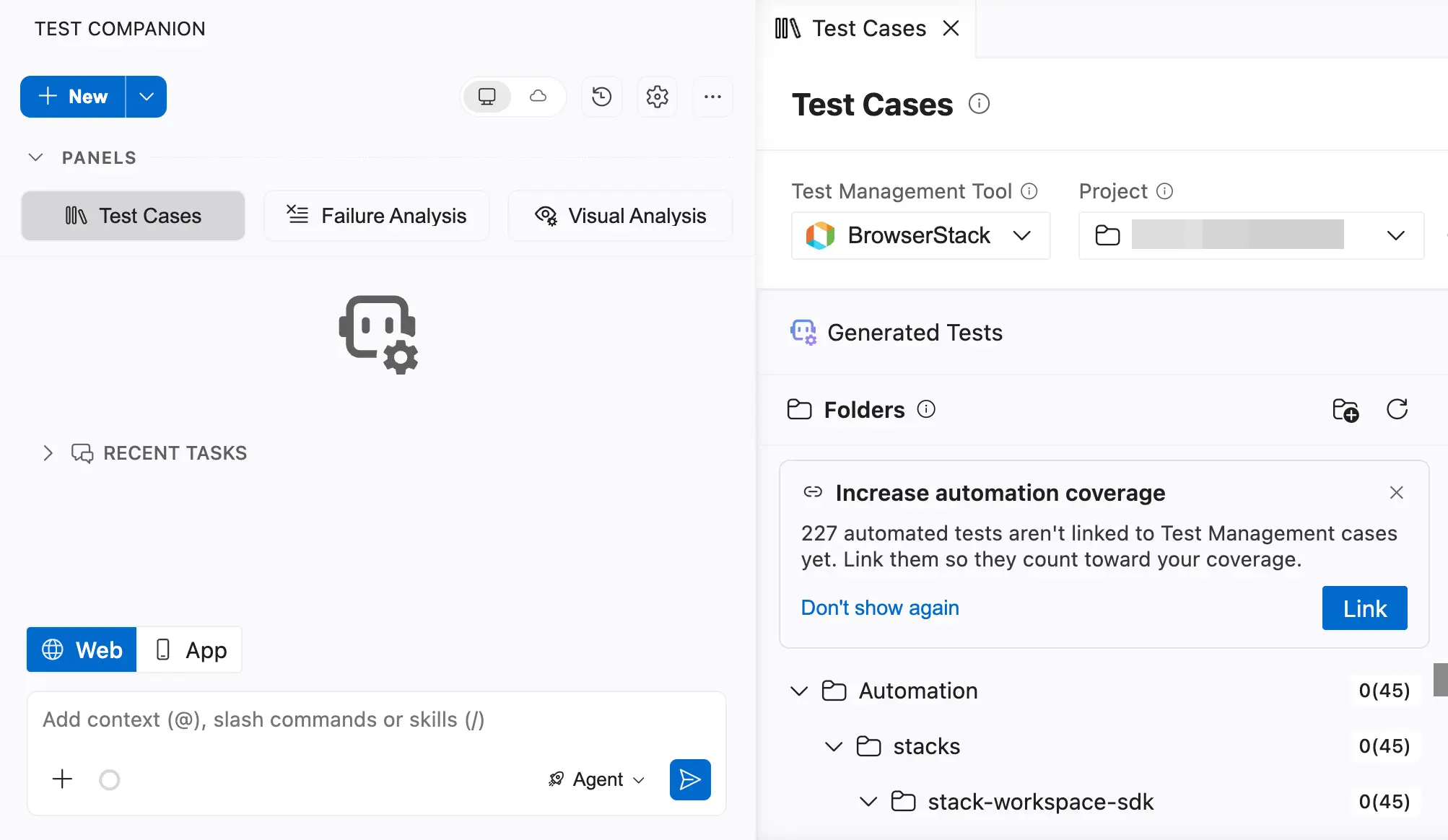
You can also start from the chat box. The banner does not appear for Cypress tests, so start from the chat box to link them.
Example prompt
Link my existing automated tests in this workspace to their Test Management cases.
Test Companion then does the following:
- Finds the Playwright and Cypress test files in the workspace and counts the tests without a test case ID. It skips tests that already carry an ID in any form.
- Compares each untagged test with the test cases in the project. It reads the test title, the test code, and the steps of the test case. A progress card in the chat reads Matching tests to Test Management cases while this runs.
- Writes the ID into the title of each test that it matched with confidence. The changes appear as a normal file diff for you to review.
- Posts a summary with three sections: Matched, Needs review, and No match found.
A test that matches two test cases almost equally well goes to Needs review and stays untagged. A test with no confident match also stays untagged. Test Companion never guesses an ID. It writes only the IDs that the matching step returned.
Linking changes only your test code. It does not create test cases, and it does not change the Automation Status of a test case. That status changes after the tagged test runs on BrowserStack and passes. So run the tagged tests after you link them.
Availability
| IDE or CLI | Tag check after each file write | Last run result of a test case | Link existing tests |
|---|---|---|---|
| Visual Studio Code | 1.29.7 and later | 1.33.0 and later | 1.35.0 and later |
| JetBrains IDEs | 1.6.8 and later | 1.10.0 and later | Not supported |
| Test Companion CLI | Supported | Supported | Supported |
| Visual Studio | Not supported | Not supported | Not supported |
| Eclipse | Not supported | Not supported | Not supported |
In Visual Studio and Eclipse, Test Companion adds the tag when it writes a script. It does not check the tag afterward.
Best practices
- Select the Test Management project before you ask for a script. The tag check and linking use the selected project.
- Keep one ID in each test file. Two different IDs in one file are reported as a conflict.
- Put the ID at the end of the test title. In JavaScript and TypeScript tests, an ID at the start of the title does not link.
- Write the ID with a hyphen.
TC_1234does not link. - Review linked tests before you merge them. Check the tests under Needs review and the tests with no match.
- Run the tagged tests. Automation coverage updates from runs, not from the tag alone.
Next steps
- Automate tests: Convert test cases into automation scripts that carry the tag.
- Measure automation coverage: Find the product behaviors that no test case covers.
- Test case ID tagging in Test Management: See how BrowserStack maps each tag form to a test case.
We're sorry to hear that. Please share your feedback so we can do better
Contact our Support team for immediate help while we work on improving our docs.
We're continuously improving our docs. We'd love to know what you liked
We're sorry to hear that. Please share your feedback so we can do better
Contact our Support team for immediate help while we work on improving our docs.
We're continuously improving our docs. We'd love to know what you liked
Thank you for your valuable feedback!