
 Join our Discord
Test Companion Cloud
Run Test Companion tasks on a machine in the BrowserStack cloud, keep working while they run, and get the result as a pull request.
- Availability: Test Companion Cloud is in beta and is not available to every account yet. It is available on request. To have it enabled for your account, contact BrowserStack support.
- IDE: Test Companion Cloud works in Visual Studio Code only.
Test Companion Cloud is the same Test Companion that runs in the extension. The difference is where it runs. In local mode, Test Companion works inside your IDE, on your computer. In Cloud mode, you send the task from Visual Studio Code. A machine in the BrowserStack cloud does the work.
The cloud machine clones your GitHub repository, installs the tools your tests need, and opens its own browser. For a large task, Test Companion Cloud splits the work into subtasks that run at the same time. When the work is done, the code changes arrive as a pull request on your repository.
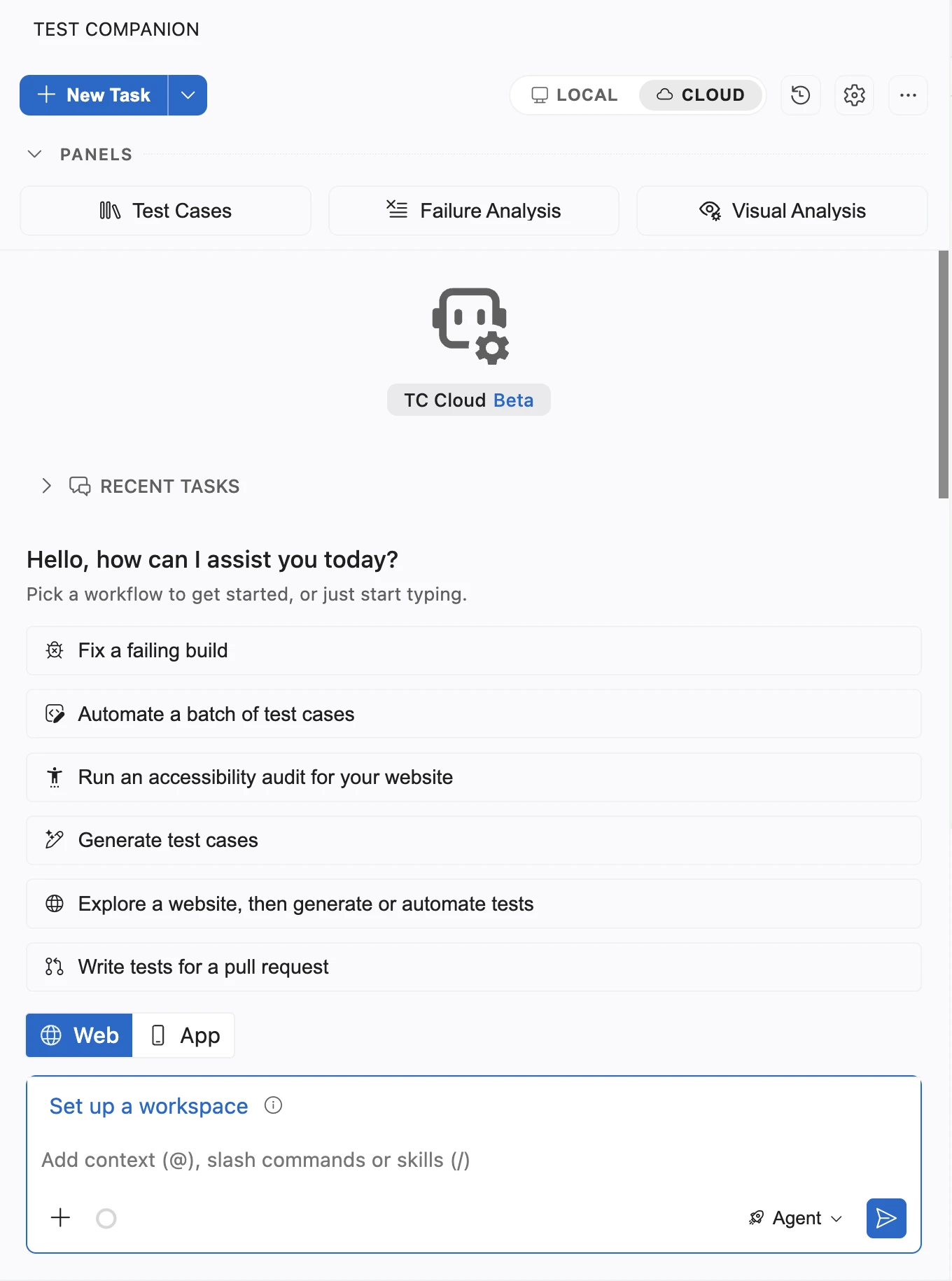
When to use Cloud mode
Use Test Companion Cloud for jobs that are too large or too slow to run on your computer:
- Hand off a large job: Fix every failed test in a build, or automate a backlog of manual test cases, from one prompt.
- Keep working while it runs: The task keeps running after you close Visual Studio Code. Reopen it from History when you are back.
- Run several subtasks at once: Test Companion Cloud splits a large task into independent subtasks. Each subtask gets its own browser.
- Keep your computer free: Browsers, test runners, and dependency installs run on the cloud machine.
- Keep your local work untouched: Test Companion Cloud works on its own clone of the repository. Your local branch and unsaved edits do not change.
- Review the result in GitHub: The code changes arrive as a pull request, so you review them with the usual pull request tools.
How a task works in Cloud mode
Every task in Cloud mode follows the same sequence:
- You send the task: In Visual Studio Code, switch the Test Companion panel to Cloud mode, pick a workspace, and type your prompt. A workspace tells Test Companion Cloud which repository, branch, and website URL or app to use.
- Test Companion Cloud sets up a machine: It clones your repository, creates a branch for its work, and installs the tools your project needs.
- Test Companion explores and plans: It reads your code and your app, then shows you a plan. You approve the plan or suggest changes.
- Test Companion Cloud does the work: For a large task, it splits the work into subtasks. Each subtask has its own browser.
- Test Companion Cloud checks the work: It runs the tests it wrote or fixed on the cloud machine.
- You get the result: The code changes arrive as a pull request. Test cases, accessibility reports, test reports, and bug drafts appear in Visual Studio Code.
While the task runs, Test Companion might ask you a question. Answer it in the chat. You can also send a message at any time to steer the task.
Cloud mode or local mode
Hover over the mode switch at the top of the Test Companion panel to see what each mode is for.
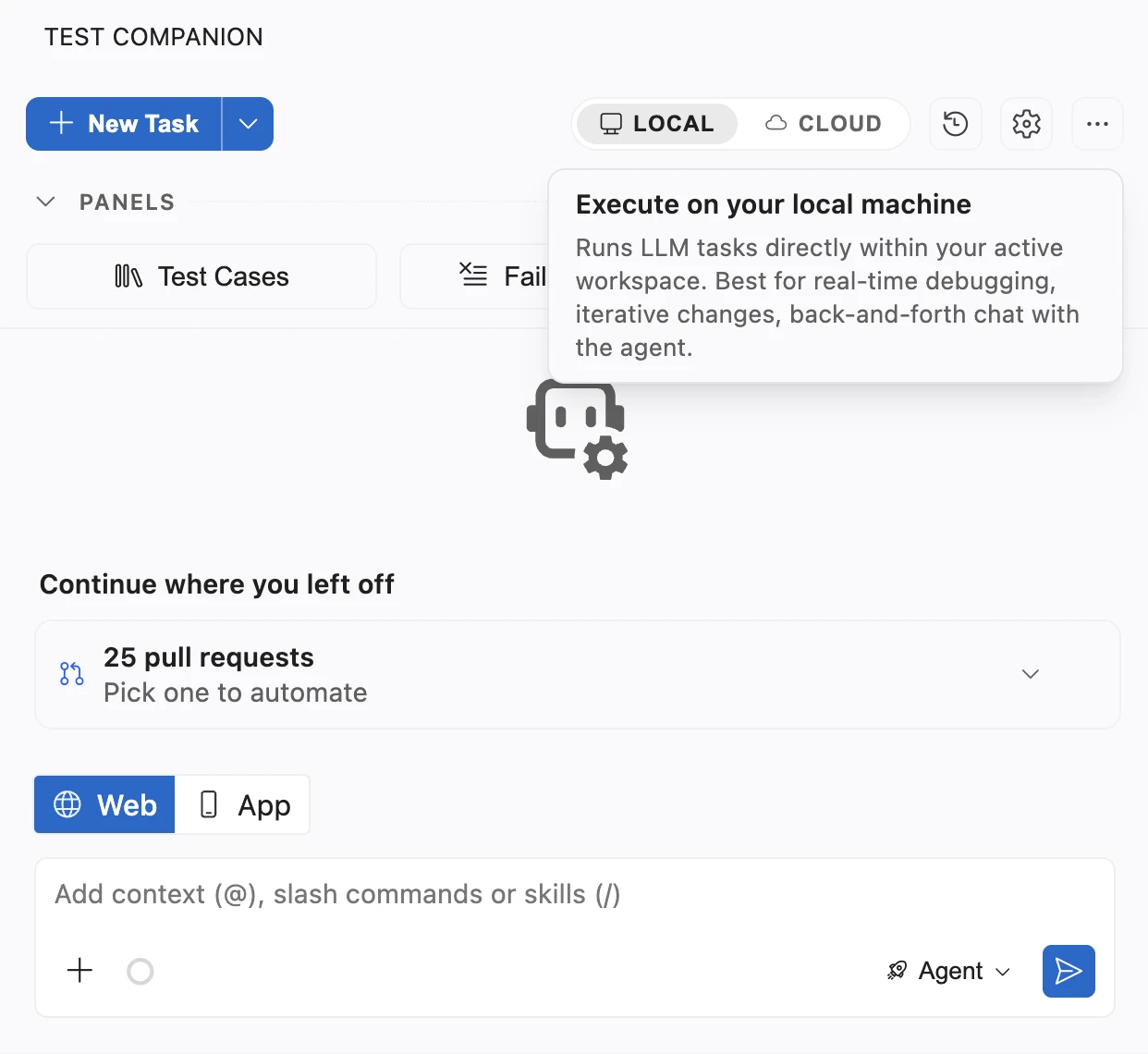
Choose the mode that fits the job:
| Cloud mode | Local mode |
|---|---|
| The job is large, such as fixing a whole build or automating many test cases. | The change is small and you want to work with Test Companion step by step. |
| You want the task to keep running after you close your editor. | You want to review or undo each edit as Test Companion makes it. |
| Your tests run on Chrome. | Your tests need Firefox, Safari, WebKit, or Edge. |
| Your repository is on github.com. | Your repository is on GitLab, Bitbucket, Azure Repos, or GitHub Enterprise Server. |
| The code you want to test is pushed to GitHub. | You want Test Companion to use your uncommitted or unpushed changes. |
| You test native apps with Appium. | You test with Espresso, XCUITest, Maestro, or Flutter integration tests. |
Prerequisites
Before you use Test Companion Cloud, make sure you have the following:
- Visual Studio Code with the Test Companion extension installed. Sign in to the extension with your BrowserStack account. For the steps, see Install Test Companion in Visual Studio Code.
- Test Companion Cloud enabled for your account. When it is enabled, the mode switch appears at the top of the Test Companion panel.
- A repository on github.com, if you want Test Companion Cloud to change code and open pull requests. You connect GitHub from the Integrations page of your BrowserStack account.
Next steps
- Run a task in Test Companion Cloud: Switch to Cloud mode, send your first task, and review the result.
- Set up workspaces in Test Companion Cloud: Save your setup once and reuse it on every task.
- Workflows in Test Companion Cloud: Fix a failing build, automate test cases, run an accessibility audit, and more.
- Test local and private apps from Test Companion Cloud: Reach an app on your computer or private network.
- Supported features and limits in Test Companion Cloud: Check which tools, frameworks, and platforms Test Companion Cloud supports.
We're sorry to hear that. Please share your feedback so we can do better
Contact our Support team for immediate help while we work on improving our docs.
We're continuously improving our docs. We'd love to know what you liked
We're sorry to hear that. Please share your feedback so we can do better
Contact our Support team for immediate help while we work on improving our docs.
We're continuously improving our docs. We'd love to know what you liked
Thank you for your valuable feedback!