
 Join our Discord
Generate test cases with Ask AI
Draft test cases with the Test Case Generator Agent in Ask AI, refine them in the chat, and save the reviewed set to a Test Management folder.
The Test Case Generator Agent runs inside Ask AI as a conversation. You describe what to cover, attach a requirement when you have one, and the agent drafts the test cases. Add a prompt in Ask AI to change the language, add edge cases, or drop a scenario without starting over. You review the result in the same review panel that the Generate Test Cases panel uses.
- Ask AI is available on Team Ultimate plans with BrowserStack AI activated.
- BrowserStack does not train its AI models on the data you provide.
Before you start
Make sure that:
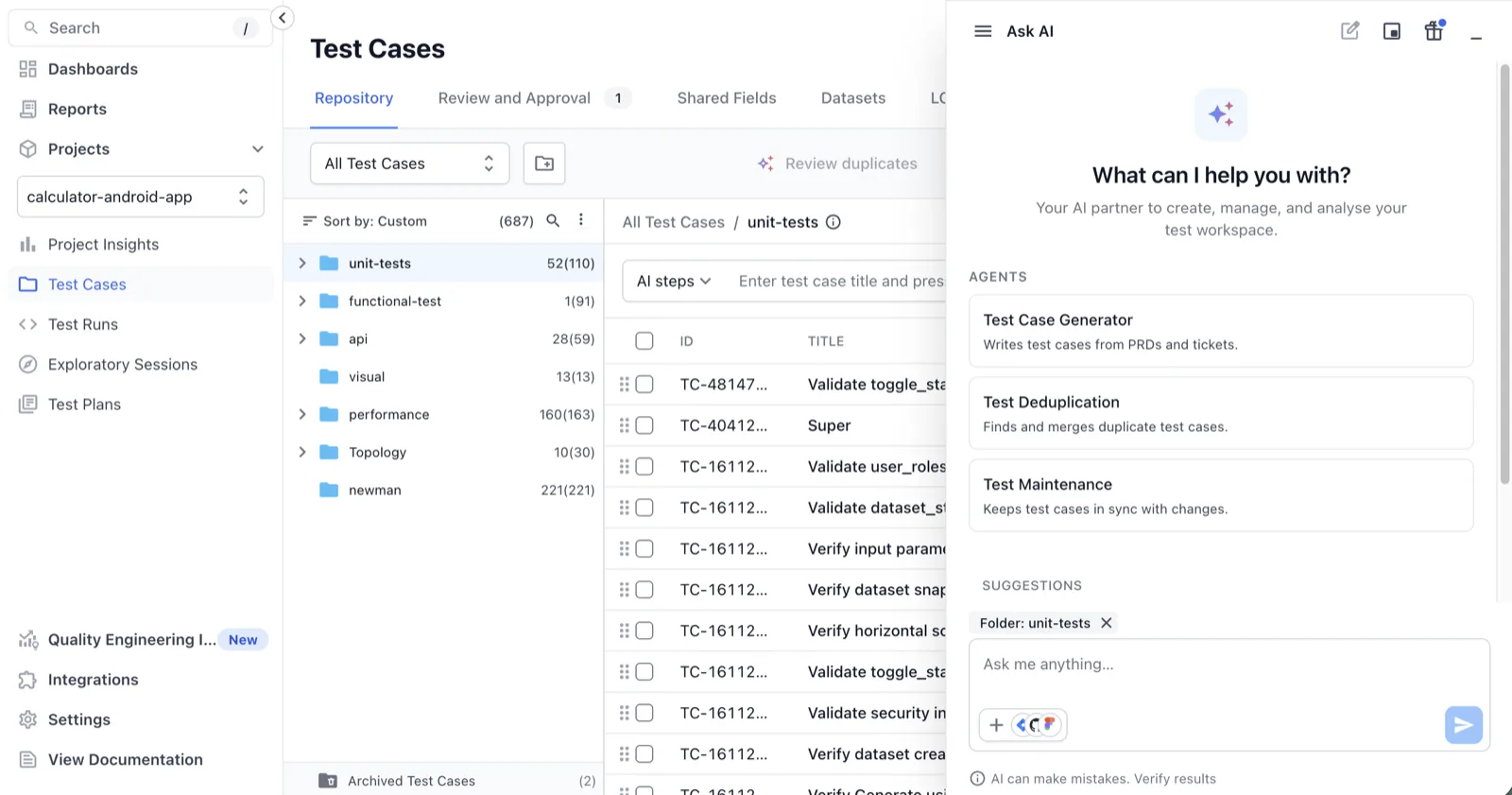
- Ask AI is available on your account. The floating Ask AI button appears at the bottom of every Test Management page.
- You have opened the folder that should receive the test cases. The context chip above the prompt box shows it.
- You have the requirement ready as a file, a link, or text. Without it, the agent drafts from general knowledge.
Generate test cases
Follow these steps from the folder that should receive the test cases:
- Open your project, go to Test Cases, and open the target folder.
-
Click Ask AI at the bottom of the page. The context chip above the prompt box names the folder.
-
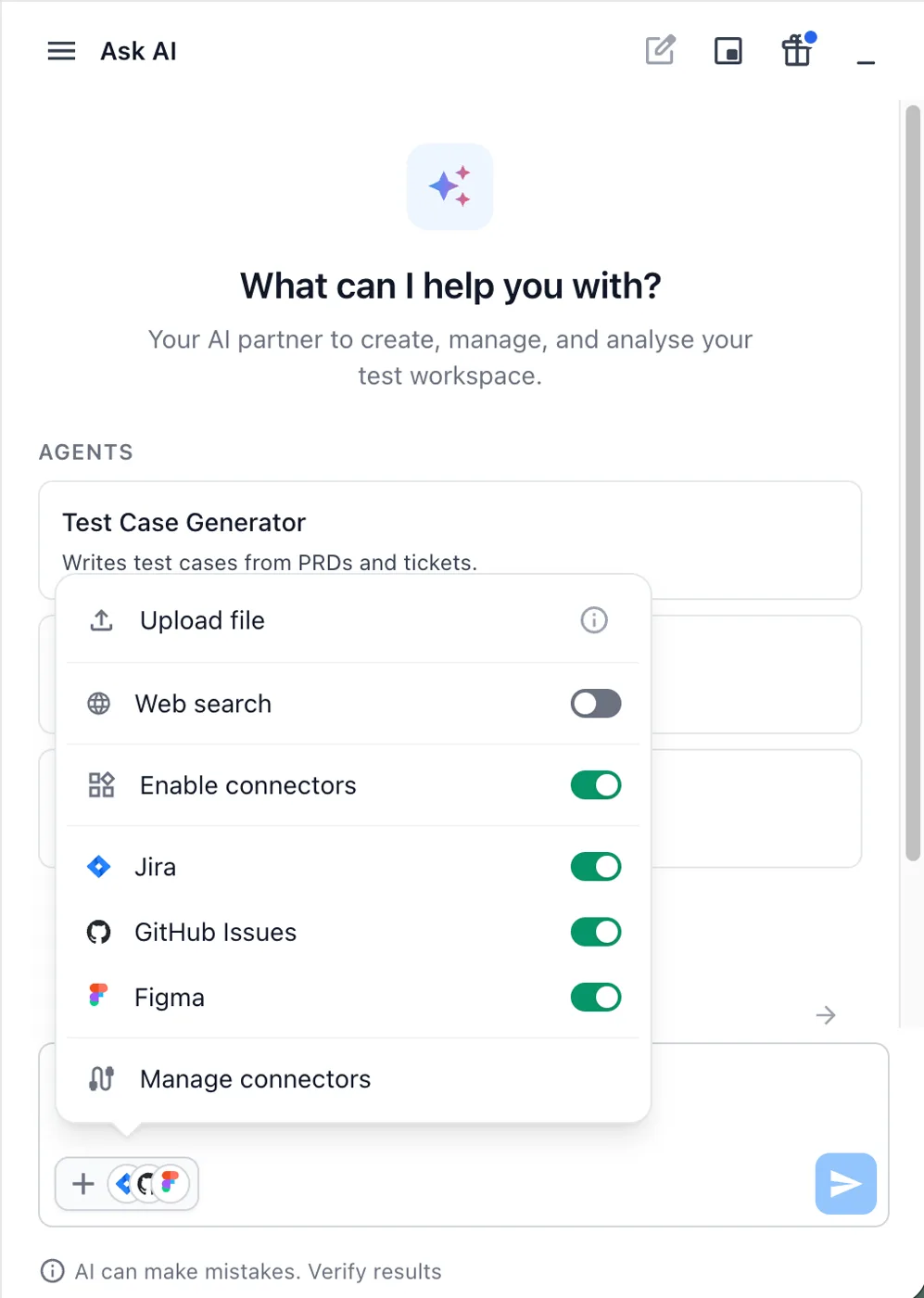
To work from a requirement, click + and select Upload file. Or turn on a connector and reference the issue or page in your prompt. See Add context to Ask AI requests.
-
Type a prompt such as
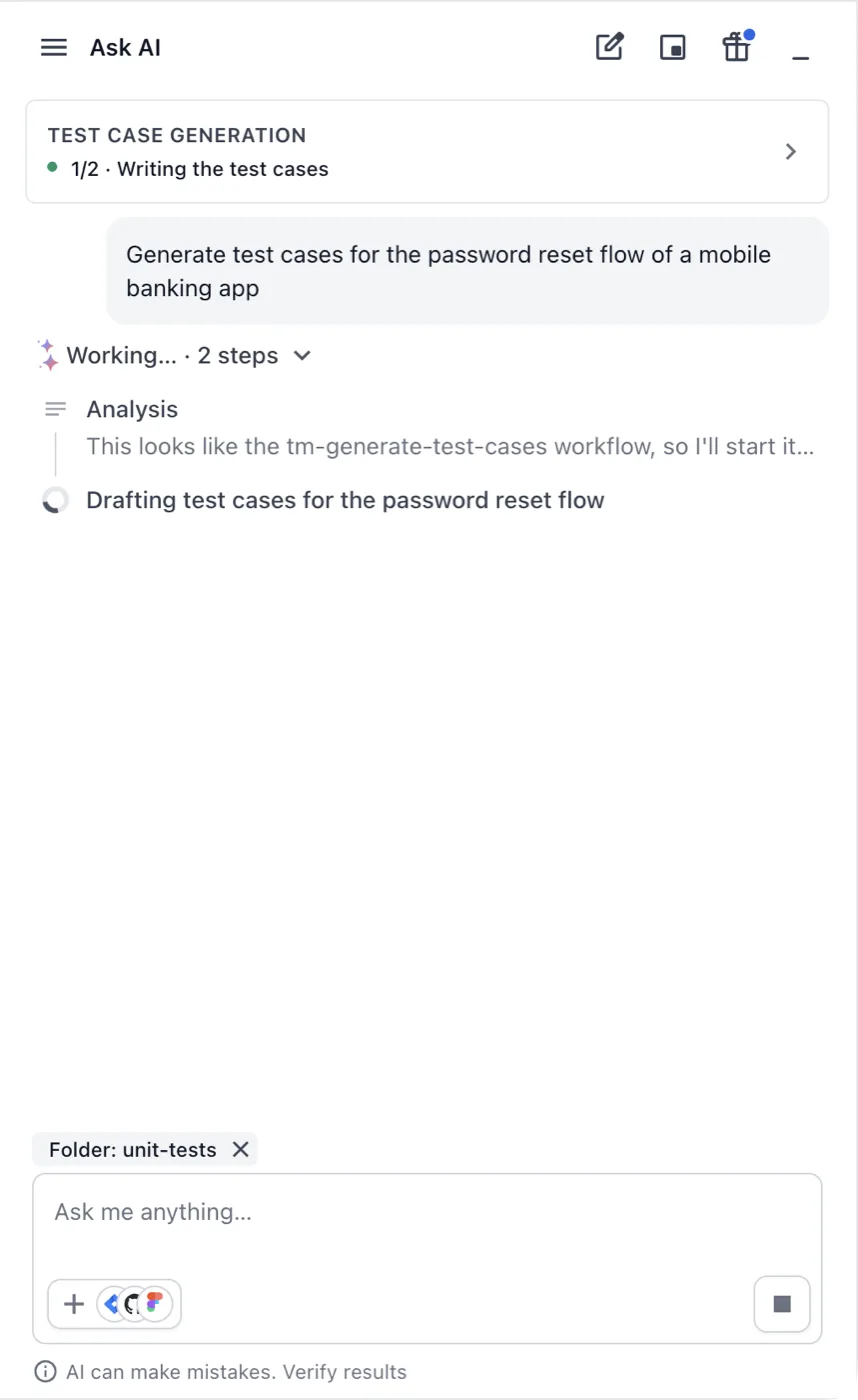
Generate test cases for the attached PRDand click Send.A progress card titled TEST CASE GENERATION shows the current step, for example 1/2 · Writing the test cases. Under it, Working… lists the analysis the agent makes.
When the agent finishes, the line reads Completed 3 steps with the time taken. A result card reads N test cases are ready. The reply summarizes the scenarios it covered.
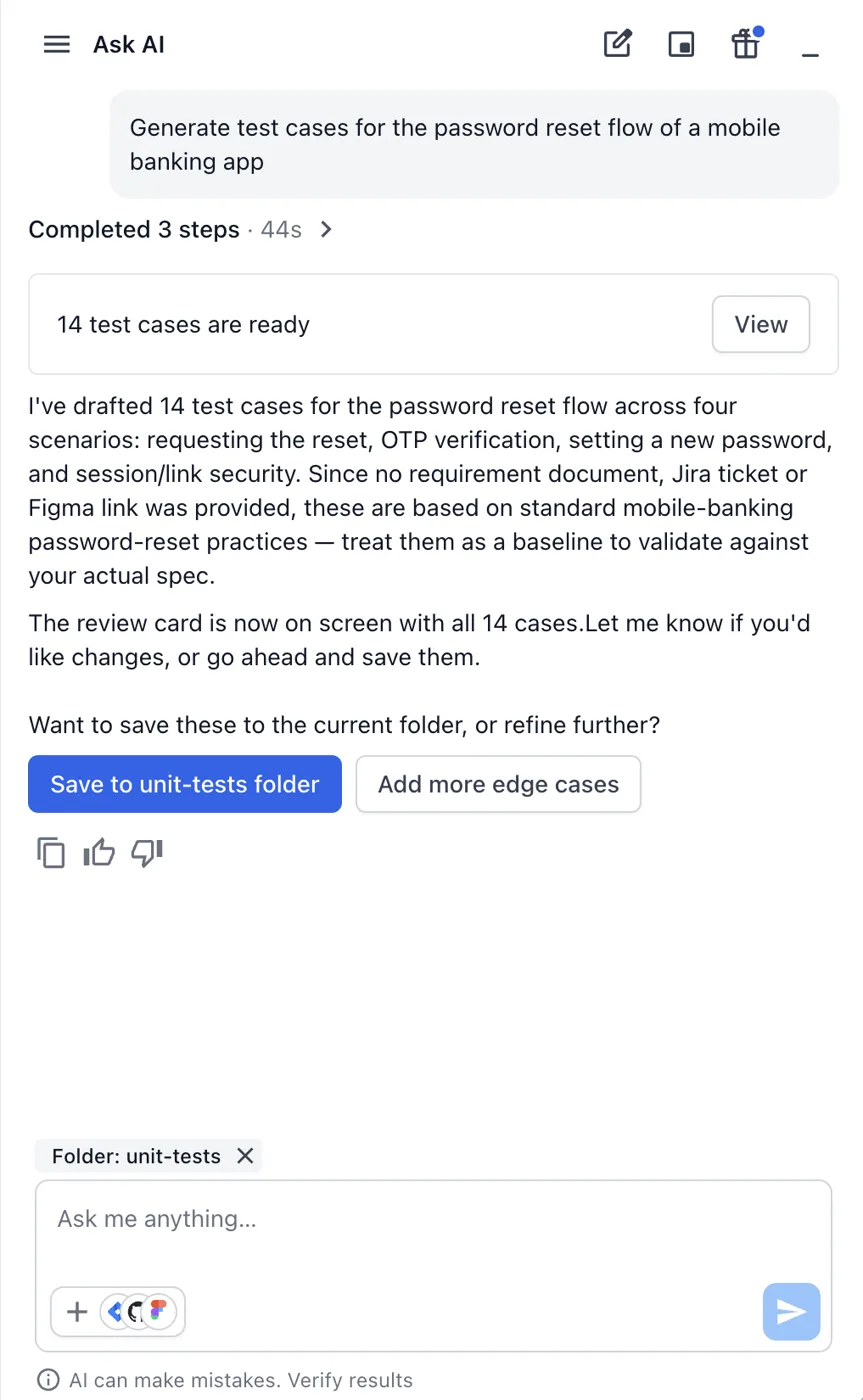
A prompt without a requirement gets a draft from general knowledge. The reply opens with a note that says so. Check the draft against your own specification.
The reply ends with two buttons. The first one names the folder in the context chip, for example Save to unit-tests folder. It adds the set there. Add more edge cases asks the agent for another pass.
Steer the output with your prompt
Ask AI has no settings panel. Everything you used to pick under Settings goes into the prompt instead. The following table lists common instructions.
| Instruction | Example prompt |
|---|---|
| Template | Generate BDD test cases for the attached PRD |
| Language | Generate test cases for the login flow in French |
| Type and priority | Generate only negative test cases with High priority for the checkout rules |
| Part of a document | Generate test cases only for the Payments section of the attached document |
| Count | Generate 10 test cases for the password reset flow |
| Existing test cases |
Generate new test cases for the attached requirement leaves existing test cases unchanged |
When your prompt gives no instructions, the agent reads the requirement and decides the type of test cases. The reply tells you what it chose.
The agent fills scenario name, title, description, priority, type, preconditions, and steps. Each step gets one expected result. It fills system fields only.
Review the test cases
Click View on the result card to open the review panel beside the chat. Click Hide to close it again.
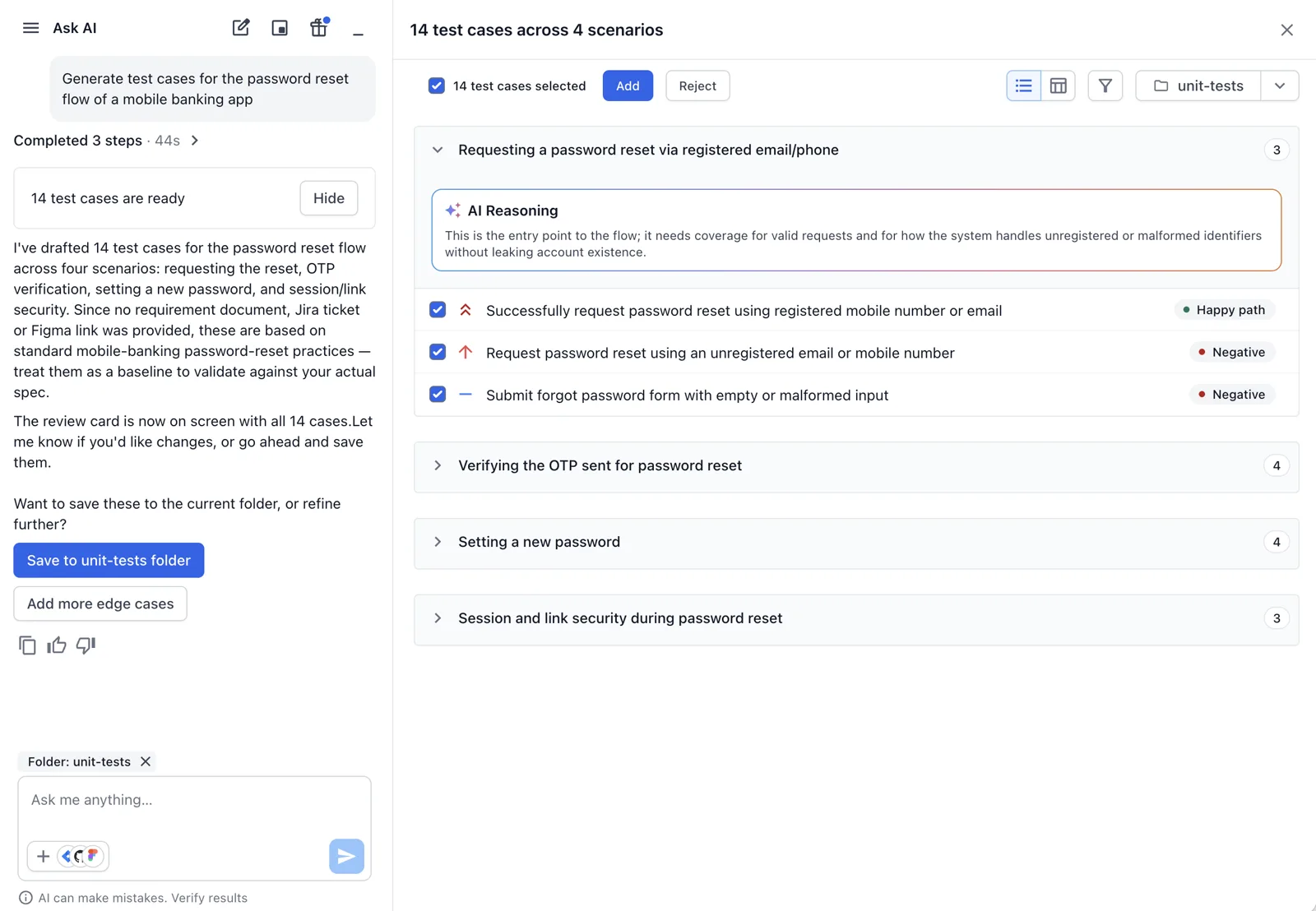
The following table lists its controls.
| Control | Details |
|---|---|
| Header count | Reads N test cases across M scenarios. The checkbox beside it selects or clears every row. |
| Add and Reject | Add saves the selected test cases to the folder in the context chip. Reject discards the set. |
| List and table views | The two icons at the right switch between a list and a table with the full fields. The filter icon beside them narrows the list. |
| Folder picker | The folder name at the right of the header, for example unit-tests. Select another folder to save the test cases there instead. |
| Scenario groups | Each group opens with an AI Reasoning card that explains what the group covers. |
| Category tags | Each row carries Happy path, Negative, or Edge case. |
| Refinement banner | After a follow-up prompt, a banner reads N edited in this refinement. The Show changes only switch beside it hides the untouched rows. |
Clear the checkbox on a row to leave that test case out. Click a title to read the full test case.
Refine with follow-up prompts
Type a follow-up message in the same chat to rework the set. The agent keeps the context of the draft, so you do not repeat the requirement. For example:
Convert the test cases into FrenchAdd negative test cases for expired passwordsRemove the two-factor scenarios
The agent posts a new result card, and the reply names what changed. Click View to see the reworked set. A banner at the top of the review panel reads N edited in this refinement. Turn on Show changes only to hide the rows the prompt did not touch.
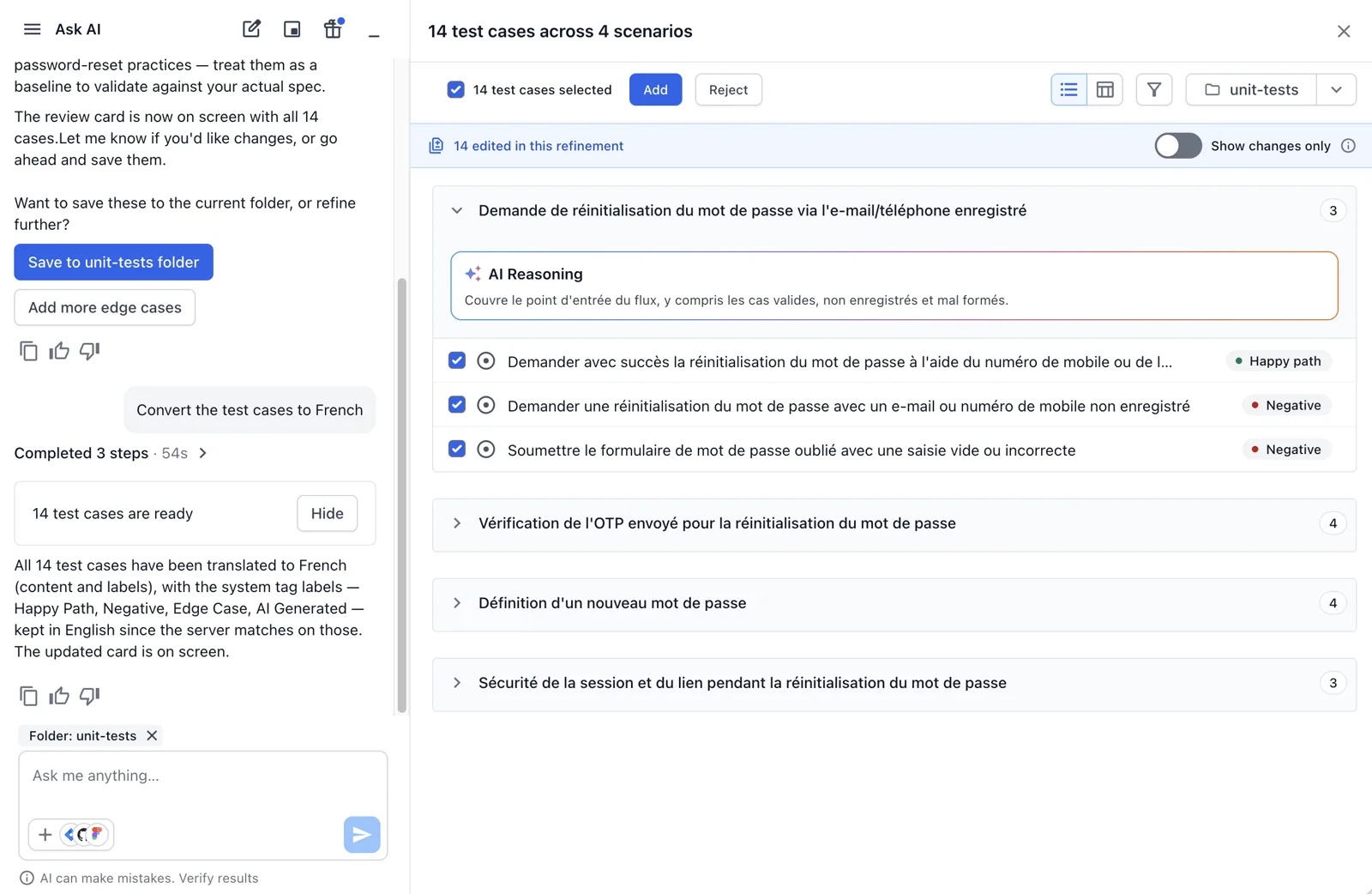
For the other review controls that mark what an iteration changed, see Refine AI-generated test cases with iterative prompts.
Save to the repository
Click the Save to button in the chat, or click Add in the review panel. The selected test cases are added to the folder in the context chip. To save to a different folder, pick it in the folder picker of the review panel before you click Add.
When the request also updates existing test cases
A requirement often overlaps with test cases you already have. Ask AI checks the existing test cases in scope before it generates. The Test Case Maintenance Agent first flags the test cases that the requirement changes affect. The generator then writes only what is missing. To skip that step, ask for new test cases. See Run several agents in one Ask AI request.
Compare with the Generate Test Cases panel
Both paths use the same agent and produce the same test cases. The following table shows what moves where.
| Area | Generate Test Cases panel | Ask AI |
|---|---|---|
| Where you start | Generate Test Cases on the Test Cases page | Ask AI on any page |
| Template, type, priority, language | Settings in the panel | Words in your prompt |
| Requirements | Add Requirements menu | + in the prompt box, connectors, or pasted text |
| Datasets and updates | Include datasets and Update test cases toggles | Ask AI offers them when your request or requirement calls for them |
| Web search | Not available | Web search under Manage connectors |
| Review | Review screen with scenarios and AI Reasoning | The same review panel, opened from the result card |
| Refinement | Refine and Add Test Cases field | A follow-up message in the chat |
Limits
These limits apply to generation in Ask AI:
- The agent fills system fields only. Custom field values are not generated.
- In this release, Ask AI does not read the project’s AI Agent Knowledge Base or AI Agent Instructions.
- The file and link limits of the Generate Test Cases panel apply. See Document limitations.
Next steps
Continue with one of these pages:
- Add context to Ask AI requests: Attach files, connect Jira, Confluence, and Figma, or turn on web search.
- Run several agents in one Ask AI request: Let one requirement drive datasets, updates, and new test cases.
- Generate test cases from requirements and links: Use the panel when you want the settings in one place.
We're sorry to hear that. Please share your feedback so we can do better
Contact our Support team for immediate help while we work on improving our docs.
We're continuously improving our docs. We'd love to know what you liked
We're sorry to hear that. Please share your feedback so we can do better
Contact our Support team for immediate help while we work on improving our docs.
We're continuously improving our docs. We'd love to know what you liked
Thank you for your valuable feedback!