
 Join our Discord
Generate test cases from requirements and links
Generate test cases with AI in Test Management from requirement documents, prompts, or links to Jira, Azure DevOps, Linear, Confluence, and Figma.
BrowserStack AI generates comprehensive test cases directly from your requirement documents, designs, or issue trackers. The agent analyzes your inputs to create detailed steps, preconditions, and expected results quickly.
- Ensure you connect Jira, Azure, Figma or Confluence accounts. The system prompts you to configure the integration if it detects a missing connection.
- The AI generator agent analyzes context from Jira attachments, including PDF and image files, when creating test cases.
- Select BDD as your output format to generate Feature/Scenario style content using standard Given / When / Then syntax.
For the most accurate AI-generated test cases, ensure the information in your prompt does not conflict with the content in your linked Jira issues or Confluence pages.
When details conflict, the AI cannot determine the correct source of truth, which may lead to incomplete or incorrect test cases.
How to generate test cases
You can generate test cases in a single flow, regardless of whether your requirements are in a PDF, a Jira ticket, or a Figma design.
Open the AI generator
Navigate to your test cases list view and click Generate Test Cases.
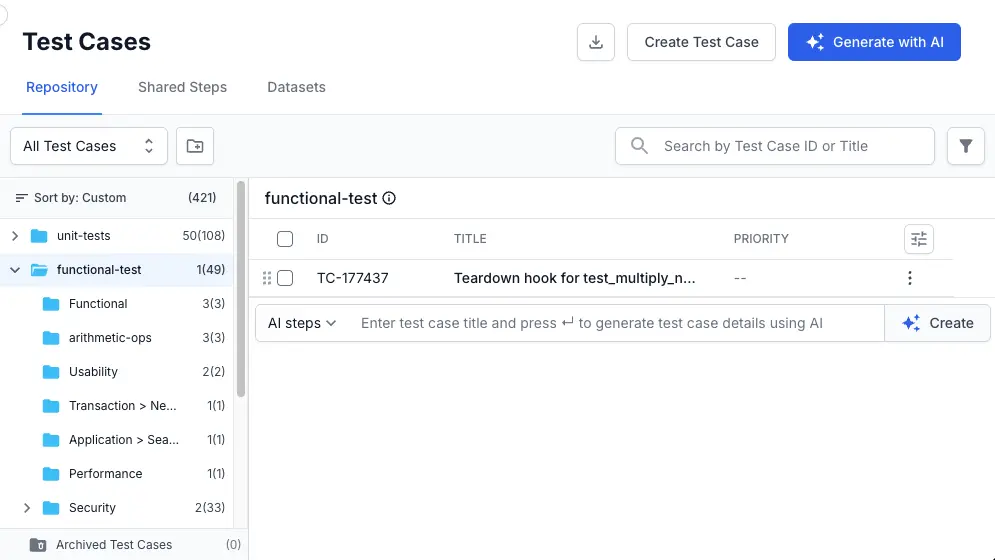
The Generate Test Cases with AI panel opens.
Provide your requirements
The AI needs context to generate accurate tests. You can provide this in two ways:
- Type instructions: Enter a text description or prompt, or paste requirements directly into the text field.
- Add external context: Click + Add Requirements and select a source from the menu to attach specific resources. Learn more about applicable external sources to provide context.
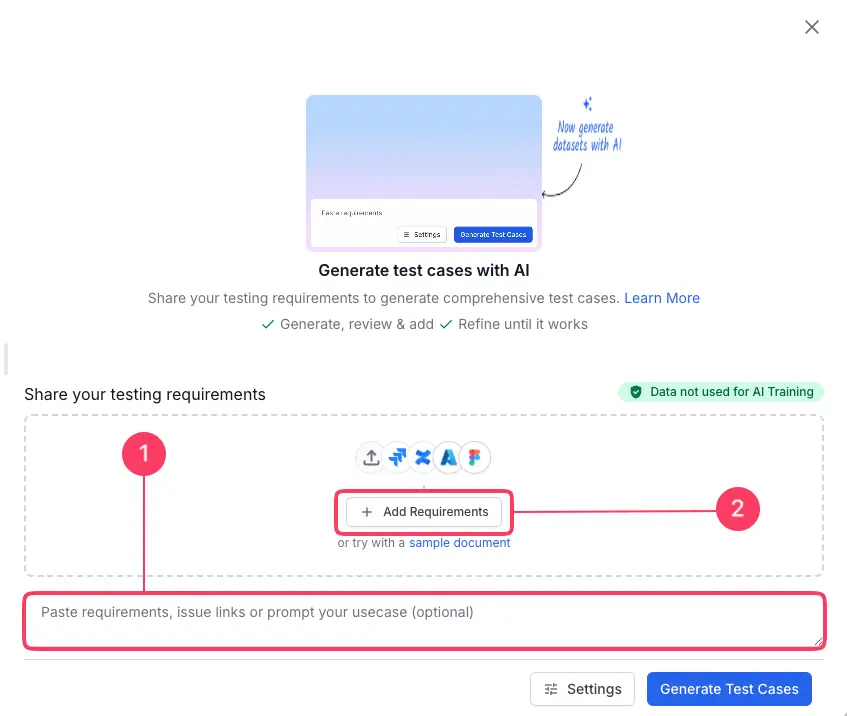
Use Jira issue context
- Click + Add Requirements and select Jira from the menu.
- In the Jira dialog, select your Host from the dropdown menu.
- Choose the Project that contains the relevant issues.
- Select one or more Issues from the list.
- Click Link to fetch the context from the selected issues.
Use Azure DevOps work item context
- Click + Add Requirements and select Azure DevOps from the menu.
- In the Azure DevOps dialog, select your Organisation from the dropdown menu.
- Choose the Project that contains the relevant work items.
- Select one or more Work Items from the list.
- Click Link to fetch the context from the selected work items.
Provide a Confluence page link
- Click + Add Requirements and select Confluence from the menu.
- In the Confluence dialog, select your Host from the dropdown menu.
- Choose the Space where your requirements are documented.
- Select the specific Page you want to use.
- Click Link to fetch the content from the selected page.
Provide a Figma design link
- Click + Add Requirements and select Figma from the menu.
-
In the Figma dialog, enter the Figma link.
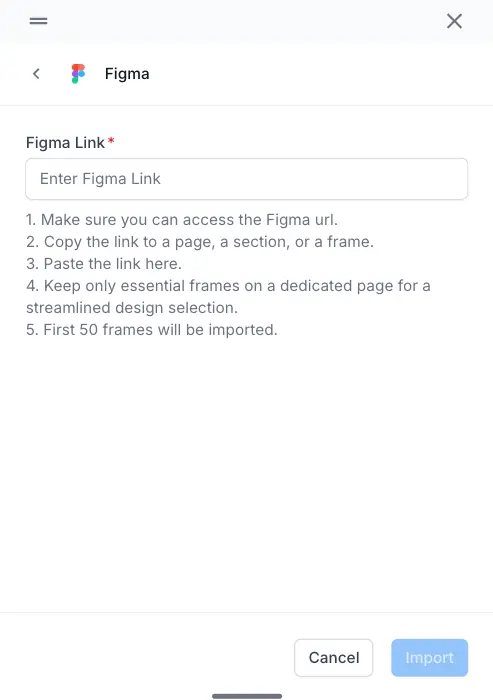
- Click Import.
-
Select individual frames or all frames. You can attach any number of Figma links, and select up to 50 frames in total per generation.
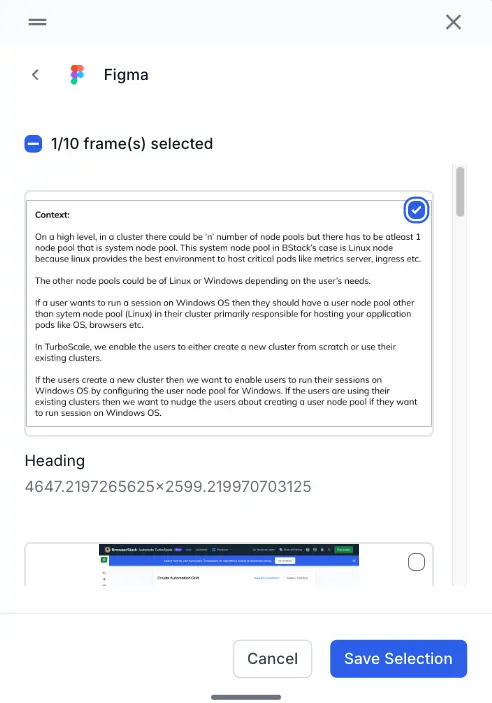
- Click Save Selection.
For integrations like Jira, Azure, Figma or Confluence, you will be prompted to Connect with OAuth or Continue with PAT if you have not authenticated yet.
Configure output settings
Before generating, click Settings to tailor the output to your specific testing needs. The menu groups the output settings, the context to use, and the Generation modes toggles that switch on the other AI agents.

| Setting | Options | Best used for |
|---|---|---|
| Template | Test cases (Text) | Create high-level checklists or scope documents where detailed steps are not yet needed. |
| Test cases (Steps) | Standard manual testing. Generates detailed “Step-by-Step” instructions with “Expected Results.” | |
| Test cases (BDD) | Automation planning. Generates scenarios in Gherkin syntax (Given/When/Then) compatible with frameworks like Cucumber. | |
| Your custom templates | Projects that use a custom test case template. Your custom templates appear by name in the Template list. The AI generates the output in the selected custom template but populates system fields only. | |
| Type | Functional | Validate core business logic and user flows (includes sanity and negative tests). |
| UI/UX | Verify visual elements, layout, and design fidelity against Figma frames. | |
| Security | Generate specific vulnerability checks which might be missed in standard functional tests. | |
| Performance | Testing system responsiveness, load times, and stability under stress. | |
| Compatibility | Generating vulnerability checks. | |
| Accessibility | Ensure compliance with standards like WCAG. | |
| Priority | Critical | Identify “Showstopper” defects or Smoke Test scenarios that must pass for a release. |
| High | Standard regression testing of core features. | |
| Medium | Targeted regression testing of non-critical features or recent changes. | |
| Low | Cosmetic issues or minor edge cases that do not block release | |
| Update test cases | Toggle On/Off | Switches the agent to maintenance mode. Instead of creating new test cases, the AI compares your updated requirements with the existing test cases and suggests updates to them. See the Test Case Maintenance Agent documentation. |
| Shared Steps | Toggle On/Off | Enables the AI to use the shared steps defined in your project when it generates test cases, so that common step sequences are reused instead of duplicated. See the shared steps documentation. |
| Include datasets | Toggle On/Off | Enables the test data generator agent, which creates sample data tables for your test cases. See the Test data generator agent documentation. |
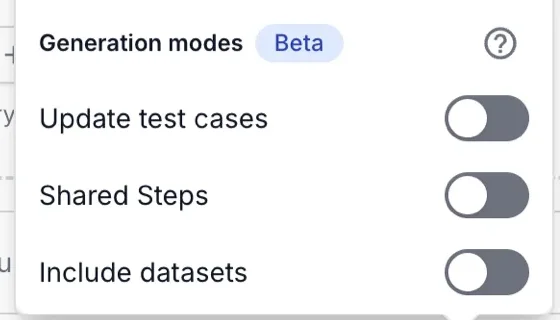
Datasets are currently not supported for BDD test cases.
When you generate test cases in a custom template, the AI generates values for system fields only. It does not generate values for custom fields.
Generate and monitor the AI’s analysis
- Click Generate Test Cases.
- The AI will now analyze your input and provide real-time feedback on its process. You can expand each section to see more details. The process includes:
- Analyze your requirement: The AI parses the prompt, documents, and linked pages to understand the core functional and non-functional requirements.
- Scan for context: It searches for existing test cases and linked artifacts in your project to gather more context.
-
Generate a summary: The AI presents its findings, including core requirements and relevant artifacts, before it begins creating the test cases.
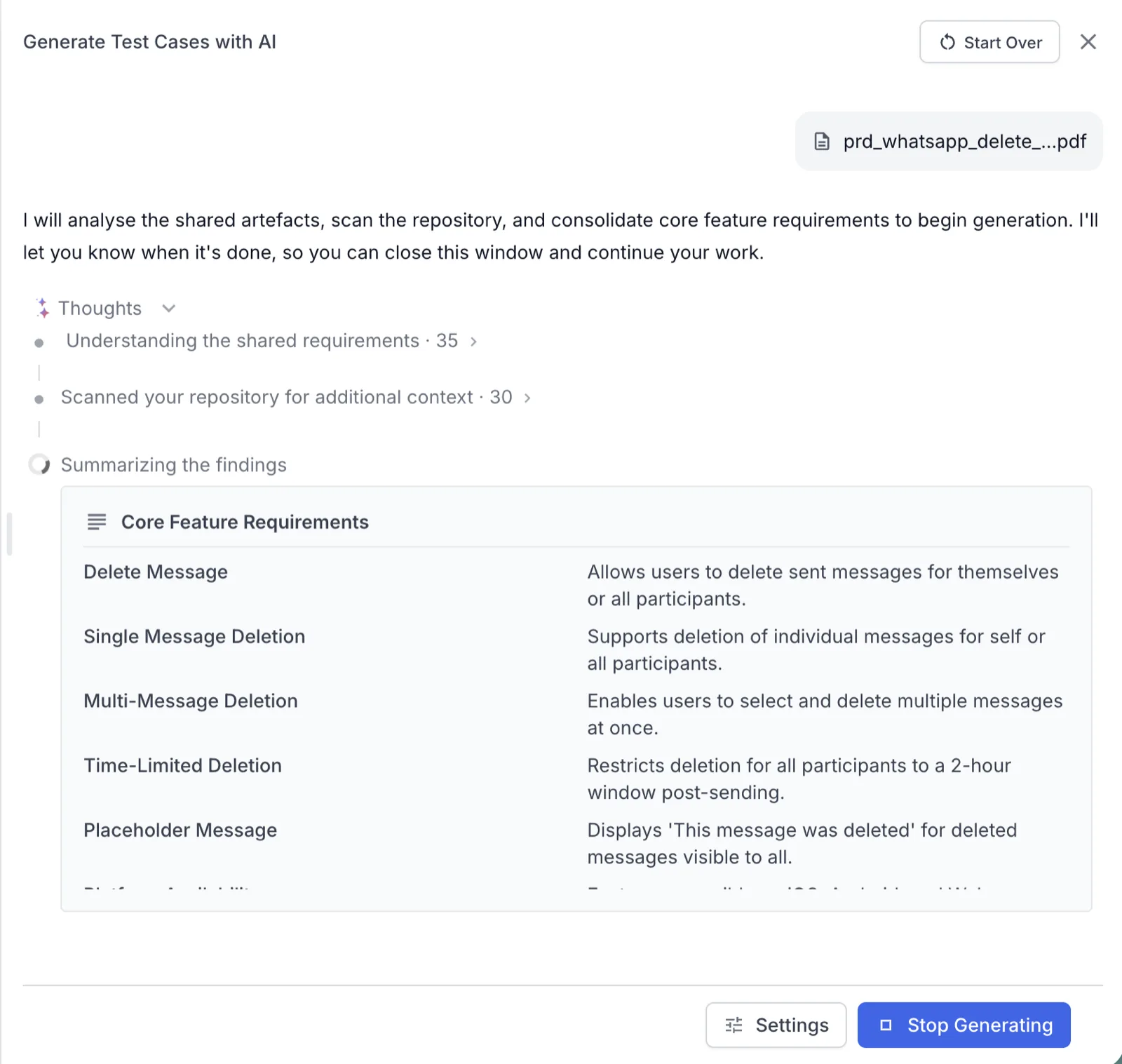
After test case generation completes, review the generated results.
- If you selected Test cases (Steps) or Test cases (Text), the AI groups your test cases into scenarios. On the review screen, you can perform the following actions:
- Expand a scenario: Click the chevron next to the scenario to expand or collapse its test cases.
- Review test cases: Deselect any test case you do not need by unchecking its box.
- View test case details: Click View besides a generated test case to view test case details and make inline edits.
- Add individually: Click Add next to a specific case.
- View source references: Click the link icon next to a test case to see which requirement the AI used to create it. The popover shows the source marked Primary, the section it came from, and the exact excerpt that was used.
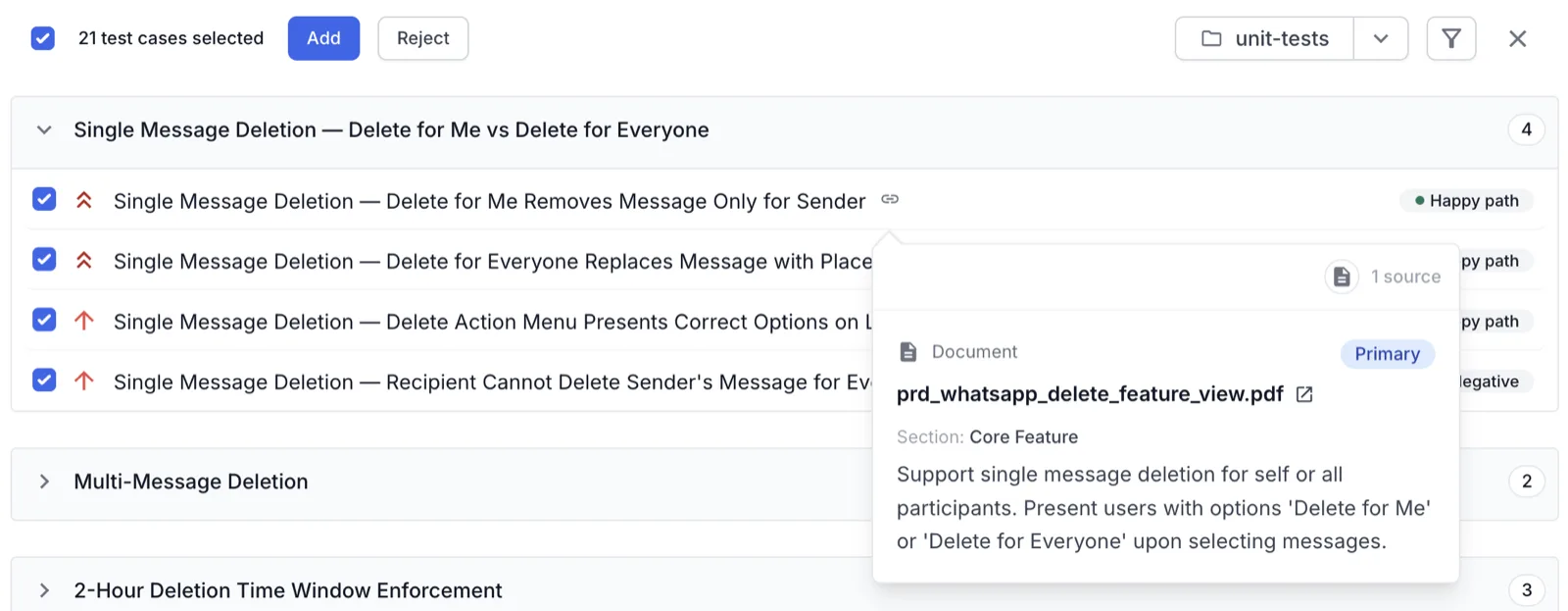
- Filter the results: Click the filter icon to narrow the list by testing type, tags, or priority.
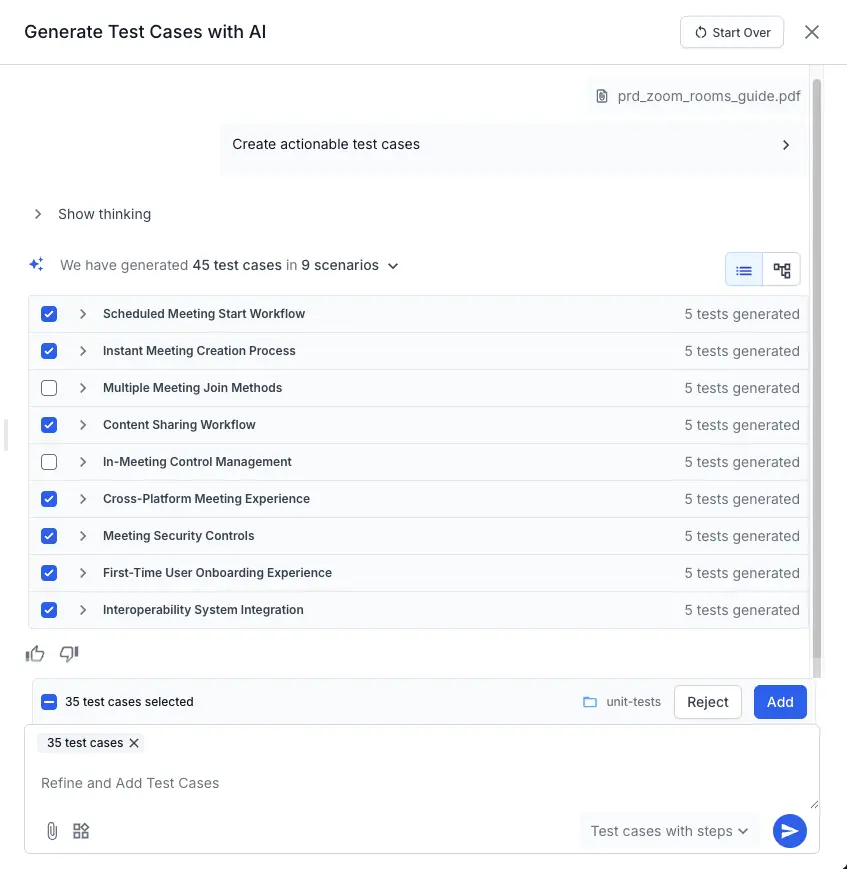
- If you selected Test cases (BDD), the AI groups your BDD scenarios into features. On the review screen, you can perform the following actions:
- Expand a feature: Click the chevron next to the feature to expand or collapse its test cases.
- Edit dataset: You can view or edit the dataset if it is generated within a test case. Refer to generate test datasets with AI documentation.
- Review test cases: Deselect any test case you do not need by unchecking its box.
- View test case details: Click View besides a generated test case to view test case details and make inline edits.
-
Add individually: Click Add next to a specific case.
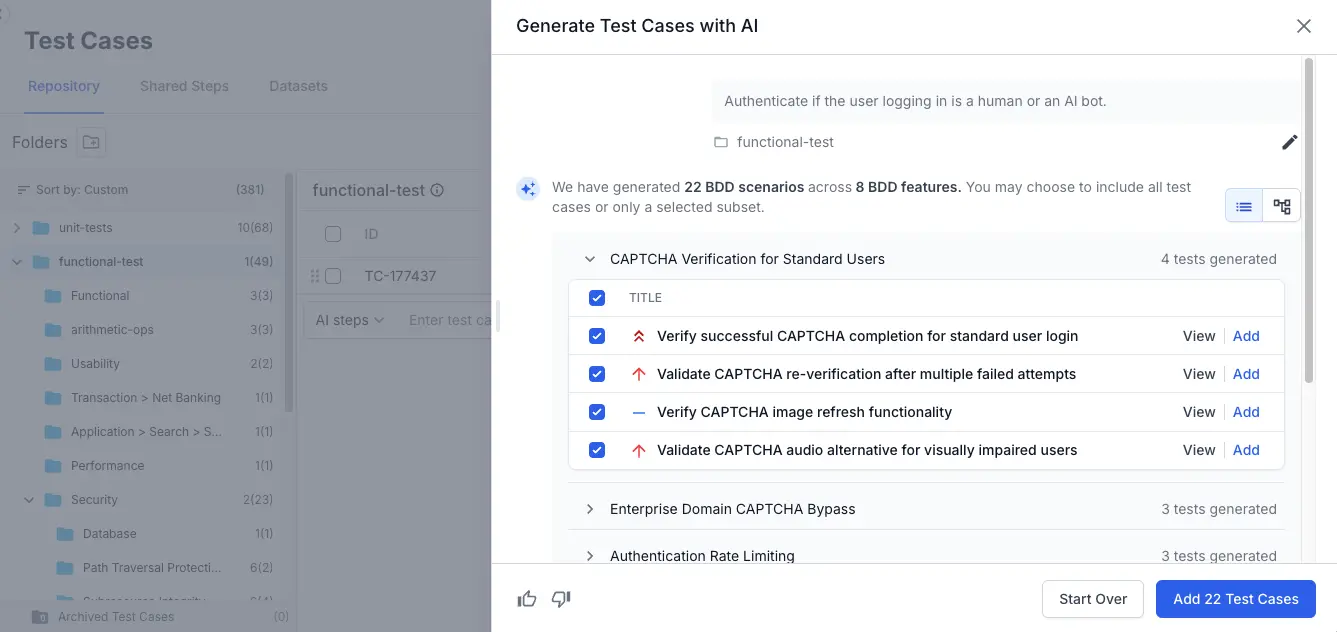
The review screen also reflects how the AI organizes and classifies the output:
- Requirement-aligned order: When you provide a single requirement document, generated test cases follow the sequence of its sections, so you can review them against the source in order. When you provide multiple documents, the order does not follow any one document.
- Automatic categorization: The AI categorizes each generated test case as Happy path, Negative, or Edge case, and the category appears as a tag at the end of the test case row in the review list.
If the output is not perfect, use the text field to refine your request. Learn how to iterate your prompts and refine the results.
Choose the destination folder
Accepted test cases are saved to the folder shown at the top of the review screen. To change where they are saved, do the following:
-
Click the edit (pencil) icon next to the folder name on the review screen.
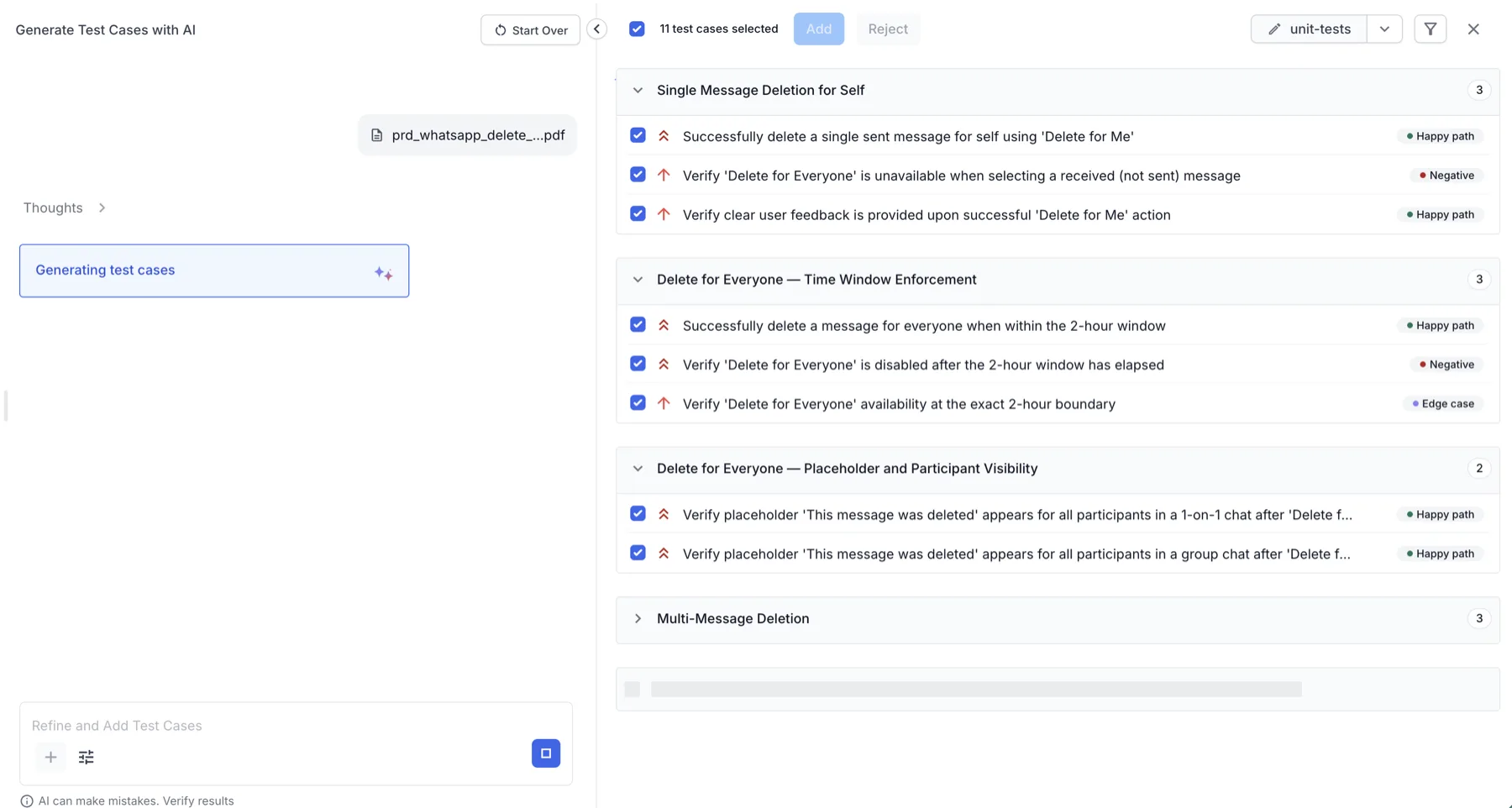
- In the Select destination folder dialog, select an existing folder, or click Create Folder to create a new one.
-
Click Set Location.
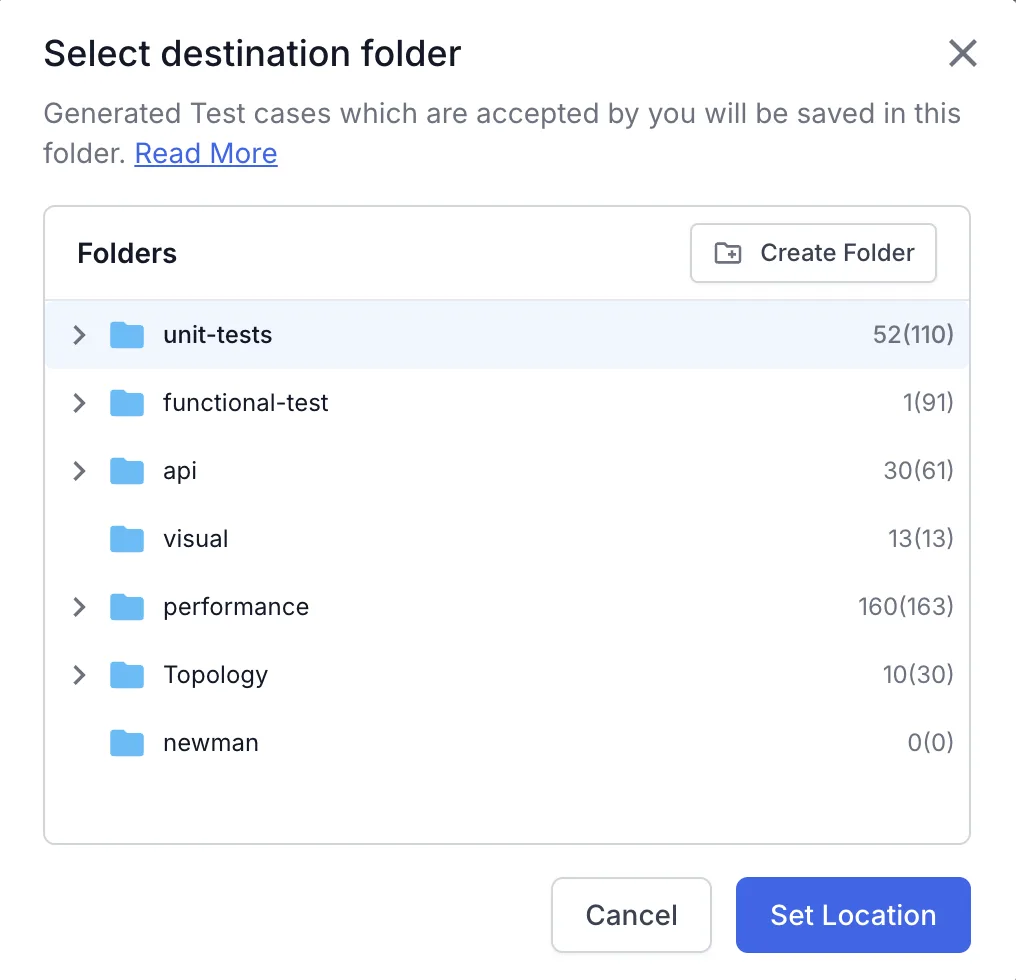
To create a separate sub-folder for each scenario under the destination folder, select Save scenarios as sub-folders from the dropdown next to the folder name.
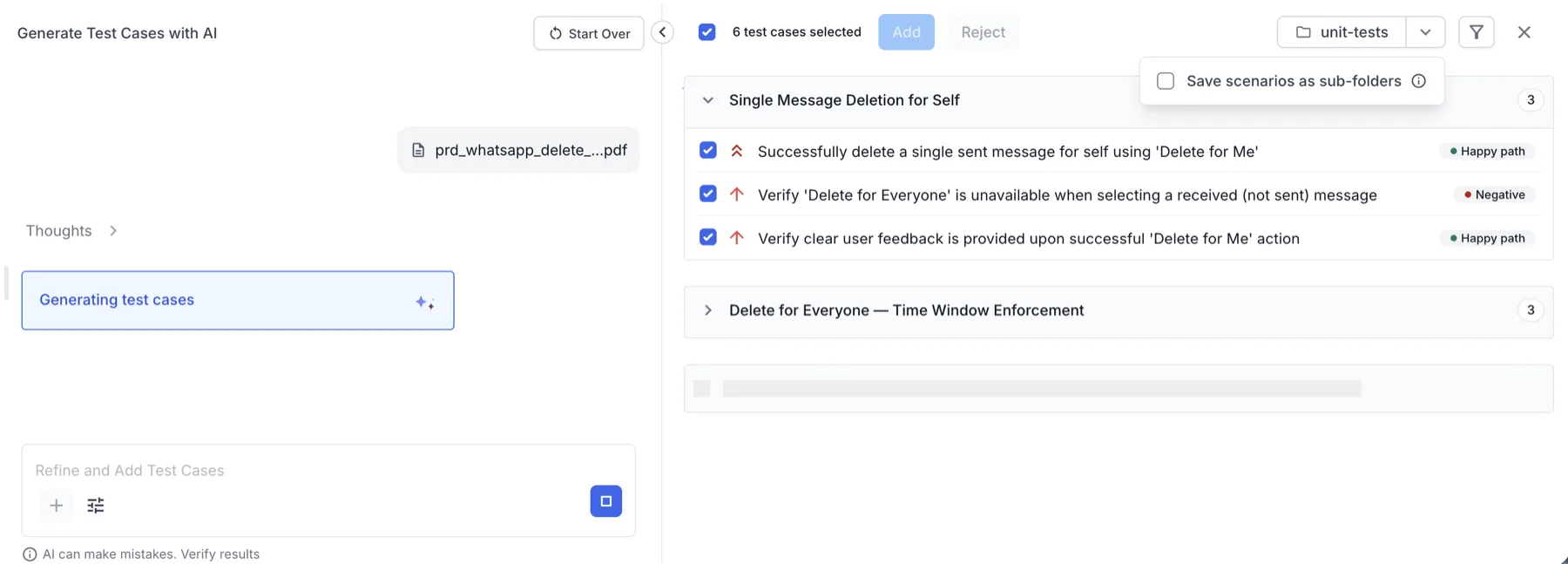
Filter the generated test cases
To review a subset of the generated test cases, click the filter icon on the review screen. You can filter by testing type, tags, or priority, and choose whether the results match all filters or any filter.
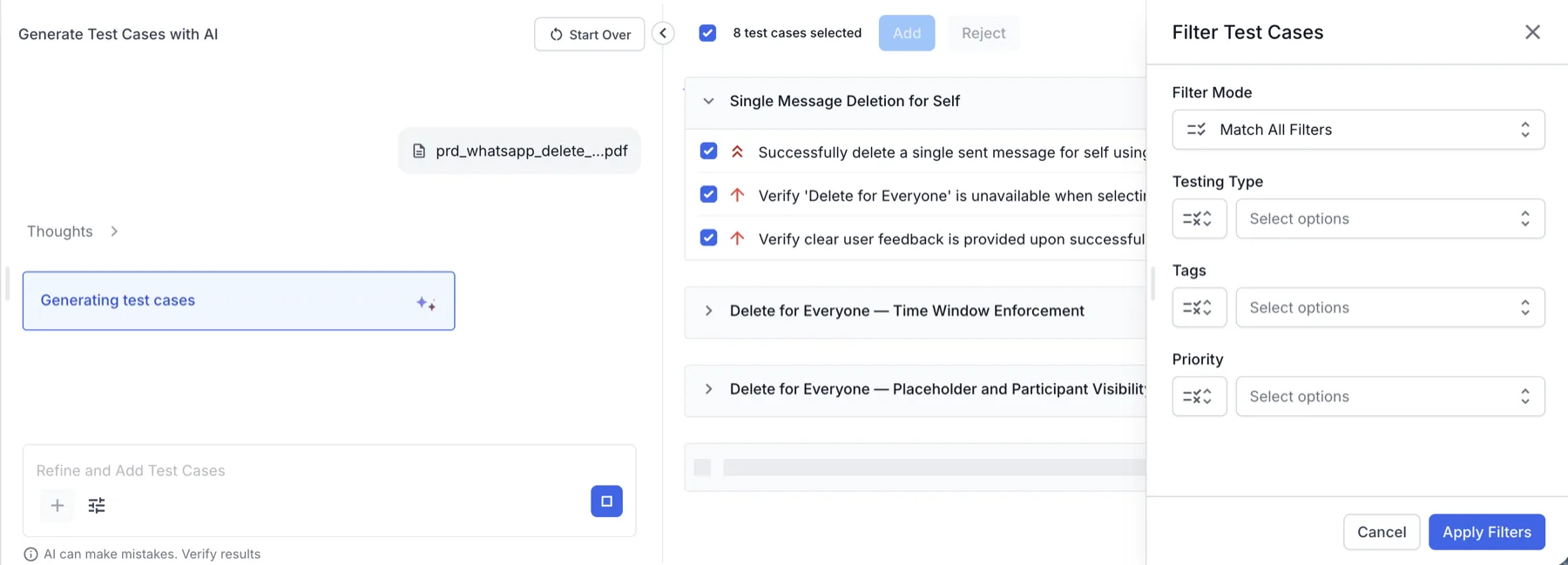
You have now generated and added AI-powered test cases to your test case repository, linked directly to your requirement. Each test case that you add uses the default State value configured for test cases in your project. This applies to all templates, including BDD and custom templates.
Test case details are generated asynchronously and may take some time.
Examples of generated test cases
The following image shows an example of an AI-generated test case along with its details.
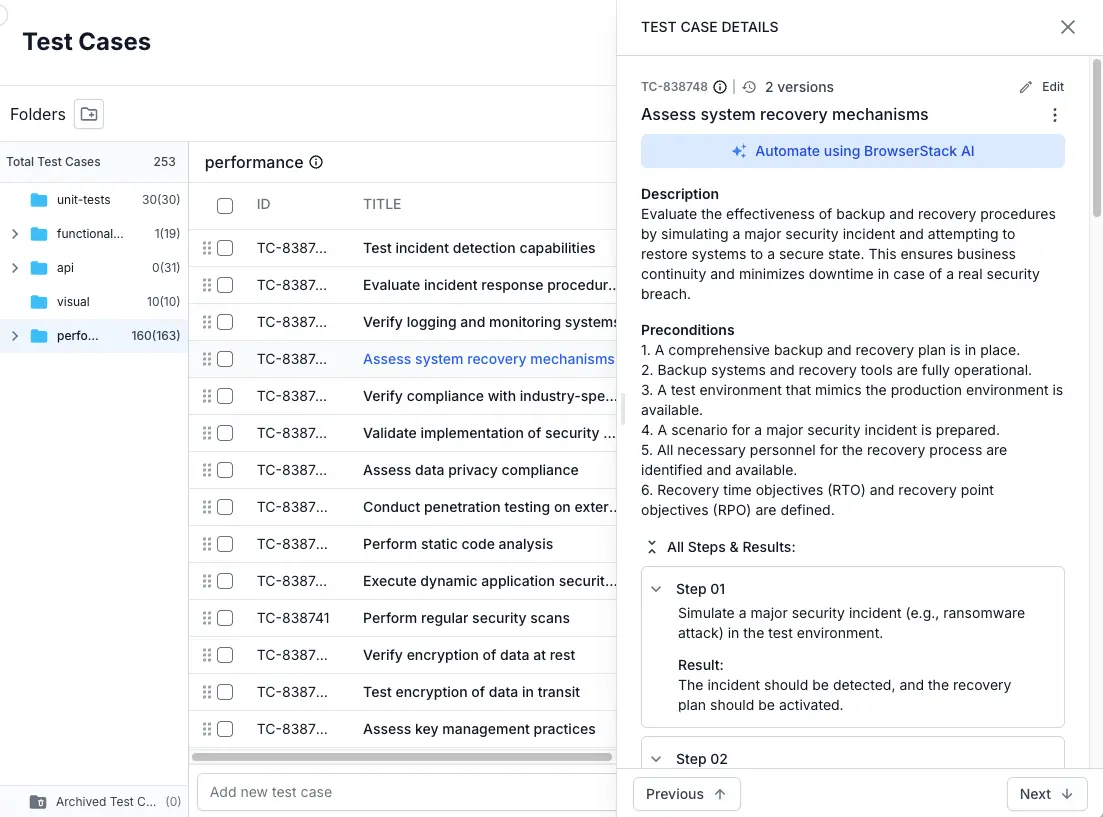
The following image shows an example of an AI-generated BDD test case along with its details.
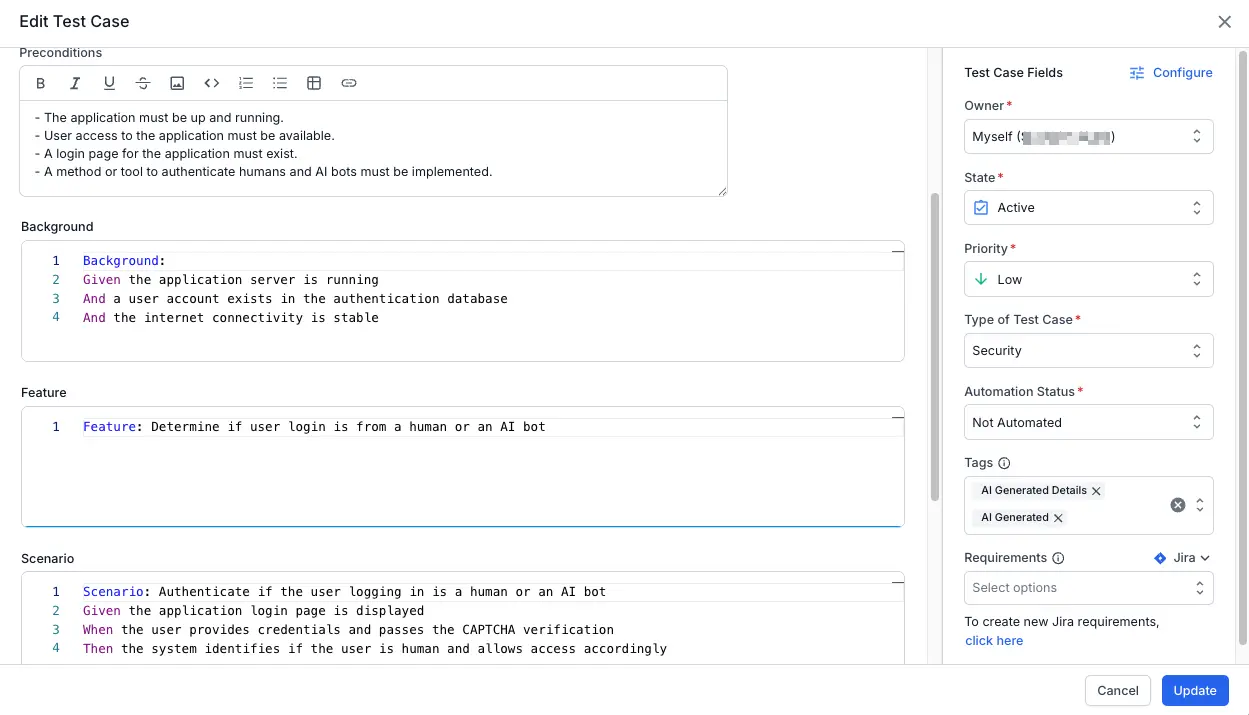
Persistent background generation
After you start the generation, the AI test case generation runs in the background. You can close the generation window or navigate to other parts of the application without interrupting the process. The job is tied to your current browser session. It stops only if you refresh the page or log out. To check the progress, reopen the Generate Test Cases with AI panel.
External context sources
External context sources bring requirement and design data from third-party platforms into your test case generation. By connecting these sources, you can link Figma frames, Confluence specifications, and documents from SharePoint or OneDrive to your test cases. You can also link issues from Jira, Azure DevOps, or Linear. Each generated test case then traces back to its source, from design to execution. The following table lists the supported integration types and their primary use cases.
| Source | Description |
|---|---|
| Figma | Link design frames to generate UI/UX focused tests. |
| Azure DevOps | Connect your instance to pull stories directly. |
| Jira | Select Jira issues to map acceptance criteria to test cases. |
| Linear | Select Linear issues to use their requirements as context. |
| Confluence | Import PRDs or technical specs from your wiki. |
| SharePoint | Import requirement documents stored in your SharePoint sites. |
| OneDrive | Import requirement documents stored in your OneDrive account. |
| Upload File | Upload PDFs, images, or doc files (e.g., architecture diagrams). |
Document limitations
BrowserStack AI performs best with PRDs that are well-structured, detailed, and unambiguous. For optimal performance, adhere to the following PRD constraints:
| File category | Supported formats | Maximum size | Other limits |
|---|---|---|---|
| Documents |
DOC, DOCX, PDF, RTF
|
25 MB |
25 pages |
| Presentations | PPTX |
10 MB |
25 slides |
| Images |
PNG, JPG, JPEG
|
5 MB |
N/A |
| Data & Text |
CSV, JSON, TXT, XLSX
|
500 KB |
N/A |
If your document exceeds the size or page limit, the upload will fail. To proceed, you must split the document into smaller parts or compress its content before uploading.
Scope your generation to part of a document
You do not have to generate test cases for an entire requirement document. To cover only a part of it, mention the specific section or line in your prompt. For example, prompt Generate test cases only for the Payments section of the attached document. The agent then generates test cases for that part of the requirement only.
Tool-level limitations
To ensure platform stability and consistent performance across all workspaces, the system enforces specific technical boundaries. These constraints define the maximum allowable values for data volume, and concurrent processes. Review the following table to ensure your automation suites and integrations operate within these supported thresholds.
| Integration tool | First generation limit | Generation limit |
|---|---|---|
| Jira/ Azure DevOps | 1 ticket | Scenario-level constraint: Limits are enforced across the entire interaction scenario. A maximum of one ticket is permitted per full session; if a ticket is selected in an initial step, no additional tickets may be included in subsequent generations. |
| Confluence | 5 documents | Generation-level constraint: Limits are enforced per individual prompt. The attachment count applies solely to the current generation request and is independent of the number of Confluence documents attached in previous steps. |
| Figma | 50 frames | Generation-level constraint: Limits are enforced per individual prompt. You can attach any number of Figma links, but the total count of selected frames per generation cannot exceed 50. |
| Files | 5 files | Generation-level constraint: Limits are enforced per individual prompt. The attachment count applies solely to the current generation request and is independent of the number of files attached in previous steps. |
Traceability and source retention
- On the review screen, the link icon next to each generated test case opens its source references. You can see exactly which part of the document, Jira issue, or Confluence page was used to create that test case, with the primary source, its section, and the excerpt used.
- Each generated test case stores the original Jira issue or Confluence URL as a reference attribute.
- The link remains clickable, so you can jump back to the exact source page at any time for clarification or updates.
- If the Jira issue or Confluence page changes later, you can re-run generation with the same link to produce updated or supplemental coverage.
Best practices
- Provide the most specific page (avoid large index/parent pages with broad, unrelated content).
- Pair a concise guiding prompt with the link if the page is lengthy or covers multiple modules.
- After major edits to the Confluence page, regenerate or manually review impacted test cases to keep them aligned.
Limitations
- Private or restricted pages require that the authenticated Atlassian user has at least view permission.
- Very large pages may be truncated to a maximum processed size. The system automatically prioritizes structured sections first.
- Embedded diagrams or images are not semantically parsed yet. Add clarifying prompt text if critical flows are only in images.
Next steps
- Refine the generated test cases with iterative prompts.
- For answers to common questions, refer to the test case generator FAQs.
We're sorry to hear that. Please share your feedback so we can do better
Contact our Support team for immediate help while we work on improving our docs.
We're continuously improving our docs. We'd love to know what you liked
We're sorry to hear that. Please share your feedback so we can do better
Contact our Support team for immediate help while we work on improving our docs.
We're continuously improving our docs. We'd love to know what you liked
Thank you for your valuable feedback!