
 Join our Discord
Add context to Ask AI requests
Attach requirement files, link Jira, Confluence, and Figma, or turn on web search so the Ask AI agents in Test Management work from your sources.
An agent in Ask AI works from the page you opened it on, your prompt, and the sources you attach. A prompt alone gets you a draft based on general knowledge of the feature. A requirement document or a linked issue gets you coverage of your product as it is specified. This page shows how to give the agent each kind of context.
Set the scope with the context chip
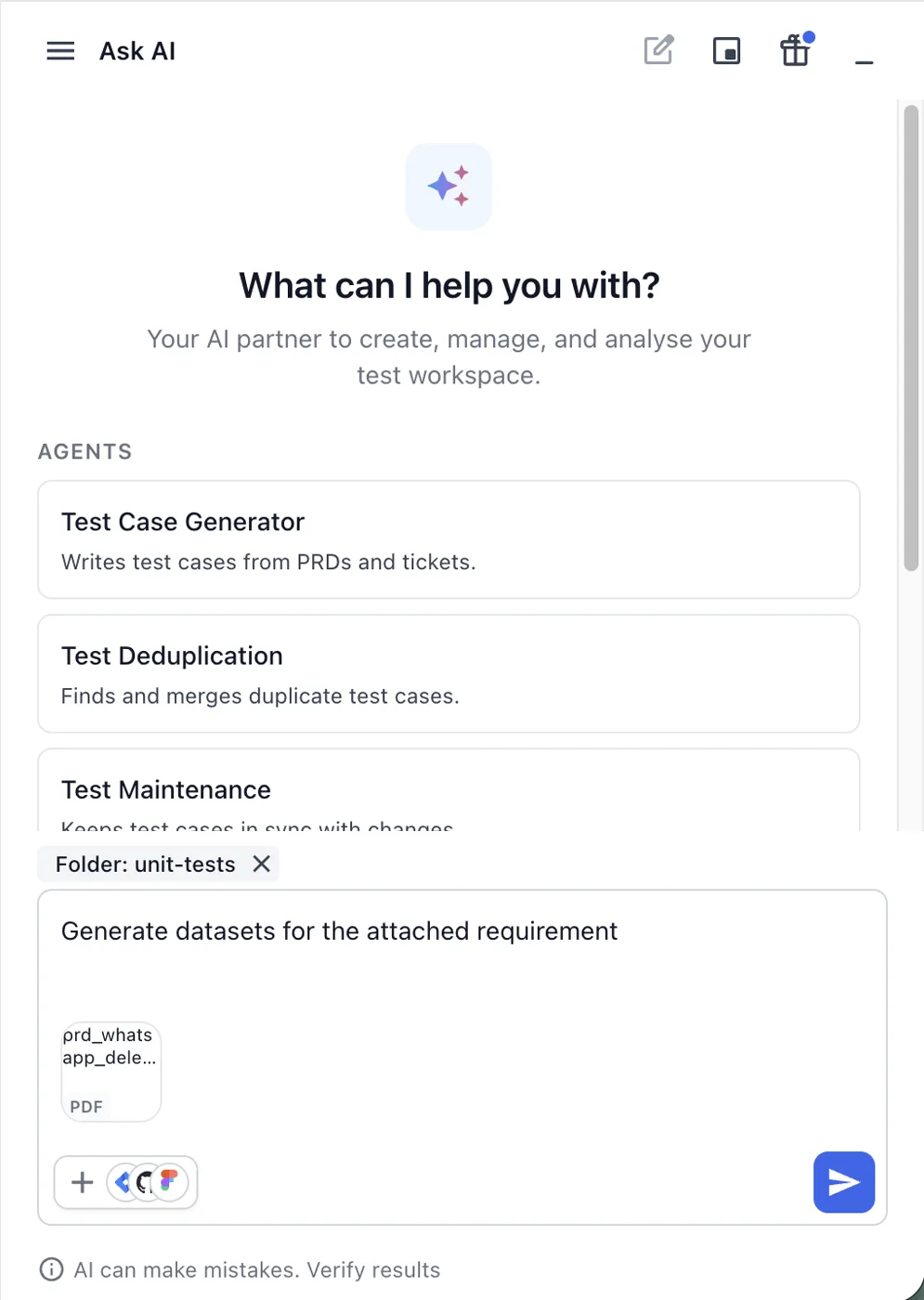
The chip above the prompt box names the place you opened Ask AI from. On a folder page it reads Folder: Checkout. On the Test Runs page it reads Project: Payments. On an open test case it reads TestCase: Apply promo code. Agents use the chip as their default scope. New test cases are saved to that folder. A duplicate check compares the test cases in that folder.
To change the scope, open the folder or project you want before you send the prompt. To name a narrower scope, say so in the prompt, for example Find duplicate test cases in the Refunds folder. Click X on the chip to remove it.
Describe the requirement in the prompt
You can skip attachments and put everything in the message. Paste the requirement text, the acceptance criteria, or the issue links into the prompt box. Add the instructions that shape the output in the same message. For example:
Generate test cases for the promo code rules below. Use the BDD template and write them in French.
<pasted requirement>
To cover only part of a document, name the section: Generate test cases only for the Payments section of the attached document.
Attach a file
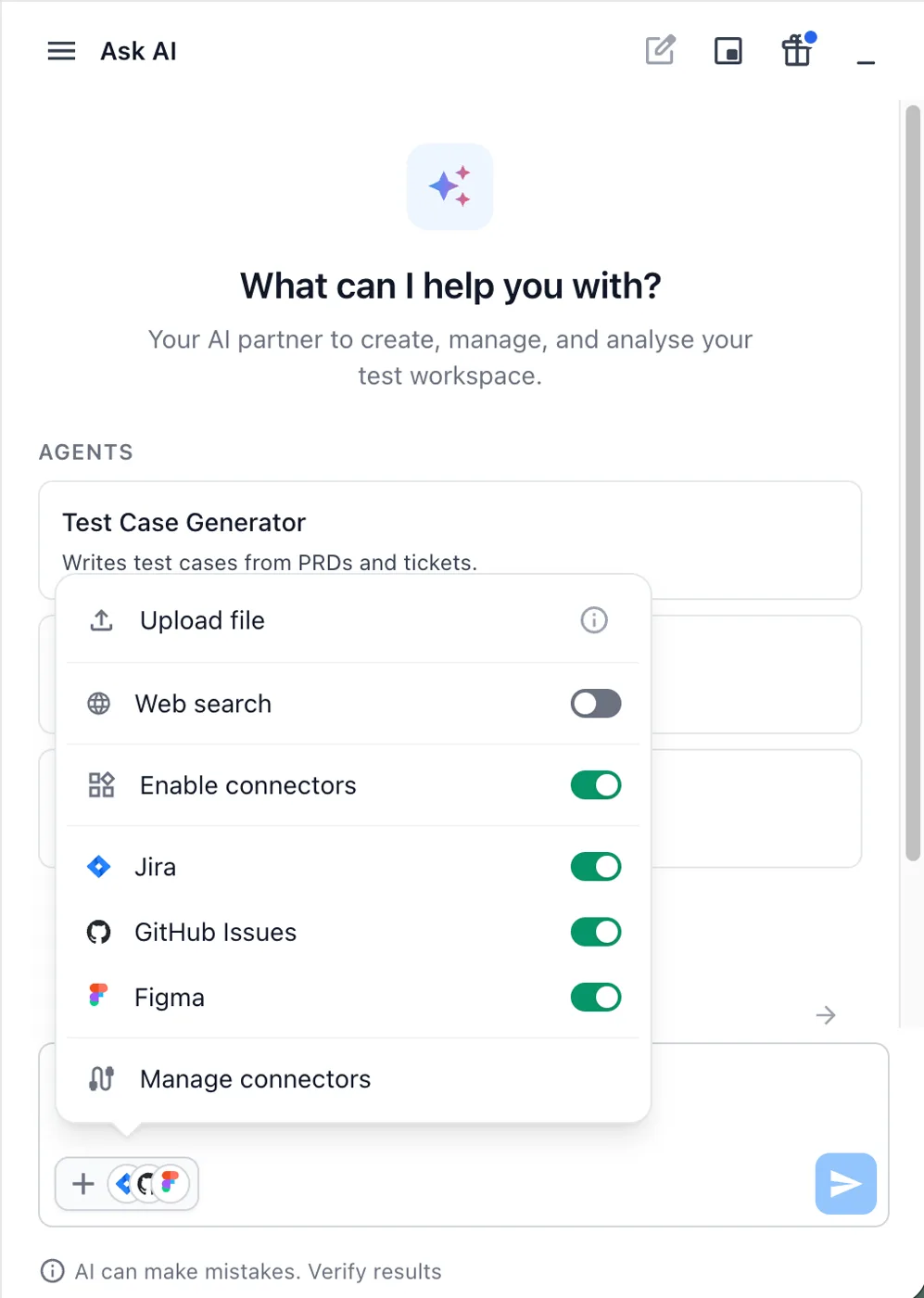
The + button in the prompt box takes requirement documents, images, and data files. To attach one, follow these steps:
- Click + in the prompt box.
-
Select Upload file.
- Select the file. It appears as a chip in the prompt box with its name and file type.
-
Type your prompt and click Send.
The agents accept the same formats and sizes as the Generate Test Cases panel. See Document limitations for the list.
Connect Jira, GitHub Issues, Confluence, or Figma
With a connector the agent reads the tool itself. You reference an issue or a page instead of copying it. To turn connectors on, follow these steps:
- Click + in the prompt box.
- Turn on Enable connectors.
- Turn on the tools you want, such as Jira, GitHub Issues, or Figma. The menu is the one shown under Attach a file.
-
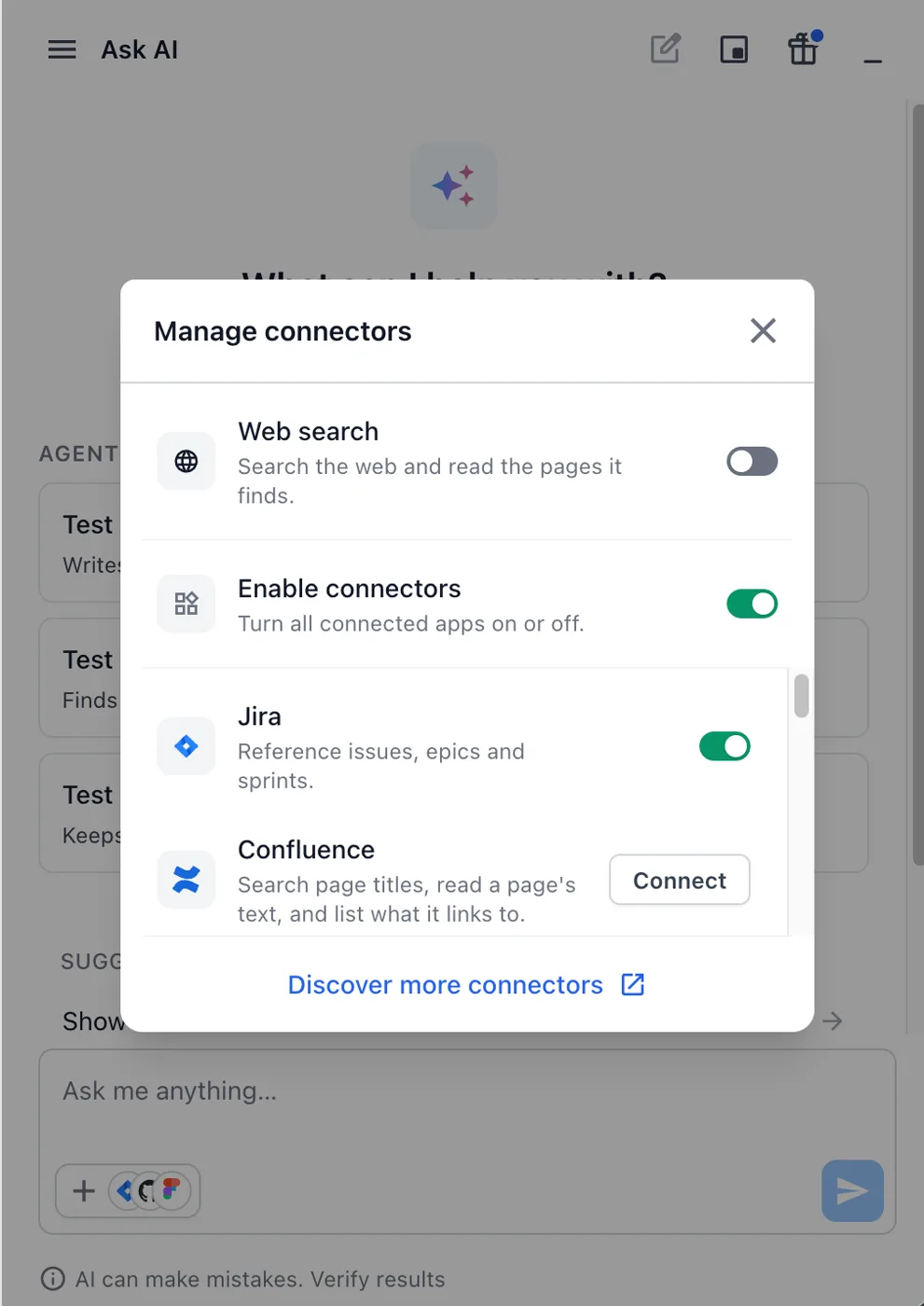
For a tool that is not in the menu, such as Confluence, click Manage connectors. A tool you have not connected shows Connect. Click it and sign in to the tool.
- In your prompt, reference the item. Type the Jira issue key, such as
PAY-482, or paste the Confluence page link or the Figma link.
Manage connectors lists every connector with a description. Click Discover more connectors to add others. The following table lists what each connector gives the agent.
| Connector | What the agent reads |
|---|---|
| Jira | Issues, epics, and sprints that you reference by key or link. |
| GitHub Issues | Issues that you reference by number or link. |
| Confluence | Page titles, the text of a page, and the pages it links to. |
| Figma | The frames in a design link. |
| Web search | Public web pages about the topic in your prompt. |
A connected tool stays available in every later chat. Turn off Enable connectors to stop all connectors at once without removing them.
Turn on web search
Some requirements only name a third-party product that the agent has never seen. Web search lets the agent look it up. To turn it on, click + and turn on Web search. The same switch is in Manage connectors, where its description reads Search the web and read the pages it finds.
With web search on, the agent searches only when your prompt, attachments, and connectors do not cover the topic. With web search off, the agent uses your sources and your repository and nothing else.
When the agent has too little to go on
An agent does not guess silently. It takes one of two paths:
- It drafts from general knowledge and says so. The reply opens with a note that no requirement was linked. It says the draft follows the well-known behavior of the feature. Check the draft against your own specification before you save it.
- It asks one focused question. This happens when the requirement or the prompt is unclear. It also happens when you mention a source you did not attach. Answer in the chat and the agent continues.
Next steps
Continue with one of these pages:
- Generate test cases with Ask AI: Turn an attached requirement into test cases.
- Run several agents in one Ask AI request: Let one requirement drive datasets, updates, and new test cases.
- Integrate Confluence with Test Management: Set up the Confluence connection for your account.
We're sorry to hear that. Please share your feedback so we can do better
Contact our Support team for immediate help while we work on improving our docs.
We're continuously improving our docs. We'd love to know what you liked
We're sorry to hear that. Please share your feedback so we can do better
Contact our Support team for immediate help while we work on improving our docs.
We're continuously improving our docs. We'd love to know what you liked
Thank you for your valuable feedback!