
 Join our Discord
Test data generator agent
Learn how to leverage BrowserStack’s AI-powered test data generator agent to automatically create comprehensive test datasets from your requirements.
BrowserStack’s AI can automatically identify parameters within your requirements (e.g., specific constraints, boundary limits, or user roles) and generate corresponding data rows. BrowserStack’s AI analyzes your uploaded Product Requirement Documents (PRDs) or text descriptions to identify variables, boundary conditions, and permutation logic, automatically generating data-driven test cases.
This allows you to create data-driven test cases instantly, covering both valid and invalid edge cases without manual setup.
This guide focuses on enabling dataset generation, refining the data during the AI preview, and reusing these datasets across your project.
When you generate test cases using AI, the system detects dynamic fields and abstracts them into variables. It then creates a corresponding Test Dataset containing multiple rows of data to test various permutations of that logic.
Key capabilities:
- Automatic parameterization: Converts static steps into dynamic variables.
- Boundary analysis: Automatically generates data rows for edge cases (e.g., min/max limits).
- Negative testing: Creates rows specifically designed to trigger error states.
Prerequisite
- Permissions: You must have Write access to the project repository.
- Plan: You must have permissions to access BrowserStack AI.
Enable dataset generation
To generate data-driven test cases, you must enable the dataset option before sending your prompt to the AI.
-
Click Generate Test Cases in your test case list view.
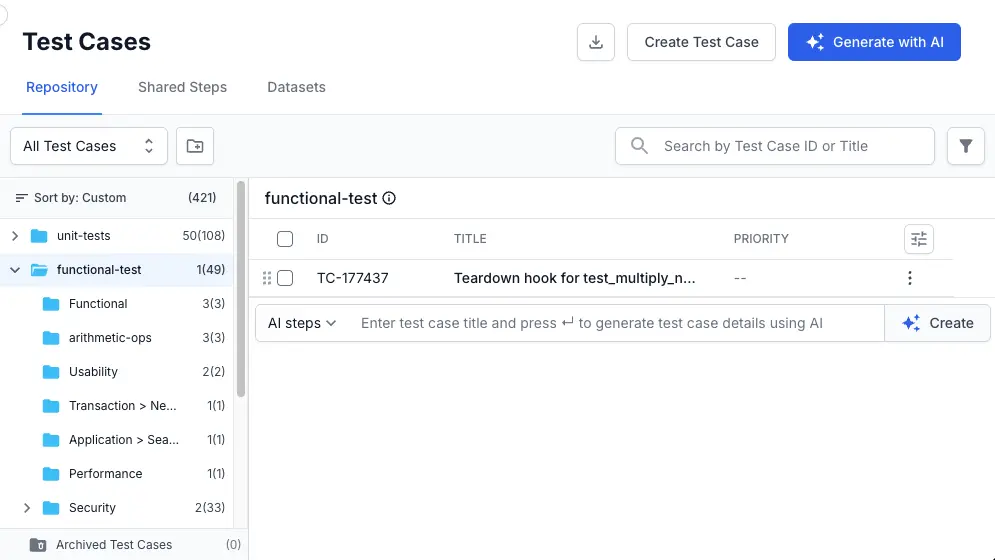
- Follow the standard procedure to generate test cases from requirements, prompts, or links.
-
Open the dropdown menu at the bottom right of the text input area.
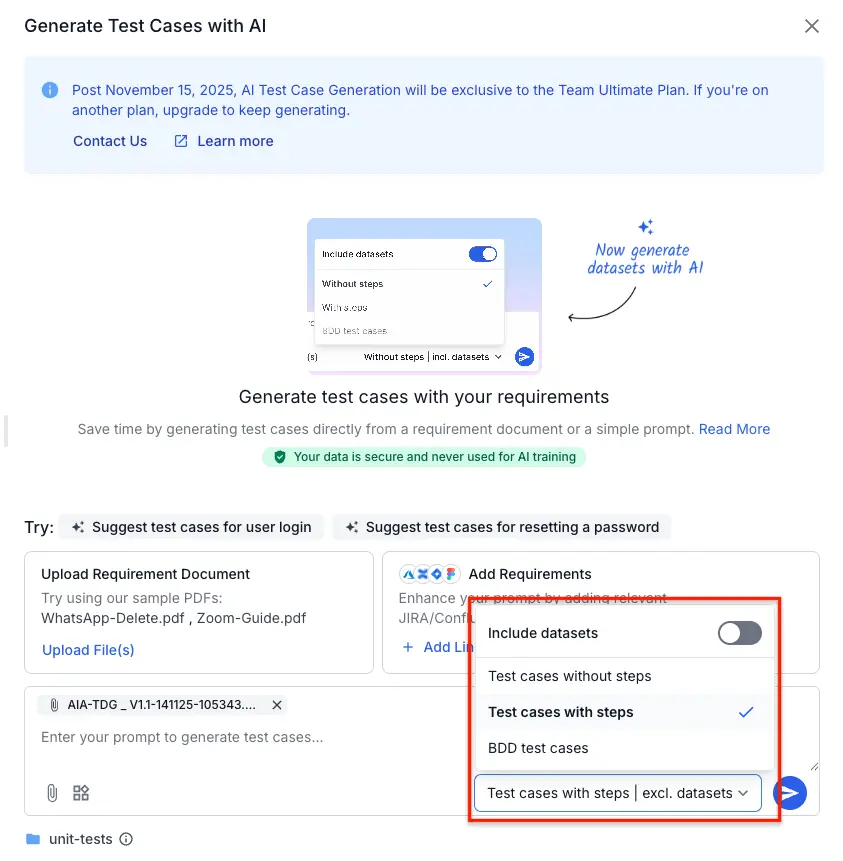
- Toggle Include datasets to the on position.
- Click the Send (arrow) icon to generate your test cases.
Review and customize datasets
After the AI generates the results, it presents a preview of the test cases. Test cases identified as data-driven will have a dataset automatically attached. You should review and refine this data before adding the test cases to your repository.
-
In the AI generation preview list, click on a test case to view its details.
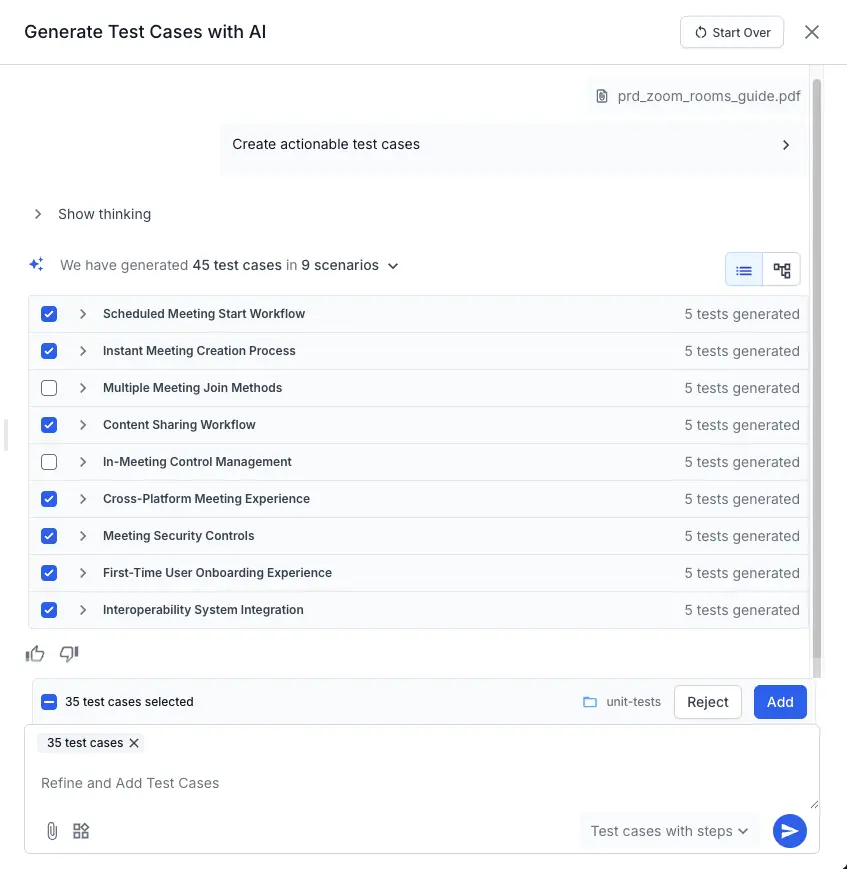
- In the details panel, scroll to the Datasets section. You will see a preview of the generated variables and rows.
-
Click View full dataset (or Edit) to open the dataset editor.
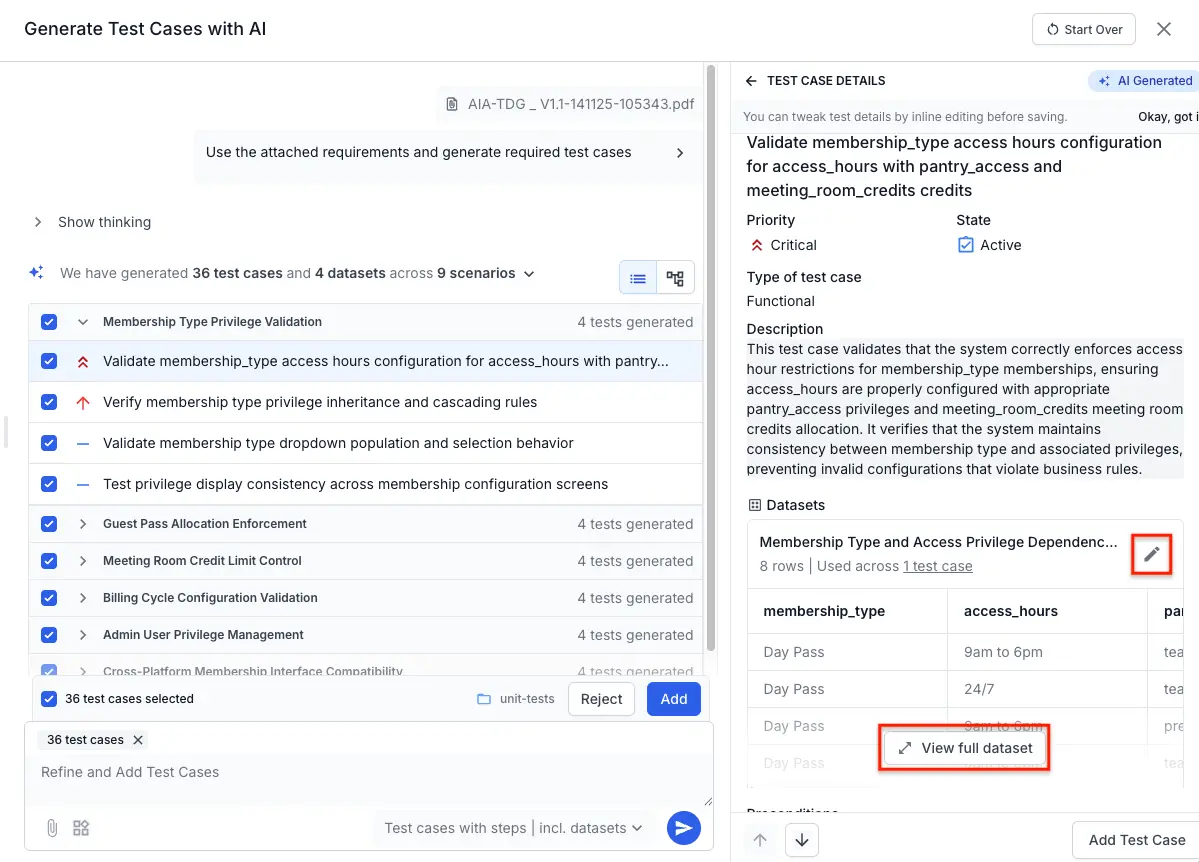
- Click Edit dataset to refine the generated parameters:
- Edit values: Click any cell to modify the specific data.
- Add Edge Cases: Click Add Row (+) to manually insert a new test scenario.
- Select a row and click Delete Row if the scenario is not required.
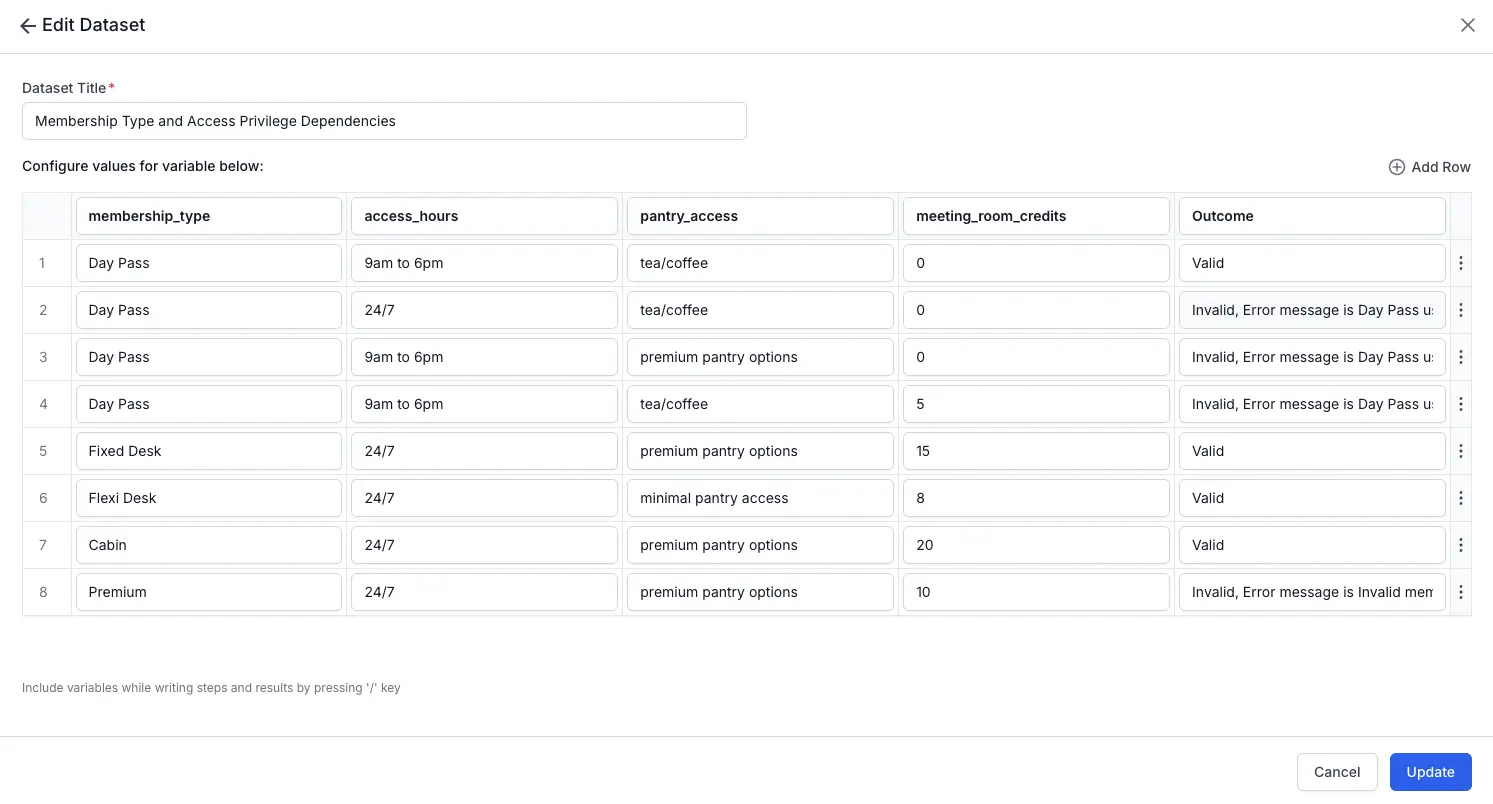
- Click Update to save your changes to the dataset.
- After you are satisfied with the selected test cases and their data, click Add in the AI generation preview list to save them to your project.
- The AI automatically includes an
Outcomecolumn (e.g.,ValidorInvalid). This helps differentiate positive test flows from negative error validation flows within the same test case. - Ensure that any rows you add manually also define an outcome, so the test runner knows the expected result type.
- When you save your test cases, each one will include a snapshot of its associated datasets.
- If you add test cases that contain datasets to a test run, each row of the dataset will be converted into a separate test case within that run. For more information, refer to how datasets work in test runs documentation.
Reuse generated datasets
After you approve and add an AI-generated test case, its associated dataset is stored centrally in your project. This allows you to reuse the AI-generated datasets for other manual test cases.
-
Navigate to the Datasets tab in your test case list view.
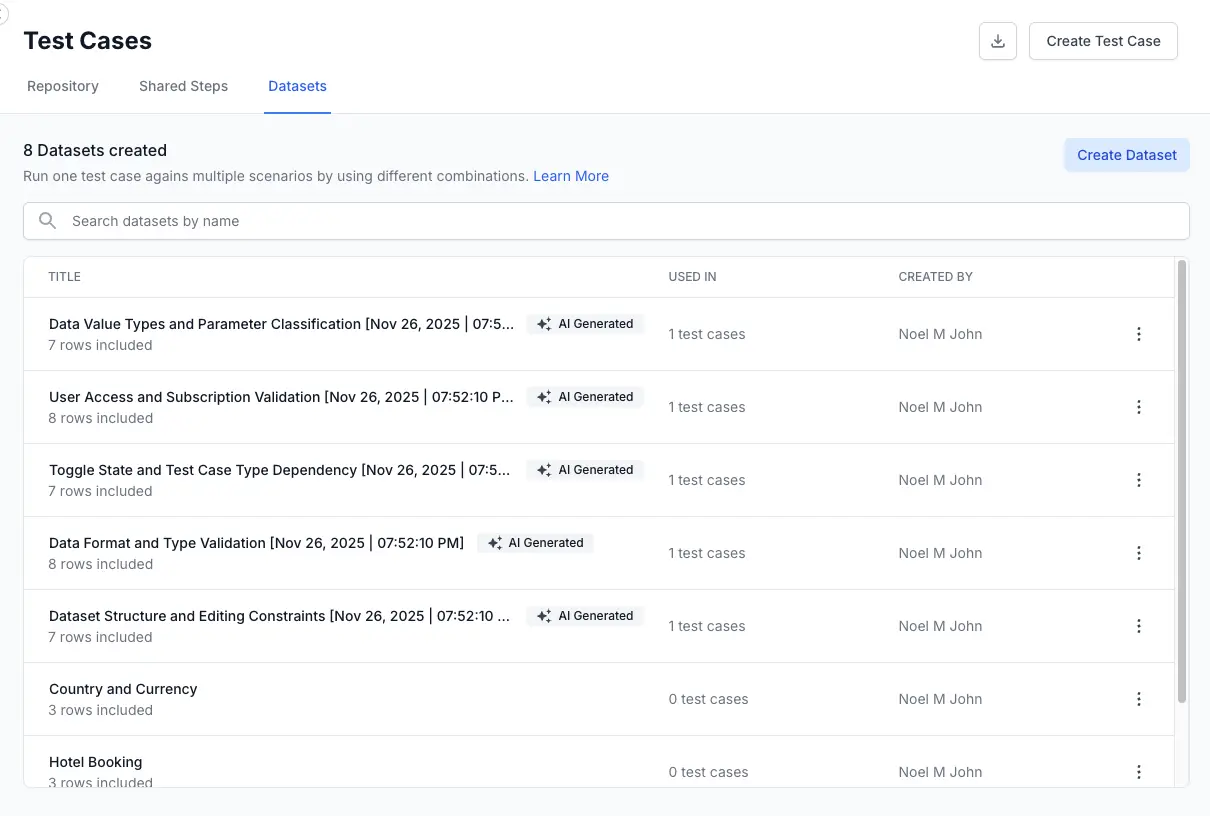
- You will see the newly created dataset listed.
- You can now link this dataset to any other test case in your repository following the standard data-driven testing workflow.
We're sorry to hear that. Please share your feedback so we can do better
Contact our Support team for immediate help while we work on improving our docs.
We're continuously improving our docs. We'd love to know what you liked
We're sorry to hear that. Please share your feedback so we can do better
Contact our Support team for immediate help while we work on improving our docs.
We're continuously improving our docs. We'd love to know what you liked
Thank you for your valuable feedback!