
 Join our Discord
Generate test datasets with Ask AI
Create datasets with the Test Data Generator Agent in Ask AI, approve the plan, and save them for data-driven testing in Test Management.
In Ask AI the Test Data Generator Agent does one job. It reads a requirement, works out which values your tests need, and creates the datasets. It does not write test cases. When the request also covers test cases, Ask AI passes the saved datasets to the next agents. The Test Case Maintenance Agent and the Test Case Generator Agent use them in the same chat.
- Ask AI is available on Team Ultimate plans with BrowserStack AI activated.
- BrowserStack does not train its AI models on the data you provide.
What the agent generates
The agent decides from your requirement and your prompt what kind of data to produce. The following table lists the kinds.
| Kind of data | Details |
|---|---|
| Boundary values | Rows at the limits the requirement sets, such as the minimum order value, the value below it, and the value above it. |
| Random values | Rows with plausible values when the requirement sets no limits. |
| Rule-based values | Rows that follow conditional logic in the requirement, such as a discount that applies in one currency and not in another. |
Generate datasets
To create datasets for a requirement, follow these steps:
- Open your project and go to Test Cases.
-
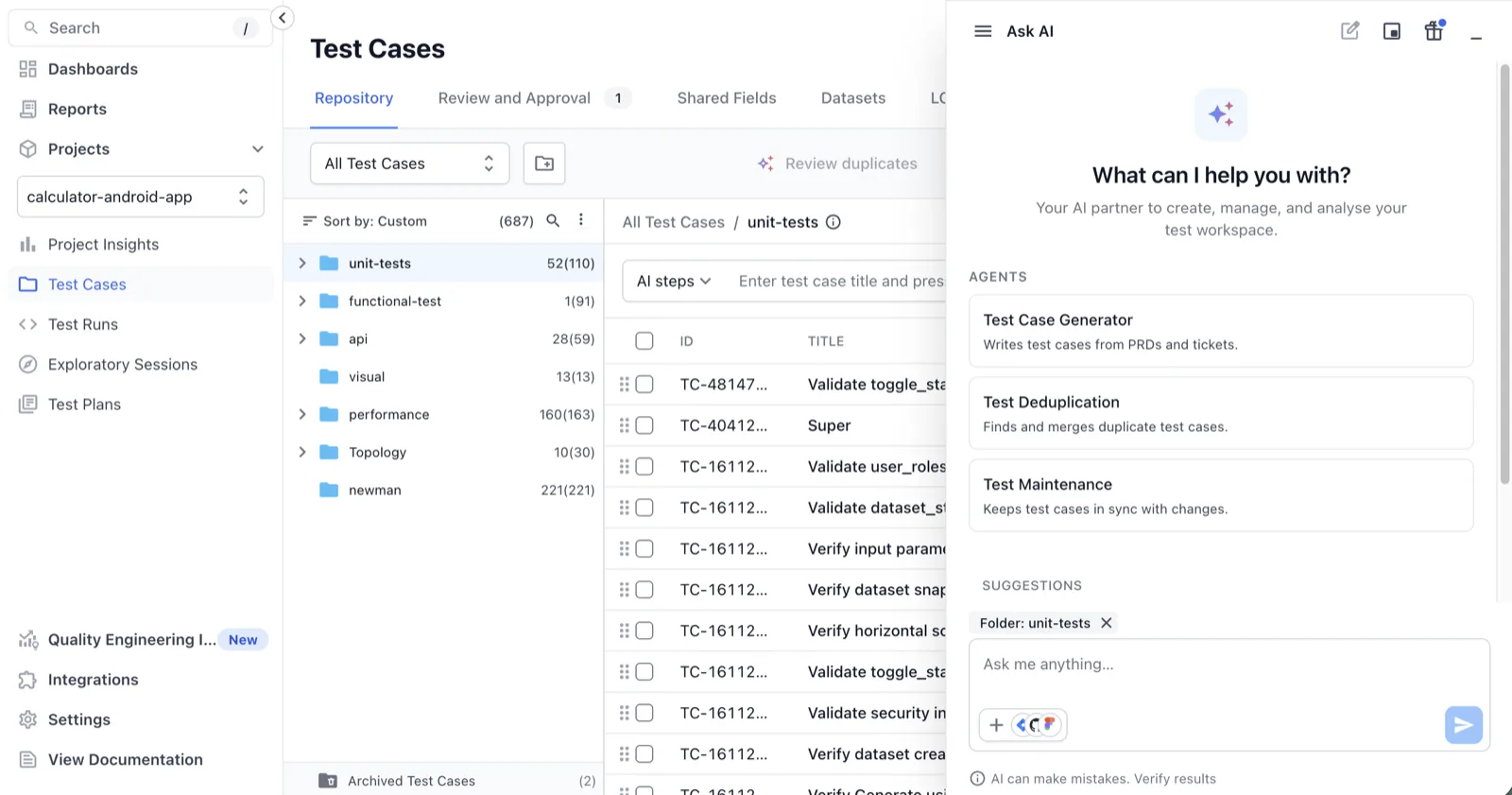
Click Ask AI at the bottom of the page. The context chip above the prompt box names the open folder.
-
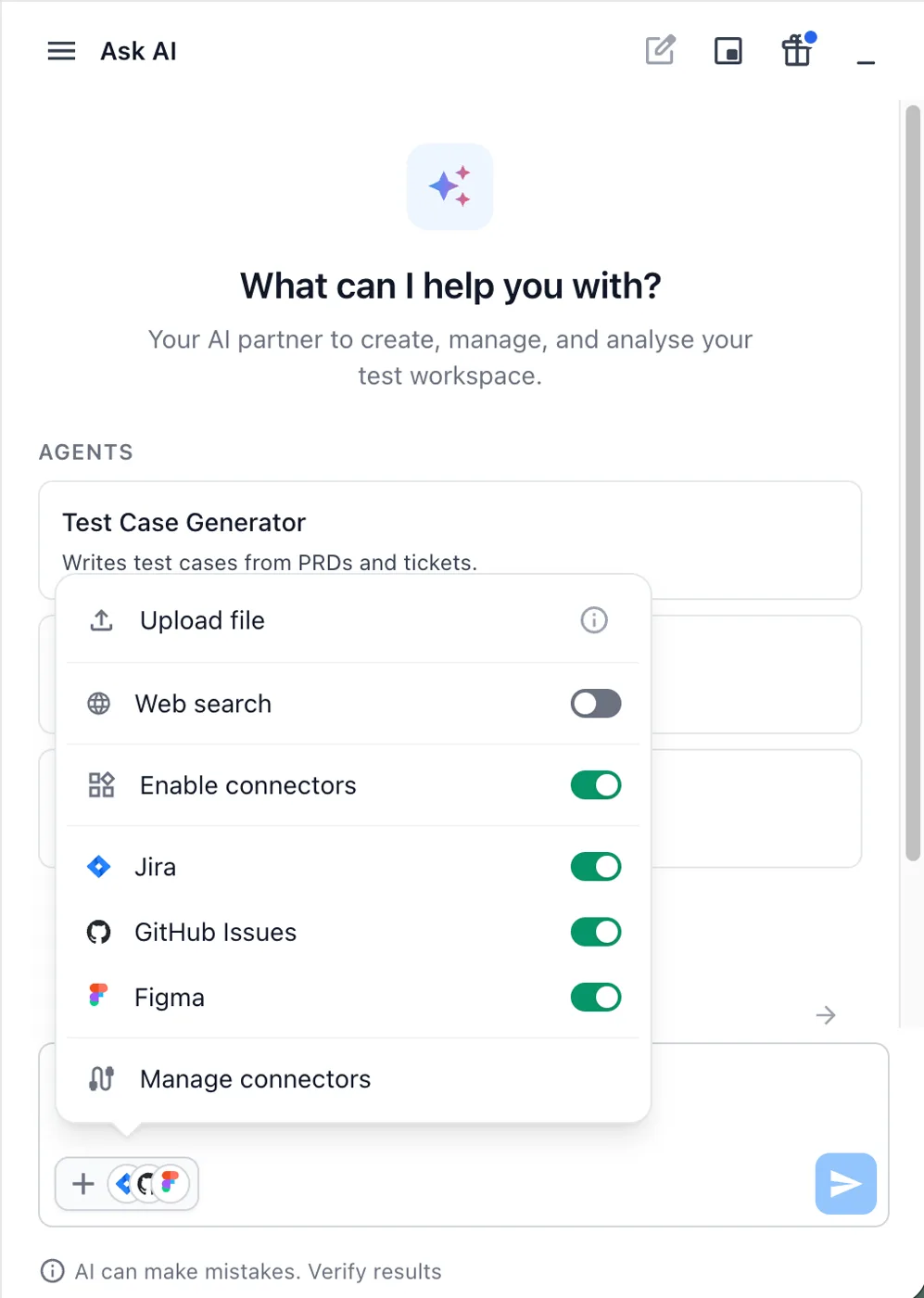
Click + and select Upload file to attach the requirement. Or turn on a connector and reference the issue in your prompt. See Add context to Ask AI requests.
-
Type a prompt such as
Generate datasets for the attached requirementand click Send.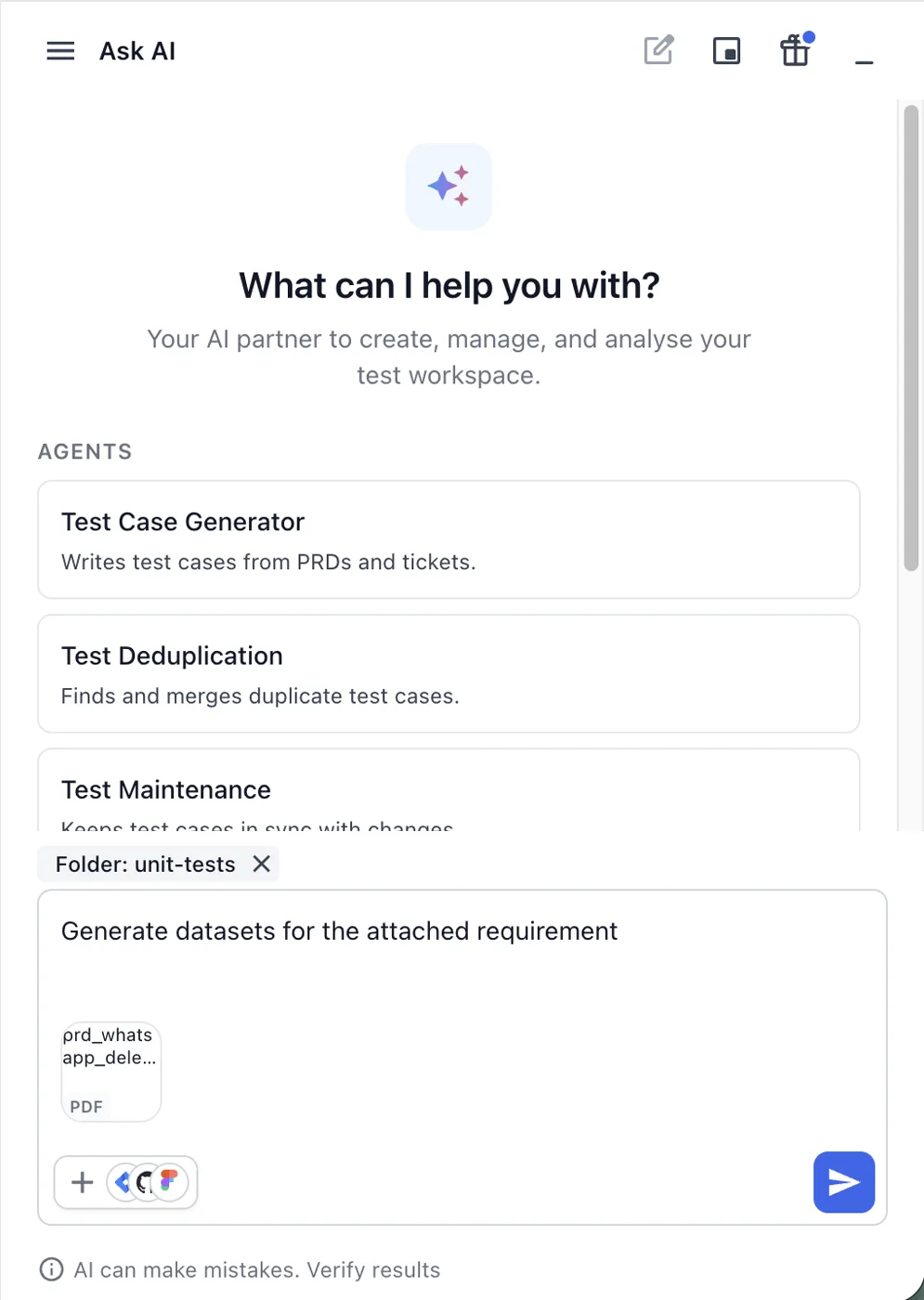
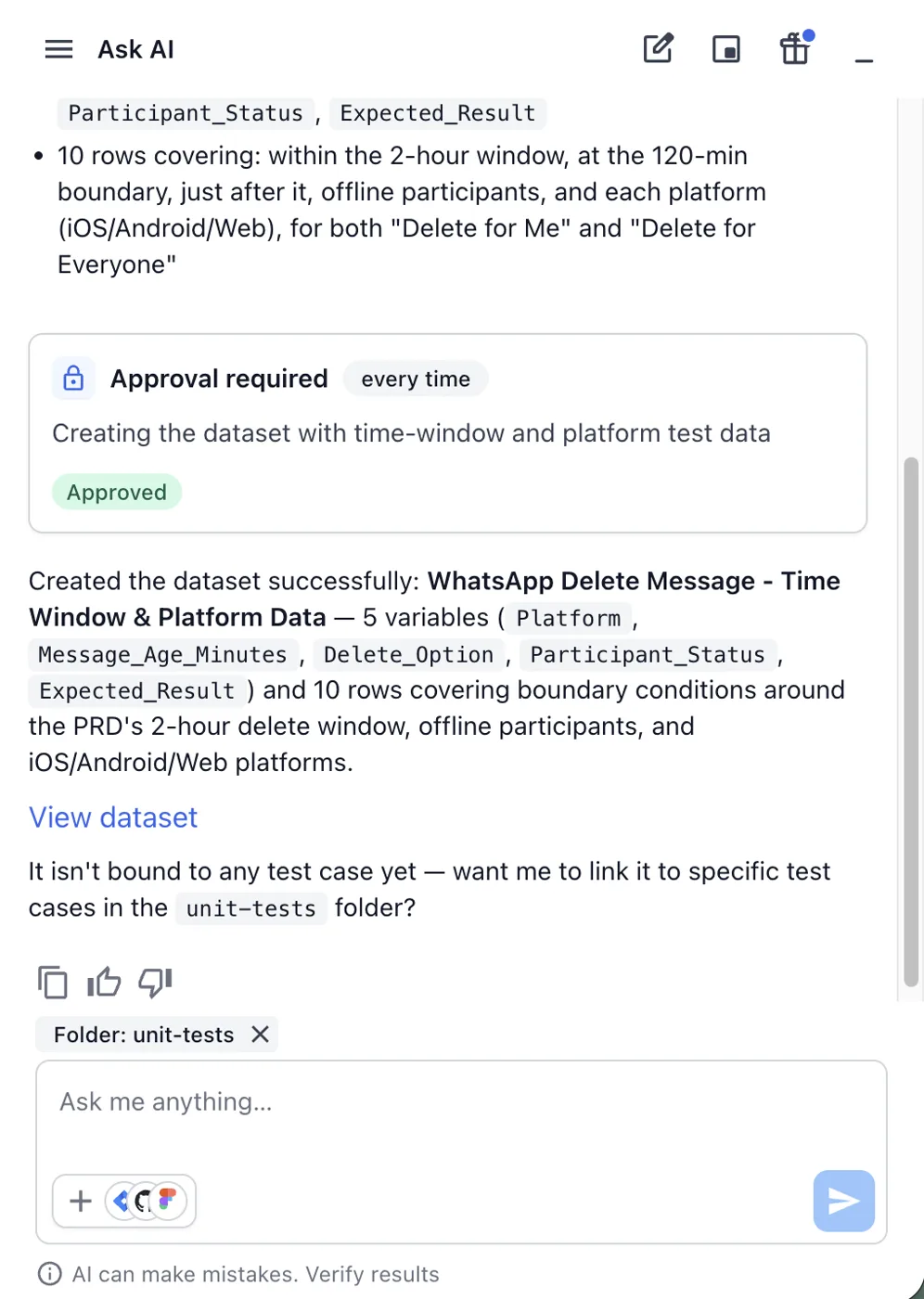
The agent reads the requirement and plans the dataset. Under About to create, the reply lists the dataset name, the project, the variables, and what the rows cover. An Approval required card follows.
- Read the plan. To change it, type the change in the chat, for example
Add a column for the app version. -
Click Approve or press Enter to create the dataset. Click Reject or press Esc to stop without creating anything.
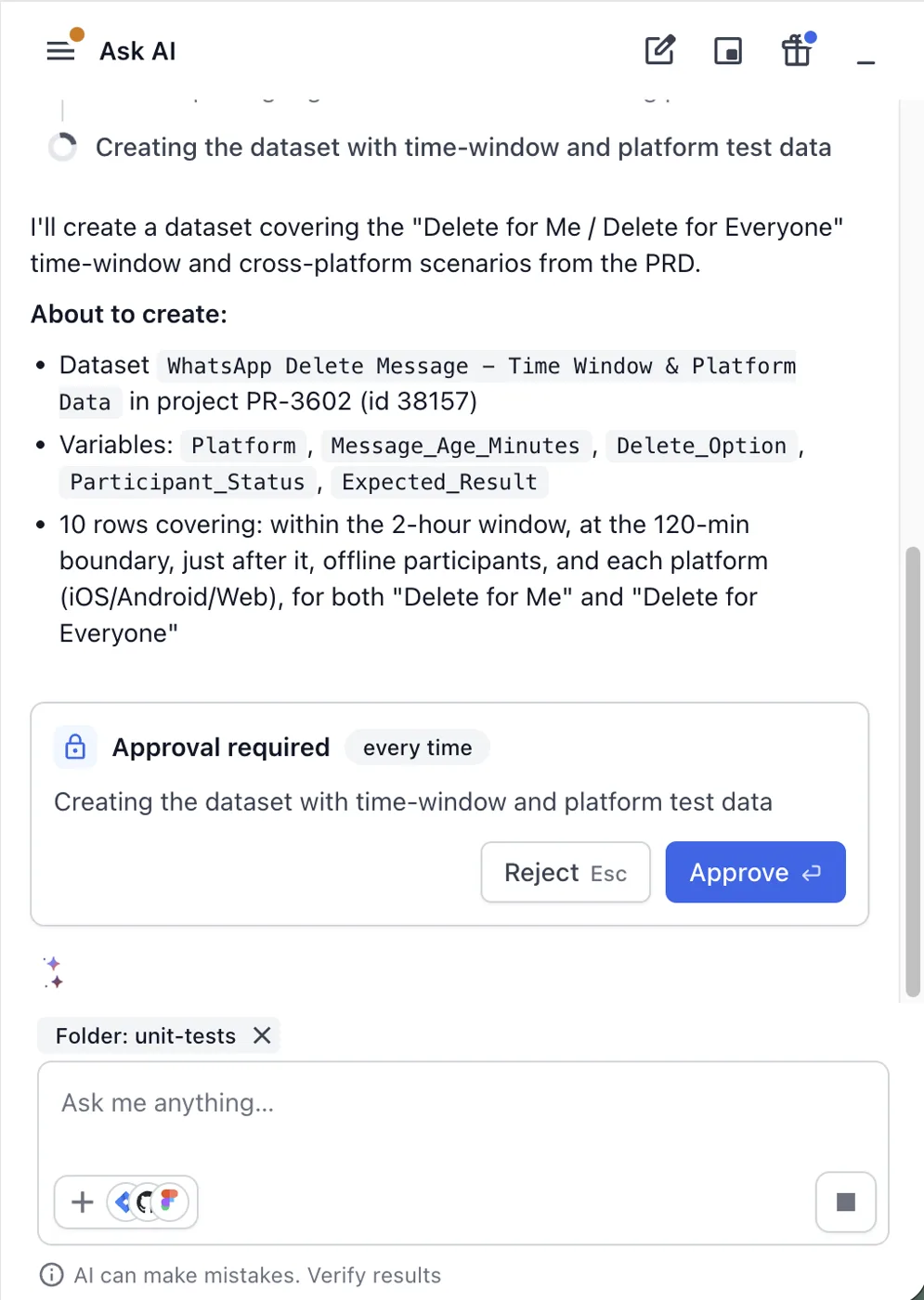
The card shows Approved, and the reply confirms the dataset with its name, variables, and row count.
-
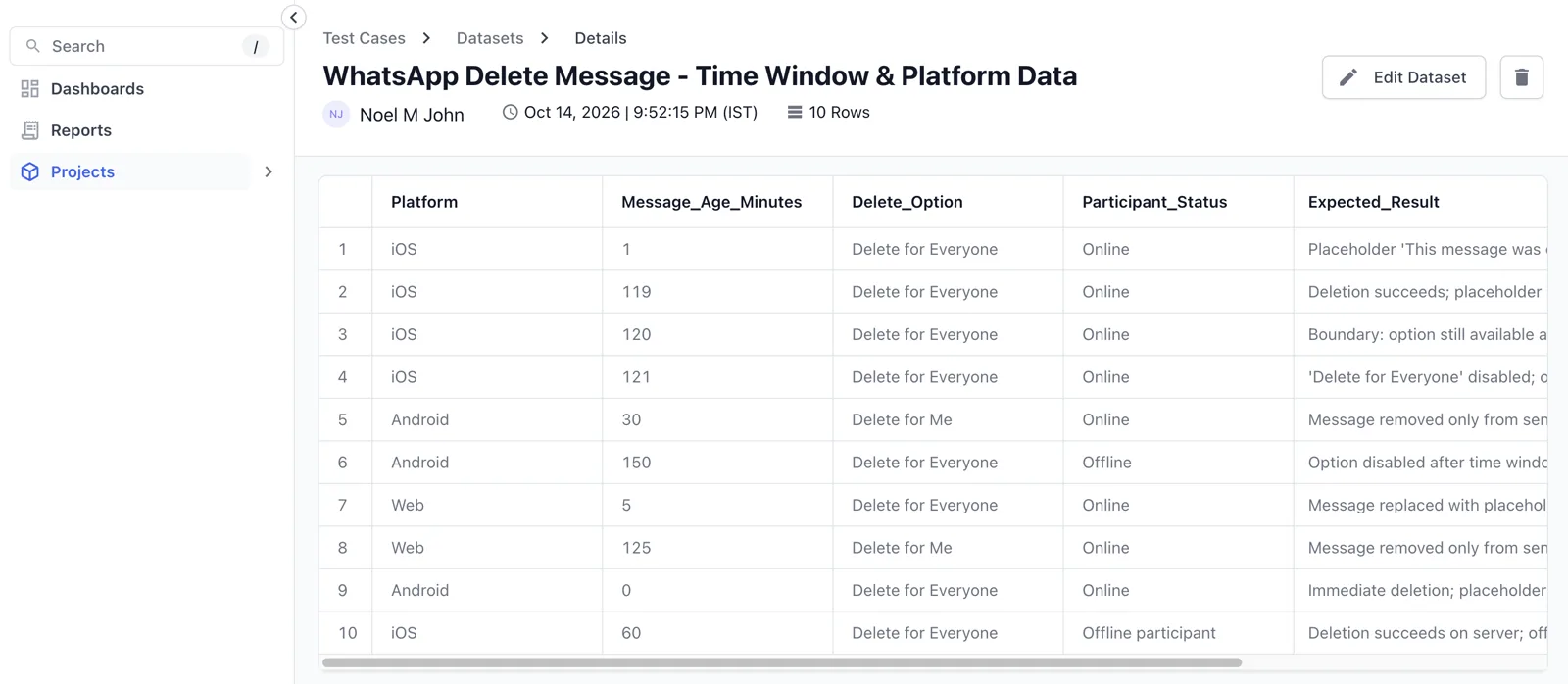
Click View dataset to open the dataset. The link opens its details page under Test Cases > Datasets.
The details page shows the owner, the creation time, the row count, and the table of values. Click Edit Dataset to change values, add rows, or add columns. See Test datasets.
When Ask AI offers datasets on its own
You do not have to ask for datasets. When you ask for test cases from a requirement with data rules, Ask AI asks about the data first. Click Update test data to run the agent, or Skip to test cases to go straight to generation. The question is asked one time. See Run several agents in one Ask AI request.
Use the datasets in test cases
A new dataset is not bound to any test case. After it creates the dataset, the agent asks whether to link it to test cases in the folder. Reply with the test case IDs, or describe them, for example Link it to the delete message test cases. You approve the change before it is saved.
When the request also covers test cases, Ask AI hands the dataset to the next agents in the same chat. Updated and new test cases reference the dataset columns as parameters, such as {{cart_value}}. One test case then runs once per row.
Limits
These limits apply to datasets created in Ask AI:
- The agent creates one dataset per request. To link it to a test case yourself, open the test case and attach it from the Datasets tab. See Test datasets.
- Changes to datasets that already exist in the repository are not supported from Ask AI in this release. Edit them from the Datasets tab.
Next steps
Continue with one of these pages:
- Run several agents in one Ask AI request: See how saved datasets feed the later agents.
- Update test cases with Ask AI: Align the test cases that use a dataset with its new values.
- Test Data Generator Agent: Generate datasets from the Generate Test Cases panel.
We're sorry to hear that. Please share your feedback so we can do better
Contact our Support team for immediate help while we work on improving our docs.
We're continuously improving our docs. We'd love to know what you liked
We're sorry to hear that. Please share your feedback so we can do better
Contact our Support team for immediate help while we work on improving our docs.
We're continuously improving our docs. We'd love to know what you liked
Thank you for your valuable feedback!