
 Join our Discord
Update test cases with Ask AI
Update existing test cases with the Test Case Maintenance Agent in Ask AI when a requirement or dataset changes, and approve each change in Test Management.
In Ask AI the Test Case Maintenance Agent updates the test cases you already have. It reads the change you describe, finds the test cases in scope that the change affects, and drafts the updates. You approve them in the chat or in the review panel. This agent does not write missing coverage. Ask AI offers it to the Test Case Generator Agent after the updates.
- Ask AI is available on Team Ultimate plans with BrowserStack AI activated.
- BrowserStack does not train its AI models on the data you provide.
What the agent updates
Three kinds of change start an update. The following table lists them with a prompt for each.
| What changed | Example prompt | What the agent updates |
|---|---|---|
| A requirement | Update test cases for the attached requirement |
Test cases in scope that no longer match the requirement. |
| A dataset | Update the test cases that use DS-77 |
Test cases whose steps use the changed dataset. |
| Specific test cases | Update TC-1012 and TC-1015 for the new stacking limit |
Only the test cases you name. |
The agent updates system fields only. Custom fields stay as they are.
Update test cases
Follow these steps from the folder that holds the affected test cases:
- Open your project, go to Test Cases, and open the folder that holds the affected test cases.
-
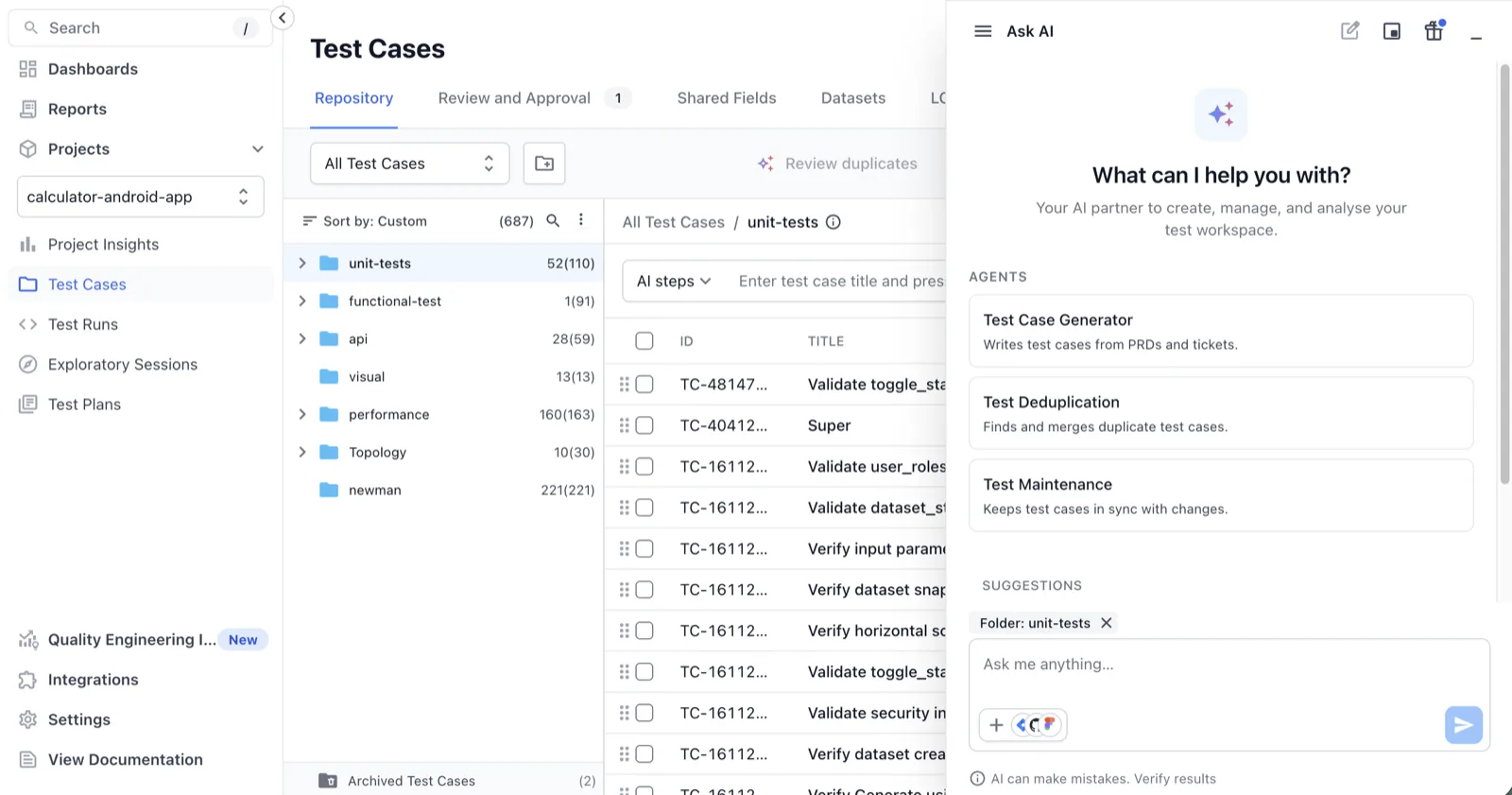
Click Ask AI at the bottom of the page. The context chip above the prompt box names the open folder.
-
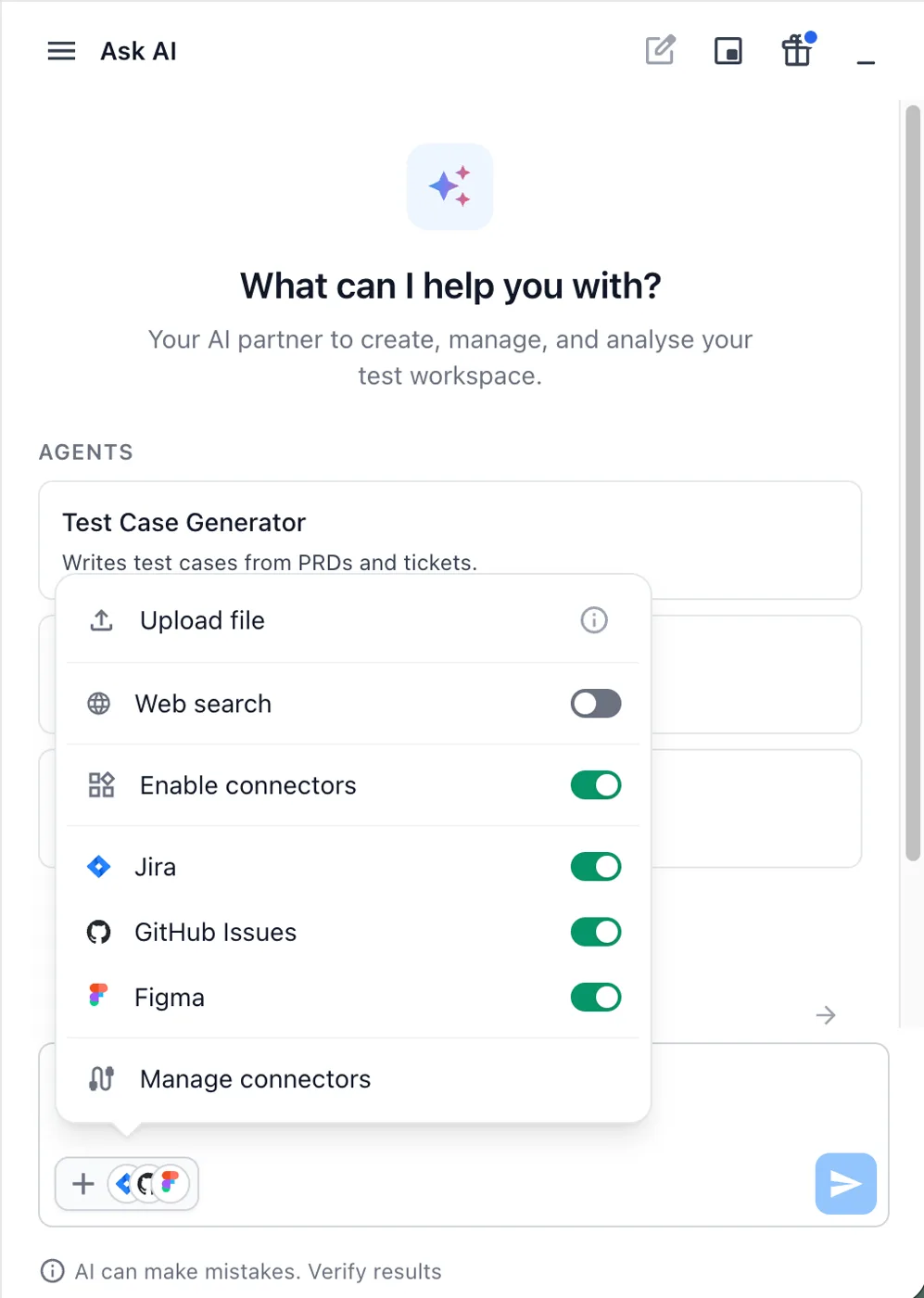
Click + and select Upload file to attach the requirement. Or turn on a connector and reference the issue in your prompt. See Add context to Ask AI requests.
-
Type a prompt such as
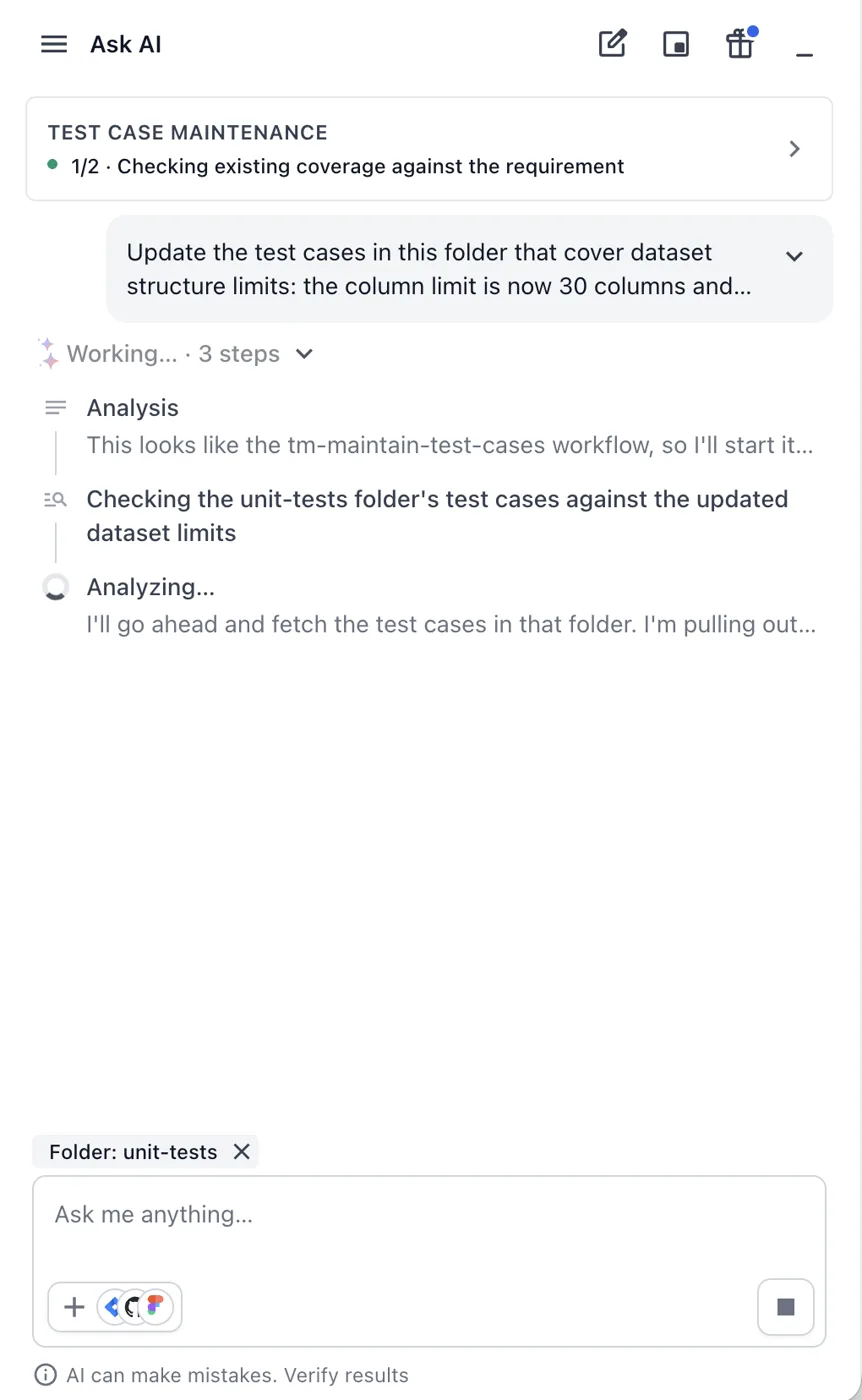
Update test cases for the attached requirementand click Send.A progress card titled TEST CASE MAINTENANCE shows the current step. For example: 1/2 · Checking existing coverage against the requirement. The agent reads the test cases in the folder in the context chip and drafts the changes.
When it finishes, a result card reads N test cases to update. The reply lists each test case it changed and what changed. It also says whether the requirement leaves coverage gaps. Nothing is saved at this point.
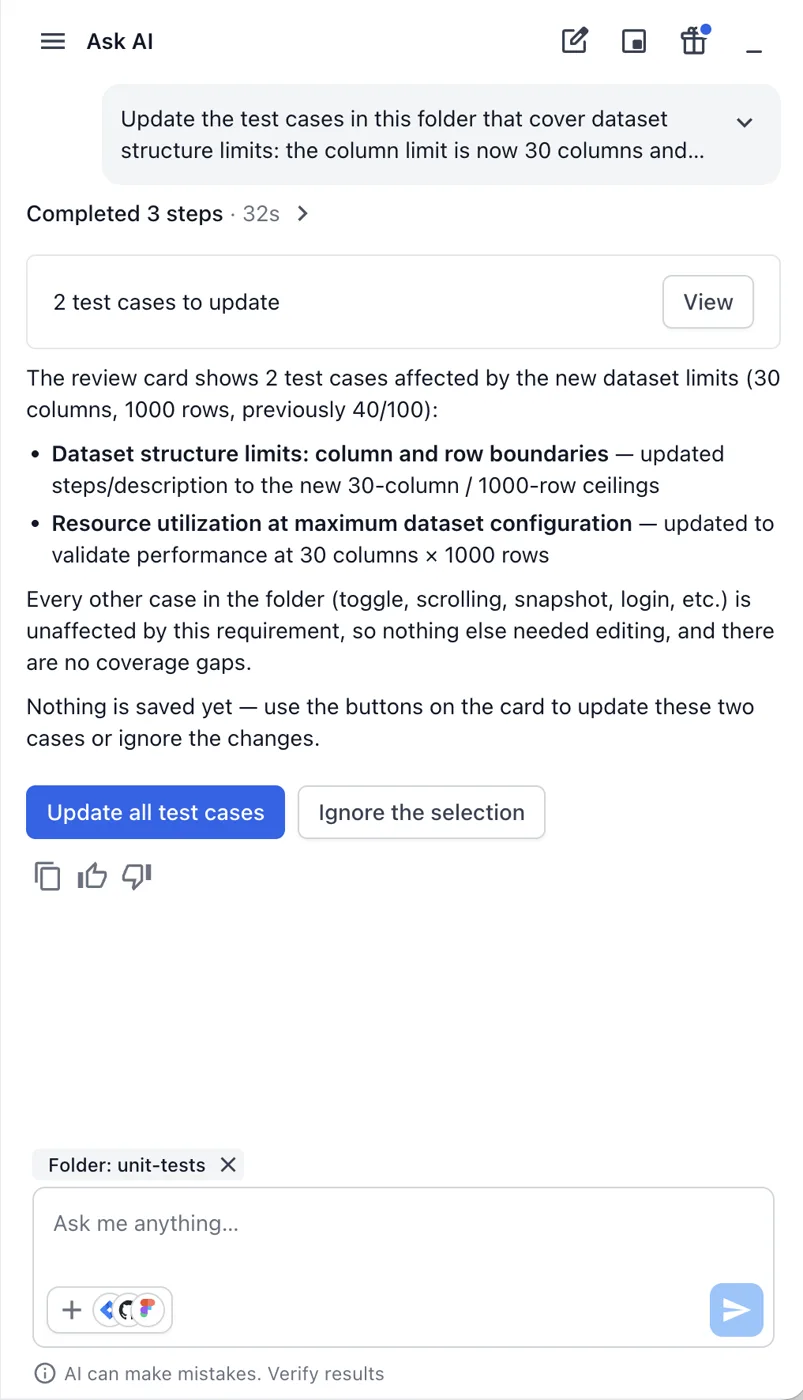
- Click View to check each change in the review panel, or read the summary in the chat.
- Click Update all test cases to apply every change. Click Ignore the selection to leave the test cases as they are.
Review the changes
Click View on the result card to open the review panel beside the chat.
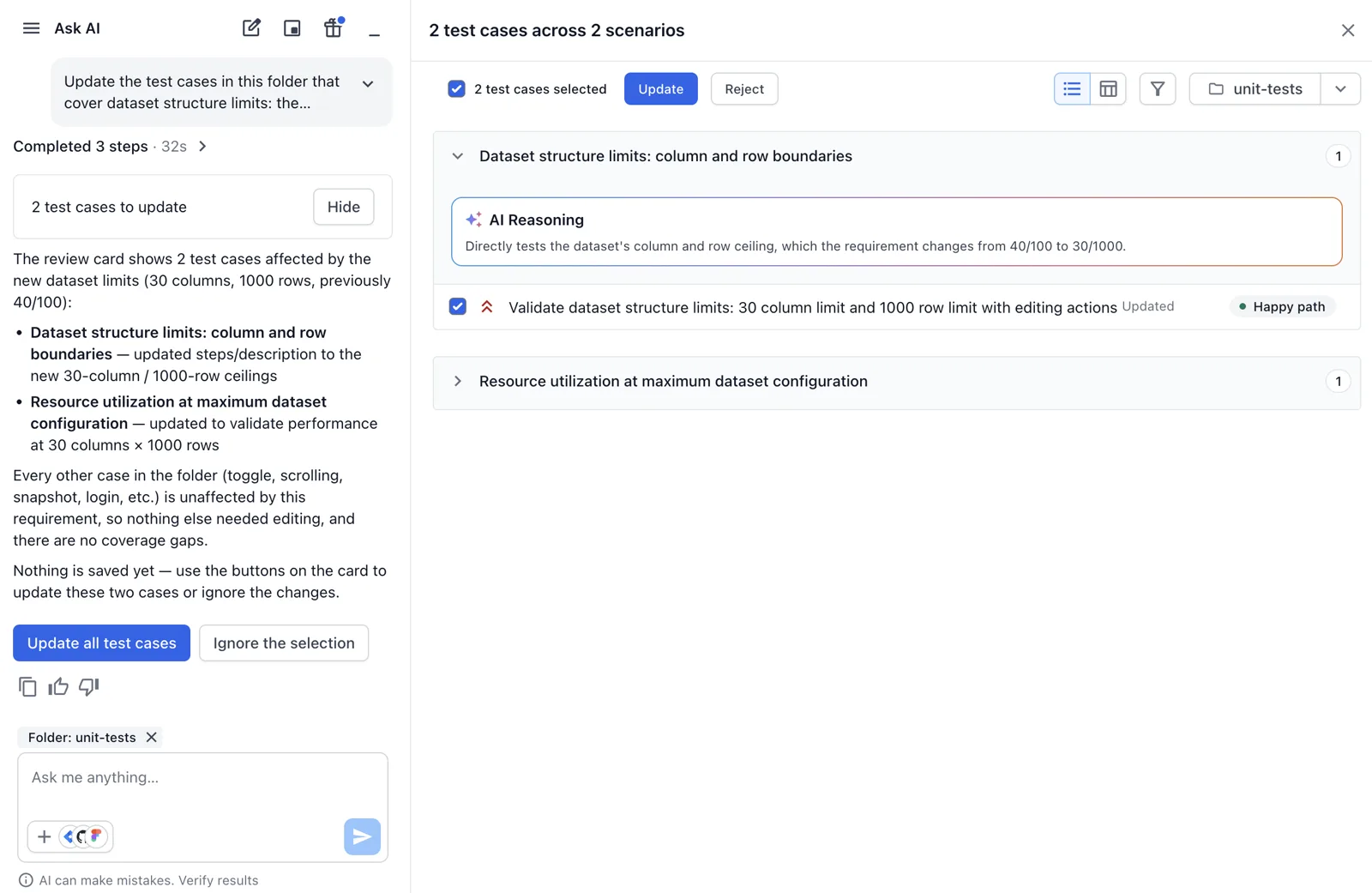
The following table lists its controls.
| Control | Details |
|---|---|
| Header count | The panel title reads N test cases across N scenarios. The count beside the checkbox reads N test cases selected. The checkbox selects or clears every row. |
| Update and Reject | Update applies the selected changes to the repository. Reject discards the suggestions. |
| Groups | Suggestions are grouped by scenario. Each group opens with an AI Reasoning card that names the requirement change behind it. |
| Rows | Each row shows the new title with an Updated label and the category tag. Click the title to read the full test case. Switch to the table view to compare the fields. |
| Folder picker | The folder name at the right of the header. Updates stay in the folder of each test case. |
Clear the checkbox on a row to leave that test case unchanged, then click Update. Rejected suggestions are discarded and the test case keeps its current content.
Choose which test cases to update
By default the scan covers the folder in the context chip. To narrow or widen the set:
- Name the test cases in the prompt, for example
Update TC-1012 and TC-1015. You can name any test case in the project, including test cases outside the open folder. - Open a different folder before you send the prompt.
- After the first result, type a follow-up such as
Also update the refund test cases. The agent reworks the set without starting over.
After the update
Updated test cases rarely cover a whole new requirement. Ask AI reports the gaps and offers new test cases for them. The Test Case Generator Agent writes them in the same chat, and you approve them separately. See Run several agents in one Ask AI request.
Compare with the Generate Test Cases panel
Both paths run the same agent. In the panel you turn on Update test cases under Generation modes and pick Target Folders. In Ask AI the open folder sets the scope and the prompt sets the instructions. Both paths show you every change before it is applied. The panel adds a side-by-side comparison with a Reason for update note for each suggestion. See Test Case Maintenance Agent.
Limits
These limits apply to updates made in Ask AI:
- Existing test cases are updated. The agent does not create new ones and does not archive any.
- The agent updates system fields only. Custom field values are not generated.
- In this release, Ask AI does not read the project’s AI Agent Knowledge Base or AI Agent Instructions.
Next steps
Continue with one of these pages:
- Run several agents in one Ask AI request: See where the updates sit between datasets and new test cases.
- Generate test cases with Ask AI: Fill the coverage gaps the agent reports.
- Test Case Maintenance Agent: Run the agent from the Generate Test Cases panel.
We're sorry to hear that. Please share your feedback so we can do better
Contact our Support team for immediate help while we work on improving our docs.
We're continuously improving our docs. We'd love to know what you liked
We're sorry to hear that. Please share your feedback so we can do better
Contact our Support team for immediate help while we work on improving our docs.
We're continuously improving our docs. We'd love to know what you liked
Thank you for your valuable feedback!