
 Join our Discord
Keyboard shortcuts
Learn how to use keyboard shortcuts to navigate between modules, create and edit entities, and execute test runs faster across Test Management.
Keyboard shortcuts reduce the need to switch between your keyboard and mouse during high-frequency actions. Test Management displays shortcut hints on buttons, tooltips, and dropdown menus throughout the interface, so you can learn shortcuts progressively as you work.
On macOS, use Cmd as the modifier key. On Windows and Linux, use Ctrl.
View all available shortcuts
Press ? or Shift + / from any page to open the keyboard shortcuts help window. This window displays a categorized list of every shortcut available in the product.
You can also disable keyboard shortcuts across the product from this window.
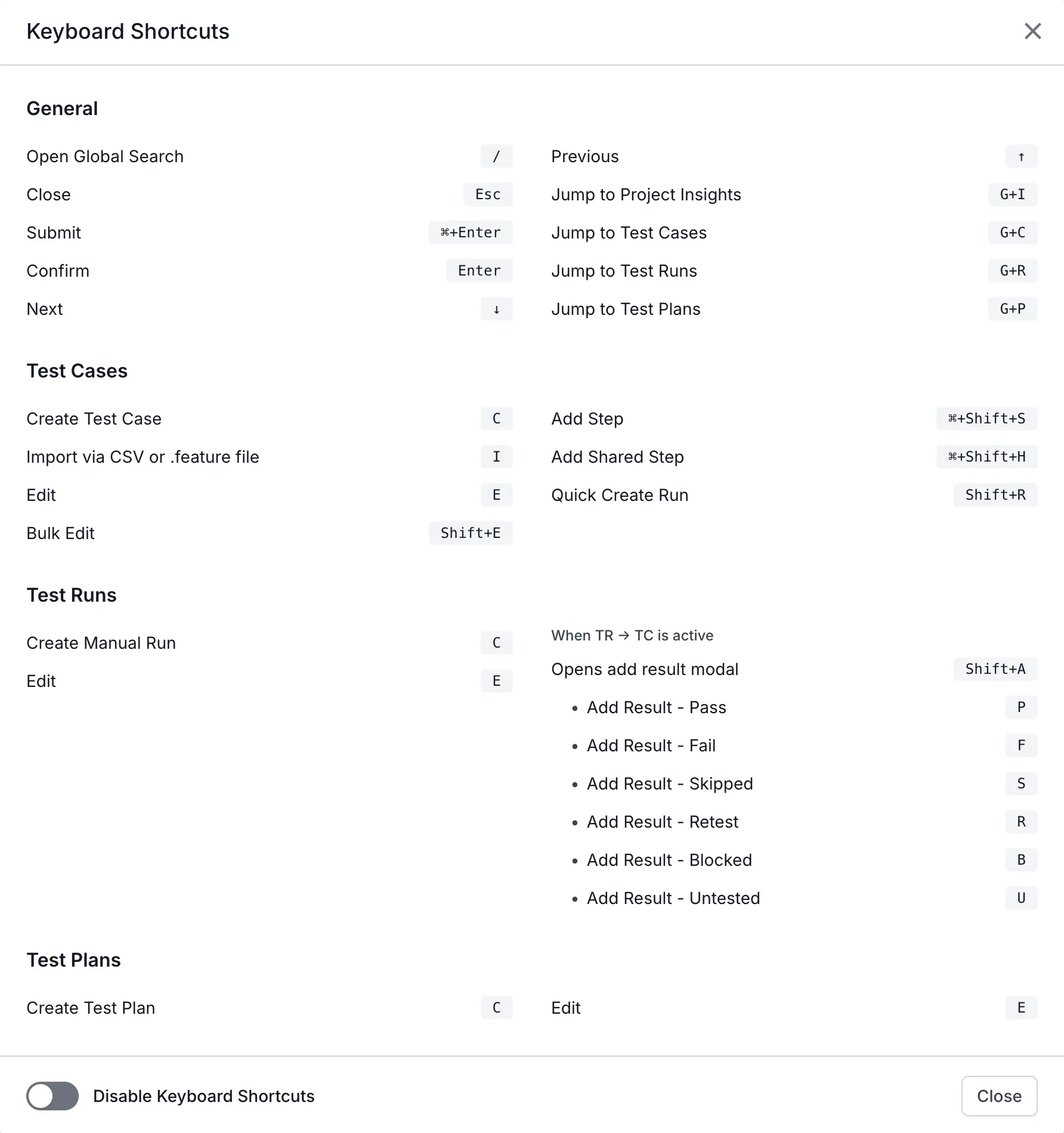
When you use a keyboard shortcut for the first time in a session, a notification banner appears to help you discover additional shortcuts. This banner appears for the first two sessions only.
Create and edit entities
These shortcuts adapt to your current context. On the Test Cases page, C opens the Create Test Case window. On the Test Runs page, C opens the Create Test Run window.
| Shortcut | Action | Context |
|---|---|---|
| C | Create entity | Opens the create window for the current module (Test Cases, Test Runs, Test Plans, Shared Steps, Datasets, Form Fields, or Templates). |
| E | Edit entity | Opens the edit window for the selected item. Requires exactly one item selected. |
| Esc | Close window or panel | Closes the topmost open overlay. Does not close windows with unsaved changes. |
| Cmd/Ctrl + Enter | Submit form | Submits the active create or edit form. All form validations apply before submission. |
| Enter | Confirm action | Confirms the action in confirmation dialogs. |
The E shortcut also shows as a highlighted hint in dropdown menus across all table rows. When you press E with a single item in focus, the edit window opens for that item. Editable entities include folders, test cases, shared steps, datasets, test runs, and test plans.
Mark test results during execution
When you open a test case from a test run detail page, single-key shortcuts let you mark results without reaching for your mouse. After you apply a result, focus moves automatically to the next test case or step.
| Shortcut | Result applied |
|---|---|
| P | Passed |
| F | Failed |
| S | Skipped |
| B | Blocked |
| R | Retest |
| U | Untested (resets the result) |
| Shift + A | Opens the Add Result window |
These shortcuts are active only in the test run execution view. Pressing these keys outside the execution view has no effect.
Add steps while authoring test cases
When the Create Test Case or Edit Test Case window is open, use these shortcuts to add steps without leaving the keyboard. These shortcuts work even when focus is inside a rich text editor.
| Shortcut | Action |
|---|---|
| Cmd/Ctrl + Shift + S | Add a new step. Focus moves to the new step’s input field. |
| Cmd/Ctrl + Shift + H | Add a shared step. Opens the shared step picker. |
Perform bulk actions on test cases
When you select multiple test cases in list view, use these shortcuts to start bulk operations.
| Shortcut | Action |
|---|---|
| Shift + E | Open the bulk edit panel |
| Shift + R | Start the create test run flow for selected test cases |
Shortcut behavior in input fields
Single-key shortcuts such as C, E, P, and F do not activate when your cursor is inside an input field, search bar, or text area. This prevents shortcuts from interfering with typing.
Two exceptions apply:
- Esc works everywhere to close windows and panels.
- Combination shortcuts such as Cmd/Ctrl + Enter and Cmd/Ctrl + Shift + S work even when focus is inside an input field. This matches standard rich text editor behavior.
Complete shortcut reference
The following table lists every keyboard shortcut available in Test Management.
| Shortcut | Action | Context |
|---|---|---|
| ? or Shift + / | Open keyboard shortcuts help | All pages |
| Esc | Close window, panel, or dropdown | All pages |
| Cmd/Ctrl + Enter | Submit form | Create and edit windows |
| Enter | Confirm action | Confirmation dialogs |
| C | Create entity for current module | Test Cases, Test Runs, Test Plans, Shared Steps, Datasets, Form Fields, Templates |
| E | Edit selected entity | Any list view with exactly one item selected |
| P | Mark as Passed | Test run execution view |
| F | Mark as Failed | Test run execution view |
| S | Mark as Skipped | Test run execution view |
| B | Mark as Blocked | Test run execution view |
| R | Mark for Retest | Test run execution view |
| U | Mark as Untested | Test run execution view |
| Shift + A | Open the Add Result window | Test run execution view |
| Cmd/Ctrl + Shift + S | Add step | Create or edit test case window |
| Cmd/Ctrl + Shift + H | Add shared step | Create or edit test case window |
| Shift + E | Bulk edit | Test cases list view (items selected) |
| Shift + R | Create test run | Test cases list view (items selected) |
Next steps
- Create test cases
- Execute manual test runs
- Create and manage test plans
- Use shared fields across test cases
We're sorry to hear that. Please share your feedback so we can do better
Contact our Support team for immediate help while we work on improving our docs.
We're continuously improving our docs. We'd love to know what you liked
We're sorry to hear that. Please share your feedback so we can do better
Contact our Support team for immediate help while we work on improving our docs.
We're continuously improving our docs. We'd love to know what you liked
Thank you for your valuable feedback!