
 Join our Discord
Quick Import from Zephyr Essential (Squad) Cloud
Import projects and test cases from Zephyr Essential (Squad) Cloud into BrowserStack Test Management using Quick Import.
Quick Import copies your projects and test cases from Zephyr Essential (Squad) Cloud, formerly named Zephyr Squad, into BrowserStack Test Management. You do not have to export files or map fields. After you connect your account and select projects, the import runs in the background. Test Management emails you when it completes.
Zephyr Essential (Squad) Cloud is the Zephyr Essential app on Jira Cloud. If your Zephyr Essential runs on a self-hosted Jira Server or Data Center instance, follow Quick Import from Zephyr Essential (Squad) Server instead.
Due to limitations in the Zephyr Essential (Squad) Cloud API, attachments are not migrated during Quick Import.
Prerequisites
Before you connect, make sure that:
- You have a Zephyr Essential (Squad) account with full administrative privileges.
- You use the same Jira account for both the Jira API token and the Zephyr Squad API access token. This account must be a Zephyr Essential (Squad) admin. It also needs Jira’s Administer Jira and Browse users and groups permissions.
Start a Quick Import
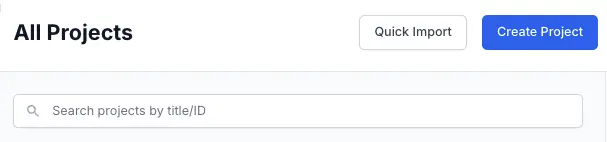
Click Quick Import on the top-right corner of the dashboard, or start a Quick Import from an existing project.
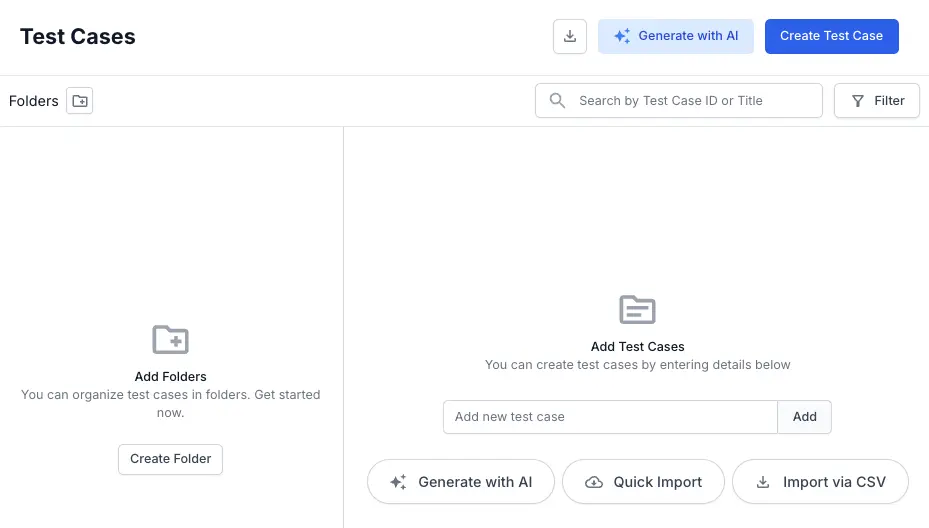
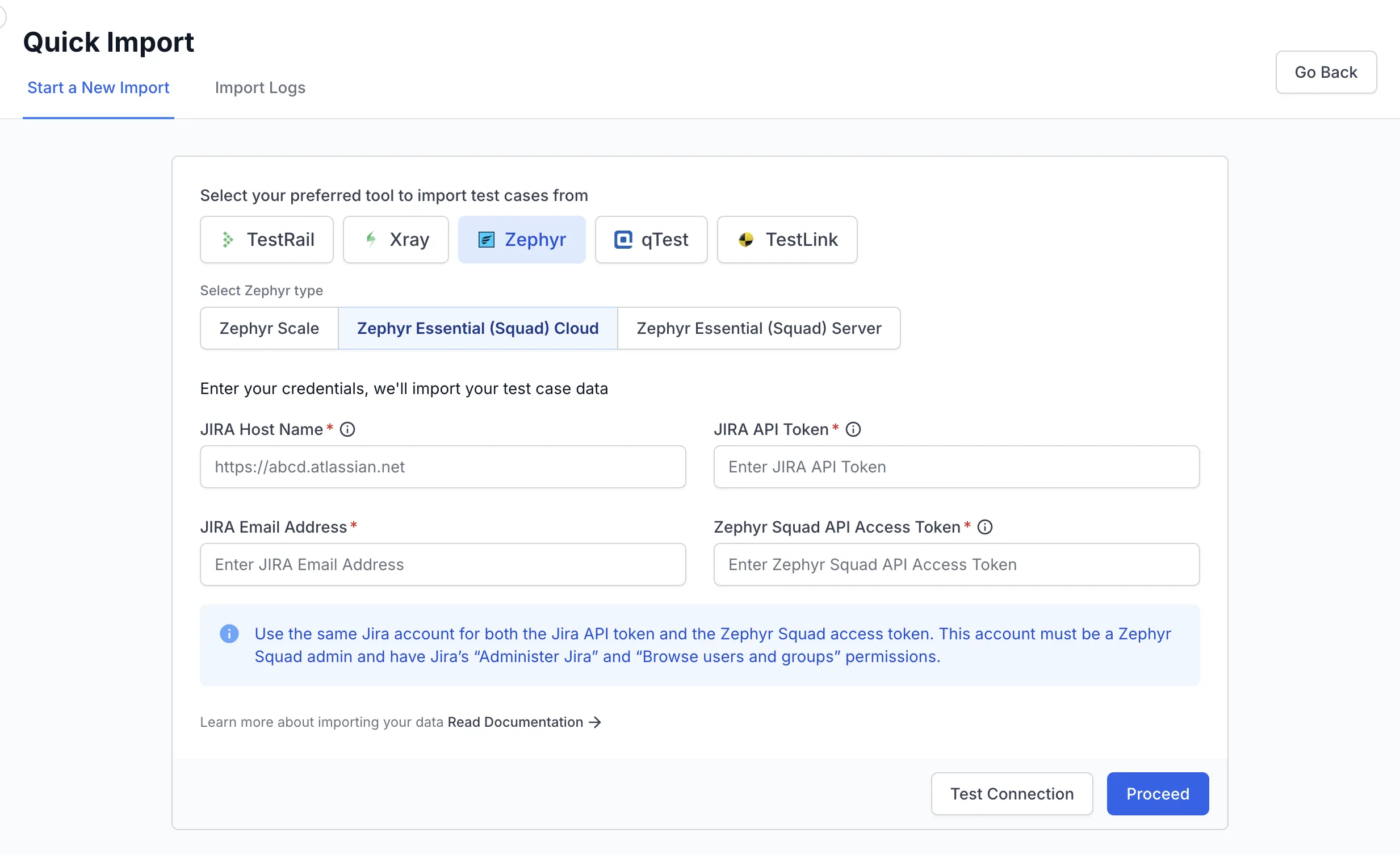
On the Quick Import screen:
- In the Select your preferred tool to import test cases from section, select Zephyr.
- In the Select Zephyr type section, select Zephyr Essential (Squad) Cloud.
Connect to Zephyr Essential (Squad) Cloud
- Enter JIRA Host Name. This is your Jira account URL where Zephyr Essential is set up, for example,
https://abcd.atlassian.net. - Enter your JIRA Email Address.
- Enter your JIRA API Token. You can generate one from the Atlassian API tokens page.
- Enter your Zephyr Squad API Access Token. To generate one, see the SmartBear guide to generating API access tokens.
- Click Test Connection to verify the details.
- Click Proceed to save and establish the connection.
Select what to import
Do not change the folder structure in Zephyr Essential (Squad) while an import to Test Management is in progress.
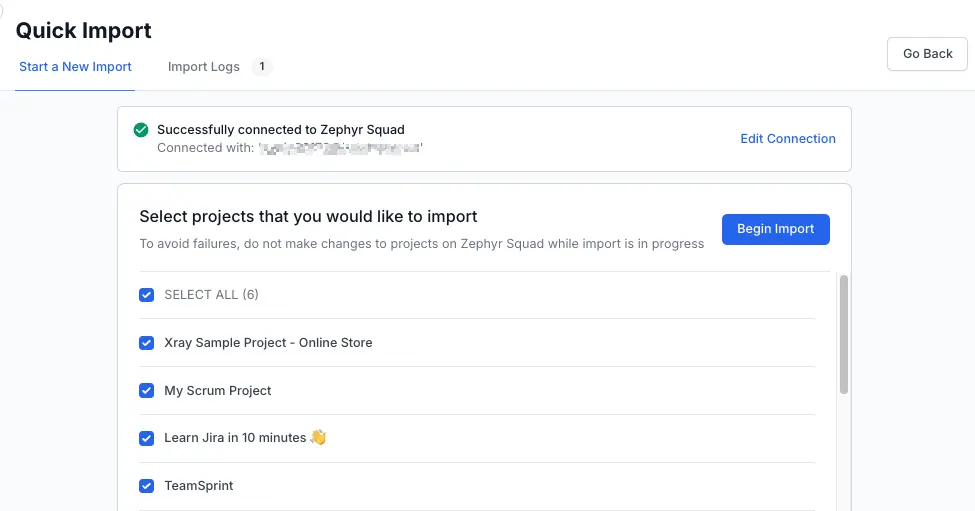
- Select the Zephyr Essential (Squad) projects that you want to import.
- Optional: If your plan includes AI Deduplication, turn on Scan for Duplicates next to a project. The Deduplication Agent scans the project for duplicate test cases after the import. The scan runs in the background. When it completes, duplicate counts appear on the Projects listing page. Learn how to review and resolve duplicate test cases.
- Click Begin Import.
Track import progress
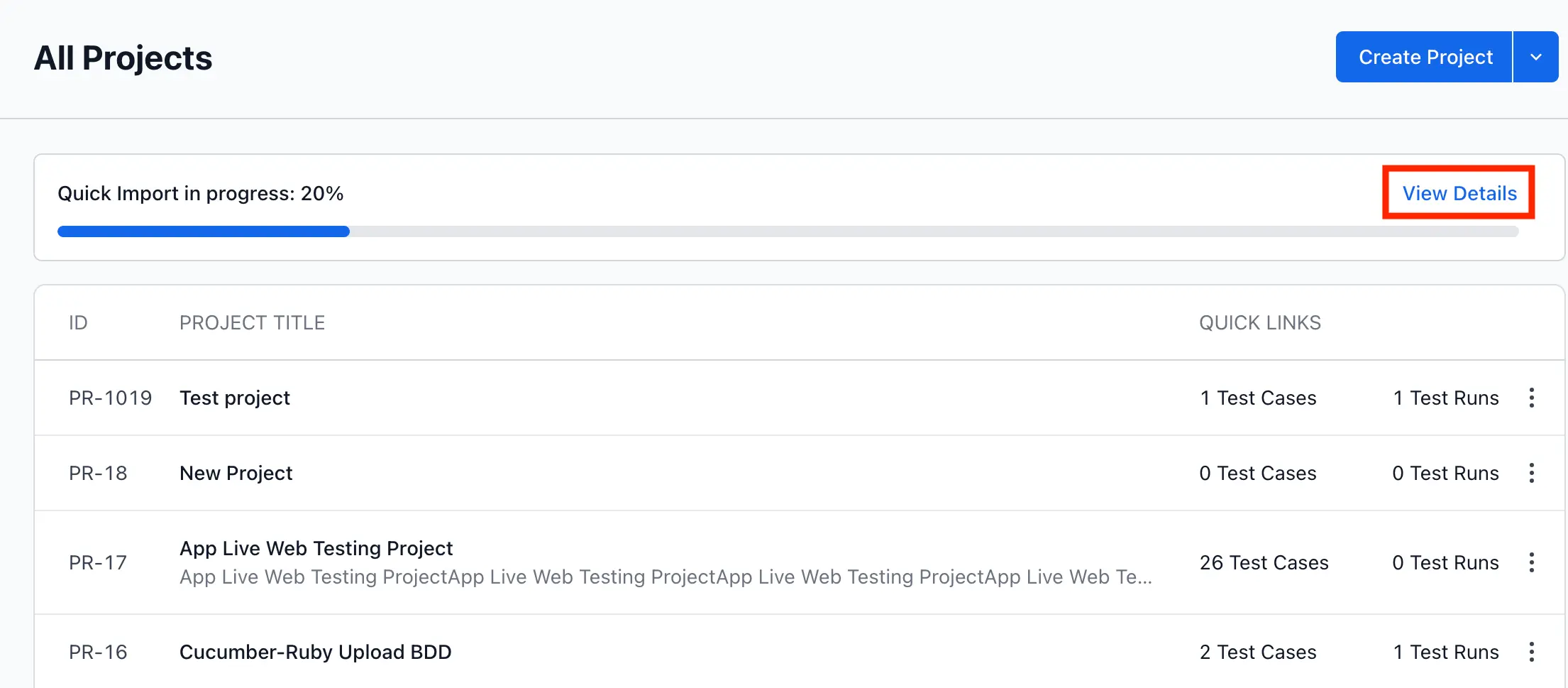
The All Projects page shows the progress of a running import. Click View Details to open the detailed Quick Import view.
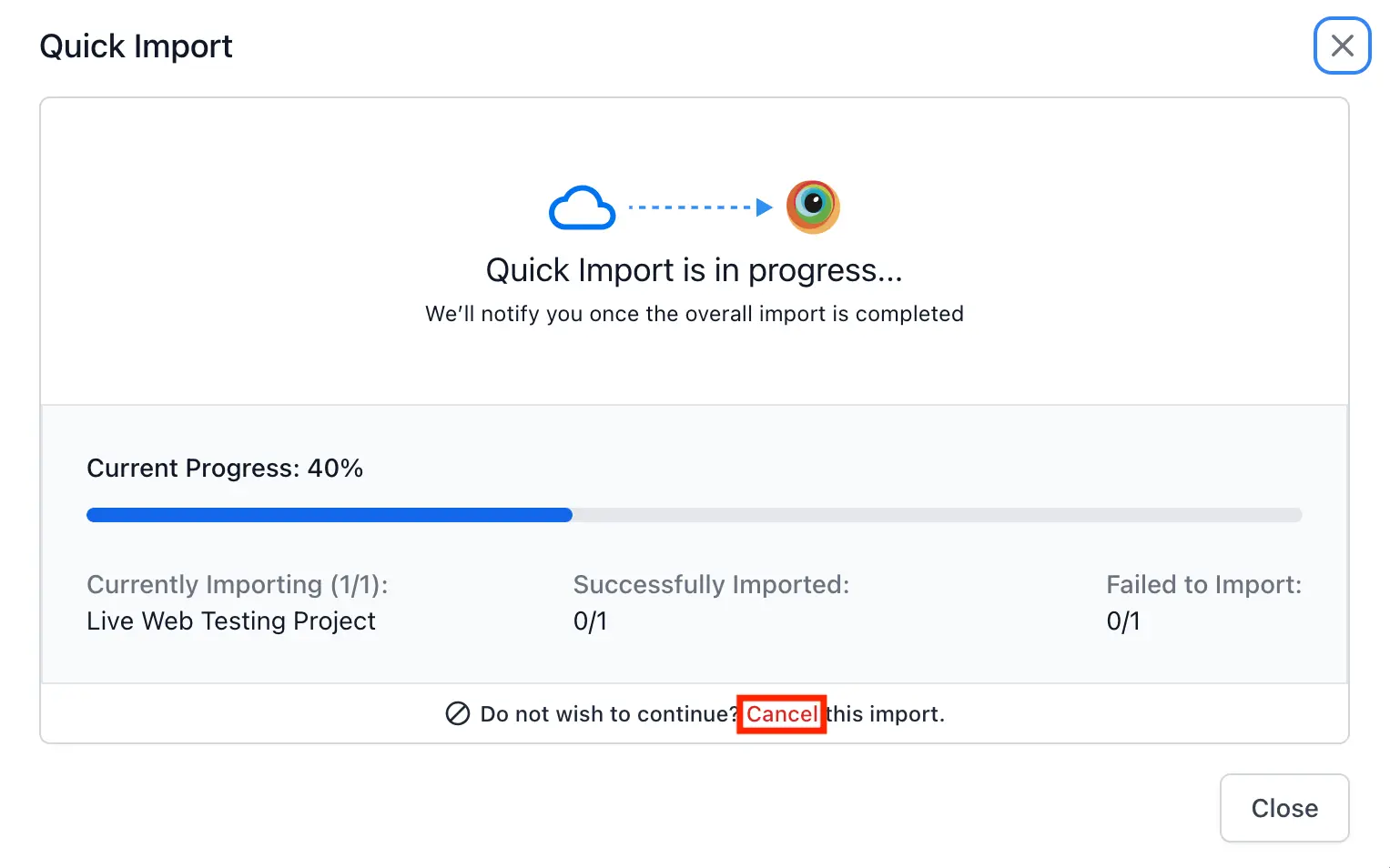
If required, you can cancel the import from the detailed view.
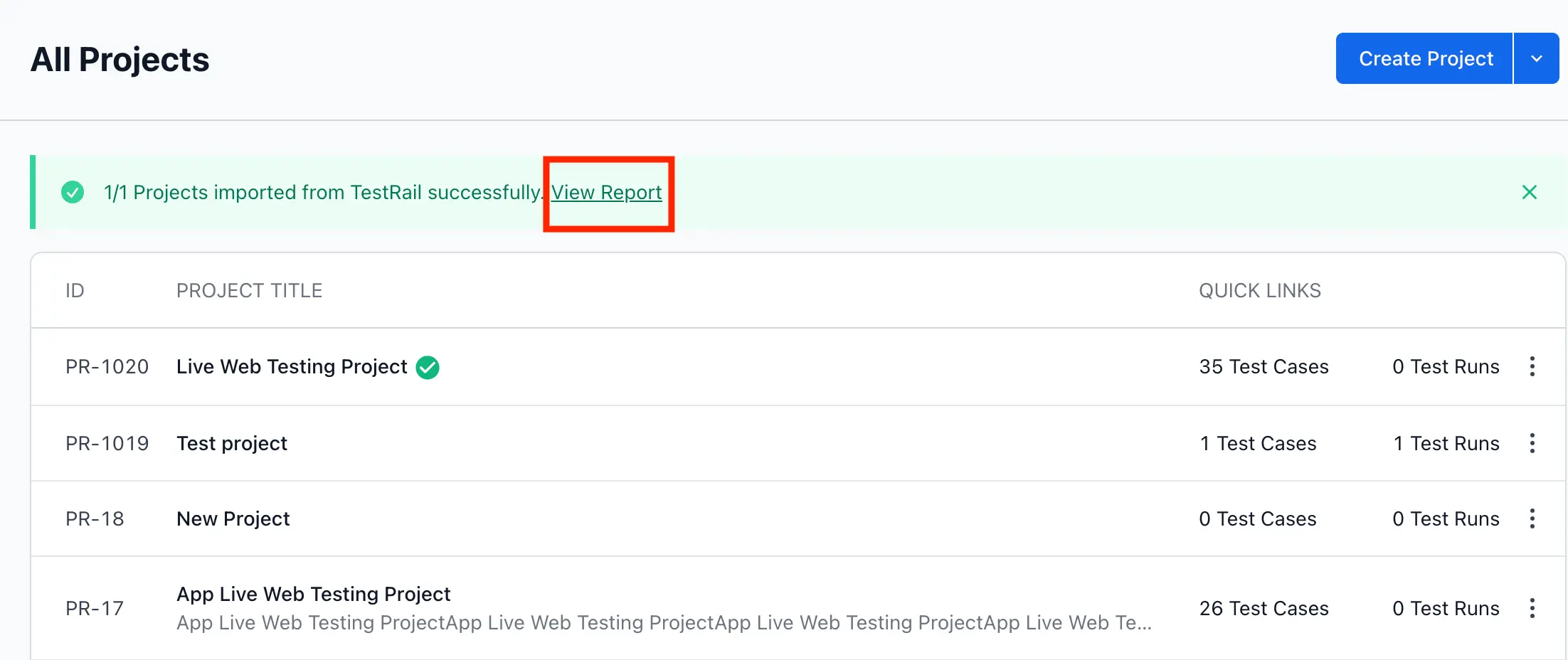
After the import completes, click View Report to review what was imported.
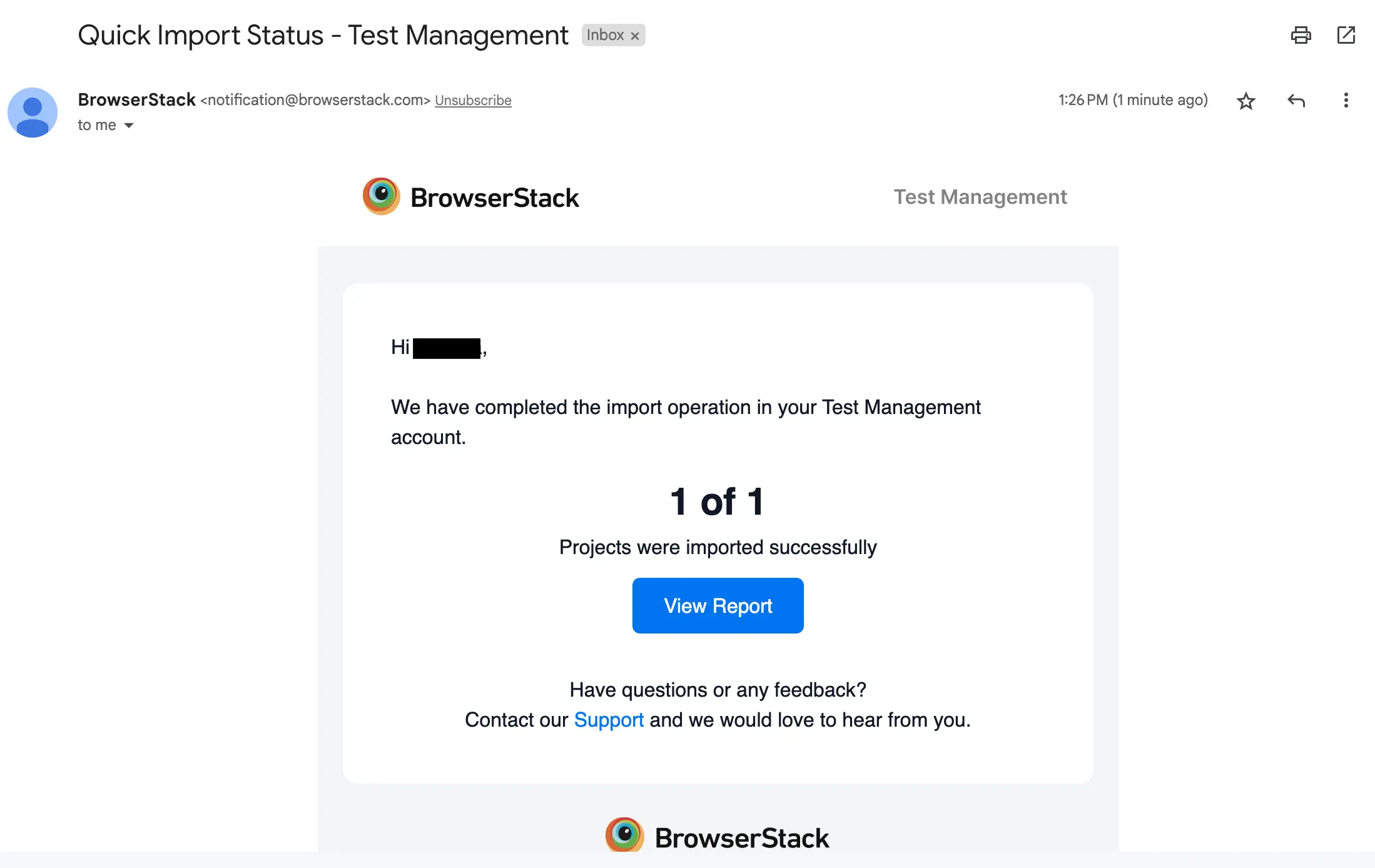
An email notification is also sent to your registered email ID when the import completes.
Review Import Logs
The Import Logs tab on the Quick Import screen lists your current and past imports. Each entry shows:
- The import status, updated in real time as the import progresses.
- The number of imported test cases and projects.
- The team member who started the import and the start time.
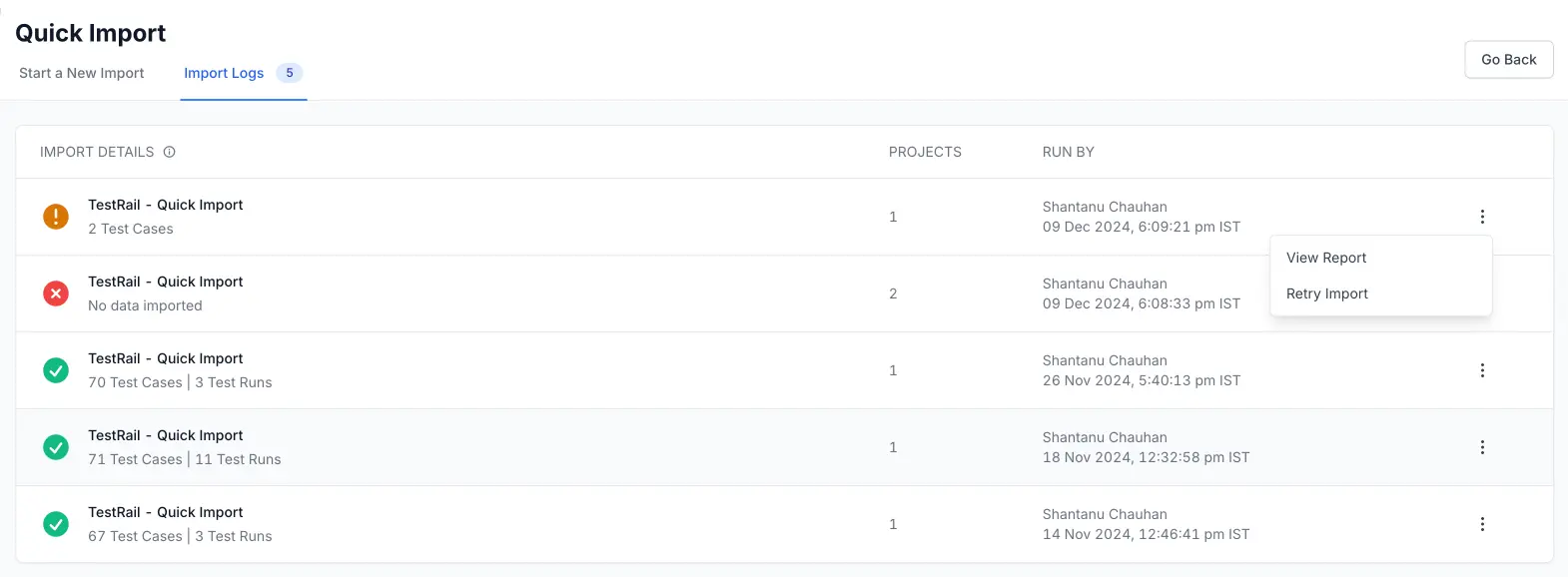
Use the action menu, the three dots next to an import, to open View Report or Retry Import. View Report shows detailed results and error messages. Retry Import reruns a failed import.
Quick Import or CSV import saves email addresses of unregistered users and automatically assigns the associated test cases and test runs when they register or login to Test Management.
Next steps
- Import from Zephyr Essential (Squad) Server if you also run Zephyr Essential on a self-hosted Jira instance.
- Compare the Zephyr types to check what each one imports.
- Review and resolve duplicate test cases flagged by the Deduplication Agent.
- Troubleshoot Zephyr Essential (Squad) Quick Import errors if your connection or import fails.
We're sorry to hear that. Please share your feedback so we can do better
Contact our Support team for immediate help while we work on improving our docs.
We're continuously improving our docs. We'd love to know what you liked
We're sorry to hear that. Please share your feedback so we can do better
Contact our Support team for immediate help while we work on improving our docs.
We're continuously improving our docs. We'd love to know what you liked
Thank you for your valuable feedback!