
 Join our Discord
Basic authentication
Learn how to configure Website Scanner to log in through an HTTP Basic auth popup.
Use basic authentication when your website displays a browser popup requesting credentials instead of a login form.
Basic authentication is not supported on Safari.
Configure basic authentication
To configure basic authentication, follow these steps:
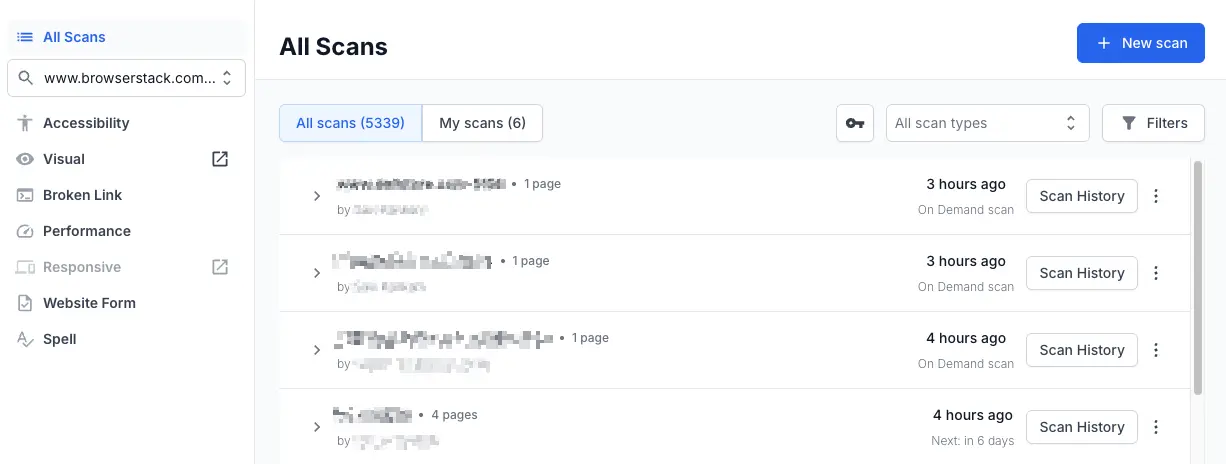
Navigate to the Website Scanner dashboard and click New scan.
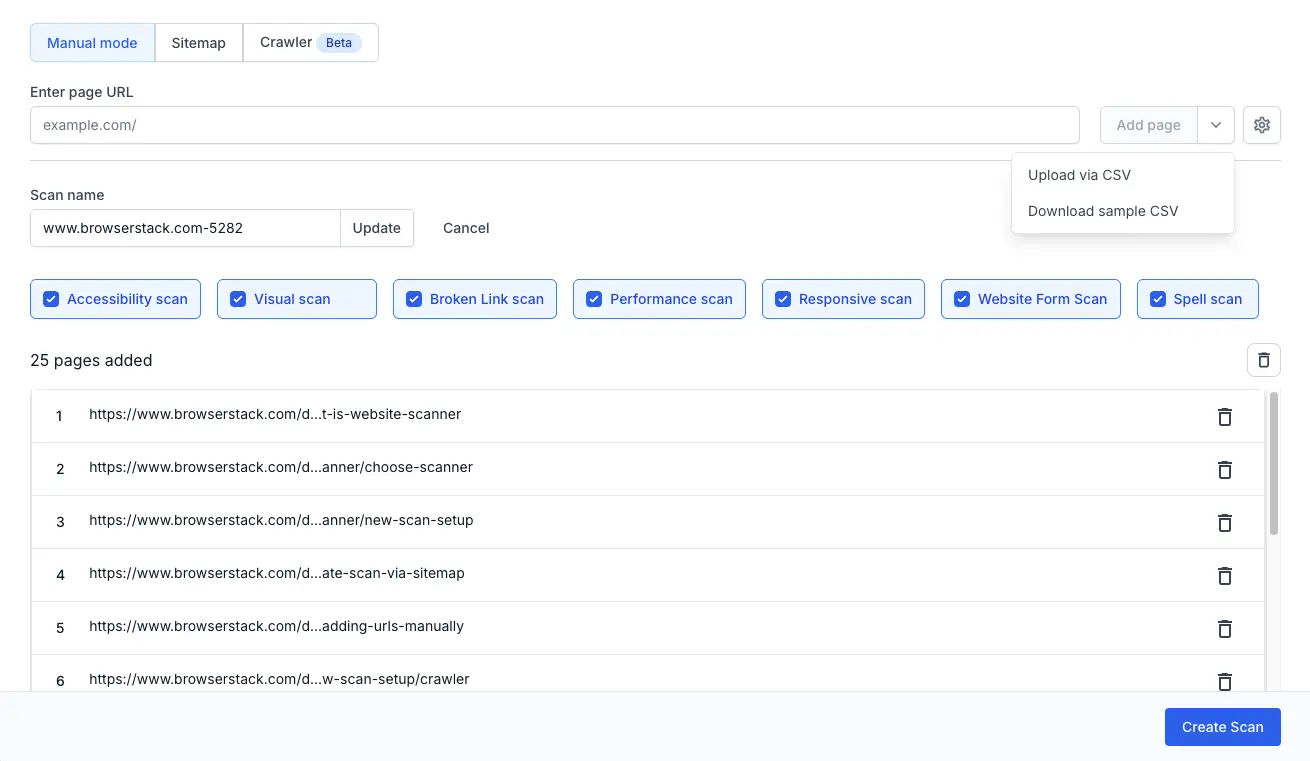
Select a scan mode tab: Manual mode, Sitemap, or Crawler.
Add pages to scan based on your selected mode:
- Manual mode: Enter a URL in the Enter page URL field and click Add page. Repeat for each URL, or use the dropdown to upload a CSV.
- Sitemap: Enter a domain URL or sitemap.xml URL in the Enter domain URL or sitemap.xml URL field and click Add sitemap.
- Crawler: Enter a starting URL in the Enter page URL field and click Start Crawl. The crawler discovers linked pages automatically.
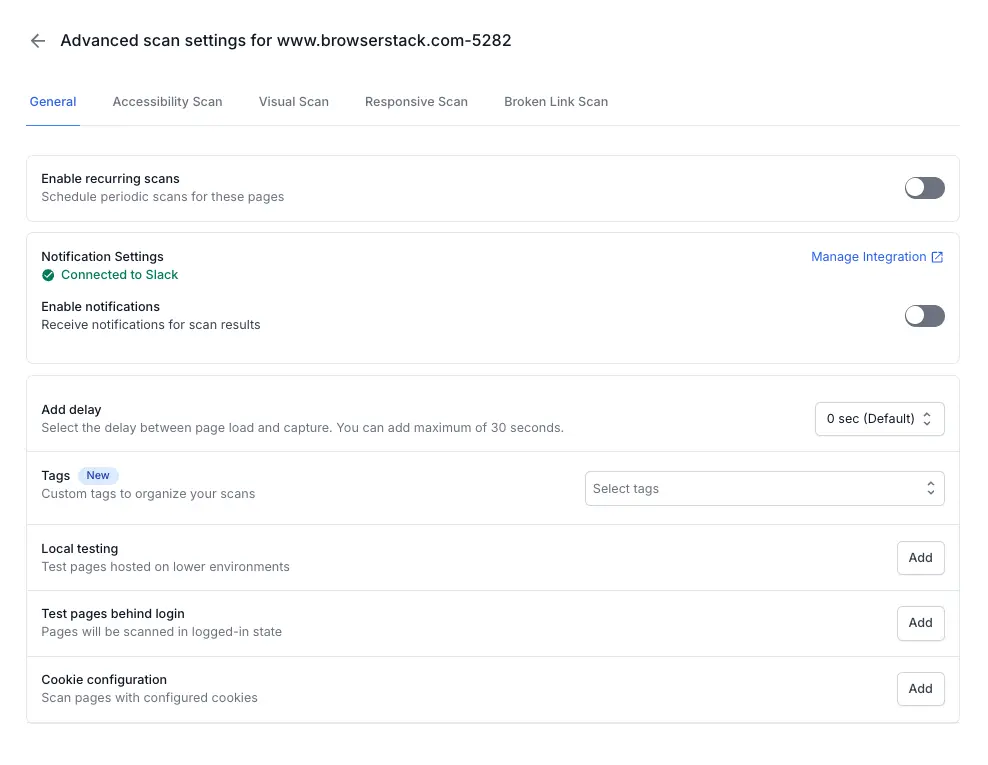
Click the settings (gear icon) to open Advanced scan settings.
In the General settings tab, click Add next to Test pages behind login.
Enter a configuration name.
Confirm that Basic authentication is selected as the authentication type.
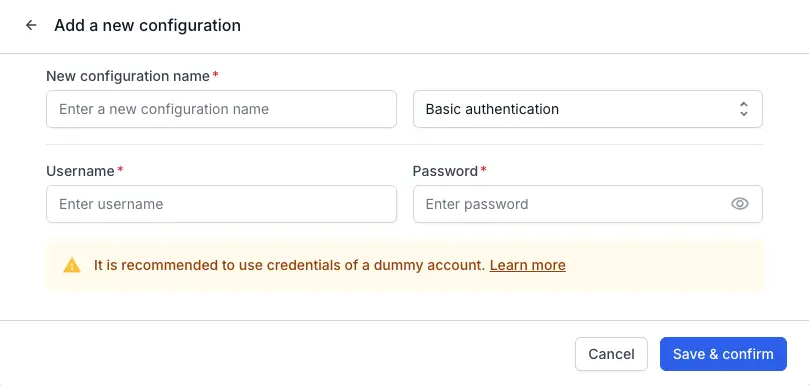
Enter the Username and Password.
Enter the URL to verify against.
Website Scanner opens this page with your credentials for the check only. The URL is not saved to the scan.
Choose a wait time in Add delay if the page loads slowly.
Otherwise, leave the default of 0 seconds. You can add up to 30 seconds.
Click Verify login configuration. Website Scanner opens the URL with your credentials.
Compare the Snapshot after verification with the page you expect after signing in. If the result names an error, see Troubleshoot authentication errors.
Click Save & confirm.
Next steps
- Troubleshoot authentication errors if the verification reports an error or a scan cannot sign in.
- Configure form authentication if your site uses a standard login form instead.
- Configure multipage authentication if your login spans multiple screens.
We're sorry to hear that. Please share your feedback so we can do better
Contact our Support team for immediate help while we work on improving our docs.
We're continuously improving our docs. We'd love to know what you liked
We're sorry to hear that. Please share your feedback so we can do better
Contact our Support team for immediate help while we work on improving our docs.
We're continuously improving our docs. We'd love to know what you liked
Thank you for your valuable feedback!