
 Join our Discord
Troubleshoot authentication errors in Website Scanner
Fix Website Scanner login configurations that fail verification, or scans that cannot sign in to pages behind login.
Website Scanner signs in to your website with the login configuration you saved before it scans pages behind login. A wrong selector, a wrong password, or a page that loads its fields late stops the sign-in.
Before you save a configuration, click Verify login configuration in the Add a new configuration dialog. Website Scanner then attempts the sign-in with your values and reports one of the results on this page. The check takes less than a minute.
For the full procedure, see Verify a login configuration before you save.
Selectors not found
The verification result reads Selectors not found. Please check the snapshot below, preceded by the count of selectors that failed.
The Settings to check list names each failed selector and the value you entered, such as Submit selector.
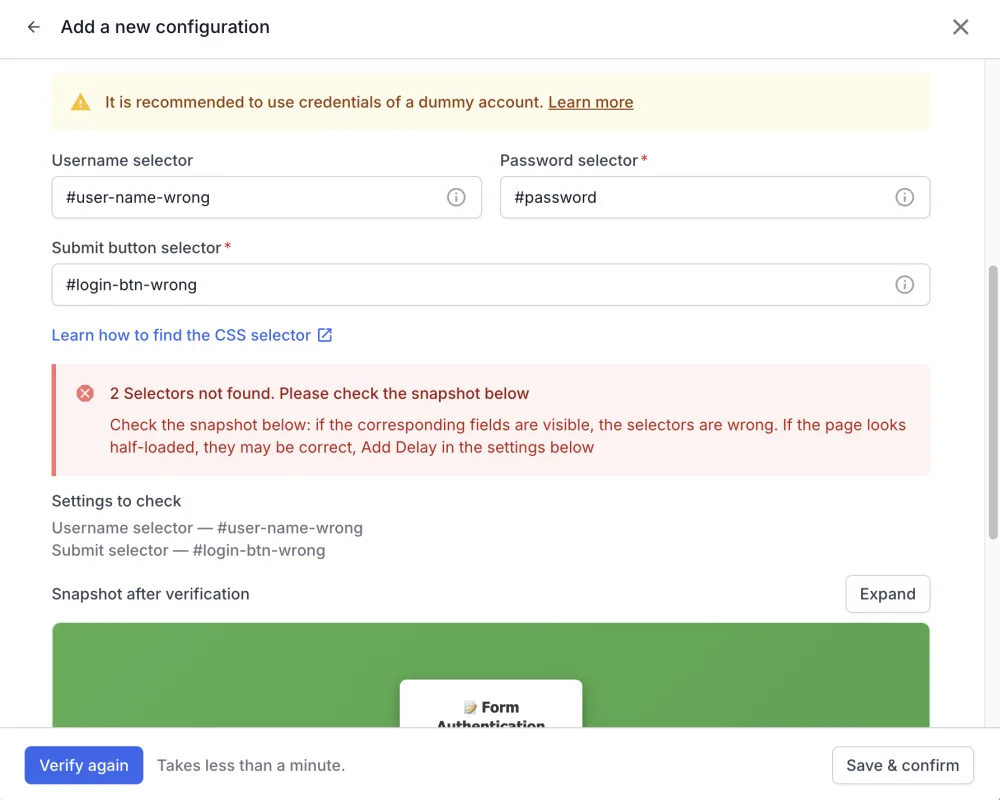
A selector fails for one of two reasons. Either the selector does not match an element on the page, or the element had not loaded when Website Scanner looked for it.
The Snapshot after verification tells you which reason applies. Click Expand to see it at full size.
- If the login fields are visible in the snapshot, the selector is wrong. Copy the selector again from your browser. See Find CSS selectors.
- If the page looks partly loaded, or a field is missing from the snapshot, the selector can be correct. Choose a wait time of up to 30 seconds in Add delay.
Then, click Verify again.
The page did not change after sign-in
The verification result reads The Page didn’t change after Sign-in.
Website Scanner found every selector and clicked the submit button, but the browser stayed on the login page URL.
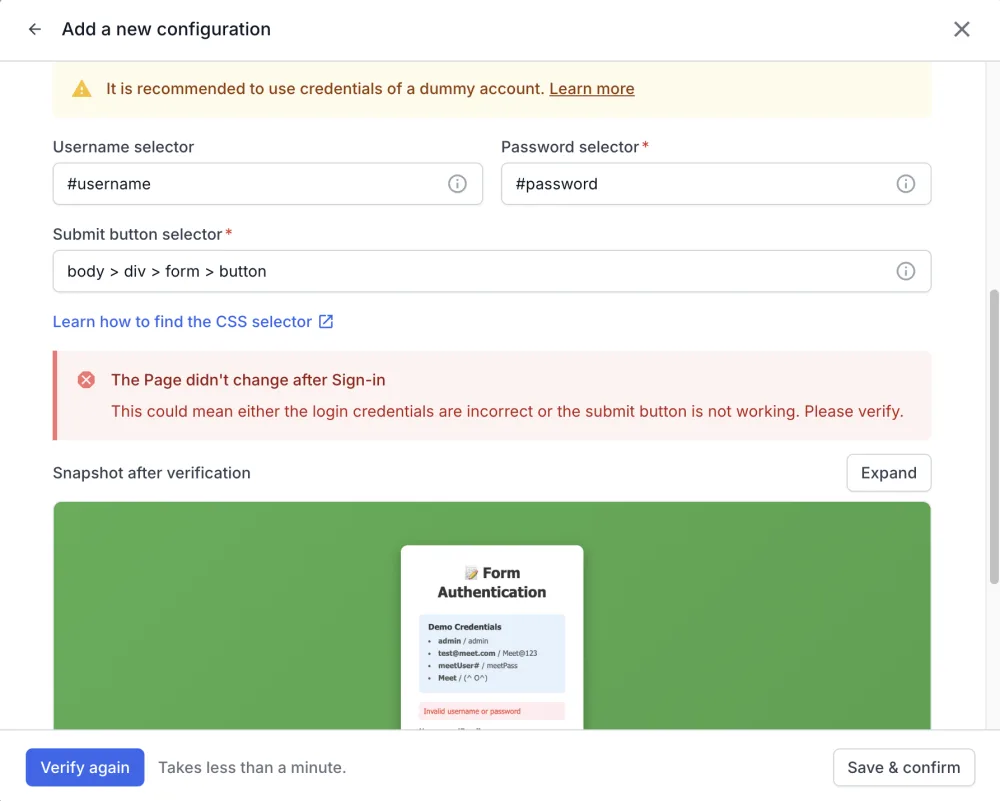
Some websites show an error message on the login page instead of moving to a new URL when the credentials are wrong. Open the snapshot and look for that message before you change the selector.
To fix this error:
- Check the Username and Password against the account you use to sign in. We recommend a test account rather than a production account.
- Check that the Submit button selector matches the button that submits the form, not a link or a wrapper element.
- Click Verify again.
No errors found, but the snapshot shows the wrong page
The verification result reads No errors found. Please check the snapshot to verify.
This result means Website Scanner opened the login page, filled the fields, and clicked the submit button. It does not mean the login succeeded. Website Scanner cannot tell a successful sign-in from a failed one, so you make that call from the snapshot.
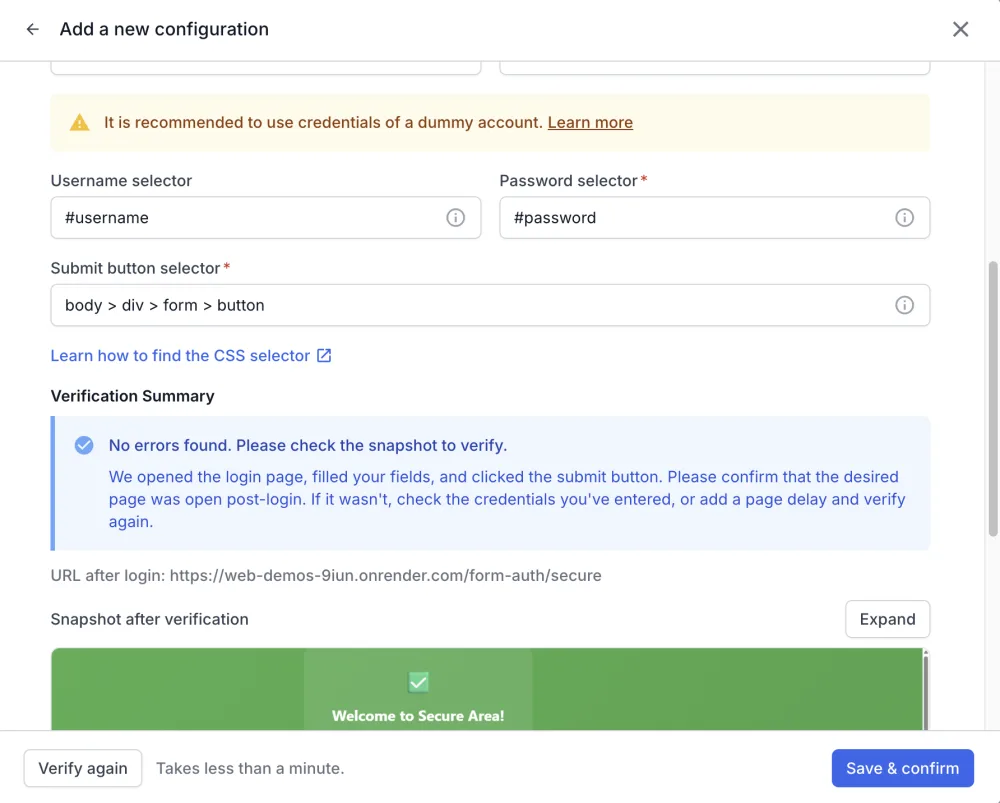
Compare the URL after login line and the Snapshot after verification with the page you expect after signing in.
If the snapshot shows the login page, an error banner, or a page you do not recognize, the sign-in did not complete.
To fix this result:
- Check the Username and Password.
-
If the snapshot shows a partly loaded page, choose a longer wait time in Add delay.
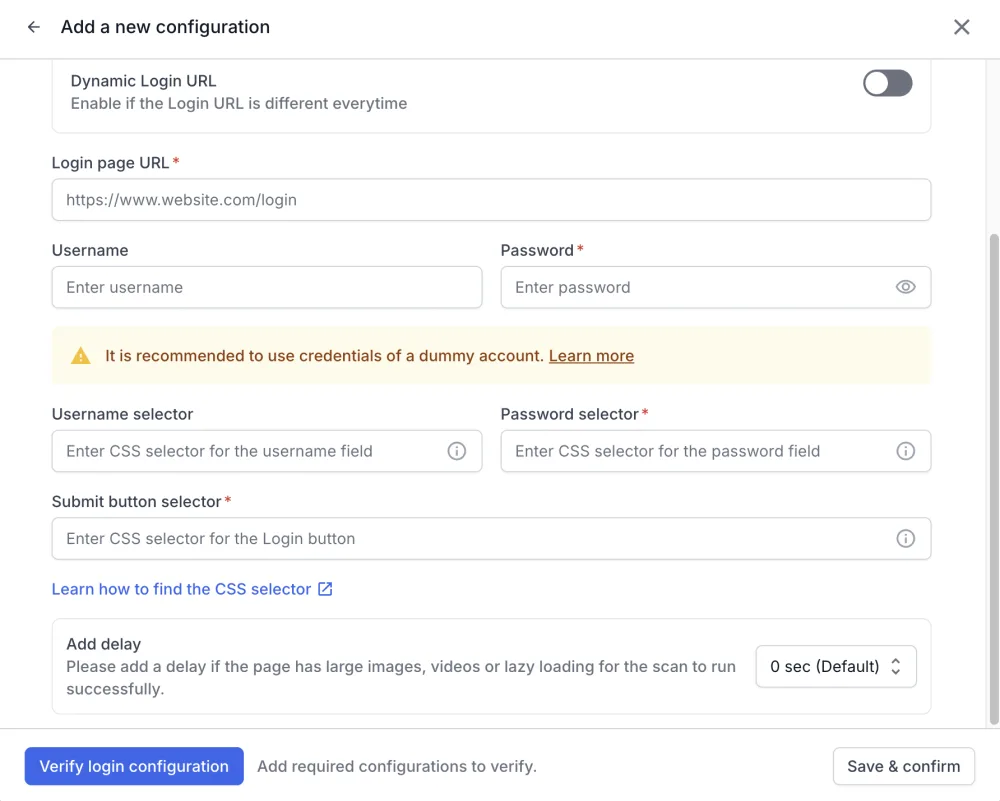
- Click Verify again.
When the snapshot shows the page you expect, click Save & confirm.
Verification limit reached
You can run the verification 10 times in 30 minutes. The limit applies to your account, across every login configuration you edit in that window.
When you reach the limit, wait for the window to pass before you click Verify again.
Login failed during a scan
When a saved configuration stops working, the scan cannot sign in and the scan report shows a login error.
Wrong credentials are one cause. A selector that no longer matches after a change to your login page fails the same way. So check the whole sign-in flow before you change the credentials.
To fix this error:
-
Open the scan settings and open the login configuration.
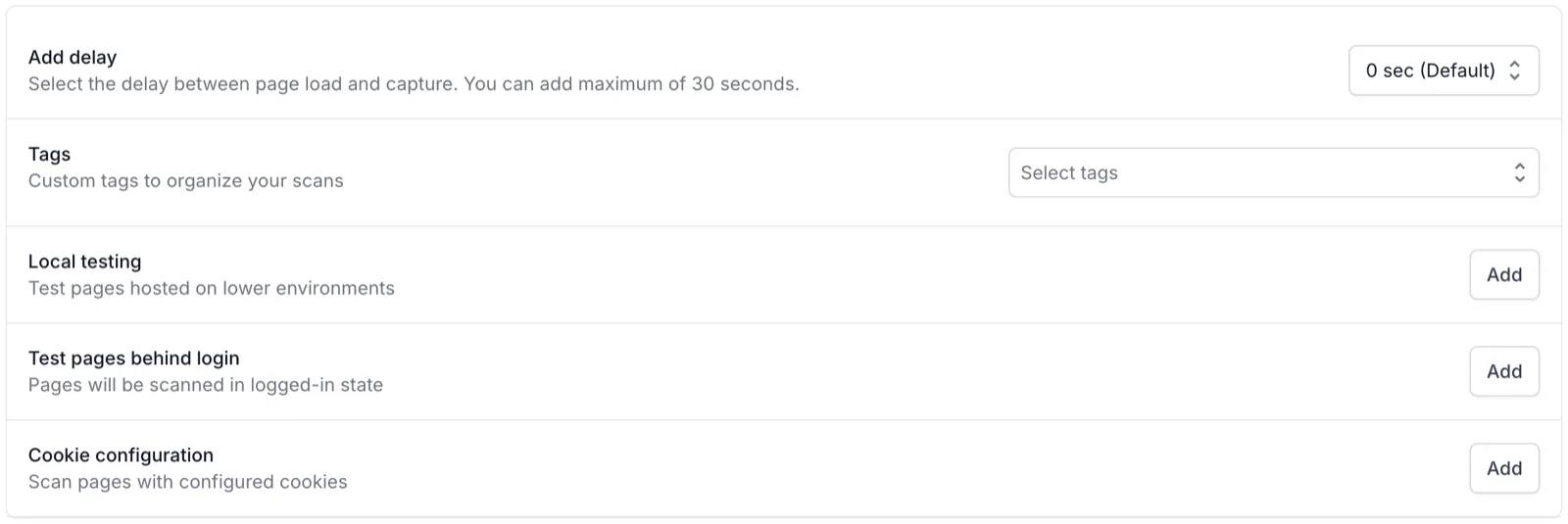
- Click Verify login configuration.
- Fix the configuration based on the result using the sections on this page.
- Click Save & confirm, then run the scan again.
Related topics
- Test pages behind login to choose an authentication type and verify a configuration.
- Form authentication for a single login form.
- Multipage authentication for a login spread across several pages, including a static one-time password.
- Find CSS selectors for the username, password, and submit button fields.
We're sorry to hear that. Please share your feedback so we can do better
Contact our Support team for immediate help while we work on improving our docs.
We're continuously improving our docs. We'd love to know what you liked
We're sorry to hear that. Please share your feedback so we can do better
Contact our Support team for immediate help while we work on improving our docs.
We're continuously improving our docs. We'd love to know what you liked
Thank you for your valuable feedback!