
 Join our Discord
Centralized Role-based access control (RBAC)
Learn how BrowserStack’s centralized RBAC ensures users have consistent access to products and projects across your organization.
BrowserStack provides a centralized RBAC framework that enables users to maintain consistent product roles across all products and multiple projects within any Group or Organization.
BrowserStack also supports role-based access control (RBAC) for service accounts, allowing you to assign predefined roles with granular permissions.
- Centralized RBAC is in beta and rolling out to select customers.
- Centralized RBAC is not supported for App Low Code Automation.
- Confirm centralized RBAC is enabled:
- Go to the User Management > Invitations page.
- Check that the RBAC Role option appears in the Send invitation email section.
Types of roles
BrowserStack uses two categories of roles to manage access:
-
IAM roles: These roles control ownership and administrative privileges across all BrowserStack products. They determine a user’s ability to grant access to others. The IAM roles are Owner, Admin, and User.
-
RBAC roles: These roles define what a user can do within BrowserStack’s global entities (Dashboards, Integrations, Projects) and within individual product environments. RBAC roles are standardized so that permissions such as read, create, update, delete, etc., remain consistent across all products, teams and projects. The common roles include:
- Admin: Has full permissions to view, create, update, delete, archive, and manage all entities.
- User: Has moderate permissions tailored to their responsibilities.
- Viewer: Has read-only access to view resources without making any changes.
- To view the default permissions for Admin, User, and Viewer roles, go to the Roles & Permissions page and select RBAC roles. You can also customize these roles to fit your requirements. For details, see the Custom roles page.
- Going forward, product-specific roles will be deprecated and streamlines into one as RBAC role.
Member and guest roles for each product
After assigning IAM and RBAC roles, you can set the user’s access level for each product as a Member (licensed) or a Guest(unlicensed).
- Member role (Licensed): A member is a fully licensed user of a product and has complete operational access aligned with their RBAC role. For example, User, Viewer, Admin.
- Guest role (Unlicensed): A Guest is an unlicensed user with limited, view-only access. Guest access is useful when licenses are limited or when users only need visibility.
- Some BrowserStack products do not support Guest access. For these products, all users must be assigned as Members.
- When the RBAC role is Viewer and all product access levels are set to Guest, you cannot modify these settings.
Invite users
There are a two ways to invite User Members on BrowserStack:
- Send invitation email
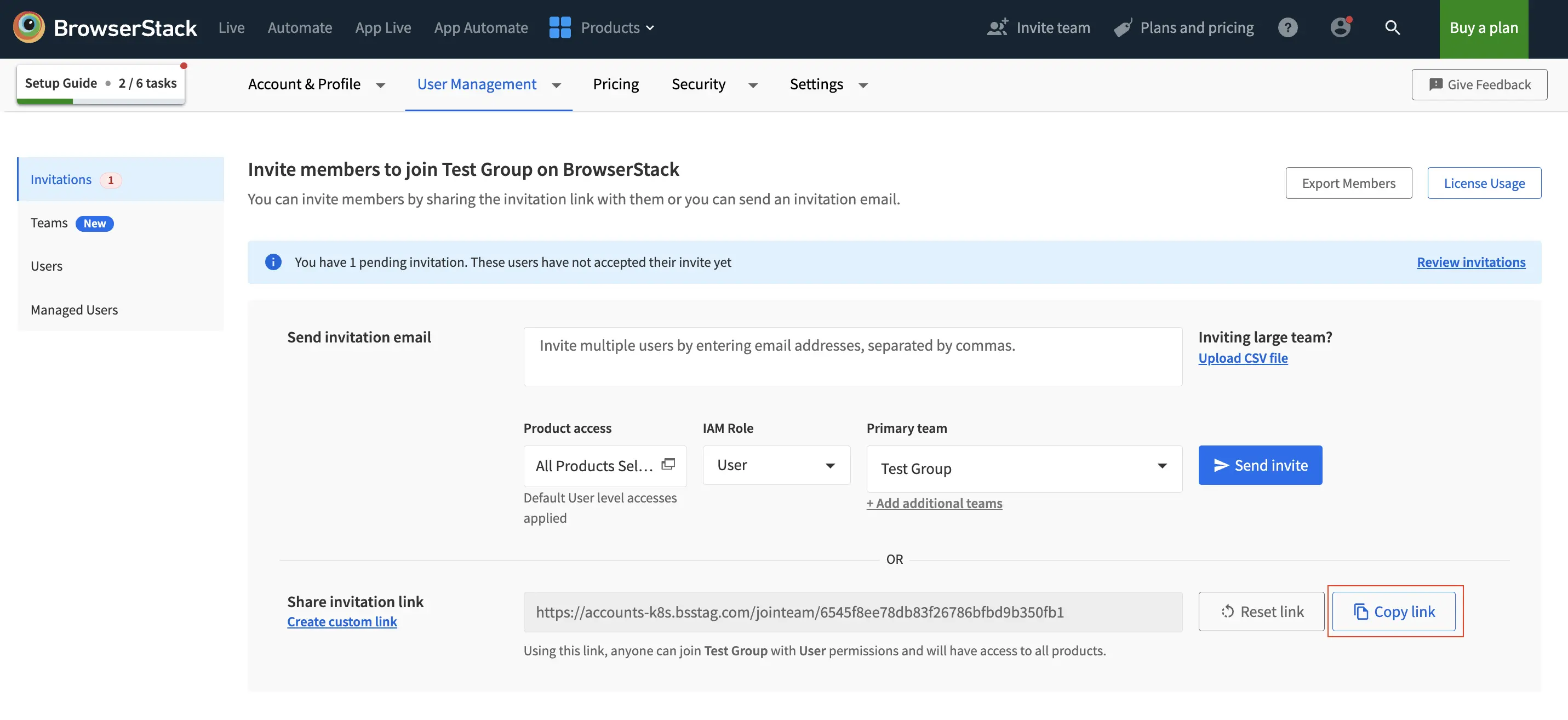
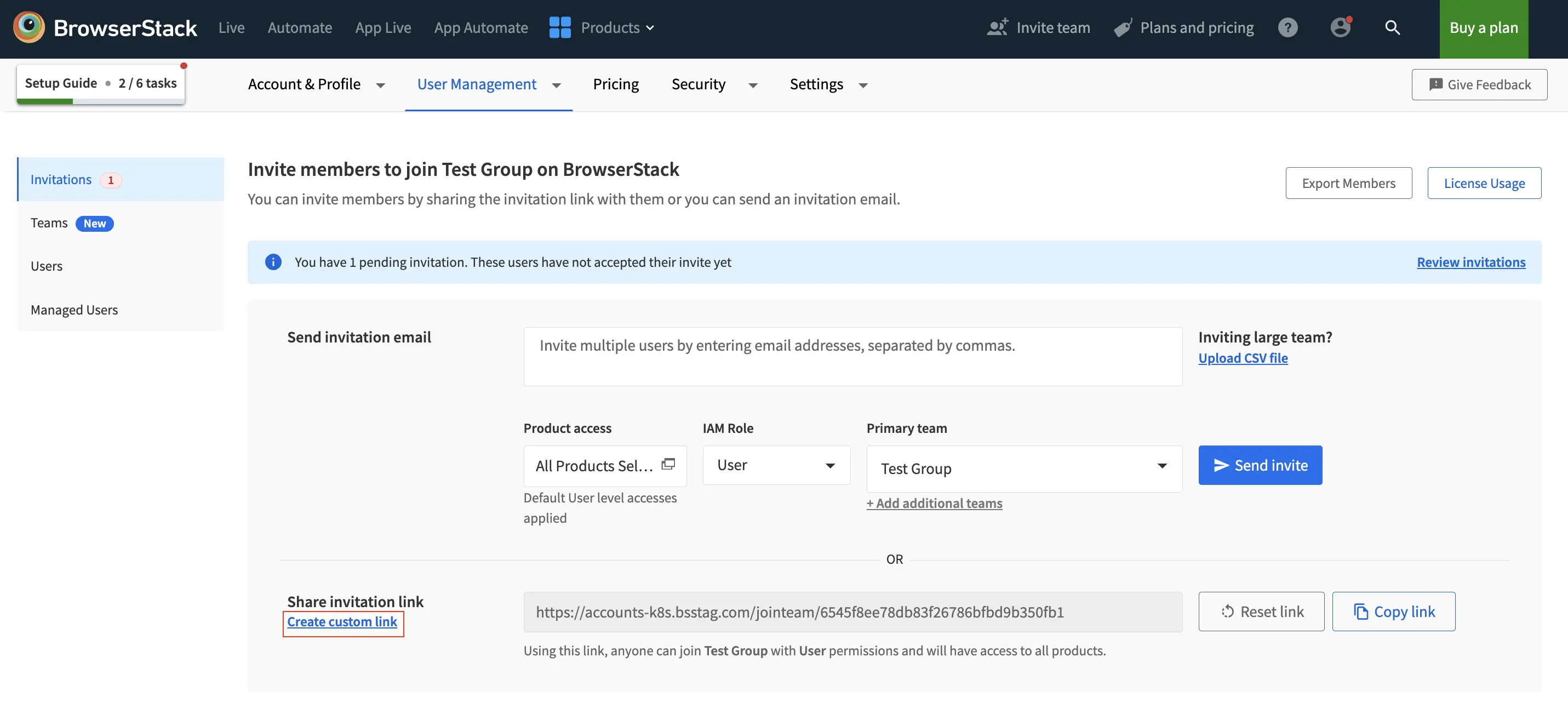
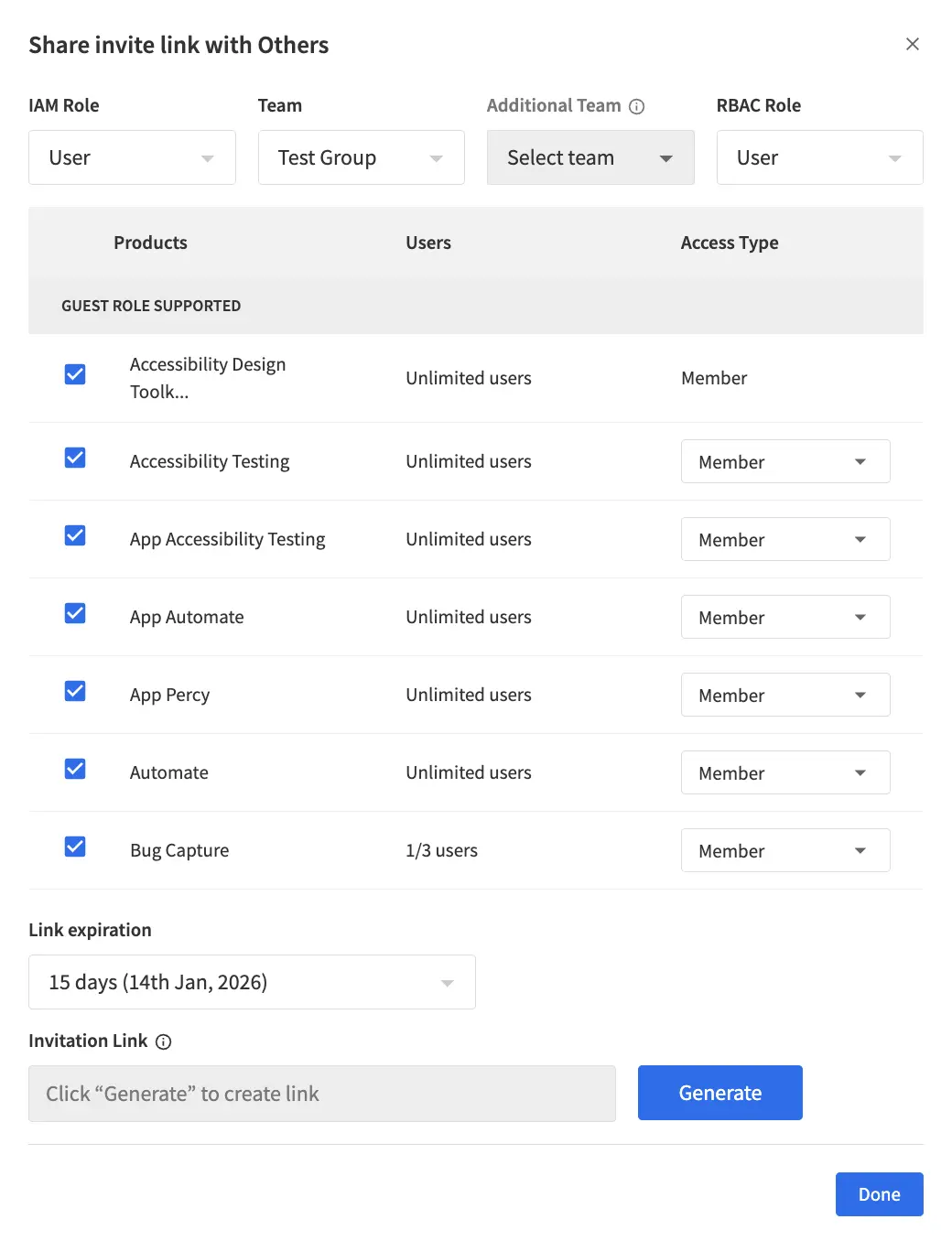
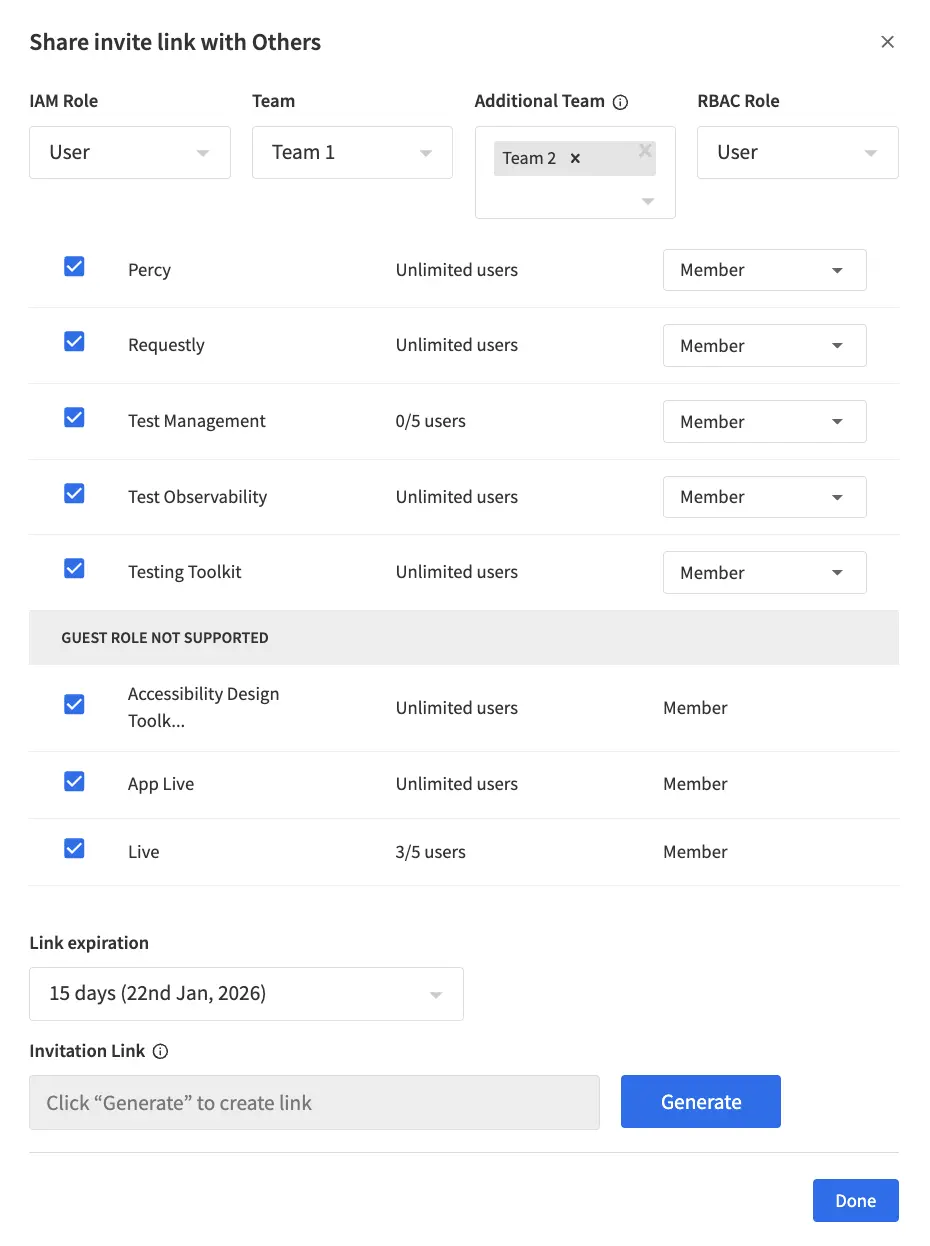
- Share invitation link
- Log in to your BrowserStack account.
- Click the User Profile icon in the top-right corner. Select User Management, then click the Invitations tab or go to the Invitations page.
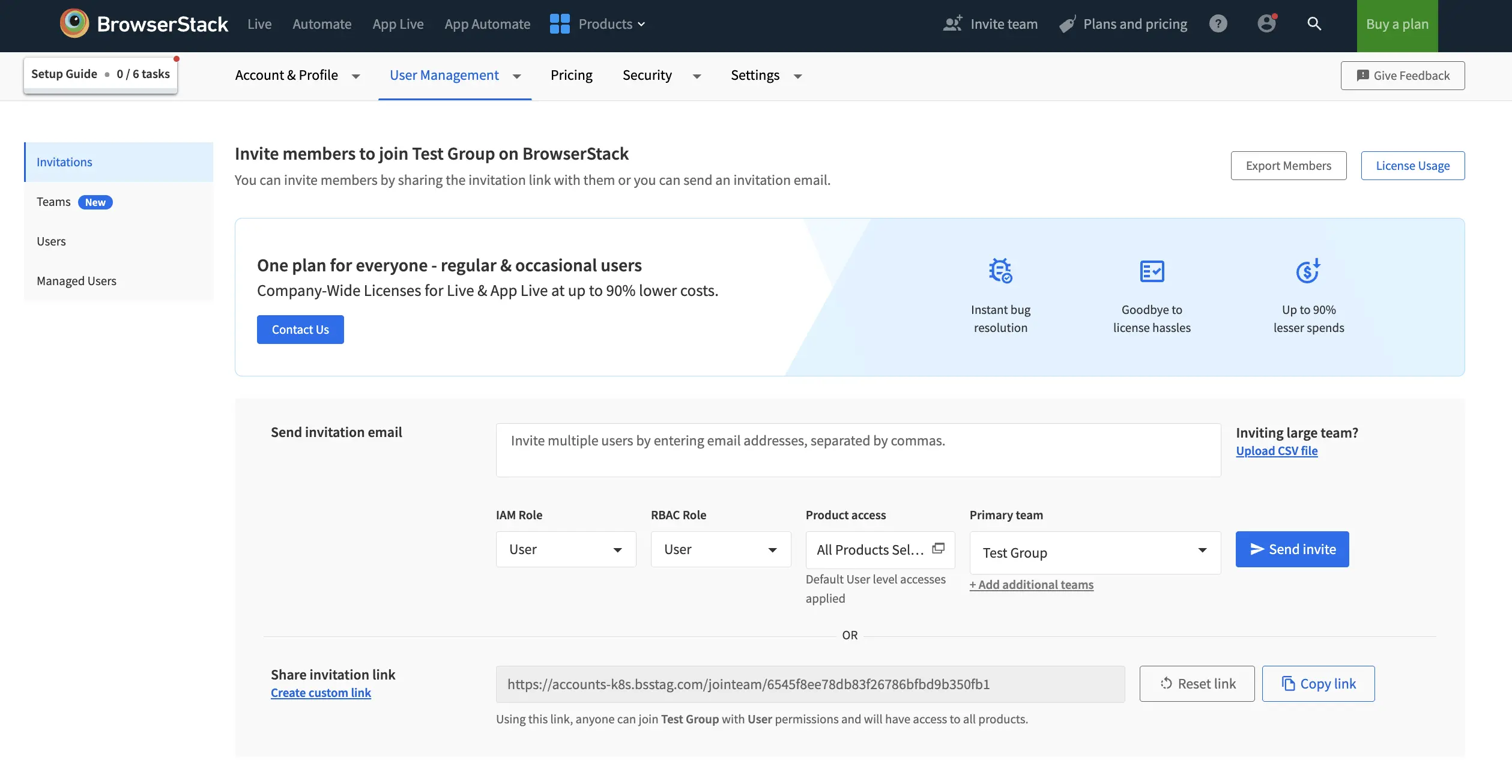
- In the Send invitation email section, enter the email addresses of the users you want to invite. Separate multiple addresses with commas.
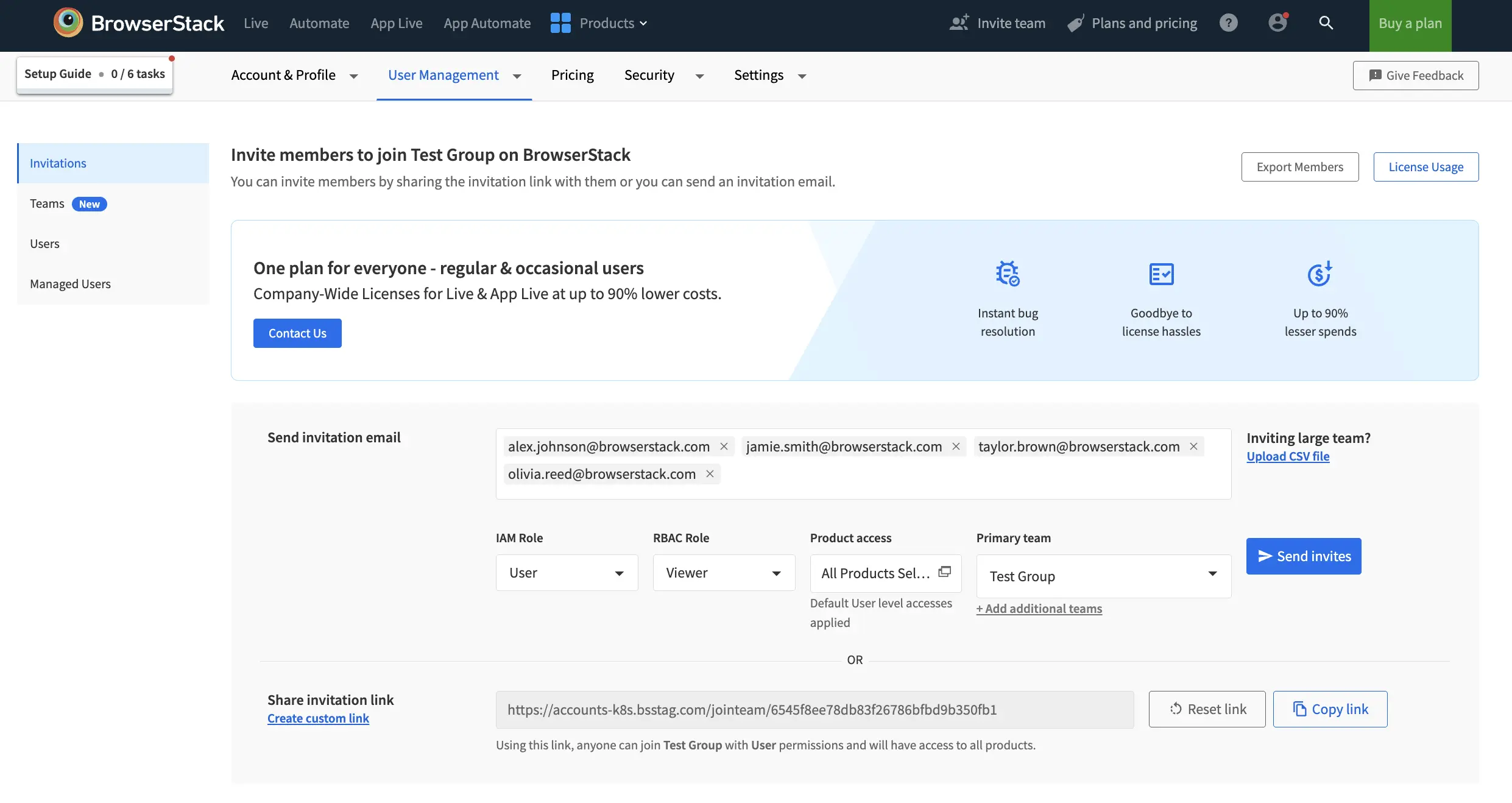
- Select IAM Role, RBAC Role, Primary team and Additional teams using the dropdown menus as needed. For more information about IAM role and RBAC role, refer to the Types of Roles section.
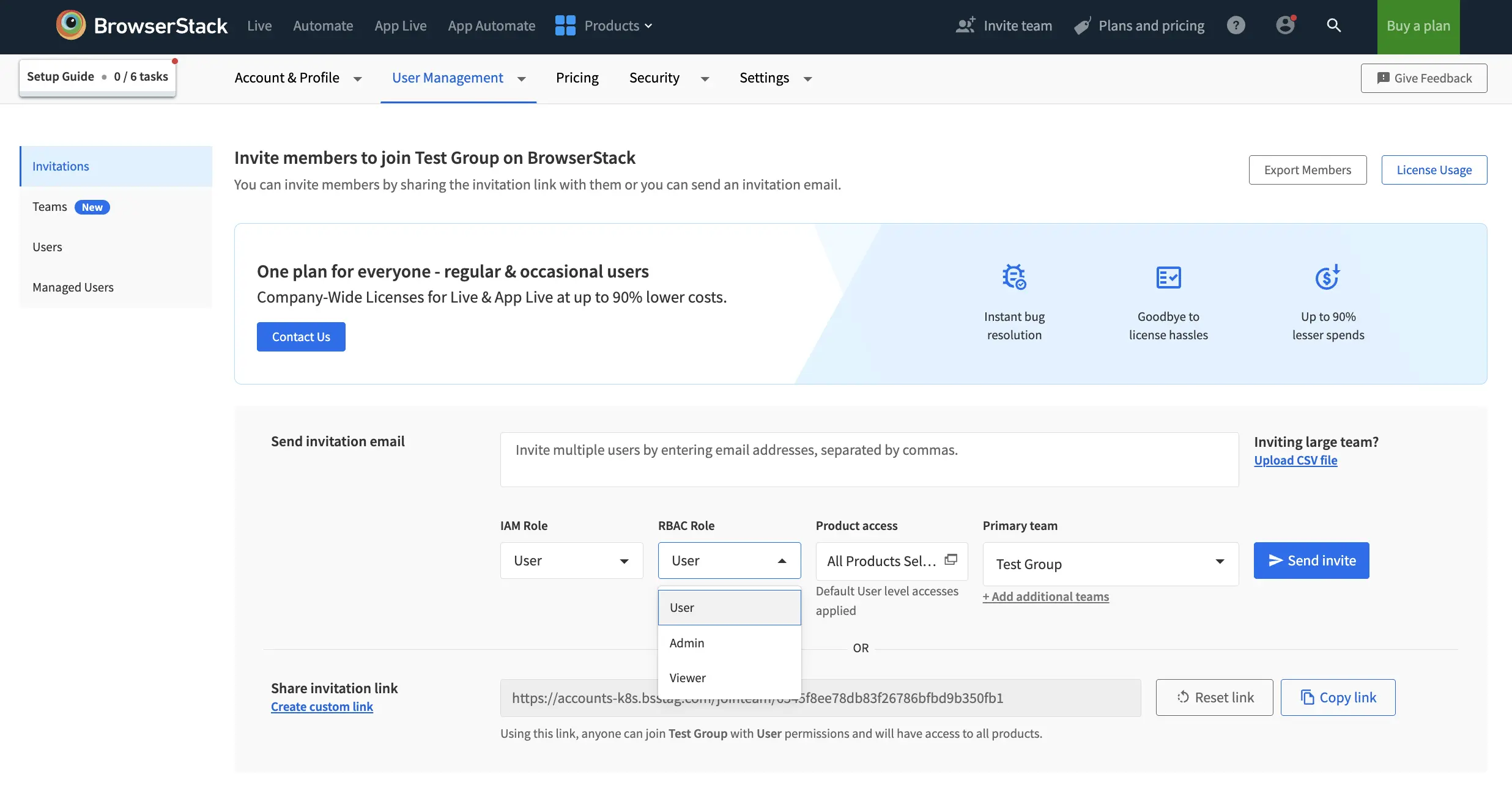
- Click Product access type to open the product access selection window.
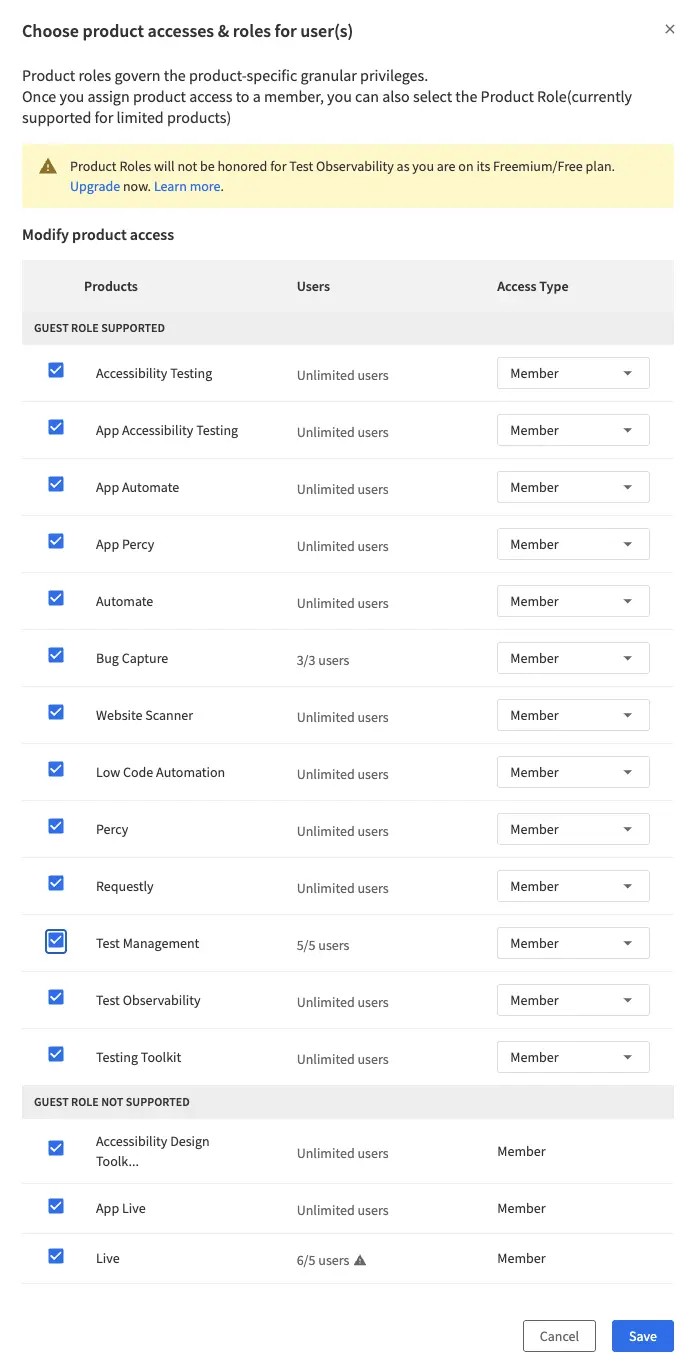
- In this window, select the products you want to assign to the user and choose the appropriate access type (Member or Guest) for each product. Click Save.
- Click Send invite. The invited users receive an email to join your organization on BrowserStack.
View user details
You can view each user’s details, including their IAM role, RBAC role, and product-level permissions, in the User Management section:
- Go to the User Management section in your BrowserStack account.
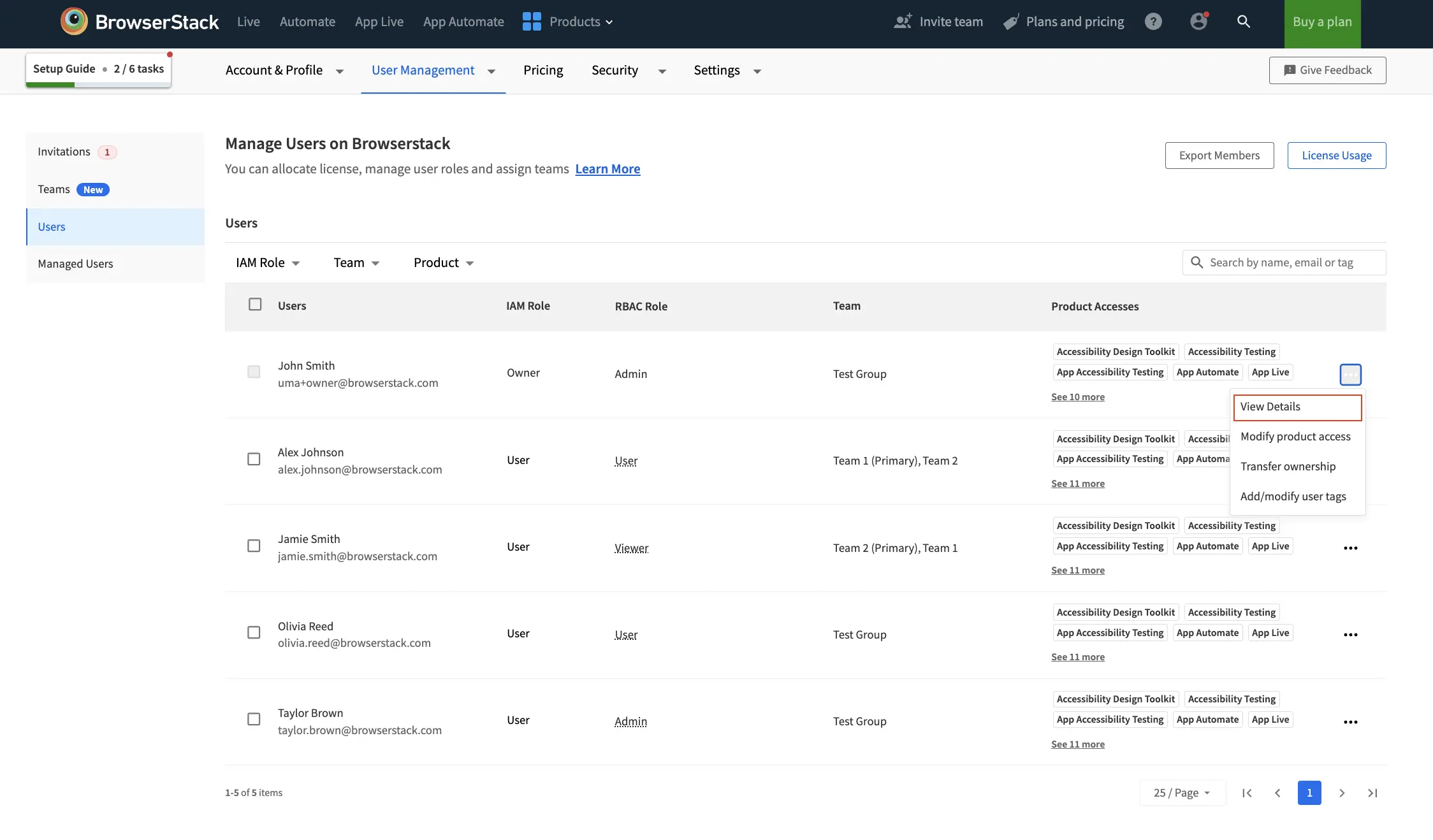
- In the user list, locate the user whose access details you want to view. Click the ︙ (more options) icon next to their name, then select View Details:
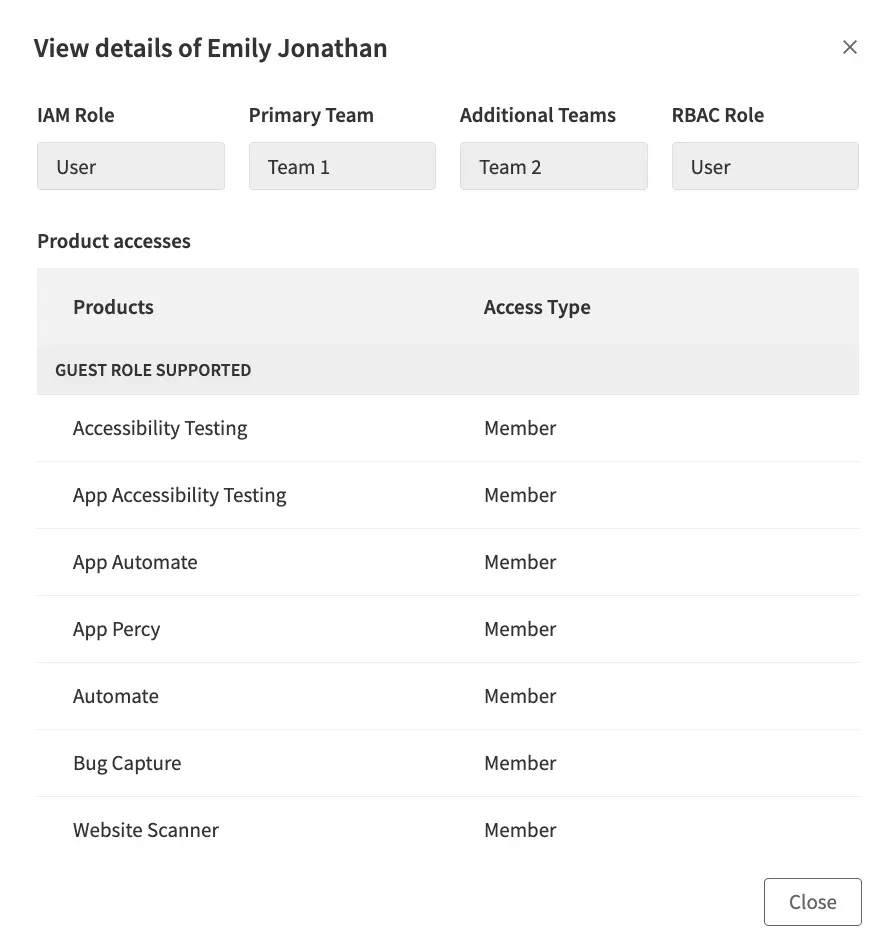
- On the user details page, review the assigned IAM role, RBAC role, and product access for that user. You can see products that support the guest role at the top of the dialog.
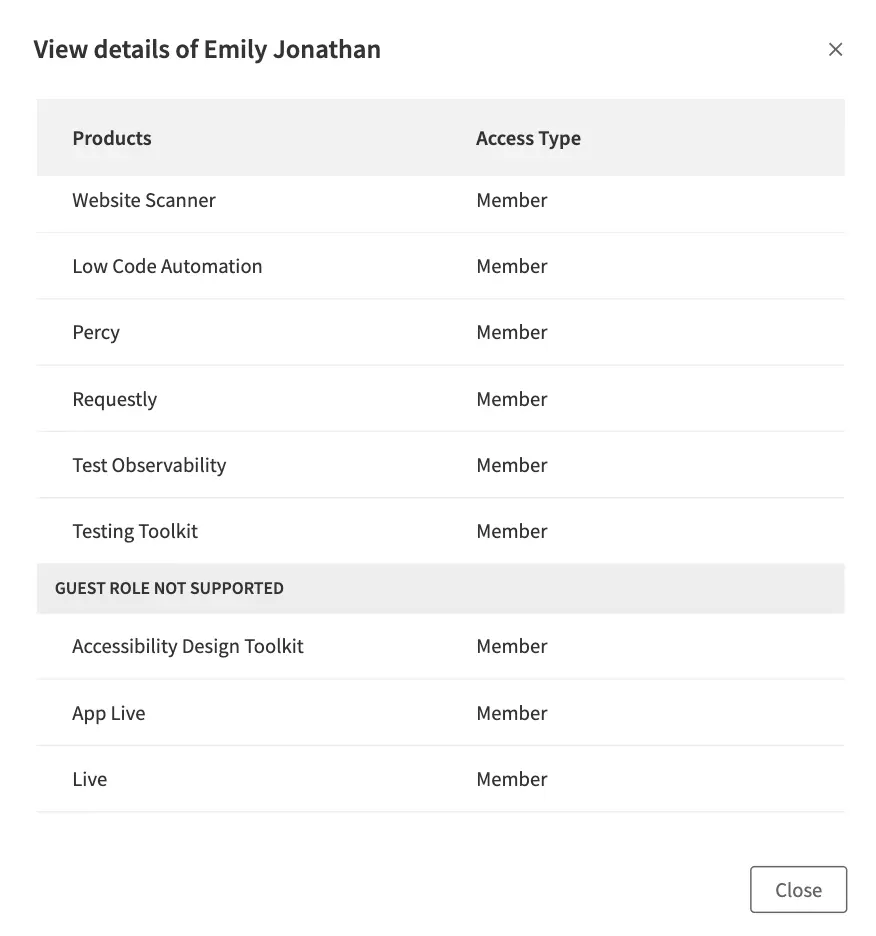
- You can scroll down in the dialog to view products that do not support the guest role.
Viewing user access helps you quickly audit permissions and ensure users have the correct access levels.
Modify access for user
You can modify a user’s access to update their IAM role, RBAC role, or product-level permissions.
Updates to product access and roles may take a few minutes to take effect across all products.
To change a user’s product access:
- Log in to your BrowserStack account.
- Click the User Profile icon in the top-right corner, then select User Management and click Invitations.
- Find the user whose invite needs to be resent from the Pending Invitations table.
- Click the three dot (…) icon in the entry of the user and click Modify access.
- Modify the required access for the invite and click Save.
- Alternatively, after you add the user to the organization, you can still change their product access. Go to the User Management section in your BrowserStack account.
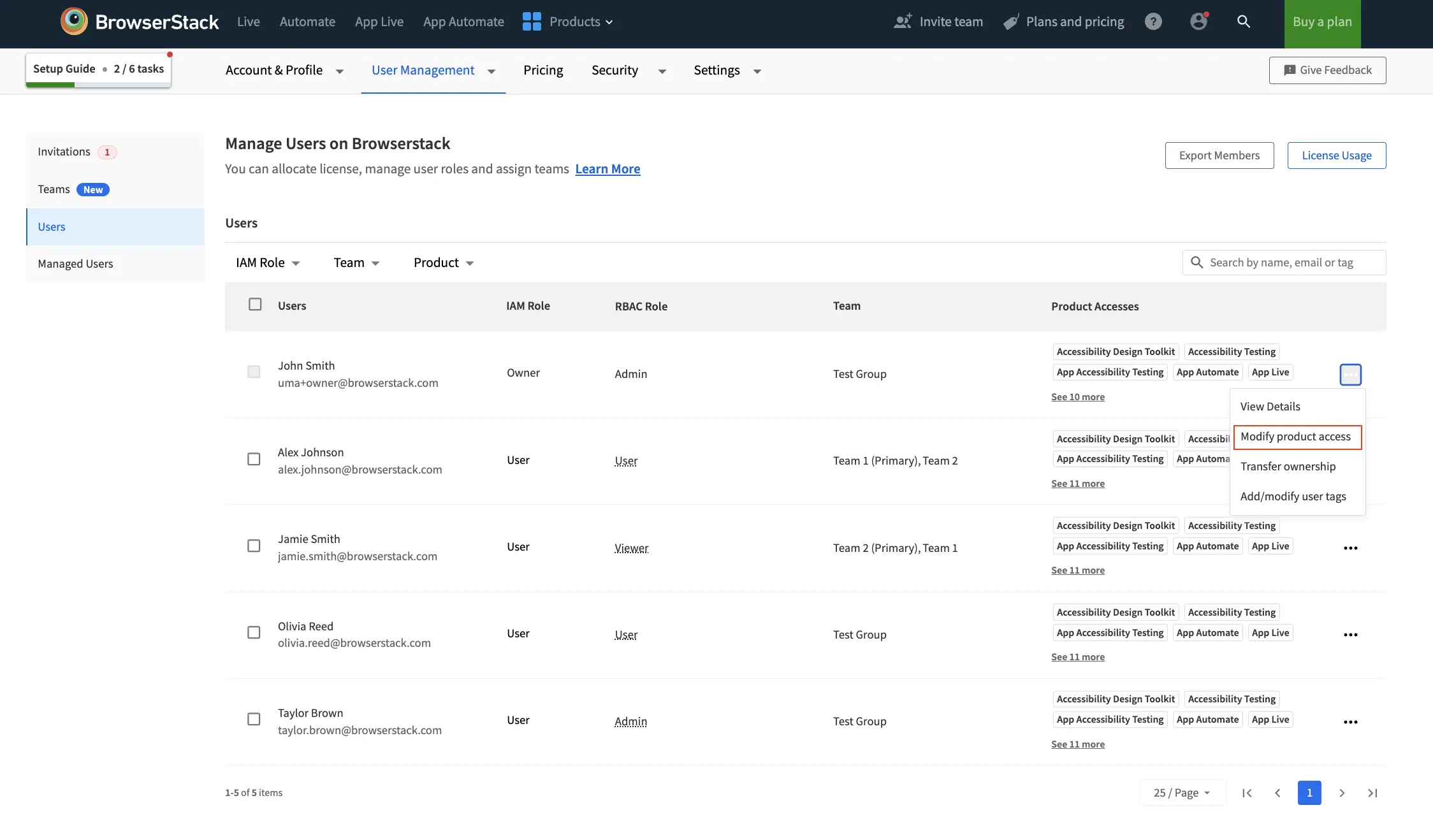
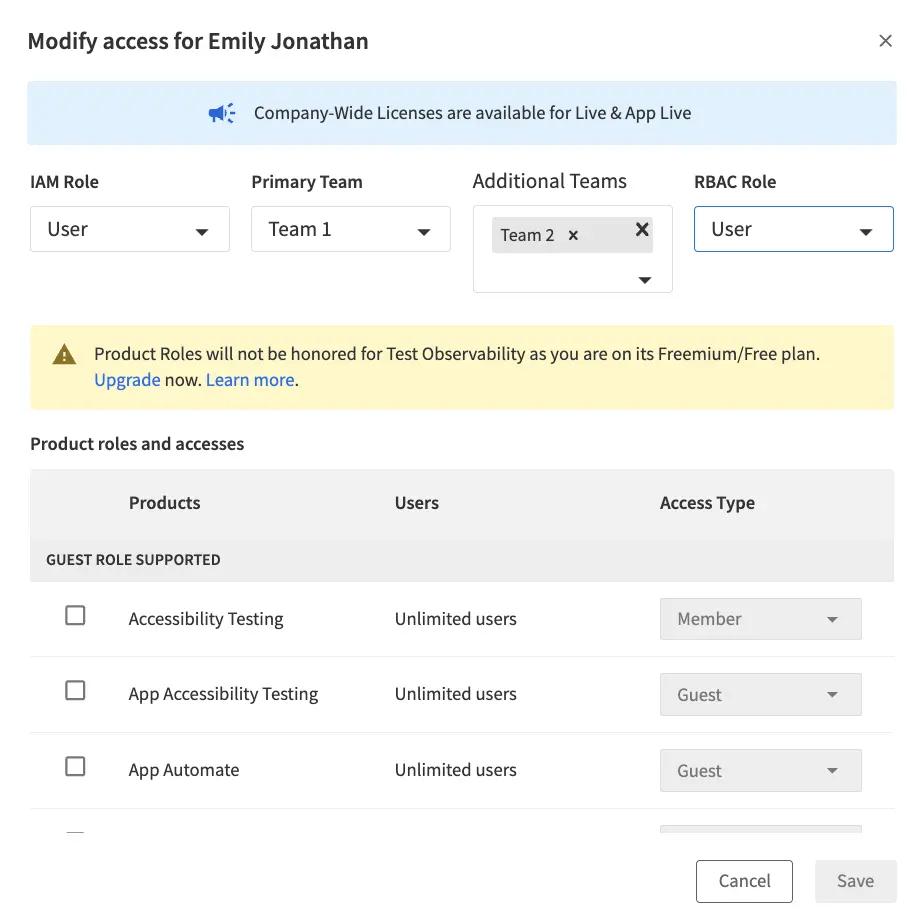
- In the user list, locate the user whose access you want to modify. Click the ︙ (more options) icon next to their name, then select Modify access:
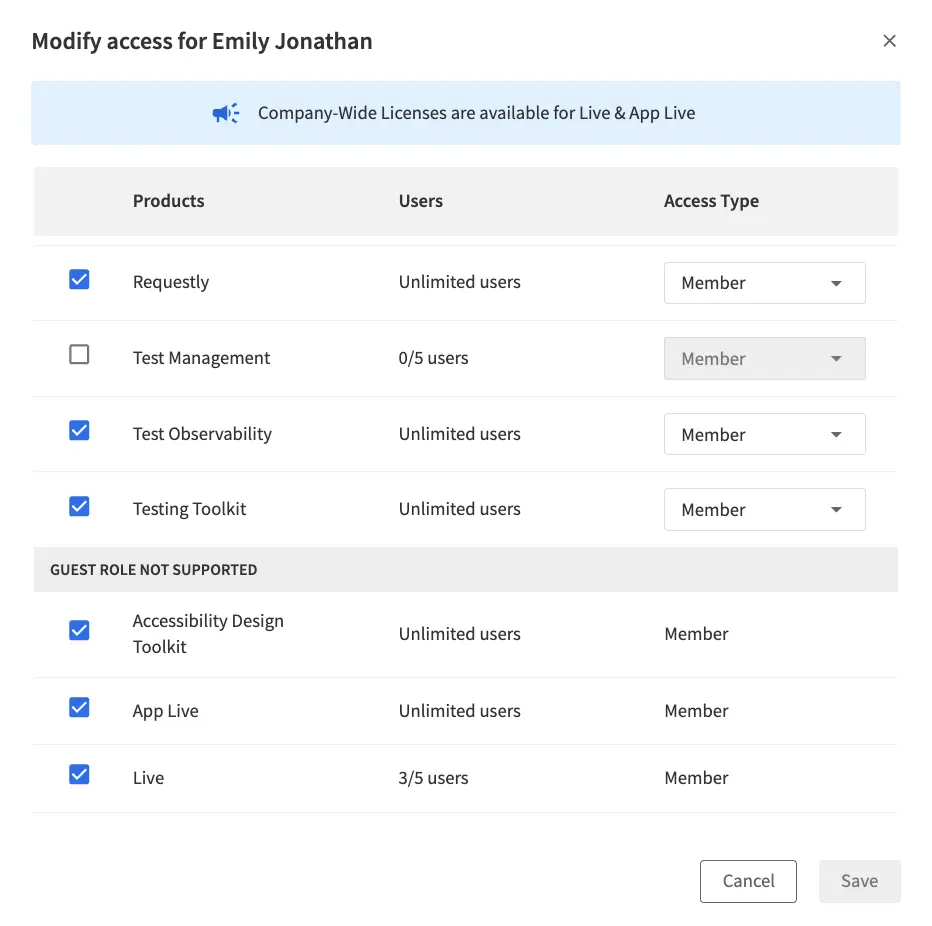
- In the Modify access dialog, update the IAM role, RBAC role, or product access (Member or Guest) as needed. You can see products that support the guest role at the top of the dialog.
- You can scroll down in the dialog to view products that do not support the guest role.
- Click Save to apply the changes. The user’s access updates immediately.
You can only change the member or guest role for users who are not assigned the Viewer RBAC role.
Override access at a project level
You can override a user’s default RBAC role within a specific project by assigning a different role for that project. You can also override access of a team at project level. This lets you reassign any role to the user for that project, providing flexibility to tailor permissions as needed.
For example, you can change a user’s role from Admin to Viewer in a specific project to restrict edit or delete permissions.
- The user retains their original Admin access for other products and projects.
- The overridden role applies only to the selected project, ensuring granular control over permissions.
- Use this feature to maintain security and limit access where necessary.
To override access at a project level:
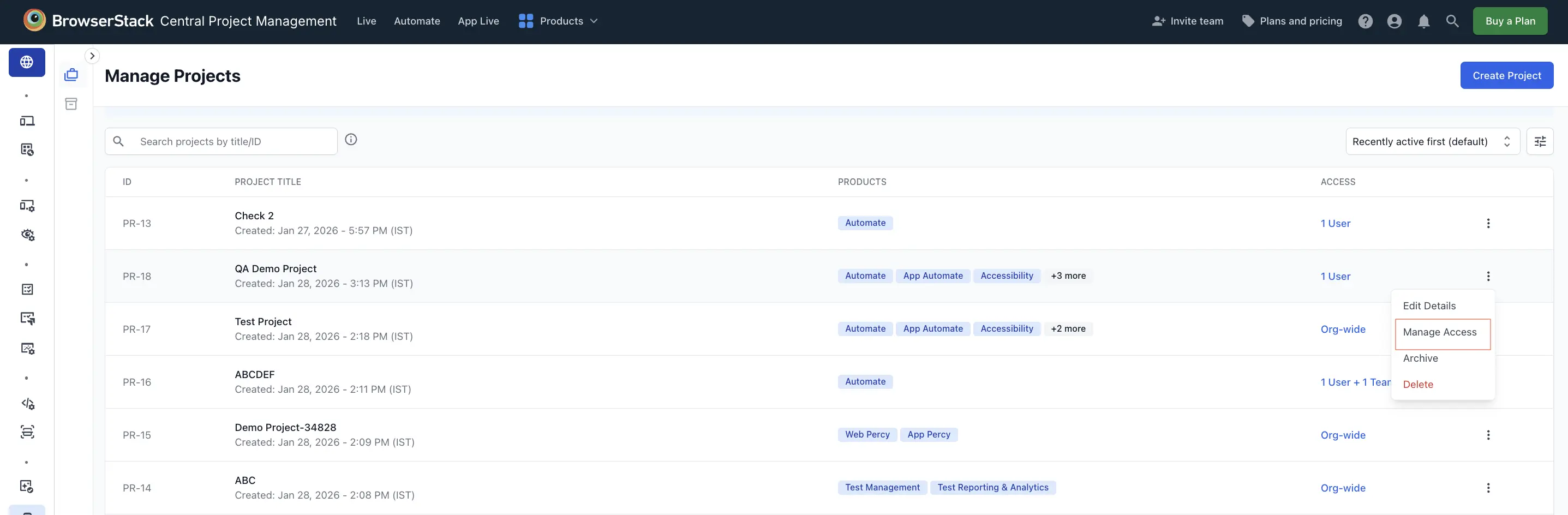
- Go to the Manage Projects page. Click the three dots icon next to the project, then select Manage Access.
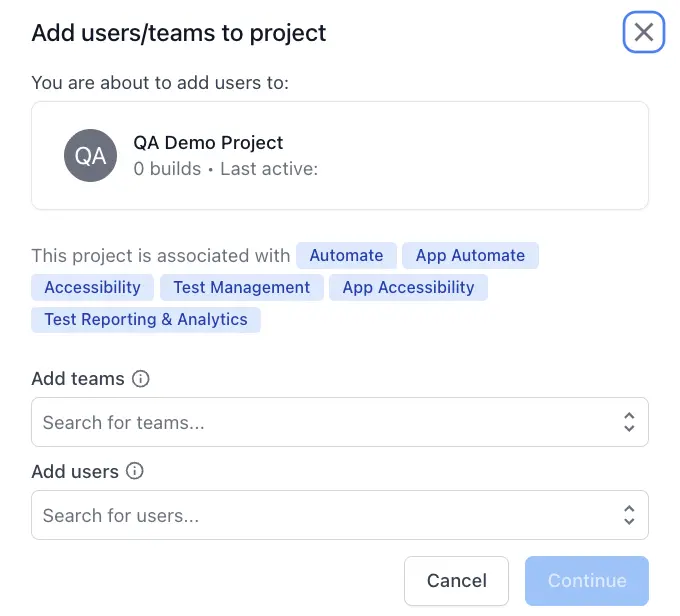
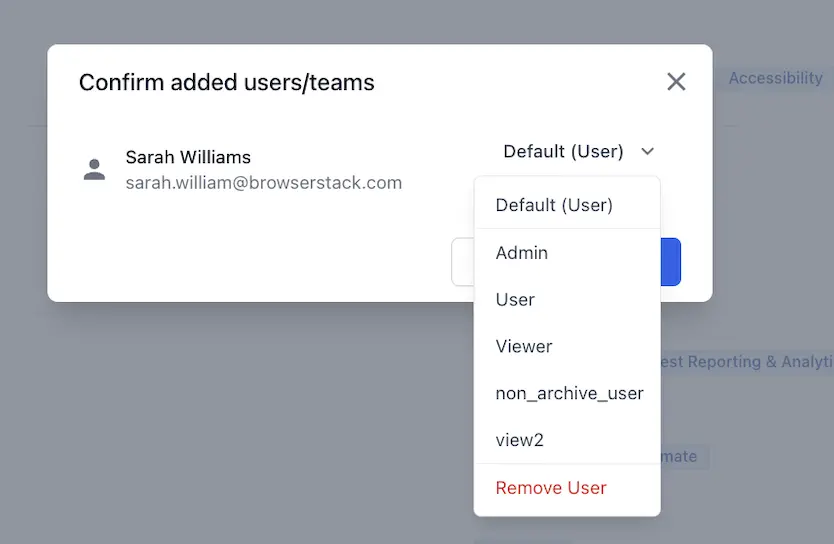
- In the Add users/teams to project dialog, add the user or team to whom you want to assign a different role.
- In the confirmation dialog, select the desired project-level role from the dropdown. For example, if Sarah’s RBAC role is User, you can change it to Admin for this specific project. Click Confirm.
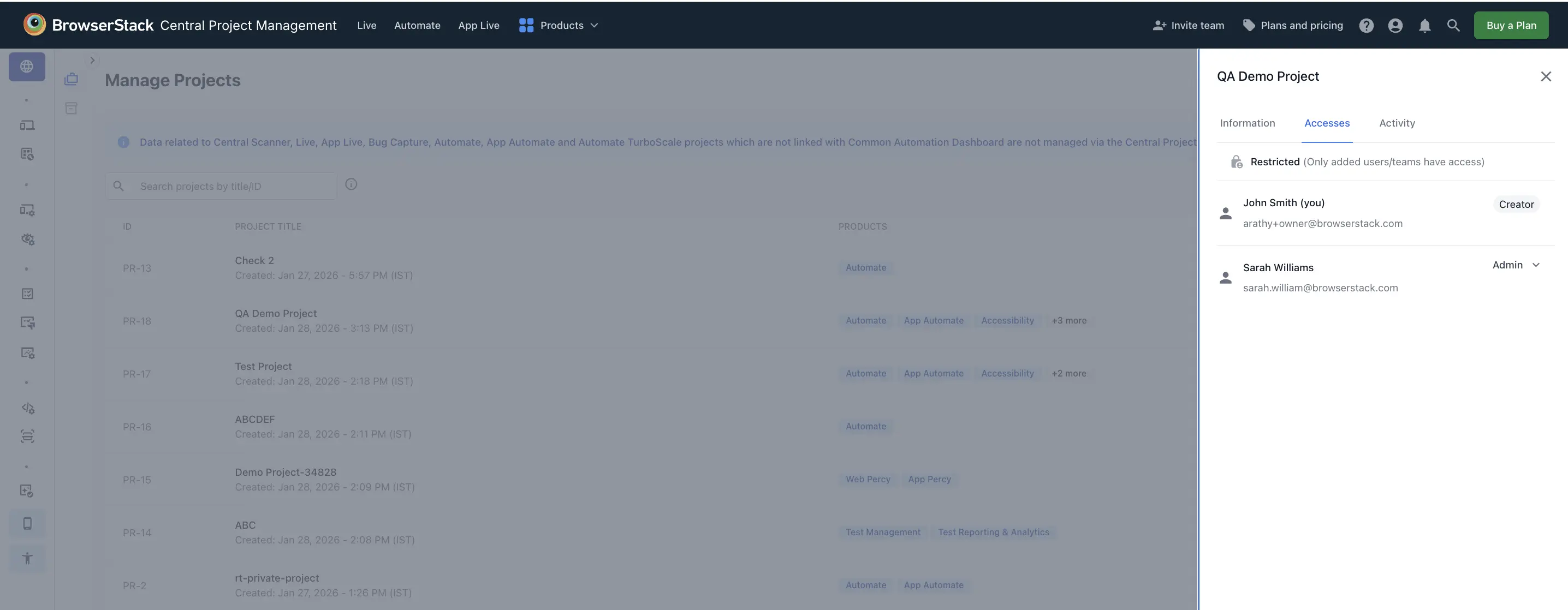
- The updated role appears in the project access list.
- Alternatively, if the user is already added to the project, select the project. In the Access tab, click the user’s current role and choose a new role from the dropdown to update their permissions.
Override access of a team at project level
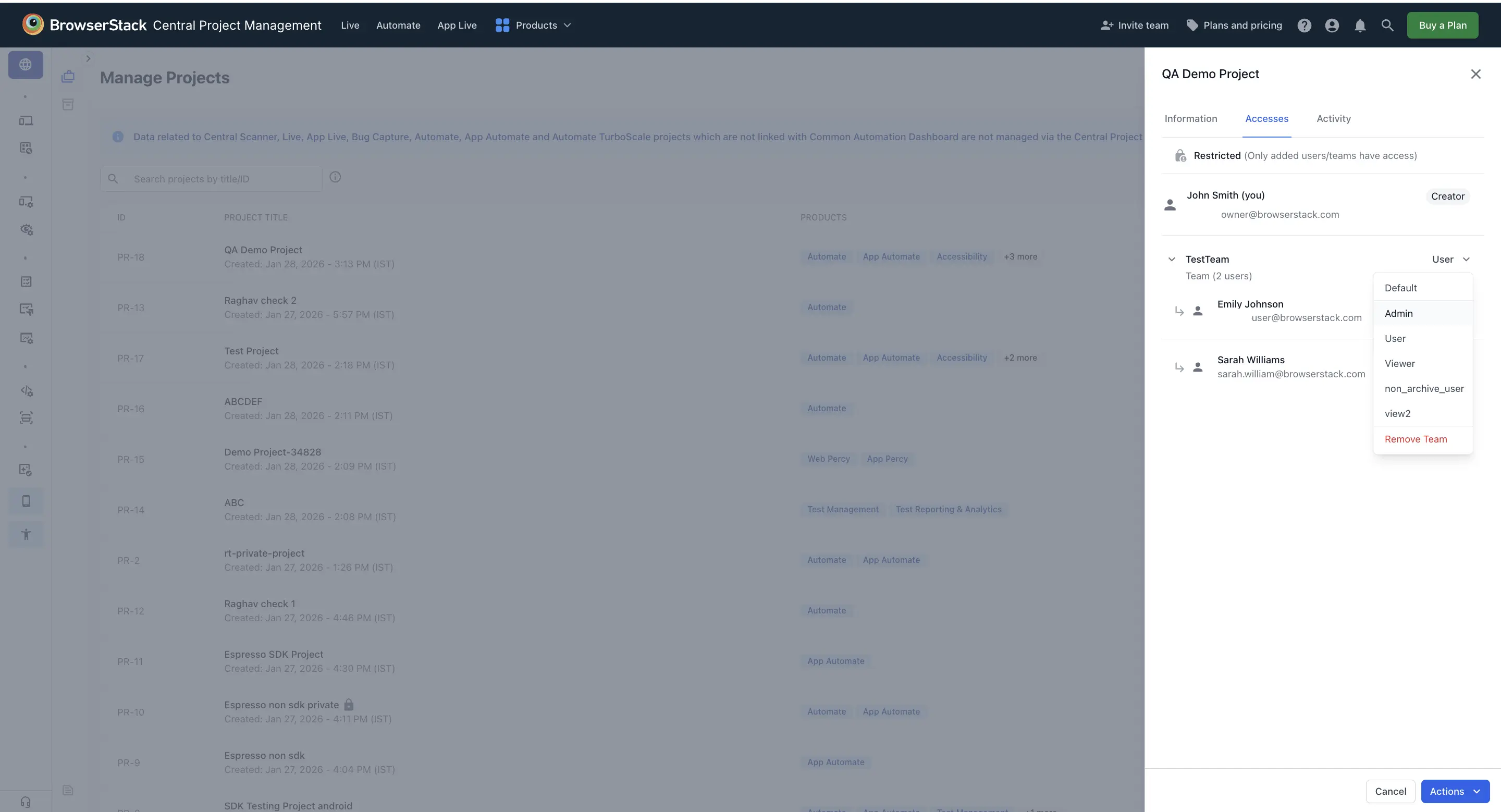
A team-level override allows you to assign a different role to a user within a specific team, regardless of their default RBAC role. For example, if a user’s default RBAC role is User, but you add them to a team, you can assign them the Admin role for that team.
The project owner is automatically elevated to RBAC Admin in owned projects based on the Auto-Admin on owned projects permission.
To override access of a team at project level:
In the project access panel, select the team and choose the desired role (for example, Admin) from the dropdown.
For more information on project-level access, refer to Project management.
You can manage project access using APIs. For more information, refer to the Project API documentation.
- Changing the role of an Owner of the project is not allowed.
- You cannot override the project role of a user whose RBAC role is Viewer.
- The effective override priority is user-level first, then team-level, and finally project-level (default).
Assign roles using Automated User Provisioning
If you use Automated User Provisioning (AUP) with your identity provider, you can assign IAM roles and RBAC roles to users using the BrowserStack attribute. This allows you to manage role assignments directly from your identity provider (IdP) instead of manually assigning roles in BrowserStack.
The attribute names and supported values vary by identity provider. Select your identity provider to view its role assignment configuration:
Attribute Name: primary_role
The default role assigned is User. This is possible in two scenarios:
- Unexpected, empty, or no value specified.
- Role attribute controlled by BrowserStack UI section.
Expected values when attribute is controlled from your identity provider:
Attribute Name: The primary_role attribute accepts comma-separated values in the following format: IAM_role, RBAC_role
- First value: IAM role (Owner, Admin, or User)
- Second value: RBAC role (Admin, User, or Viewer)
Examples
| Attribute Value | Description |
|---|---|
Admin,User |
Assigns IAM role as Admin and RBAC role as User. |
User,Viewer |
Assigns IAM role as User and RBAC role as Viewer. |
Admin,Admin |
Assigns IAM role as Admin and RBAC role as Admin. |
| No value/Empty | Assigns IAM role as User and RBAC role as User. |
Assign product access using Automated User Provisioning
If you use Automated User Provisioning (AUP) with your identity provider, you can assign product access to users using the BrowserStack attribute. This allows you to manage product access assignments directly from your identity provider (IdP) instead of manually assigning product access in BrowserStack.
The supported attribute values vary by identity provider. Select your identity provider to view its product access configuration:
Attribute Name: primary_product
By default, Member access is assigned. This is possible in two scenarios:
- Unexpected, empty, or no value specified.
- The product attribute is controlled from the Account section.
Keep the following in mind:
- You can pass multiple values for product access in a comma-separated string. For example,
Browser-Testing,Visual-Testing. - When product access is controlled through an IdP, you can update product roles as part of the product access attributes. For example,
Percy:Member, Test-Management:Guest.
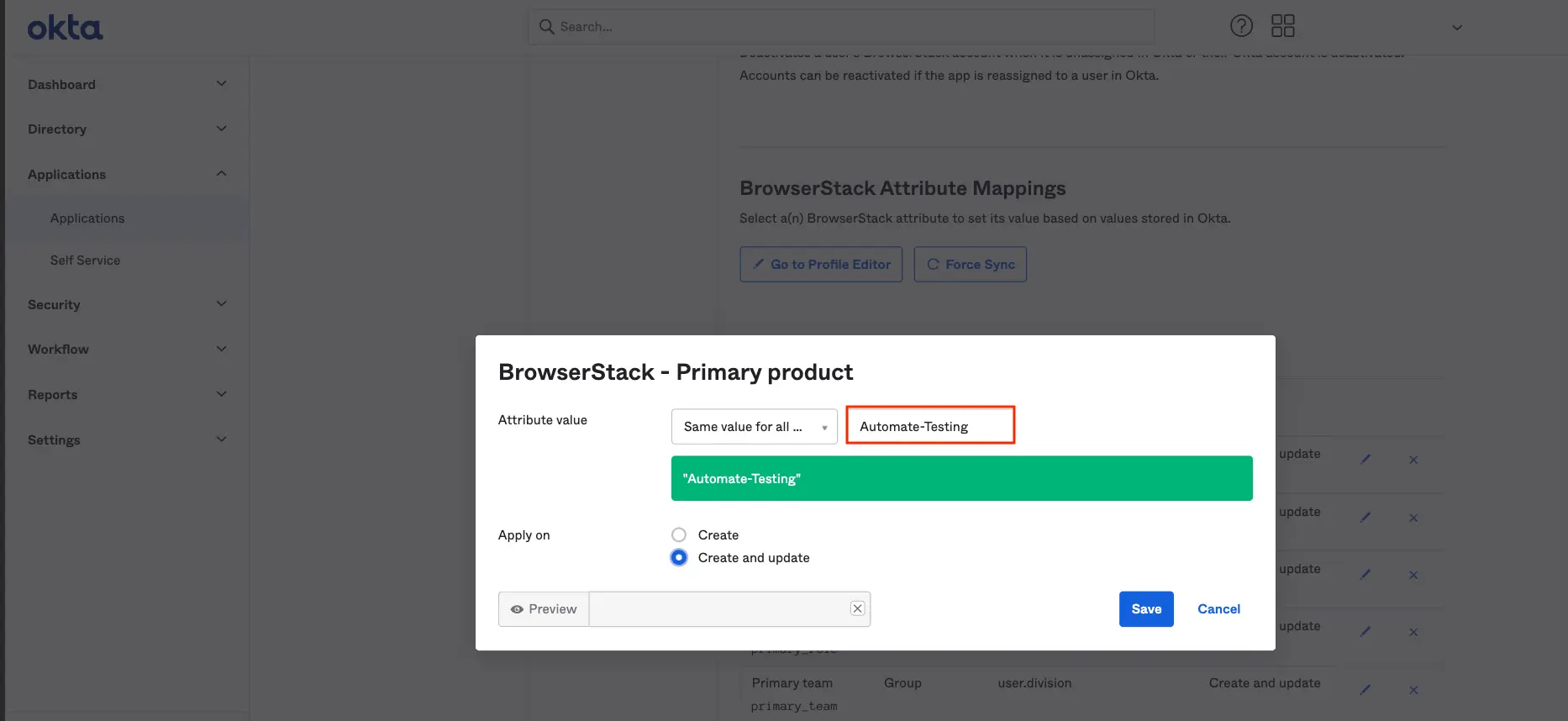
You can choose the value you want to map for the primary_product attribute. For example:
Expected values when attribute is controlled from your identity provider:
The primary_product attribute accepts comma-separated values. You can add product access in the format Product_name:Access_level, where Access_level is either Member or Guest.
Examples
| Attribute Value | Description |
|---|---|
Visual-Testing:Member,App-Percy:Guest |
Assigns Percy product access as Member, and App Percy product access as Guest. |
| No value/Empty | If the access level (Member or Guest) is not provided, Member is set as the default. |
Supported product attribute values
The following table lists the supported attribute values when the attribute is controlled from the Identity Provider (IdP):
| Attribute values | Product Update |
|---|---|
Browser-Testing |
Live Automate |
Visual-Testing |
Percy |
Automate-Testing |
Automate |
Live-Testing |
Live |
Mobile-App-Testing |
App Live App Automate |
App-Automate-Testing |
App Automate |
App-Live-Testing |
App Live |
App-Percy |
App-Percy |
App-Accessibility-Testing |
App Accessibility |
Accessibility-Testing |
Accessibility Testing |
Test-Management |
Test Management |
Test-Reporting-&-Analytics |
Test Reporting & Analytics |
Low-Code-Automation |
Low Code Automation |
Bug-Capture |
Bug Capture |
Requestly |
Requestly |
Testing-Toolkit |
Testing Toolkit |
Central-Scanner |
Central Scanner |
Automate-turboscale |
Automate TurboScale |
Accessibility-Design-Toolkit |
Accessibility Design Toolkit |
Load-Testing |
Load Testing |
User management APIs
We provide the following User Management APIs to support the latest RBAC changes:
The following table maps the legacy v1 endpoints to their corresponding v2 replacements:
| Resource | v1 Endpoint | v2 Endpoint |
|---|---|---|
| Users | GET /user/user_detail |
GET /user/v2/user-detail(without email parameter) |
| Users | GET /user/user_detail?email=... |
GET /user/v2/user-detail?email=...(with email parameter) |
| Users | POST /user/add_entitlement |
PUT /user/v2/update-access |
| Teams | GET /user/team_detail |
GET /user/v2/team-detail |
| Teams | GET /user/get_team_details?team_name=... |
GET /user/v2/team-detail?teamName=... |
| Teams | GET /user/get_team_details |
GET /user/v2/team-detail |
Before vs. after
The following table summarizes the key changes introduced with the centralized RBAC framework:
| Area | Previous model | Centralized RBAC |
|---|---|---|
| Role assignment | Assign one role per product, set independently. | Assign one global role per user, applied platform-wide. |
| Invitation screen | Product role dropdowns (Admin, User, Tester, Viewer). | Global RBAC role with a Member or Guest tier per product. |
| License visibility | Implicit. You must infer license consumption. | Explicit. Member denotes a licensed user and Guest denotes an unlicensed user. |
| Viewer access | Inconsistent across products. | Always unlicensed (Guest) where supported. |
| Custom roles | Limited and product-specific. | Up to 5 platform-wide custom roles (Enterprise plan). |
Permission references
For more details on permissions, refer to the RBAC roles and permissions page, which includes:
- New permissions and roles: The default permission set each new RBAC role (Admin, User, Viewer) will have after migration.
- Old permission to new mapping: How each of your existing product-level permissions translates into the new permission model.
We're sorry to hear that. Please share your feedback so we can do better
Contact our Support team for immediate help while we work on improving our docs.
We're continuously improving our docs. We'd love to know what you liked
We're sorry to hear that. Please share your feedback so we can do better
Contact our Support team for immediate help while we work on improving our docs.
We're continuously improving our docs. We'd love to know what you liked
Thank you for your valuable feedback!