
 Join our Discord
Migrate LoadRunner scripts to k6
Convert OpenText LoadRunner VuGen scripts to k6 and run them as load tests on BrowserStack.
Convert your existing OpenText LoadRunner VuGen scripts into k6 (for Web/HTTP scripts) or Playwright (for TruClient scripts) and run them as load tests on BrowserStack, without rewriting them from scratch. You upload a zip archive of your LoadRunner scripts, and BrowserStack uses AI to convert them automatically.
This guide is for performance engineers, DevOps engineers, and engineering managers who are moving from LoadRunner to BrowserStack Load Testing.
- Web/HTTP protocol scripts convert to k6 JavaScript tests.
- TruClient (browser) scripts convert to Playwright browser tests. See Migrate LoadRunner TruClient scripts to Playwright for detailed steps.
Prerequisites
- A BrowserStack account with Load Testing enabled.
- An existing Load Testing project. If you don’t have one yet, create a project first.
- One or more LoadRunner VuGen script folders exported as
.zipfiles, 250 MB or under. Each script folder needs at least a.usror.cfile. - The migration feature enabled for your account. If you don’t see the migration option on the Load Tests page, contact your BrowserStack account team.
Migrate your scripts
To migrate your LoadRunner scripts and run them on BrowserStack, complete the following steps:
Prepare your LoadRunner archive
Package your LoadRunner scripts as a .zip file. You can upload either a single script zip (one VuGen script folder zipped up, for example checkout-flow.zip) or a batch zip (an outer .zip that contains one inner .zip per script) to convert multiple scripts in a single upload.
The maximum upload size is 500 MB.
You can export a VuGen script folder directly from LoadRunner’s VuGen IDE. Right-click the script in the Solution Explorer and choose Create Zip File. For batch uploads, place multiple script zips into a single folder and zip that folder.
BrowserStack Load Testing supports Web/HTTP protocol scripts (converted to k6) and TruClient scripts (converted to Playwright). The tool automatically detects and routes each script accordingly. The tool blocks scripts that use SAP, Citrix, Oracle, ODBC, RTE, MQTT, or other non-HTTP, non-TruClient protocols. Decrypt encrypted scripts in VuGen before you upload them.
Upload your archive
- Open your project in BrowserStack Load Testing.
- Navigate to the Load Tests page.
- Click Import LoadRunner.
- In the tool selector, choose LoadRunner.
- Drag and drop your
.zipfile into the upload zone, or click to browse. - The upload begins immediately. A progress indicator shows while the file transfers.
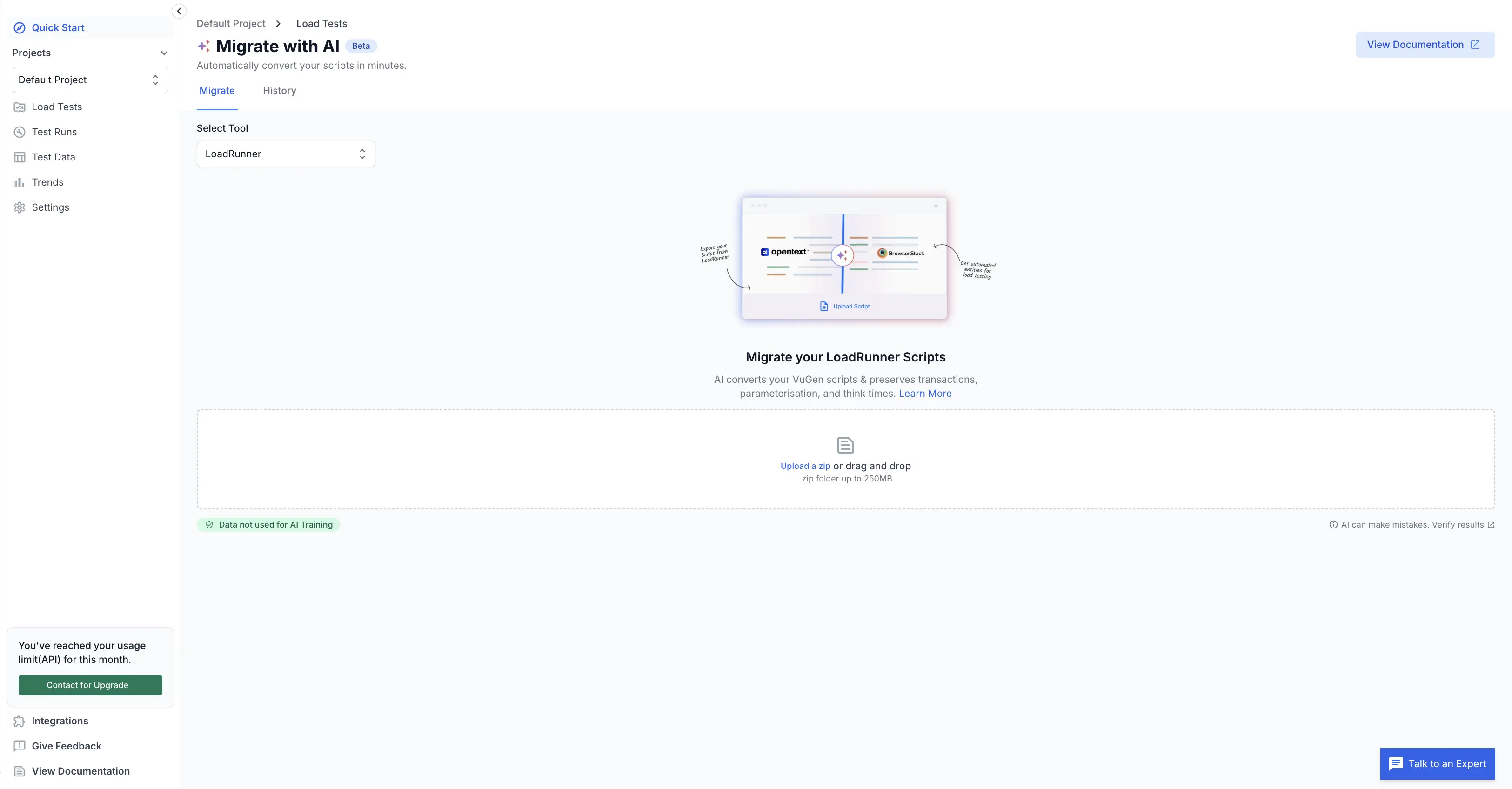
If your file exceeds 500 MB or is not a .zip, BrowserStack rejects the upload with an error message. Repackage your archive within the size limit and try again.
Wait for conversion
BrowserStack converts your scripts to k6. This usually takes a few minutes. You can close the browser and return later, because BrowserStack saves your migration automatically.
Review converted entities
When processing completes, you see a list of all discovered entities, with their conversion results. Each entity is one of your scripts.
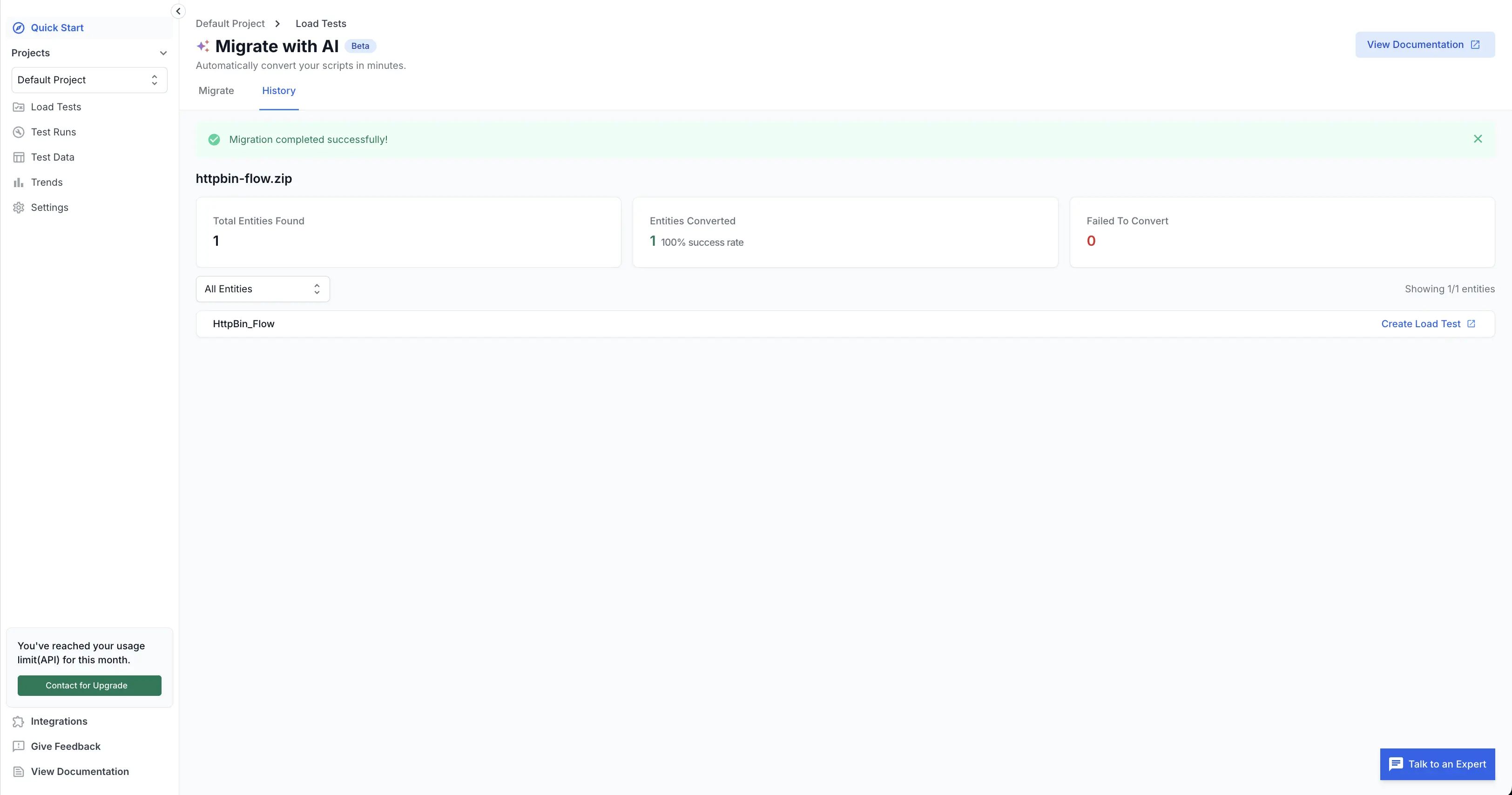
The following table describes each entity status:
| Status | Meaning |
|---|---|
| Converted | Fully converted to k6 and ready to create a load test. |
| Unsupported | The script uses a non-HTTP protocol (such as SAP or Citrix) that BrowserStack cannot convert. |
| Failed | Conversion failed, usually because of a malformed or incomplete script (for example, a missing Action.c). |
| Pending | BrowserStack is still converting the script. Refresh the page to check progress. |
For each entity, take the following action:
- Converted: Click Download to get the k6 script, or continue to the next step to create a load test from it.
- Unsupported or Failed: Review the error details. These scripts need manual conversion. See Troubleshooting.
Create a load test from a converted script
For each converted entity you want to run:
- Click Configure Load Test next to the entity. This opens the standard load test creation flow with the converted k6 script pre-attached.
- Enter a test name, for example
checkout-flow-stress. - Configure your load profile:
-
VUs (virtual users): the number of concurrent simulated users, for example
200. -
Duration: how long the test runs, for example
15m. -
Ramp-up: the time to reach the full VU count, for example
2m. -
Regions: where to run from, for example
us-east-1oreu-central-1.
-
VUs (virtual users): the number of concurrent simulated users, for example
- Click Create.
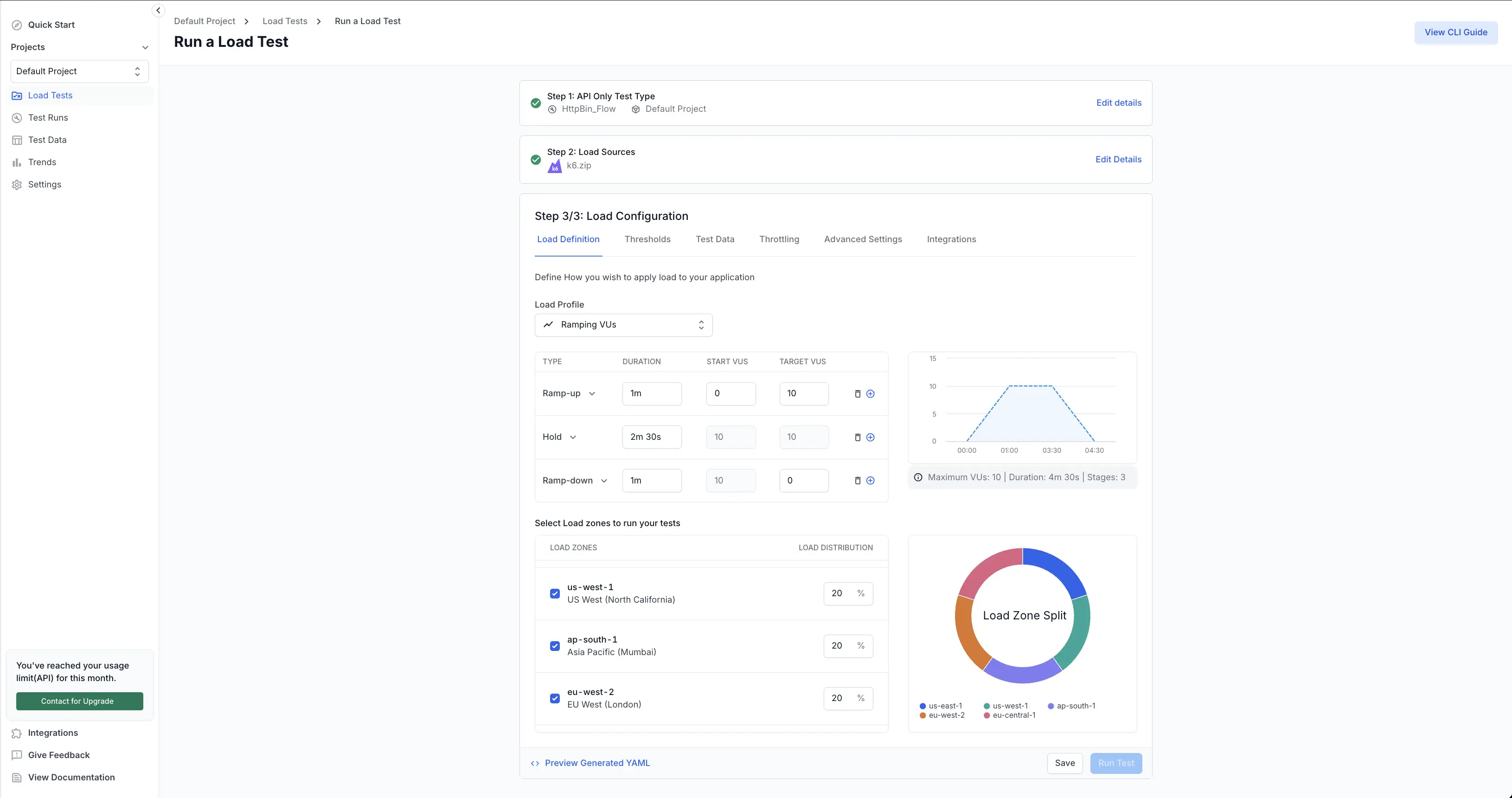
The entity is now linked to a load test in your project, and it appears in your Load Tests list like any other k6 test.
Converted scripts do not carry over LoadRunner scenario configurations such as Controller settings, VU schedules, and network settings. You configure these manually in the BrowserStack load test settings.
Run and verify
- Open the load test you just created from the Load Tests page.
- Click Run.
- Wait for the pods to provision. The status shows Provisioning for 1 to 2 minutes, and then switches to Running.
- When the test completes, open the Results tab to view response times, throughput, error rates, and VU metrics.
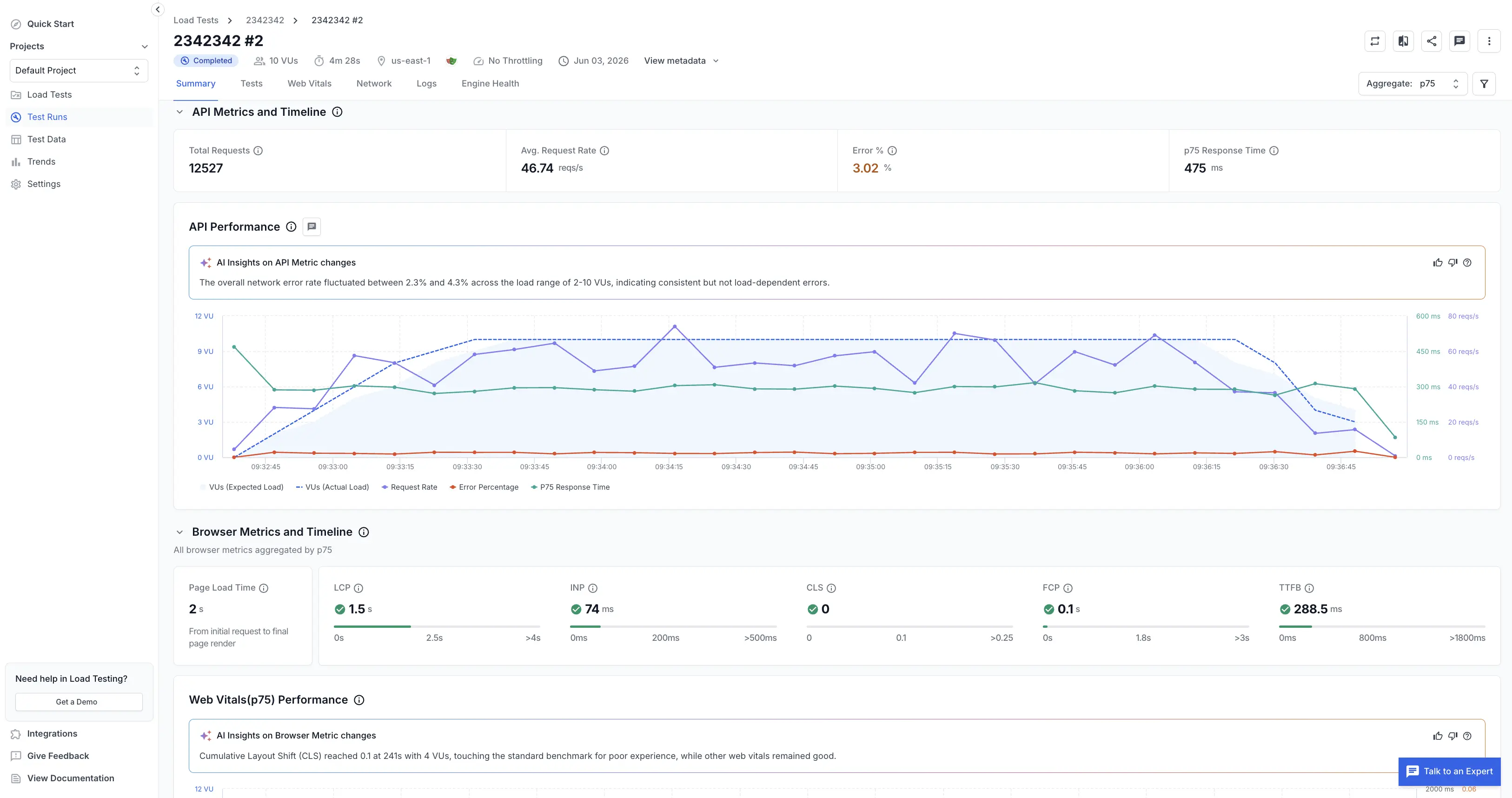
If the test fails or produces unexpected errors, check the Troubleshooting section. The most common cause is a flagged function that needs a manual adjustment in the k6 script.
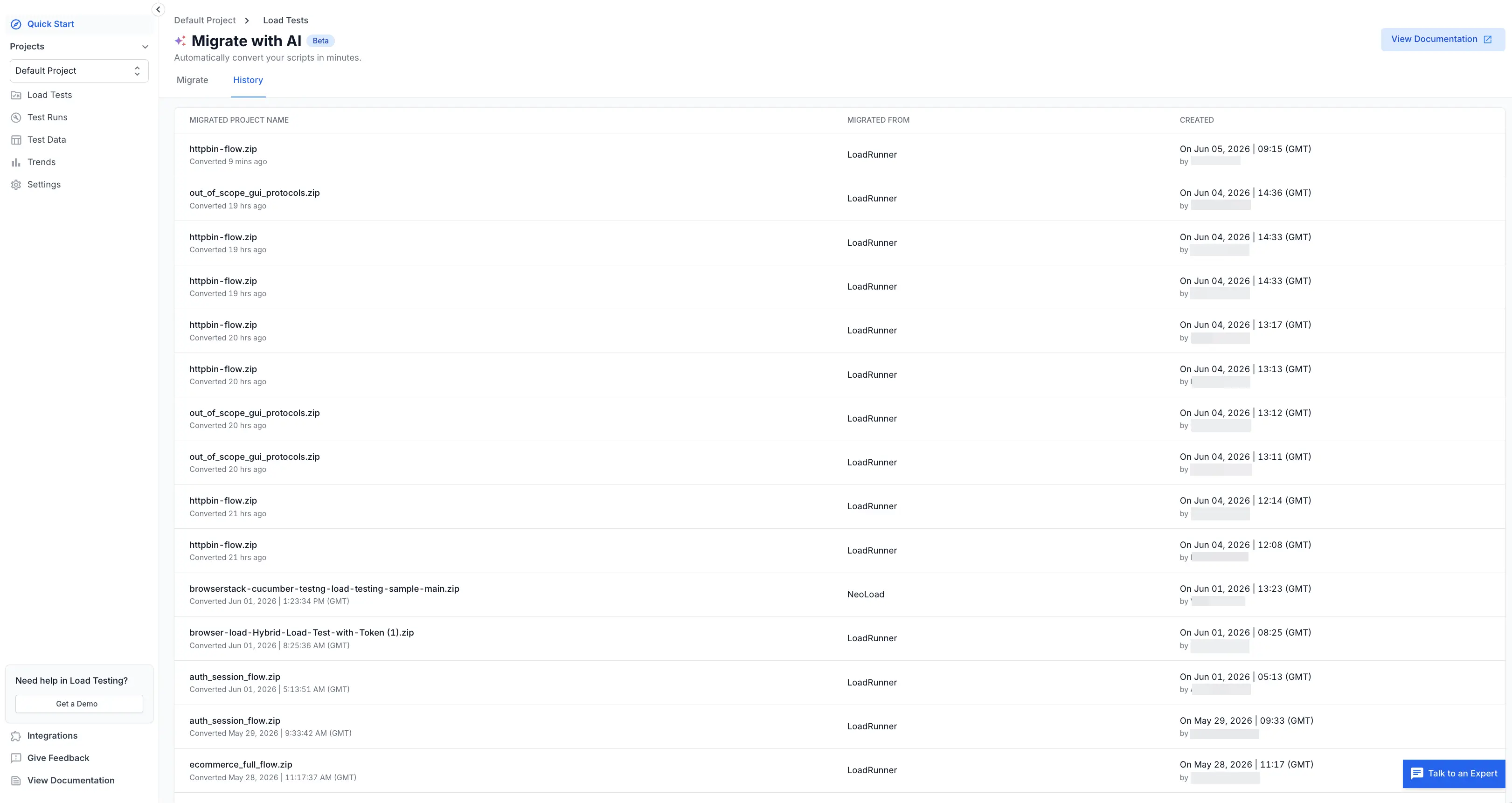
Migration history
You can view all past migrations for your project:
- Navigate to the Load Tests page.
- Click Import LoadRunner.
- Your previous migrations appear in the History table, which shows the upload date, file name, total entities found, and counts for converted, failed, and unsupported scripts.
- Click any migration to drill into its entity list and resume where you left off.
Troubleshooting
“Only Web/HTTP scripts supported”
Your archive contains a script that uses a non-HTTP protocol (SAP GUI, Citrix, RTE, MQTT, Oracle, ODBC, or custom plugins). The migration tool converts Web/HTTP VuGen scripts to k6. If your script is a TruClient script instead, see Migrate LoadRunner TruClient scripts to Playwright. For other non-HTTP protocols, remove them from your archive or convert them manually.
“Decrypt in VuGen before uploading”
LoadRunner scripts can be encrypted for source control, and the migration tool cannot read encrypted scripts. Open the script in VuGen, disable encryption, save it, re-export it as a zip, and upload again.
Entity shows “Failed” with “Incomplete script”
The script zip is missing a required file, usually Action.c. Check that your zip contains at least one .usr or .c file, and re-export from VuGen if needed.
Upload rejected because the file is too large
The maximum upload size is 500 MB. If your archive exceeds this limit, split it into multiple smaller uploads.
Converted script fails on first run
The most common cause is a data file issue. If your LoadRunner script used .dat files with complex CSV formatting, such as quoted fields or escaped commas, the converted data may need a manual correction.
Entity stuck in “Pending” state
Conversion occasionally takes longer for complex scripts. Refresh the page after a few minutes. If the status doesn’t change after 10 minutes, try uploading the script again as a separate single zip.
Limitations
Phase 1 of the migration tool has the following limitations:
| Limitation | Detail |
|---|---|
| Web/HTTP scripts only | Non-HTTP protocols (SAP, Citrix, Oracle, ODBC, RTE, MQTT) are not supported. TruClient (Web2UI) scripts convert to Playwright instead. See Migrate LoadRunner TruClient scripts to Playwright. |
| No automatic configuration | LoadRunner Controller scenario settings (VU schedules, network settings, runtime options) are not carried over. Configure these manually in BrowserStack. |
| No in-browser script editor | You can download and review converted scripts, but you edit them locally. Re-upload the edited script as a standard k6 load test. |
vuser_init and vuser_end not supported |
k6 does not provide per-VU setup and teardown hooks equivalent to LoadRunner’s vuser_init and vuser_end. This is a deliberate consequence of k6’s execution model, not a missing feature with a one-to-one substitute. |
What’s next
After you migrate your scripts, explore the following:
- Run a k6 load test on BrowserStack: learn about load profiles, regions, and results.
- Configure CI/CD integration: run your migrated tests in your pipeline.
- View test results: understand response times, throughput, and error analysis.
We're sorry to hear that. Please share your feedback so we can do better
Contact our Support team for immediate help while we work on improving our docs.
We're continuously improving our docs. We'd love to know what you liked
We're sorry to hear that. Please share your feedback so we can do better
Contact our Support team for immediate help while we work on improving our docs.
We're continuously improving our docs. We'd love to know what you liked
Thank you for your valuable feedback!