
 Join our Discord
Migrate LoadRunner TruClient scripts to Playwright
Convert OpenText LoadRunner TruClient (browser) scripts to Playwright and run them as browser load tests on BrowserStack.
TruClient scripts record real browser interactions, so they convert to Playwright browser tests, not to k6. If your VuGen scripts are Web/HTTP protocol scripts instead, use Migrate LoadRunner scripts to k6. This takes about 10 minutes for a single script.
Prerequisites
You’ll need the following:
- A BrowserStack account with Load Testing enabled.
- An existing Load Testing project. Create a project first if you don’t have it.
- Your TruClient script folder exported from VuGen as a
.zip, 250 MB or under. Batch uploads are limited to 50 scripts per zip. - Scripts must be decrypted in VuGen before you export them. Encrypted scripts fail conversion.
Prepare your TruClient script
Export the script from VuGen the same way you would any other VuGen script:
In VuGen, open the Solution Explorer.
Right-click your script folder and select Create Zip File.
Save the .zip somewhere you can find it.
Your zip should contain the script folder with its .usr file and the recorded step definitions. If your script uses custom JavaScript helper functions, keep the JS-functions.js file in the zip. Those functions are converted along with the steps.
You can upload a single script folder, or a batch: an outer zip containing one inner zip per script. Batch uploads are limited to 50 scripts per zip.
Upload your script
You use the same import flow as any other LoadRunner migration. BrowserStack detects that the script is TruClient and routes it to the browser-test path automatically. There is nothing extra to select.
Open your Load Testing project.
Go to the Load Tests page.
Click Import LoadRunner.
Select LoadRunner in the tool selector.
Drag and drop your .zip, or browse for it.
The upload starts immediately and shows a progress indicator.
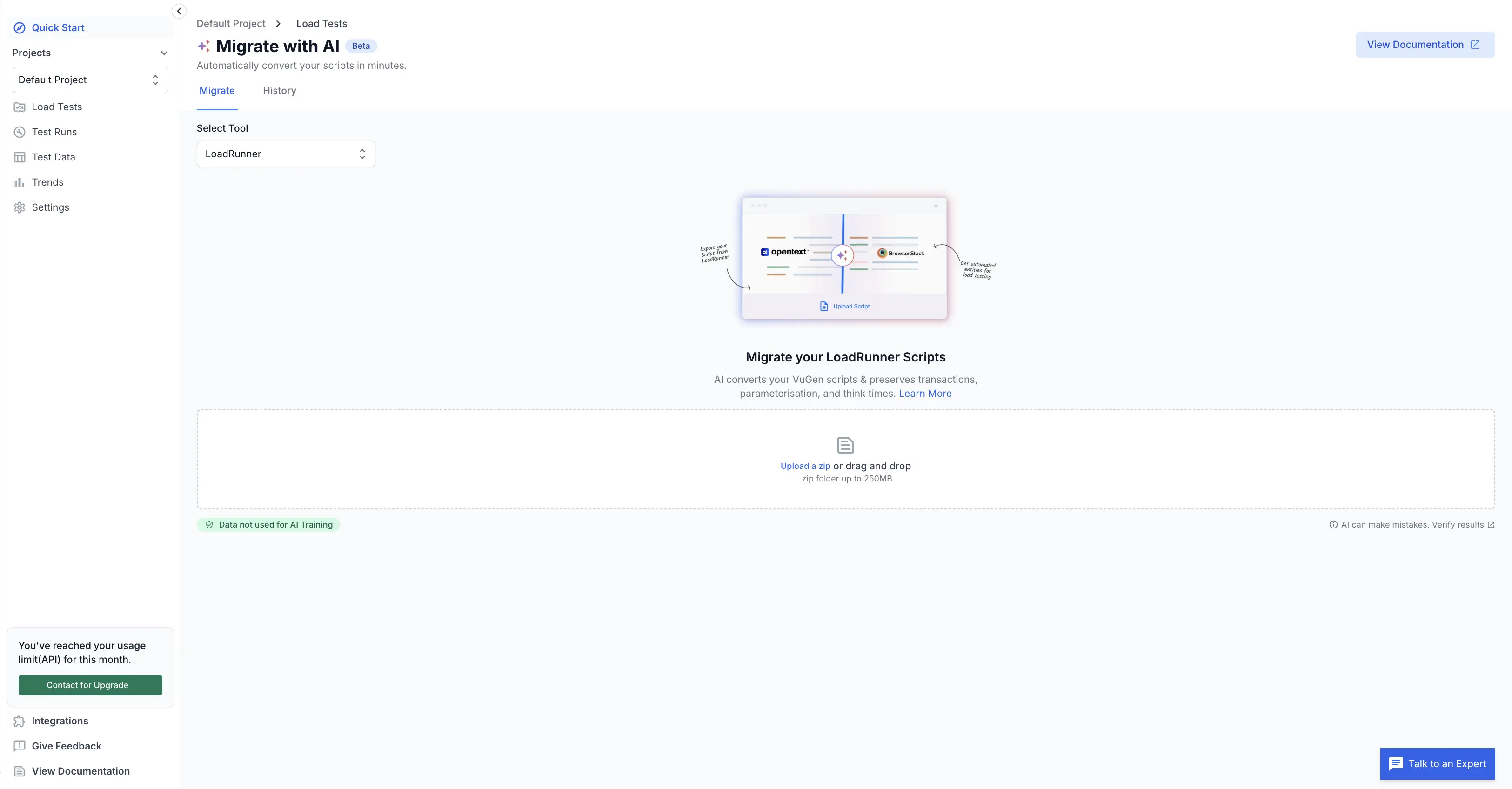
Wait for conversion
Conversion takes a few minutes. You can navigate away. BrowserStack saves your migration automatically, and you can return to it from History.
Scripts that use custom JavaScript helper functions take slightly longer, because those functions are converted as well.
Review the converted script
When conversion finishes, you see a row for each script that was found, with a status:
| Status | Meaning |
|---|---|
| Converted | Fully converted to Playwright and ready to create a load test. |
| Unsupported | The script type can’t be converted. |
| Failed | Conversion failed, usually because of a malformed or incomplete script (for example, a missing .usr file). |
| Pending | BrowserStack is still converting the script. Refresh the page to check progress. |
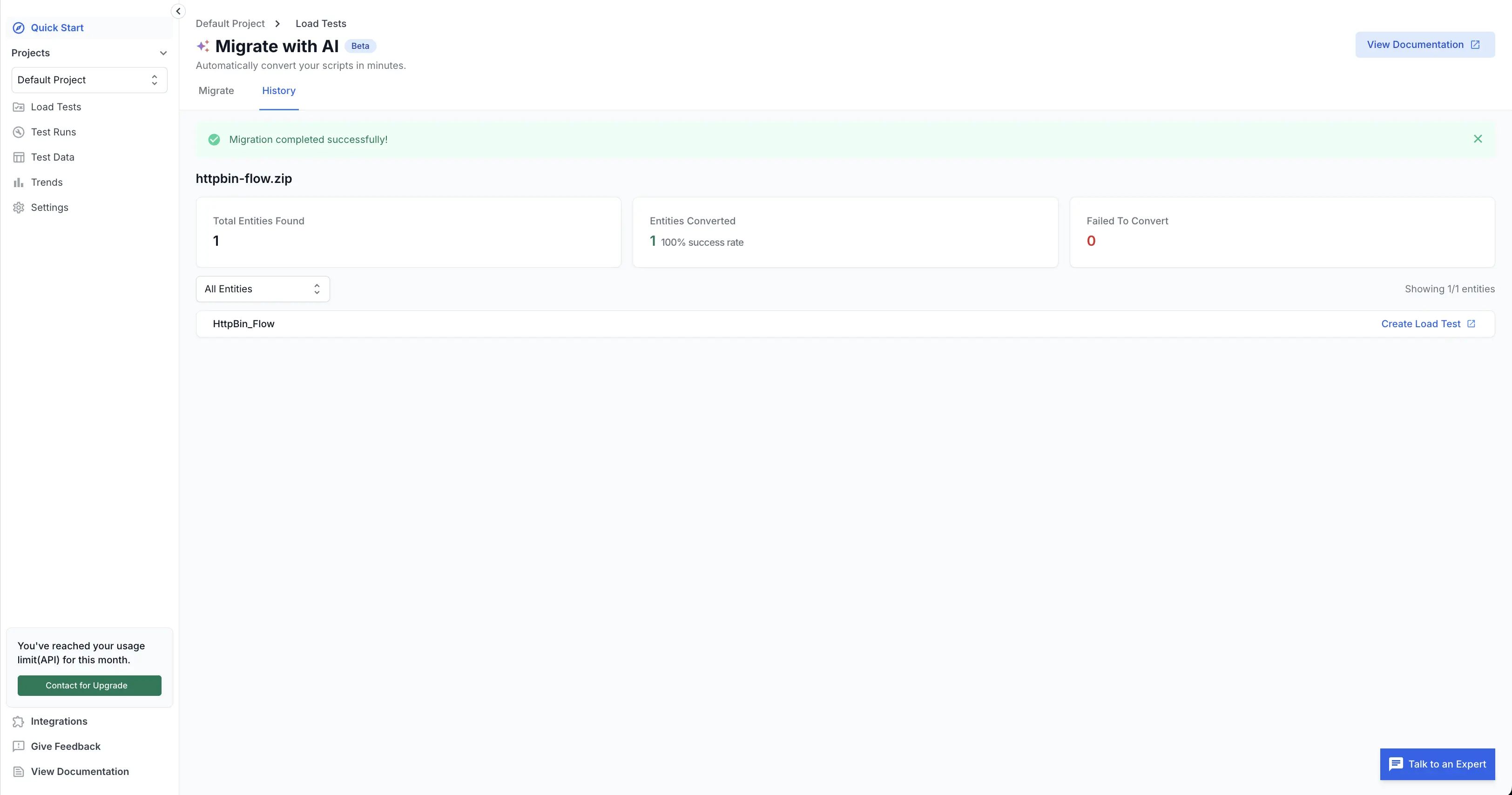
Each script in the list shows its conversion status. The following table describes what each status means:
| Status | Meaning |
|---|---|
| Converted | Fully converted to Playwright and ready to create a load test. |
| Unsupported | The script type can’t be converted. |
| Failed | Conversion failed, usually because of a malformed or incomplete script (for example, a missing .usr file). |
| Pending | BrowserStack is still converting the script. Refresh the page to check progress. |
For a Converted row, you can either create a load test straight away or click Download to inspect the generated Playwright test first.
The downloaded zip contains your Playwright test file plus a Playwright config. If your script used custom JavaScript helper functions, you also get a truclient-utils.ts file holding the converted versions of those functions. The test imports it, so keep them together if you edit and re-upload.
Create and run the load test
Follow these steps to configure and run your converted test:
On the converted row, click Configure Load Test.
Name the test, for example, checkout-flow-browser.
Set your load parameters: VUs (for example, 200), Duration (15m), Ramp-up (2m), and Regions (us-east-1, eu-central-1).
Click Create.
Open the test and click Run.
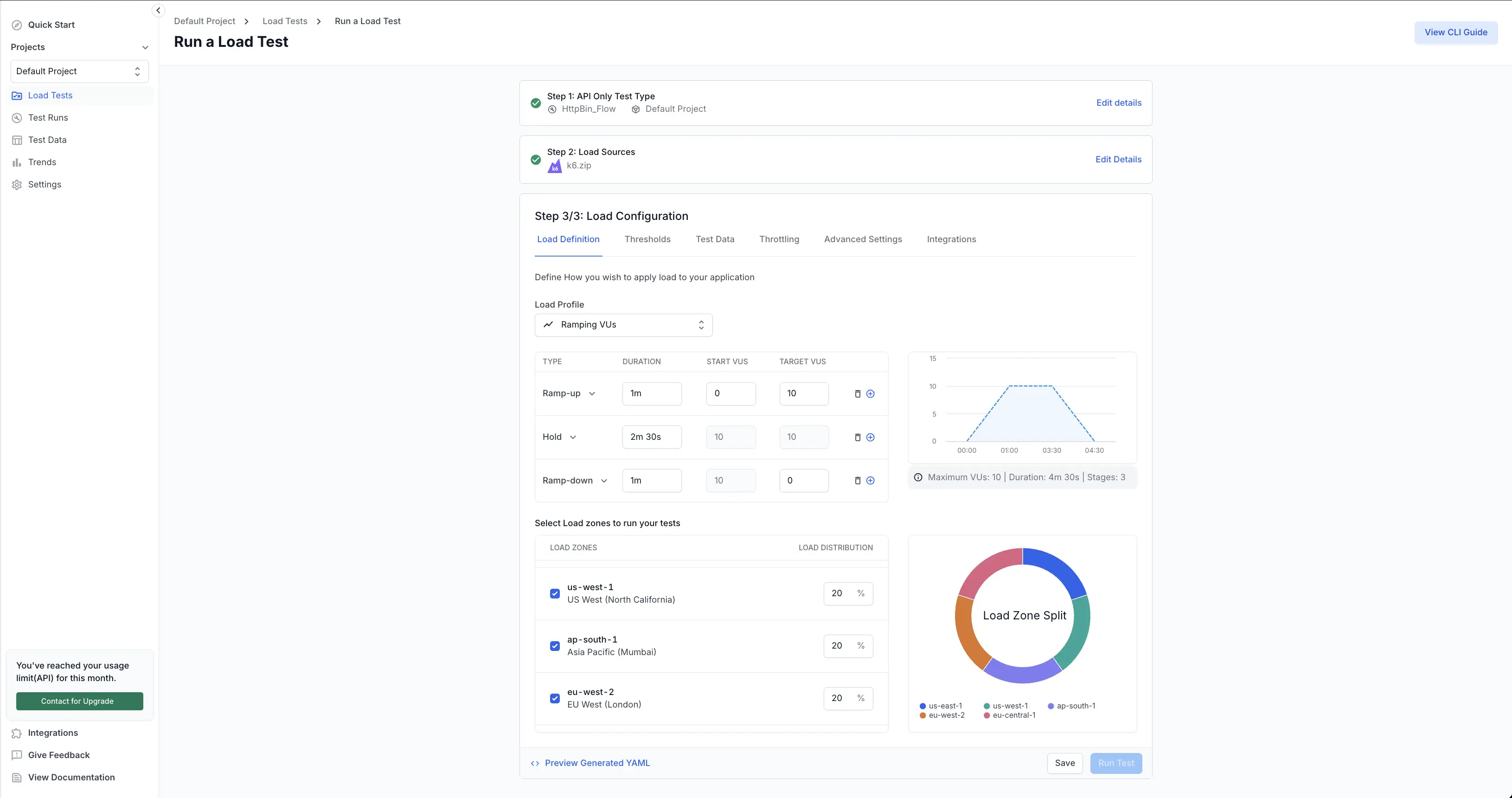
The test status shows Provisioning for 1 to 2 minutes while browsers start up, then moves to Running.
Browser tests consume browser VUs. Each virtual user drives a real browser, so they’re metered differently from protocol VUs. Check your plan’s browser VU allowance before running at high concurrency.
Verify it worked
Open the Results tab once the test finishes. You should see:
- A completed run with no script errors.
- Browser performance metrics, including Web Vitals: Largest Contentful Paint (LCP), Interaction to Next Paint (INP), and Cumulative Layout Shift (CLS).
If the run finished but the numbers look wrong, compare the generated Playwright test against your original TruClient steps before scaling up. Start with a low VU count for the first run.
What converts
Most recorded browser actions map directly onto Playwright equivalents:
- Navigation, clicks, typing, and dropdown selection
- Mouse over, double click, and right click actions
- Press key and submit form actions
- Close tab, switch to frame, and switch to window actions
- Handle dialog and file operations (upload and download)
- Waits for elements
- Scrolling and screenshots
- Element selectors, taken from your TruClient test objects
- Custom JavaScript helper functions, converted to TypeScript
Recorded scripts usually contain a lot of incidental steps captured during recording. Those are filtered out, so the converted test reads like a test someone wrote rather than a raw recording.
Evaluate C steps are converted on a best-effort basis. Review the result closely, particularly correlation and string-handling logic.
What doesn’t convert yet
Some TruClient features are not yet supported by the migration tool:
| Not supported | What to do |
|---|---|
| TruClient Native Mobile scripts | Convert manually, or use an existing Playwright/Appium test |
| Cross-iteration transactions | Re-implement in the converted test if you need them |
| Script runtime settings (default.cfg / default.usp) | Network filters, think time, iteration counts and run logic aren’t carried over. Reconfigure them in BrowserStack. |
Controller scenario settings aren’t carried over from LoadRunner. Set your load parameters in BrowserStack when you create the test.
In-browser script editor is not available. To change a converted test, download it, edit locally, and upload it as a standard Playwright test.
Migration history
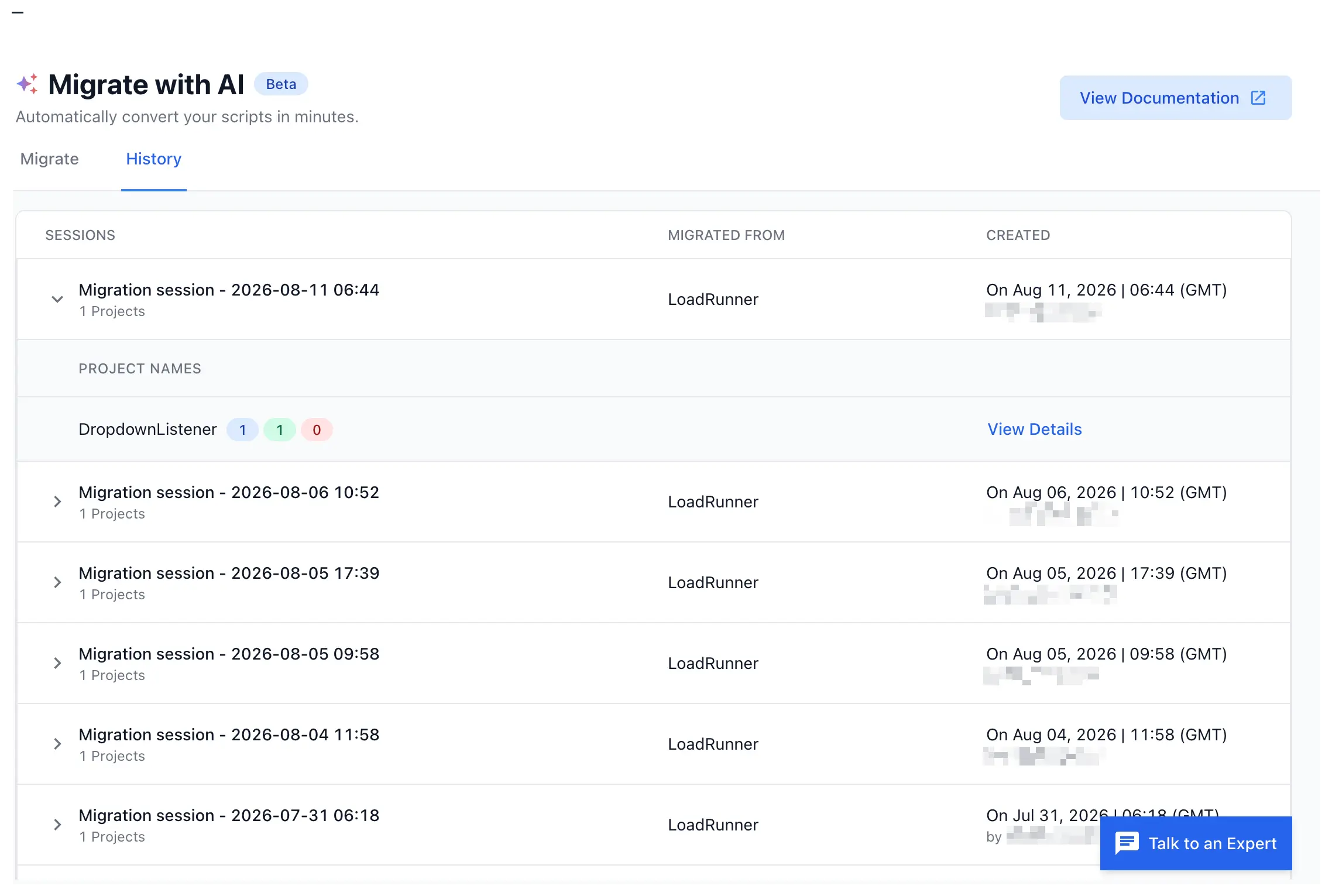
You can view all past migrations for your project:
Navigate to the Load Tests page.
Click Import LoadRunner.
Your previous migrations appear in the History table, which shows the upload date, file name, total entities found, and counts for converted, failed, and unsupported scripts.
Click any migration to drill into its entity list and resume where you left off.
Troubleshooting
Use these common solutions to resolve issues during conversion:
My TruClient script shows as "Unsupported"
Native Mobile TruClient scripts aren’t supported yet. Only TruClient Web scripts convert. If it is a Web script and still shows Unsupported, contact support with the migration ID.
The entity shows "Failed" with an incomplete-script error
Your zip is probably missing files. Re-export from VuGen using Create Zip File rather than zipping the folder by hand, and make sure the .usr file is present.
My script was converted to k6, not Playwright
That happens when the script is a Web/HTTP protocol script rather than a TruClient script. Check the script type in VuGen. Web/HTTP scripts follow the k6 migration path.
Conversion is stuck in "Pending"
Refresh the page. If it’s still pending after 10 minutes, re-upload the script on its own rather than as part of a batch.
Upload was rejected because the file is too large
The limit is 500 MB. Split a batch upload into smaller zips.
The converted test fails on its first run
Most first-run failures come from selectors that no longer match your application, or from steps that needed manual review. Open the generated test, check the failing step against your application, and adjust.
What’s next
Explore these topics to get the most from your load tests:
- Configure load parameters: tune VUs, ramp-up, and duration
- Test reports: read and compare your results
- Migrate NeoLoad projects: if you’re also moving off NeoLoad
We're sorry to hear that. Please share your feedback so we can do better
Contact our Support team for immediate help while we work on improving our docs.
We're continuously improving our docs. We'd love to know what you liked
We're sorry to hear that. Please share your feedback so we can do better
Contact our Support team for immediate help while we work on improving our docs.
We're continuously improving our docs. We'd love to know what you liked
Thank you for your valuable feedback!