No Result Found
Connect & Get help from fellow developers on our Discord community. Ask the CommunityAsk the Community

Protocol load testing using k6

Run a protocol load test on BrowserStack Load Testing

Prerequisites

  • BrowserStack Username and Access key. You can find this under your account profile.
  • An existing k6 script.

Run a test

You can start a new test either from the Quick Start page, or the Load Tests page on the Load testing dashboard.

On the dashboard, click Create Load Test.

Screenshot of load testing dashboard showing the run a new test button highlighted

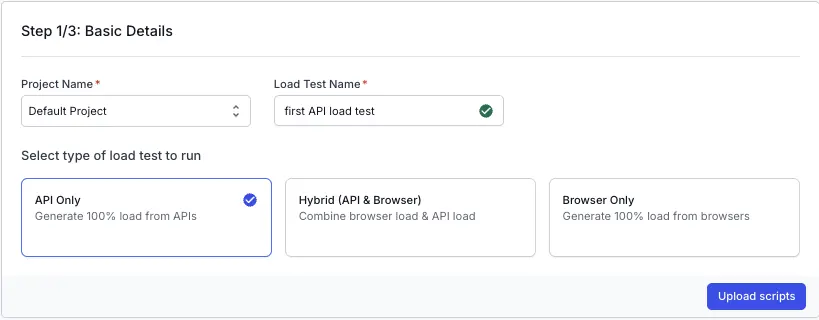
Enter a Test Name for your load test, select API Only and click Upload scripts

Dashboard showing test name field and type of load test to run

Upload scripts

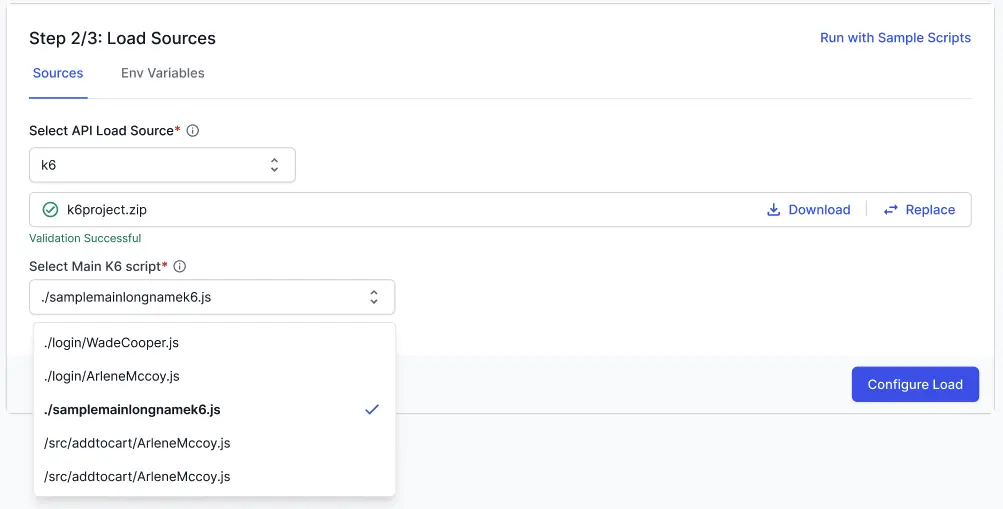
In this step, upload your k6 script.
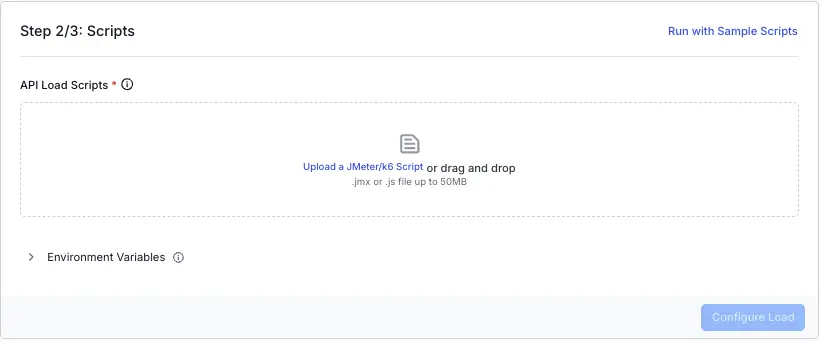
Screenshot of load testing dashboard asking to add scripts for load testing

Once you have verified the configuration, click Configure Load to move to the next step.

You can also run load tests using the sample scripts if you want to try out the feature before uploading your own files.

Configure environment variables

Use environment variables to avoid hard-coding secrets and to parameterize your test runs:

  • Upload one or more .env files (up to 5 MB each) by dragging and dropping into the upload area:
    • You can upload .env, .yaml, .yml, .json, .properties, .ini, or .cfg files.
    • After upload, the variables become available to your test run.
  • Manually add key–value pairs:
    • Click Add Variable, then enter the Key and Value.
    • Your variables are saved for this run and applied during execution.
    • Use the bin icon to delete any key-value pair

Screenshot of load testing dashboard asking to upload env variable files and add values

Configure load parameters

Use any of the following Load Profiles for your load test

Select Constant VUs from the dropdowm menu, and set the number of virtual users, test duration, and select load zones.

Screenshot of various load testing configurations available on the dashboard

  • Virtual Users: Enter the total number of users to simulate during the test.
  • Duration: Specify how long the test should run (in minutes).

Select Ramping VUs from the dropdown menu, and configure Ramp-up, Hold, and/or Ramp-down stages.

Screenshot of various stages of load testing configurations available on the dashboard

Each stage will have 4 parameters which will determine the shape of the load curve:

  • Type: Select Ramp-up, Hold, or Ramp-down
  • Duration: Specify the duration of the stage
  • Start VUs: Specify the number of VUs at the start of the stage
  • Target VUs: Specify the number of VUs at the end of the stage
    You can add additional stages as per your test requirement.

Select Per VU Iterations from the dropdowm menu, and set the number of virtual users, iterations, and the maximum test duration.

Screenshot of various load testing configurations available on the dashboard

  • Virtual users: Enter the total number of users to simulate during the test.
  • Iterations per VU: Specify the times each virtual user runs the script.
  • Max duration: Specify the upper bound on the test runtime (in minutes).
  • Select load zones: Choose the regions where your tests will run. For each load zone, set the percentage of total load to be distributed. The dashboard visualizes the split with a chart for easy reference.

Screenshot of various load zones available on the dashboard

Capture response details

Use the Capture response details toggle to record full request–response data for failing HTTP calls during the test. The toggle is set to ‘disabled’ by default.

Toggle enabled for Capture response details setting in BrowserStack load testing UI

Set thresholds

Use thresholds to decide test status based on performance and reliability metrics:

  • Click Thresholds to expand the section. Thresholds section expanded in BrowserStack load testing UI
  • Click Add metric for criteria and choose a metric. Add metric for criteria button with metric selection dropdown in BrowserStack load testing UI
  • Set the condition (for example, is greater than, is less than) and enter a value.
  • Repeat for additional metrics as needed:

Available metrics:

  • Total requests (count)
  • Error % (percentage)
  • Error count (count)
  • Avg request rate (req/s)
  • Avg response time (ms)
  • p90 response time (ms)

After configuring all parameters, click Run Test to start your load test.

Download the BrowserStack Load Testing CLI

Download the CLI based on your operating system:

Generate the YAML file

Run the given command to generate the browserstack-load.yml file which contains the configuration required to define and run your load test:

Copy icon Copy

Configure your Load Test

Open the generated browserstack-load.yml file and update it with the relevant test details. Here’s a sample configuration:

Specify number of virtual users

Set vus to the maximum number of virtual users to simulate during the test. The max limit for this config is currently 1000. Contact us if you want to increase this limit.

Specify the test scripts

The files block defines the key files needed to identify which tests to execute.

  • testScripts: Set the path to the .js file.

Set Regions

  • Use the loadzone sub-config to specify each region. For each region, set the traffic percentage using the percent sub-config.
  • Make sure that the total percentage equals 100.
Continent Region loadzone config value to be passed
North America US East (Virginia) us-east-1
North America US West (North California) us-west-1
Asia Asia Pacific (Mumbai) ap-south-1
Asia Middle East (UAE) me-central-1
Europe EU West (London) eu-west-2
Europe EU Central (Frankfurt) eu-central-1
Australia Asia Pacific (Sydney) ap-southeast-2

Set Duration

  • Each virtual user (VU) repeatedly executes the test(s) in a loop until the specified duration ends.
  • How to set duration values:
    • If less than 1 minute: use seconds (_s), e.g., 45s
    • If less than 1 hour: use minutes and seconds (_m_s), e.g., 12m30s , 10m
    • If 1 hour or more: use hours, minutes, and seconds (_h_m_s), e.g., 1h5m20s, 1h17m, 1h
    • The maximum limit is 20 minutes, which you can extend on request.

You can set a constant duration or configure ramping VUs to model various load scenarios.

Configure Ramping VUs

If you want to gradually increase or decrease VUs over time, use the loadprofile config instead of duration. This approach lets you model realistic traffic patterns such as ramp-ups, peak holds, and ramp-downs.

  • Under the loadProfile block, set type to ramping to enable staged traffic changes.
  • Under stages, add one or more steps:
    • type: ramp increases or decreases VUs from from to to over duration. Result: VUs change linearly until they reach the target.
    • type: hold keeps VUs constant for duration. Result: VUs stay at the specified level without change.
  • Keep stage durations realistic. Very short ramps can cause bursty load that is hard to analyze.
  • Ensure your total vus is high enough to cover the largest stage to value. If not, the test cannot reach the target VUs.

Validation rules:

  • Each stage must include type, from, to, and duration.
  • Use valid time units (Xs, Xm, Xh). Example: 45s, 10m, 1h5m.
  • from and to must be non-negative integers and must not exceed the global vus limit.
  • Avoid overlapping or contradictory stages (for example, alternating rapid up/down ramps) unless you are testing resilience to bursty traffic.

Set iterations

Use iterations to control how many times each virtual user (VU) executes your test script:

  • Set iterations: positive integer per VU.
  • Combine with duration if needed: when both are set, the test stops when either the max duration or the per‑VU iterations are reached, whichever comes first.

Prefer loadprofile for ramping scenarios: avoid mixing iterations with staged ramping because it can create ambiguous end conditions.

Set environment variables

The env config lets you pass an array of name-value string pairs to set environment variables on the remote machines where tests are executed.
Currently, a maximum of 20 pairs is allowed.

Environment variables can be set using any one of the following two methods:

Inline variables

Declare each variable with a name and value. BrowserStack injects these pairs into the test environment.

File-based variables:

Use sources to reference one or more files containing environment variables (for example, .env files). Use variables to add or override specific pairs. Result: the system loads values from files first, then applies overrides.

Set reporting structure

  • Use projectName to group related tests under the same project on the dashboard. Use testName to group multiple runs of the same test.
  • Both projectName and testName must remain consistent across different runs of the same test.
  • You can use the following characters in projectName and testName:
    • Letters (A–Z, a–z)
    • Digits (0–9)
    • Periods (.), colons (:), hyphens (-), square brackets ([]), forward slashes (/), at signs (@), ampersands (&), single quotes (‘), and underscores (_)
    • All other characters are ignored.

Capture response details

Set to captureErrorResponses to true to record full request–response data for failing HTTP calls during the test.

Set thresholds

Use thresholds to determine test pass or fail based on metrics.

Available Metric list and corresponding keys for load testing:

  • Avg. response time - avg-response-time
  • p90 response time - p90-response-time
  • Avg. request rate - avg-request-rate
  • Total requests - total-requests
  • Error % - error-percentage
  • Error count - error-count

Available conditions:

  • =
  • !=
  • >
  • <
  • >=
  • <=

We assume the following units for the metrics:

  • Avg. response time, p90 response time, INP, TTFB - ms
  • Avg. request rate - reqs/s
  • Error % - %
  • FCP, LCP - s
  • Total requests, Error count, CLS - no unit
browserstack-load.yml

Run the Load Test

Run the given command to start your test:

Copy icon Copy

Check out the FAQs section to get answers to commonly asked questions.

View test results

Once the test starts running, you’ll get a link to the test report. You can also view your test results in the Load Testing dashboard.

We're sorry to hear that. Please share your feedback so we can do better

Contact our Support team for immediate help while we work on improving our docs.

We're continuously improving our docs. We'd love to know what you liked


Thank you for your valuable feedback

Is this page helping you?

Yes
No

We're sorry to hear that. Please share your feedback so we can do better

Contact our Support team for immediate help while we work on improving our docs.

We're continuously improving our docs. We'd love to know what you liked


Thank you for your valuable feedback!

Talk to an Expert
Download Copy Check Circle