
 Join our Discord
Reduce AI credit usage in Test Companion
Reduce the AI credits that Test Companion tasks consume with scoped prompts, new chats for new tasks, an up-to-date extension, and saved conventions.
Each task consumes AI credits for the text that Test Companion reads and writes while it works. The largest share rarely goes to the answer itself. It goes to the context that Test Companion takes in first. That context includes the files you attach and the files it opens to understand your project. It also includes every earlier message in the chat. Four practices keep that context small without limiting what you can ask for:
- Scope the prompt, so Test Companion reads only the files that matter.
- Start a new chat for a new task, so the request does not carry unrelated history.
- Keep Test Companion up to date, so each task runs on the latest version.
- Save conventions as rules and skills, so you state them once instead of in every prompt.
To check how much of your allowance remains, see Plan and usage.
Scope the prompt
Name the files, the page, or the flow that Test Companion should work on. State the outcome you expect. With that scope in hand, Test Companion goes straight to the relevant files. Without it, Test Companion has to search your project to work out what you meant. Every file it opens along the way consumes credits.
Attach only the files the task needs, for the same reason. The Prompt guide shows the three-part structure that gives Test Companion enough scope in one message.
Start a new chat for a new task
Each message you send carries the whole chat with it. A long chat therefore costs more per message than a fresh one.
That history is worth paying for while you refine the same piece of work. Follow-up questions, small fixes, and second attempts at the same test belong in the chat where the work started. The history is wasted when the next request has nothing to do with the earlier ones. Open a new task for a different feature or an unrelated question.
The context usage indicator shows how much history a chat carries. It is the ring next to the + icon in the chat toolbar. Hover over the ring to see the exact figure.
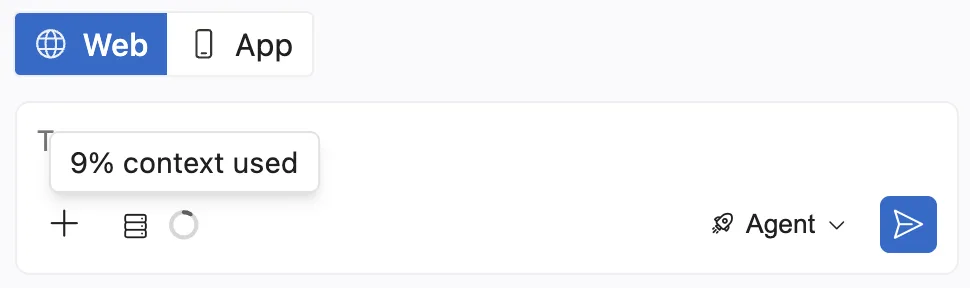
For details, see Context usage in long chats.
Keep Test Companion up to date
Each new version of Test Companion includes changes that lower the credits a typical task uses. The same task therefore costs more on an old version than on the latest one. How updates reach you depends on where you run Test Companion:
- Visual Studio Code: Extensions update on their own unless you changed the Extensions: Auto Update setting.
- JetBrains IDE: Install plugin updates when the IDE offers them.
- Command-line interface: The CLI updates itself before most commands run. See Command-line interface.
Save conventions as rules and skills
A convention you repeat in every prompt consumes credits each time Test Companion reads it. Examples include the test framework to use and how to name test files. Save the convention once, where Test Companion can find it on its own:
- Rules apply to every chat without being asked. Use one for an instruction that is short and applies to most tasks.
-
Skills are shortcuts for tasks you ask for often. Test Companion runs the matching skill on its own when your request fits. You can also type
/skill-nameto run one yourself.
Test Companion can also save a preference you state in a chat to its memory. When it does, the chat shows Saved to memory. Later tasks in the same workspace apply the preference without being told.
Next steps
- Prompt guide: Structure a prompt so Test Companion acts in one pass.
- Run tasks in parallel: Start a new task while another task keeps running.
We're sorry to hear that. Please share your feedback so we can do better
Contact our Support team for immediate help while we work on improving our docs.
We're continuously improving our docs. We'd love to know what you liked
We're sorry to hear that. Please share your feedback so we can do better
Contact our Support team for immediate help while we work on improving our docs.
We're continuously improving our docs. We'd love to know what you liked
Thank you for your valuable feedback!