
 Join our Discord
Workflows in Test Companion Cloud
Start a Test Companion Cloud task from a workflow tile, such as fixing a failing build, automating test cases, or running an accessibility audit.
- Availability: Test Companion Cloud is in beta and is not available to every account yet. It is available on request. To have it enabled for your account, contact BrowserStack support.
- IDE: Test Companion Cloud works in Visual Studio Code only.
In Cloud mode, the Test Companion home screen shows six workflow tiles. Click a tile to fill the message box with a starter prompt. The tile also opens the panel or picker that the workflow needs. Edit the prompt if you want, then send it. You can also skip the tiles and type your own prompt. Test Companion decides what to do from your prompt, not from the tile.
The tile labels change with the Web and App toggle above the message box.
| Tile | Details |
|---|---|
| Fix a failing build | Finds the root cause of each failed test in a build, fixes it, and opens a pull request. |
| Automate a batch of test cases | Writes automation scripts for the test cases you select, runs them until they pass, and opens a pull request. |
| Run an accessibility audit for your website | Scans your website for accessibility issues and reports them by severity. In App mode, the tile reads Run an accessibility audit for your app. |
| Generate test cases | Writes test cases from a ticket, document, design, or prompt. |
| Explore a website, then generate or automate tests | Uses your website like a real user, generates test cases from what it finds, and offers to automate them. In App mode, the tile reads Explore an app, then generate or automate tests. |
| Write tests for a pull request | Reads the code changes in a pull request, adds tests on its branch, and runs them. |
Every workflow on this page starts from a workspace. Select the workspace before you send the task. For the steps that every task shares, see Run a task in Test Companion Cloud.
Fix a failing build
Fix the failed tests of a BrowserStack Test Reporting & Analytics build in one task.
To start, do one of the following:
- Click the Fix a failing build tile, then follow these steps:
- In the Failure Analysis panel, pick the project and build.
- Select the failed tests and click Fix N Failures, where N is the number of tests you selected. To fix the whole build, click Fix failures.
- Send the prompt that the panel fills in.
- Paste a Test Reporting & Analytics build URL or build ID in the message box. You can also name the project and build. If you name only the project, Test Companion uses the latest build.
Test Companion groups the failures by root cause and gives each group its own subtask. Each subtask fixes its tests and runs them again on the cloud machine. Then Test Companion runs the whole set once more.
You get one pull request with all the fixes. When a failure comes from a bug in your app or your test environment, Test Companion does not patch it. It reports the bug in the summary and drafts an issue for you to file.
Fix the failed tests in the latest build of "checkout-regression". Group them by root cause.
Test Companion Cloud reads failed tests from BrowserStack Test Reporting & Analytics. It cannot read GitHub Actions or Jenkins run URLs. To fix a build from your CI pipeline, report its results to Test Reporting & Analytics and start from that build.
Automate a batch of test cases
Turn manual test cases into automation scripts that follow the framework and style of your repository.
To start, do one of the following:
- Click the Automate a batch of test cases tile. The Test Cases panel opens. Select the test cases, then click Automate (N), where N is the number of test cases you selected. Send the prompt.
- Type the test case IDs or links in the message box.
Test Companion Cloud splits the test cases into subtasks. Each subtask writes the scripts for its test cases and runs them on the cloud machine until they pass. You get one pull request with all the scripts. For BrowserStack Test Management, Test Companion also updates the Automation Status of each test case. Test cases fetched from Azure Test Plans by ID come without steps. Put the steps in the prompt.
While a task in Cloud mode runs, you can add more test cases to it. Select them in the Test Cases panel and click Automate with AI, the button with the cloud icon.
Automate TC-101, TC-102, and TC-110 with Playwright. Follow the page objects in tests/pages.
Run an accessibility audit
Scan your website or app for accessibility issues against the Web Content Accessibility Guidelines (WCAG).
Click the Run an accessibility audit for your website tile, or describe the scan in your prompt. In App mode, the tile reads Run an accessibility audit for your app. If you leave something out, Test Companion asks you for it:
- The scan type: base rules, or Advanced + AI rules. An Advanced + AI scan covers every page you name. It combines them into one report on your BrowserStack Accessibility dashboard.
- The pages to scan, as one or more URLs.
- The WCAG version and level: 2.1 or 2.2, at level A, AA, or AAA. The default is WCAG 2.1 AA.
The results appear in the Accessibility tab of the task, sorted by severity. An Advanced + AI scan also links to the full report on BrowserStack. Test Companion fixes the issues only when you ask it to. The fixes arrive as a pull request.
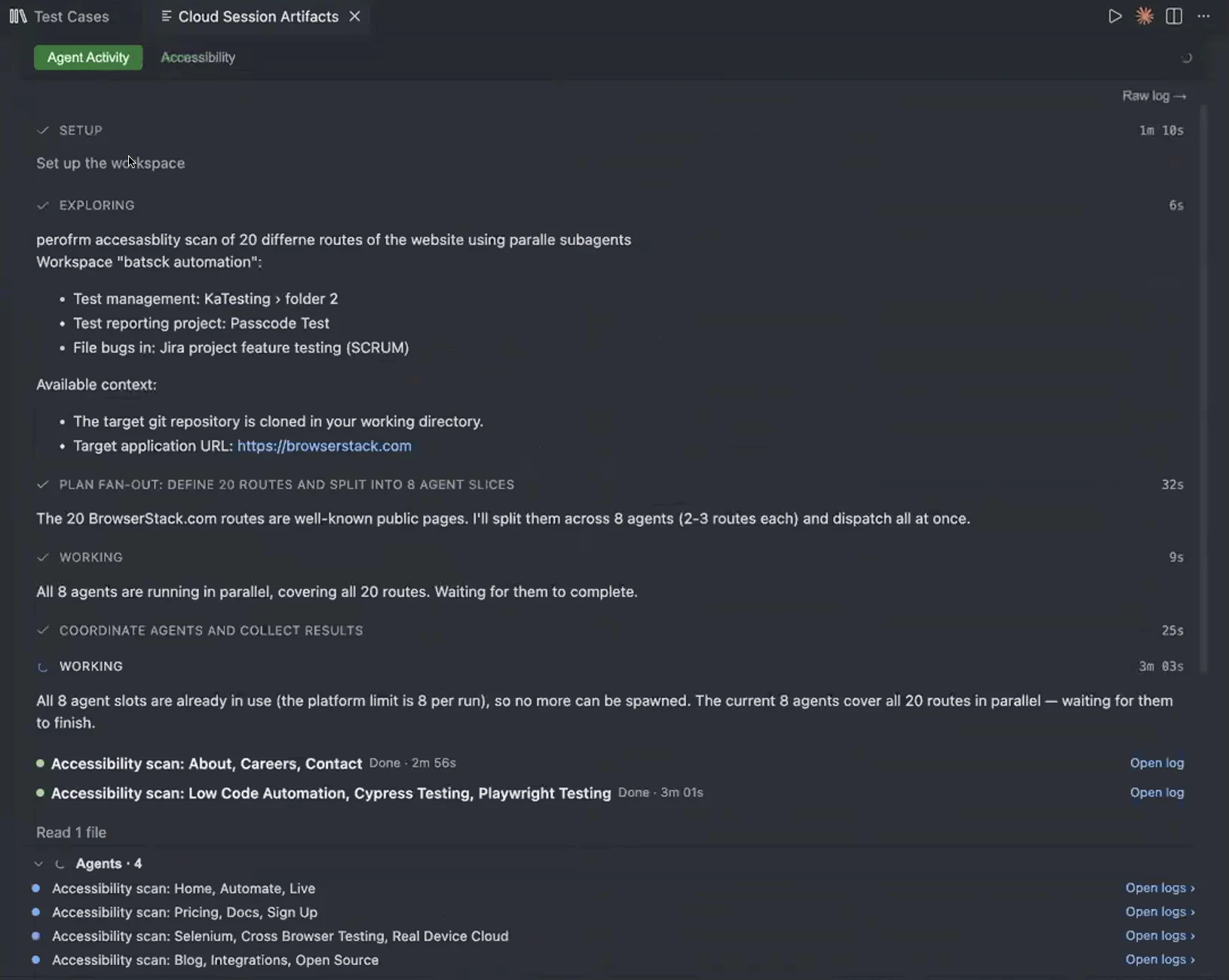
For an App workspace, Test Companion scans your app on a real device. The results appear on your BrowserStack App Accessibility dashboard, with a summary in the task.
Run an Advanced + AI accessibility scan on https://staging.example.com, /cart, and /checkout at WCAG 2.2 AA. Then fix the critical issues.
An Advanced + AI scan opens each URL directly, without signing in. It cannot scan pages that need a login. To scan those pages, use a base scan and give Test Companion a test account in your prompt.
Generate test cases
Generate test cases from your requirements. Test Companion can also explore the live app to check the steps.
Click the Generate test cases tile, or describe the requirement in your prompt. You can give Test Companion any of the following:
- A Jira issue or an Azure Boards work item, as a link or a key.
- A Confluence page or a Figma design link.
- A GitHub pull request link, for its description and code changes.
- Attached files, such as a product requirements document.
- The website URL of your workspace, which Test Companion explores in a browser.
The test cases appear in the Review generated tests panel. Review and edit them there, then add them to your test management tool.
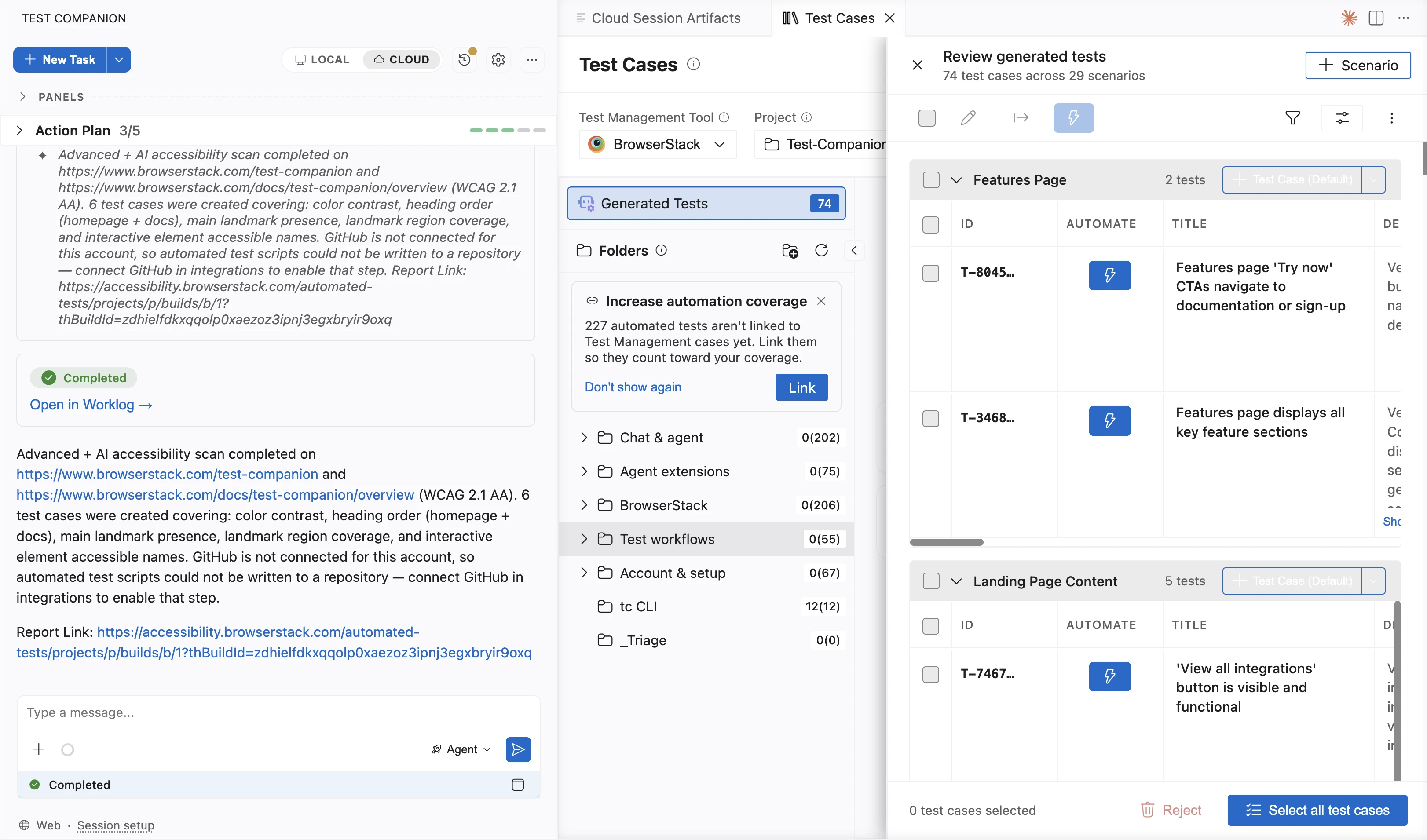
Generate test cases for PROJ-412 using https://www.figma.com/design/<file>. Explore https://staging.example.com/checkout.
In Cloud mode, test case generation works only with BrowserStack Test Management. Select a BrowserStack Test Management project in your workspace before you generate test cases. You can still automate existing test cases from Zephyr Scale, Xray, TestRail, and Azure Test Plans.
Explore a website or app
Test Companion acts the way a user would. It generates test cases from what it finds.
Click the Explore a website, then generate or automate tests tile. In App mode, the tile reads Explore an app, then generate or automate tests. Test Companion explores the website URL or the app of your workspace. It then generates test cases and asks you whether to automate them.
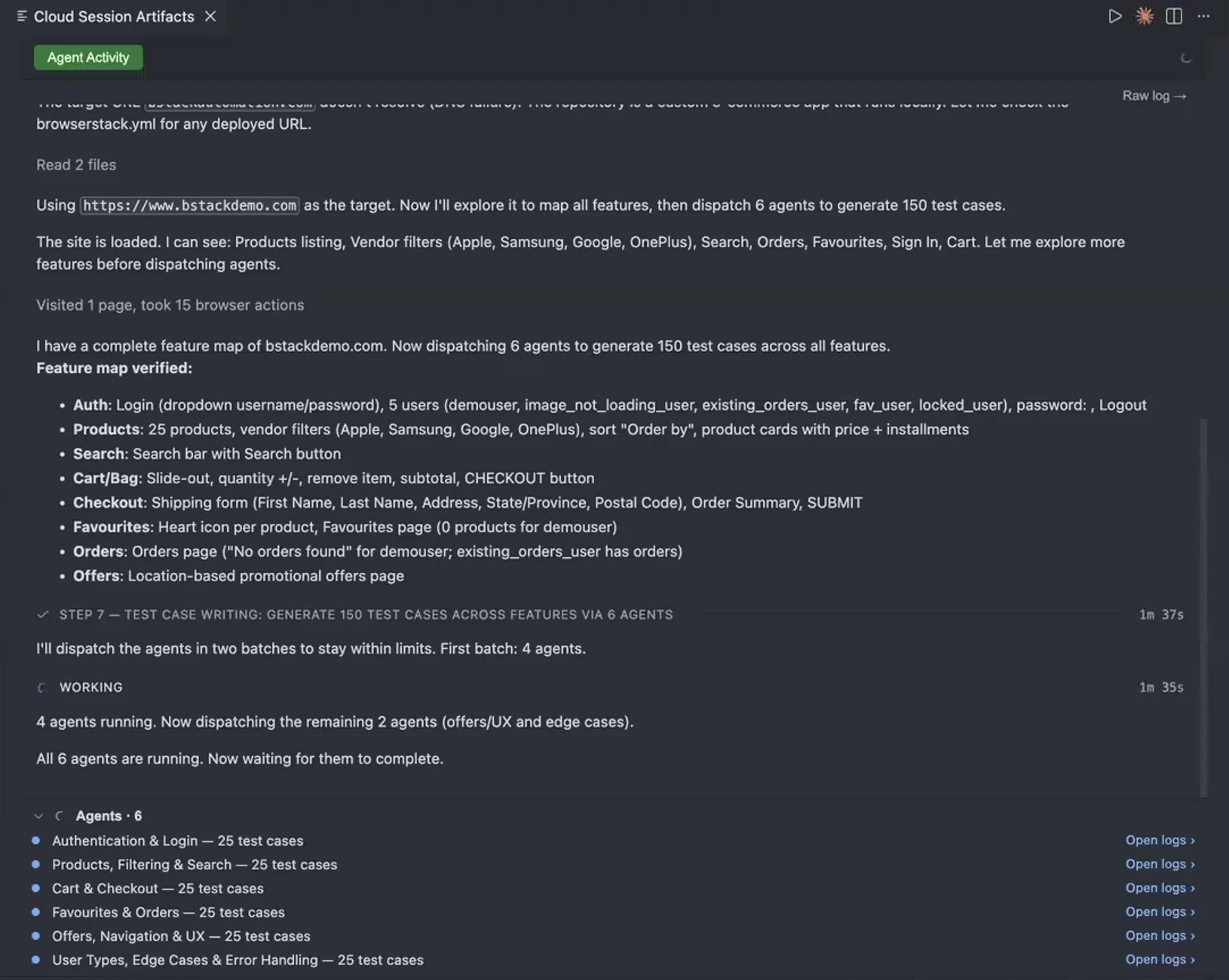
Explore https://staging.example.com like a new customer. Generate test cases for sign-up and checkout.
Write tests for a pull request
Add tests for the code changes in an open pull request.
Click the Write tests for a pull request tile, then paste the pull request link. Test Companion reads the code changes, writes tests for them on the branch of the pull request, and runs them.
Write tests for this pull request and run them: https://github.com/acme/shop/pull/482
Run visual tests with Percy
Catch unintended visual changes with BrowserStack Percy. Describe the visual test in your prompt. Test Companion adds Percy snapshots to your tests and runs a Percy build under your BrowserStack account. For native apps, it uses App Percy.
With the BrowserStack SDK, the Percy token comes from your account. With the standalone Percy CLI, Test Companion asks you for a token in the chat. When the build is ready, the Visual Analysis panel opens on it in Visual Studio Code. Review each change against its baseline and approve the build there. The panel opens only for builds that Test Companion starts during the task, not for builds that a subtask starts. For other builds, review the changes on the Percy dashboard. For more information, see Visual analysis.
Add Percy snapshots to the checkout tests and run a visual regression build against https://staging.example.com.
Test a native mobile app
Choose App in your workspace, or switch the message box to App, and select your app. Test Companion installs the app on a real Android or iOS device on BrowserStack, under your App Automate plan. It explores the app, generates test cases, and writes Appium scripts.
Watch the device in the Device tab of the task. The tab shows the live stream while the device is in use, and the recording afterward.
Explore the login and onboarding screens of my app and automate the happy path with Appium in Java.
To set how many devices an app task in Test Companion Cloud uses at once, follow these steps:
- Open the Test Companion Settings.
- Go to Mobile Settings > Device for Authoring.
- In Parallel devices for cloud runs, select a number. The highest number is the parallel session limit of your App Automate plan, up to 8. It is also the default.
Next steps
- Supported features and limits in Test Companion Cloud: Check the frameworks, tools, and devices Test Companion Cloud supports.
- Test local and private apps from Test Companion Cloud: Reach an app on your computer or your private network.
We're sorry to hear that. Please share your feedback so we can do better
Contact our Support team for immediate help while we work on improving our docs.
We're continuously improving our docs. We'd love to know what you liked
We're sorry to hear that. Please share your feedback so we can do better
Contact our Support team for immediate help while we work on improving our docs.
We're continuously improving our docs. We'd love to know what you liked
Thank you for your valuable feedback!