
 Join our Discord
Generate test cases
Create structured test cases from your requirements, Jira tickets, or by pointing Test Companion at a live website.
Test Companion generates test cases in two ways: by reading a document you provide (such as a PRD, specification, user story, Jira ticket, or Confluence page), or by exploring a live website. Both methods produce structured test cases with titles, descriptions, steps, expected results, and priority levels. The generated test cases are ready to review, edit, and sync.
Prerequisites
Make sure you have completed the Getting started guide:
- The Test Companion extension is installed and you are signed in with your BrowserStack account.
Generate from a requirements document
Use this method when you have a written specification, PRD, user story, Jira ticket, Confluence page, Excel spreadsheet, or any other document describing what to test. Test Companion reads the document and produces test cases covering happy paths, edge cases, and negative scenarios.
- Open the Test Companion panel in the IDE.
- In the chat box, provide context using one or more of these methods:
- Reference workspace files: Type @ to select files, folders, git commits, or terminal output from your project.
- Attach a file: Click the + (Add Files & Images) icon to attach a PRD, spec document, or screenshot.
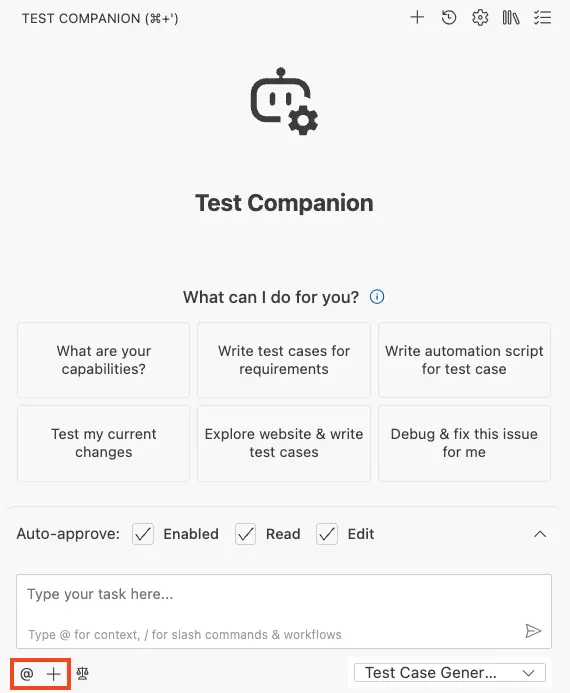
- Type or paste your requirements, user story, or acceptance criteria into the chat box.
- Configure the test case format to define how test cases are structured.
- Press Enter.
Test Companion reads and analyzes the document, then populates the Test Case Management panel with new scenarios. Each test case includes a title, description, steps, expected outcome, and priority.
Generate by exploring a website
Use this method when you do not have formal documentation, or when you want to discover test scenarios directly from a live page. Test Companion opens a browser, explores the URL, interacts with the interface, and writes test cases based on what it finds. It also checks your existing tests to identify and fill coverage gaps.
- Open the Test Companion panel in the IDE.
-
In the chat box, write a prompt that includes the URL and what to test.
- Configure the test case format to define how test cases are structured.
- Press Enter.
A browser window opens as Test Companion explores the feature or page. It captures screenshots, reads the DOM, and generates test cases from its findings. When it finishes, the new test cases appear in the Test Case Management panel alongside any existing tests.
Configure the test case format
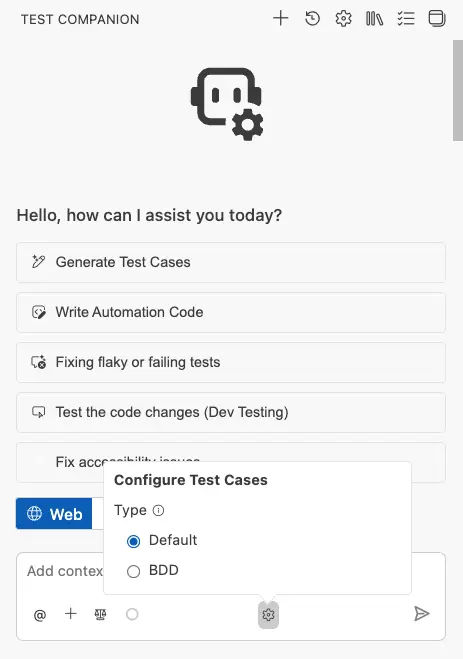
Before generating, click the gear icon in the chat input toolbar to open the Configure Test Cases panel. You have two format options:
- Default: Generates test cases in a standard tabular format with discrete fields for each step and expected result. Most common for teams using BrowserStack Test Management.
- BDD: Generates test cases in Gherkin-style Given/When/Then syntax. Choose this if your team follows behavior-driven development practices.
Review generated test cases
After Test Companion finishes, your new test cases appear in the Test Case Management panel. From there you can:
- Edit titles, descriptions, and steps.
- Adjust priority levels.
- Delete test cases you do not need.
- Sync your tests with BrowserStack Test Management, or export them as CSV.
For a complete guide to organizing, syncing, and exporting tests, refer Manage test cases documentation.
Write effective prompts
The quality of your generated test cases depends on the clarity of your input.
Be specific about scope. Instead of test the app, narrow the focus to a feature or user flow. For example: Generate test cases for the user registration flow, including email validation, password strength requirements, and the confirmation email.
Include context that is not obvious from the UI. If your feature has business rules, edge cases, or constraints, mention them. For example: Users with a free plan can only create up to 3 projects. Test the enforcement of this limit.
Combine sources for richer coverage. Attach a PRD, reference a spec file with @, and add a clarifying prompt in the same message. Test Companion synthesizes all inputs together.
Example prompts
From a requirement document:
Generate test cases for the user registration flow. Requirements:
- Users register with email and password
- Password must be 8+ characters with one uppercase and one number
- Duplicate emails show an error
- Successful registration sends a verification email
From a website URL:
Explore https://demo.example.com/login and generate test cases for the authentication flow.
Include positive and negative scenarios for email/password login, social login,
and the "forgot password" feature.
From a user story:
As a logged-in user, I want to filter products by category and price range so I can
find what I need quickly. Generate test cases covering single-filter, multi-filter,
and clear-filter scenarios.
From a Jira ticket:
Write test cases based on this Jira ticket https://jira.example.com/PROJ-1234.
Add edge cases the ticket does not mention.
By exploring a URL:
Explore https://staging.example.com/onboarding and write test cases for each step
of the wizard, including skip and back scenarios.
Next steps
- Manage test cases: Edit, group, sync, and export your tests.
- Automate tests: Convert your manual tests into executable automation scripts.
We're sorry to hear that. Please share your feedback so we can do better
Contact our Support team for immediate help while we work on improving our docs.
We're continuously improving our docs. We'd love to know what you liked
We're sorry to hear that. Please share your feedback so we can do better
Contact our Support team for immediate help while we work on improving our docs.
We're continuously improving our docs. We'd love to know what you liked
Thank you for your valuable feedback!