
 Join our Discord
Exploratory session summary report
Review the outcomes of your session-based exploratory testing in Test Management for Jira.
The exploratory session summary report covers your session-based exploratory testing. Use it to review what your team explored outside scripted test runs.
What the report shows
The report summarizes the exploratory sessions you include:
- Total Sessions: how many sessions the report covers, split into active and closed.
- Total Exploratory Hours and Avg Session Duration: the time your team spent exploring, and the average length of a session.
- Avg Bugs per Session and Sessions Linked with Test Plans: the bugs a session finds on average, and how many sessions connect to a test plan.
- Session Outcomes: every log recorded during the sessions, grouped as pass, fail, bug, retest, blocked, note, and skipped.
- Top Bug-Finding Testers: the testers who logged the most bugs, with each tester’s bug count.
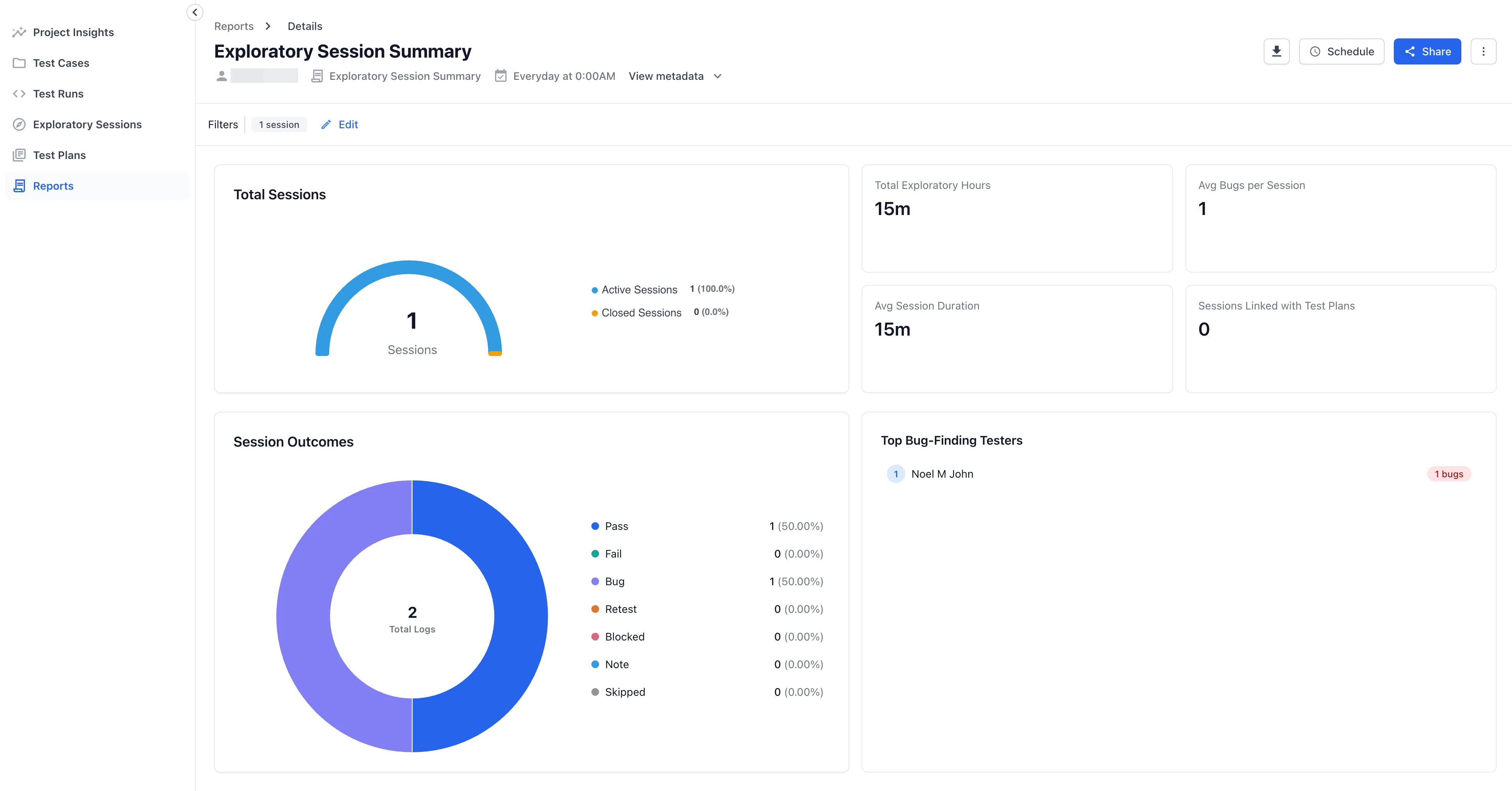
Compare average bugs per session against session duration to see which sessions are worth repeating.
Create this report
To create this report, follow the Create a report steps. Select Exploratory Session Summary as the Type of Report. Choose the sessions to include by Creation Time or Specific Session(s).
When you select Creation Time, set the range in the Include test runs created in list.
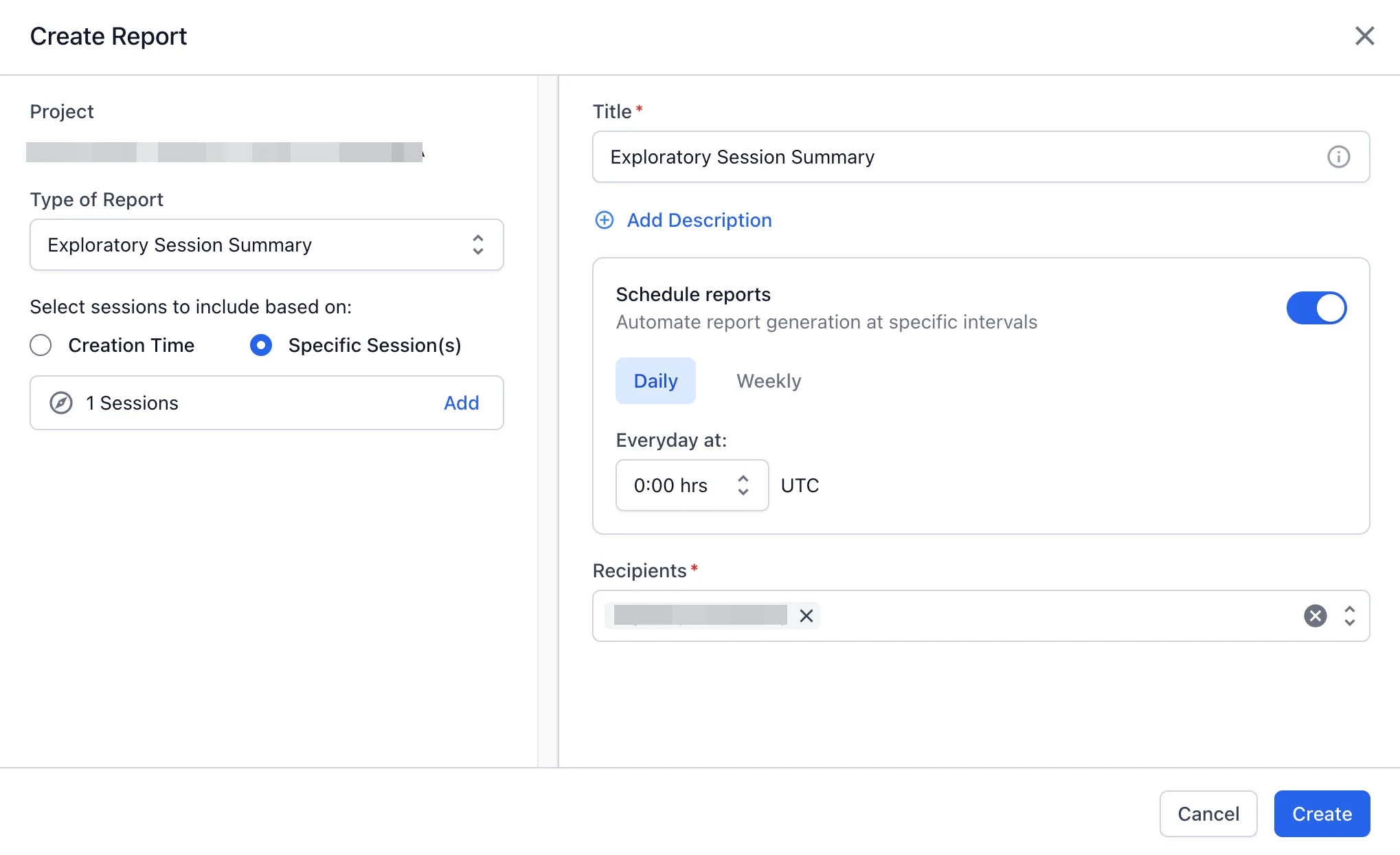
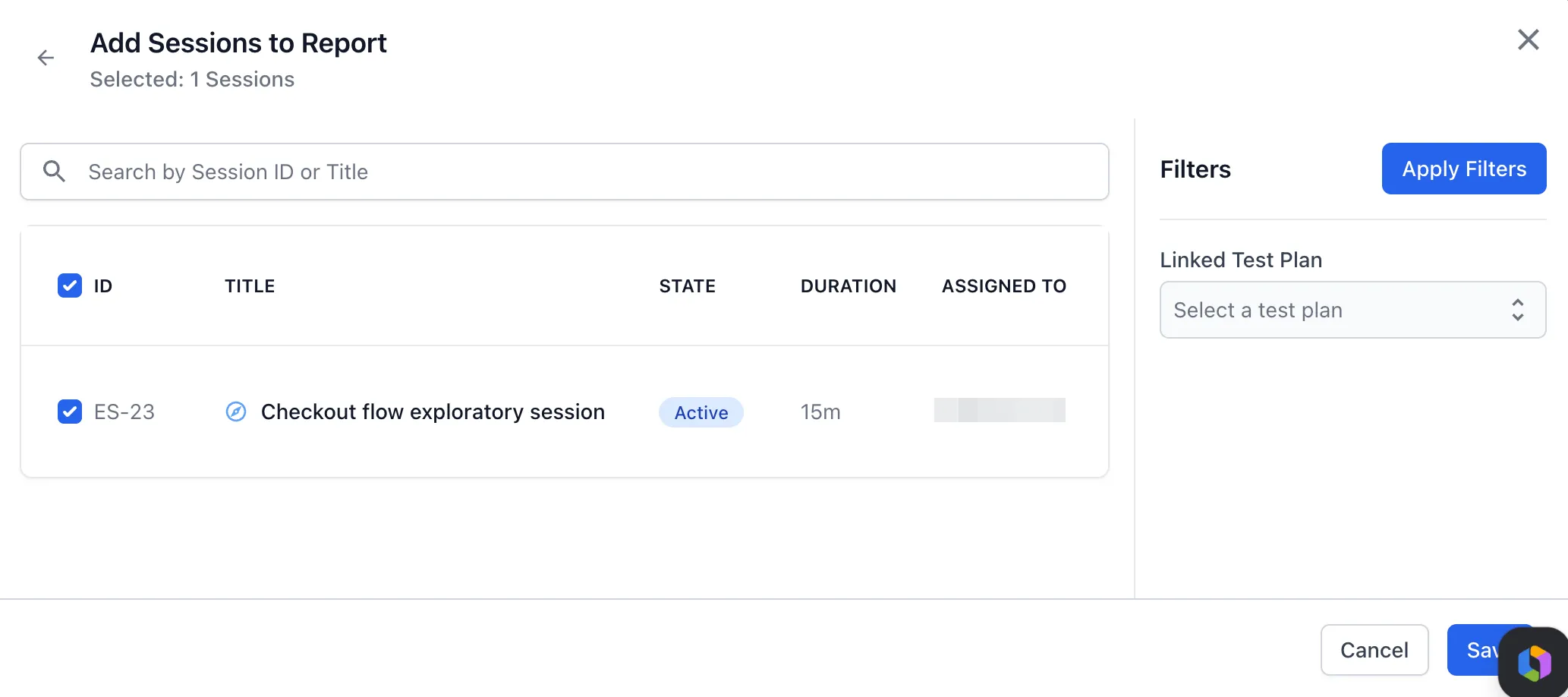
When you select Specific Session(s), click Add to open the Add Sessions to Report picker. Search by session ID or title, or filter by Linked Test Plan. Select the sessions you want, then click Save.
This report also accepts advanced filters. Expand Advanced Filters in the Create Report window. You can narrow the report by test case status, type, priority, assignee, and automation status.
Next steps
- Use advanced filters to narrow the sessions the report covers.
- Share and download reports with your team.
- Choose another report for a different view.
We're sorry to hear that. Please share your feedback so we can do better
Contact our Support team for immediate help while we work on improving our docs.
We're continuously improving our docs. We'd love to know what you liked
We're sorry to hear that. Please share your feedback so we can do better
Contact our Support team for immediate help while we work on improving our docs.
We're continuously improving our docs. We'd love to know what you liked
Thank you for your valuable feedback!