
 Join our Discord
Reports
Understand the reports in BrowserStack Test Management for Jira, choose the right one for your goal, and learn how to create and share them.
Reports turn your test runs, test cases, and test plans into a shareable view of testing progress. Each report answers a different question, from a quick pass or fail summary to a full coverage audit. You create every report from the Reports section of your project, then schedule, share, or download it.
Choose the right report
Test Management for Jira offers six report types. Use the following table to pick the one that matches your goal:
| Report | What it shows | Use it when you want to |
|---|---|---|
| Test run summary report | A high-level pass, fail, and progress breakdown across your test runs. | Share testing status with stakeholders at a glance. |
| Test run detailed report | Every test case in each run, with its latest result and linked Jira issues. | Investigate failures or verify results case by case. |
| Requirement traceability report | Which Jira requirements are covered by test cases, and their latest run results. | Prove test coverage and check release readiness. |
| Test case activity report | How your test case library changed, plus automation and AI coverage. | Track authoring effort and automation progress. |
| Test plan summary report | Overall progress and completion across your test plans. | Track how your planned testing cycles are progressing. |
| Exploratory session summary report | A summary of your session-based exploratory testing. | Review the outcomes of your exploratory testing sessions. |
Find your reports
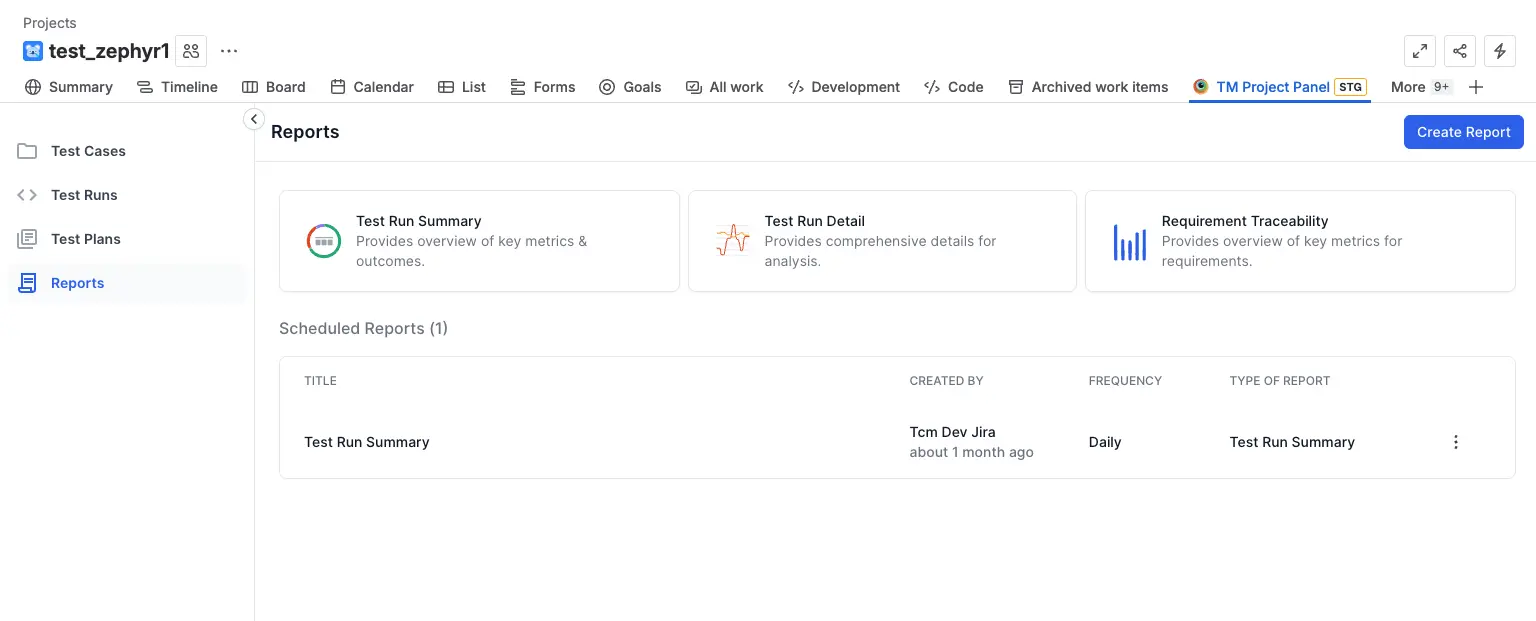
To open reporting, go to your project and click Reports in the left navigation. The Reports page has three parts:
- Quick-create tiles, one for each report type. Click a tile to generate that report with default settings.
- Create Report, which opens the full setup where you build any of the six report types.
- Scheduled Reports, a list of every report you have created, with its owner, schedule frequency, and type. A report you have not scheduled shows Unscheduled.
Next steps
- Create a report and choose what it covers.
- Use advanced filters to narrow a report to the data you need.
- Share and download reports with your team.
We're sorry to hear that. Please share your feedback so we can do better
Contact our Support team for immediate help while we work on improving our docs.
We're continuously improving our docs. We'd love to know what you liked
We're sorry to hear that. Please share your feedback so we can do better
Contact our Support team for immediate help while we work on improving our docs.
We're continuously improving our docs. We'd love to know what you liked
Thank you for your valuable feedback!