
 Join our Discord
Troubleshoot the BrowserStack Test Management (Webapp) Integration for Jira app
Fix common problems with the BrowserStack Test Management (Webapp) Integration for Jira app, from a missing API token to a result that is not on the issue.
The BrowserStack Test Management (Webapp) Integration for Jira app connects Jira Cloud to the Test Management web app. BrowserStack Test Management for Jira is a different app. It runs test management inside Jira and has its own troubleshooting guides.
Each section starts with what you see in Jira, then gives the cause and the fix. Some fixes need a Jira administrator, and some need a BrowserStack group admin. These can be different people.
No Test Management integration configured yet message
You open a Jira issue, click the Apps icon, and select BrowserStack. The panel shows this message:
No Test Management integration configured yet.
Please ask your Jira administrator to configure the integration in Jira under Apps > Manage your apps.

The app is installed, but no Test Management API token is saved. Until a Jira administrator saves a token, the app is not connected to any BrowserStack account. Every user on the Jira site sees this message. Uninstalling the app also removes its saved token, so the message returns after a reinstall.
Solution: Save a Test Management API token in the app’s configuration page. The token comes from one of two BrowserStack accounts:
| Token owner | Use case | Details |
|---|---|---|
| BrowserStack group admin | Default choice and the fastest to set up | No extra cost. The token contains the admin’s username. |
| Service account | You do not want the integration tied to a person | Create a service account and give it product admin access for Test Management. Depending on your plan, the service account can use a license. |
To save the token, do the following:
- Sign in to Test Management as the group admin or the service account.
-
Navigate to Settings > API Keys and copy the API token. The token has the format
username:accesskey.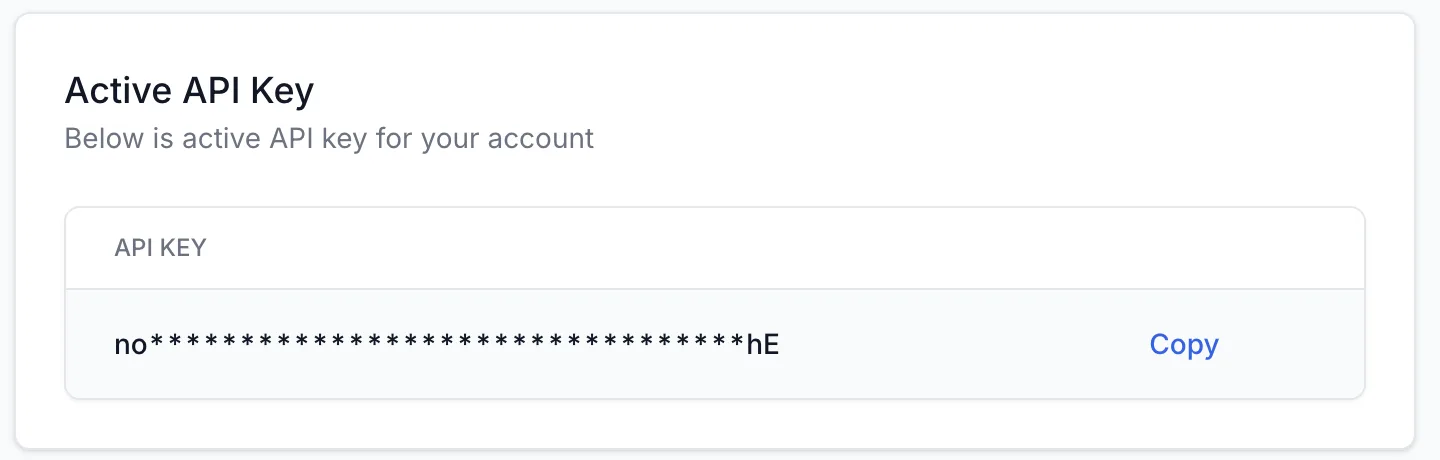
- As a Jira administrator, navigate to Apps > Manage your apps and open the BrowserStack configuration page.
-
Paste the token in the API Token field, then click Save Configuration.
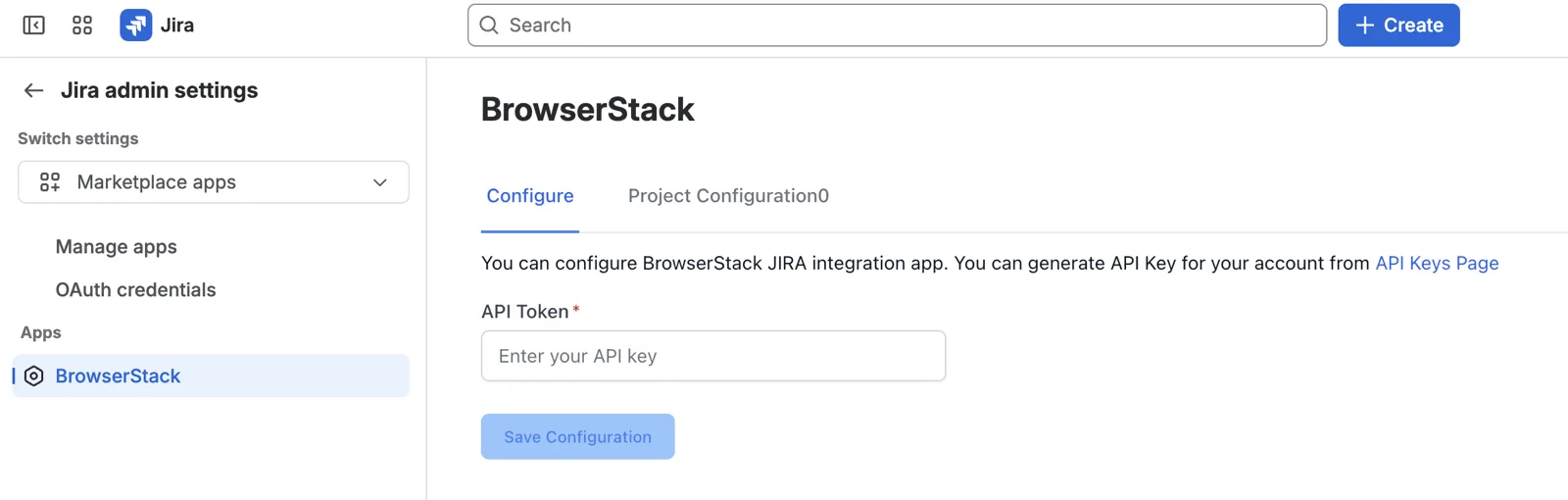
For the full setup, see Integrate the Jira app for cloud.
- Reload the Jira issue.
If the configuration page shows Entered API Token is invalid. Configuration is not saved., copy the token again. The token must include the username: part.
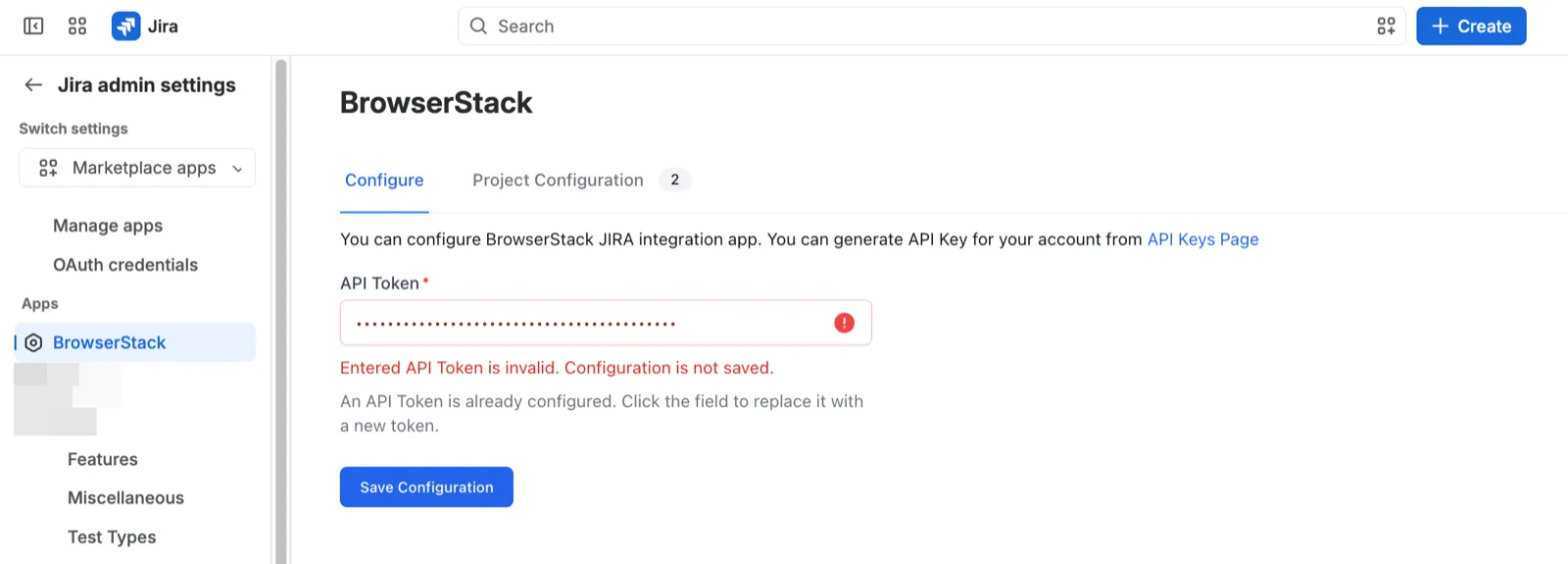
The token only connects the Jira site to the BrowserStack account. It does not make the token owner the actor for other users. Each user keeps their own Test Management role and permissions. You save the token once for the whole Jira site. Individual users do not add their own token. They only need to be in the BrowserStack group, as described in Configuration Failed message for some users below.
BrowserStack does not appear in a Jira issue
The app is available in all Jira projects by default, unless a Jira administrator disables it for a project. When an issue shows no BrowserStack section, one of the following is the cause:
- The app does not add itself to the issue view. You open it from the Apps icon on the issue.
- The project is on the app’s Disabled Projects list.
- The project’s visibility setting is out of sync. The configuration page shows the project as enabled, but Jira still hides the app.
Solution: Open the Jira issue, click the Apps icon, and select BrowserStack.
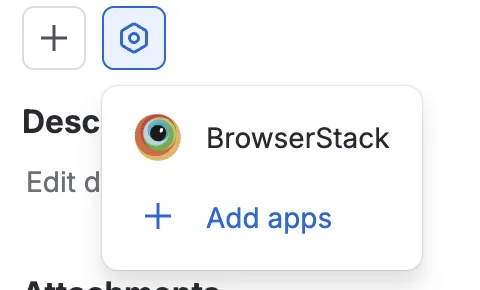
When BrowserStack is not in that list, a Jira administrator does the following:
- In Jira, navigate to Apps > Manage your apps.
-
In the left sidebar, under Apps, click BrowserStack.
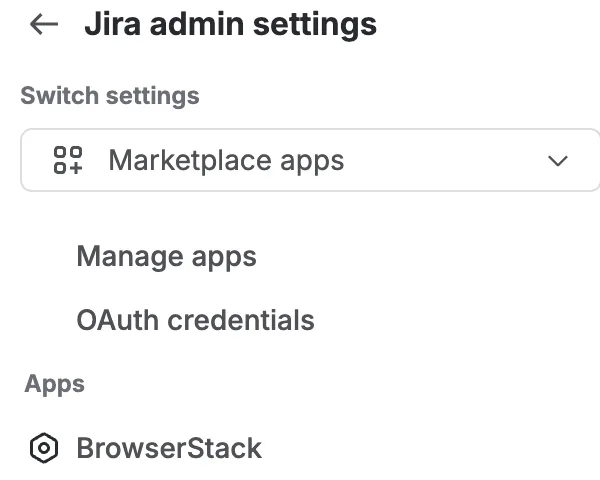
-
Open the Project Configuration tab.
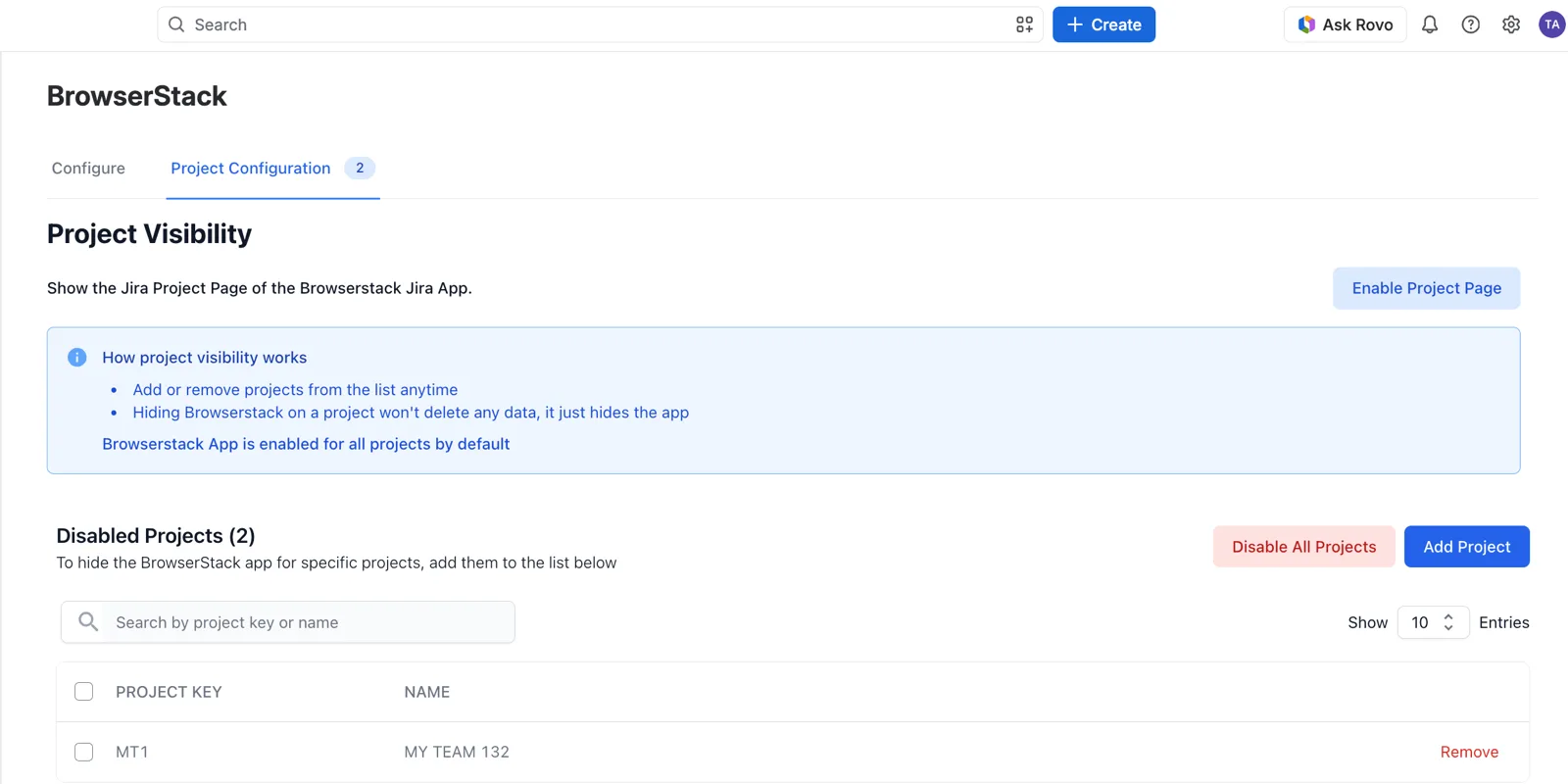
- If the project is in Disabled Projects, click Remove in its row.
- If the project is not listed, click Add Project to add it to Disabled Projects, then click Remove in its row. This resets the project’s visibility setting.
For the full steps with screenshots, see Project-level configuration for Jira app.
Configuration Failed message for some users
The app works for some team members. Others see this message:
Configuration Failed: Admin Help Needed
Please ask your BrowserStack Administrator to add you to the organisation's BrowserStack account. They can follow the simple setup steps here.
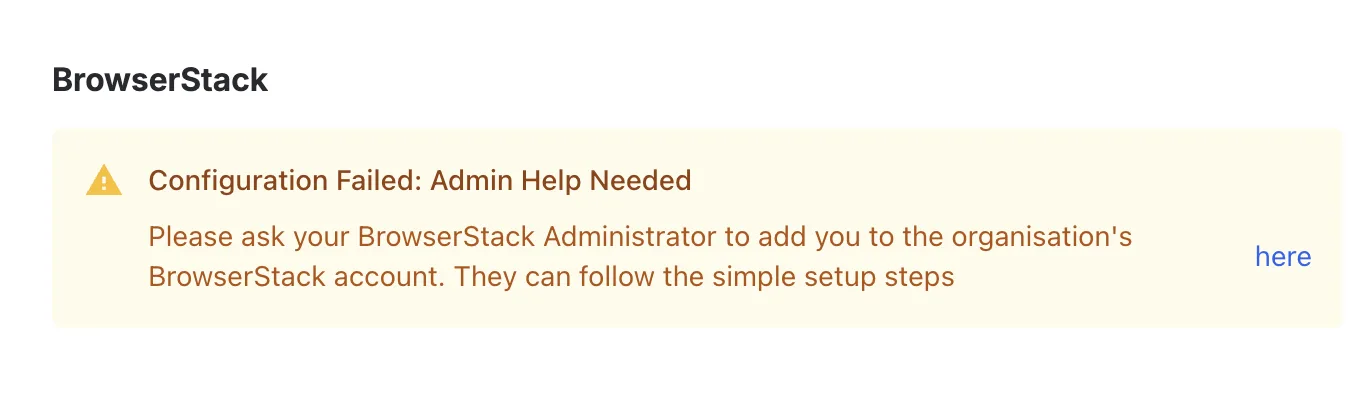
The app setup is fine. The problem is this user’s access. The app matches each user’s Jira email address to a user in the connected BrowserStack group. This user’s email address is not in the group, or it is in the group under a different address. Or the address is in the group but has no Test Management access.
Solution: A BrowserStack group admin does the following:
- Invite the user’s Jira email address to the BrowserStack group. The address must match the Jira address exactly.
- Assign the user a Test Management role. See Role-Based Access Control.
- Ask the user to reload the Jira issue.
Test result does not appear on the Jira issue
A result appears on a Jira issue only when you selected that issue in the Issues field while adding it. This also explains an issue that shows different results than you expect. Linking the test case to the issue is not enough. Each tab also shows a different set of results, so check that you are looking in the right place:
| Location | Results shown |
|---|---|
| Execution Results tab on the Jira issue | Every result that has this issue in its Issues field, across all test runs |
| Test Cases tab > test case > Results | Every result for this test case, across all test runs |
| Test Runs tab > test run > test case > Results | Results for this test case in this test run only |
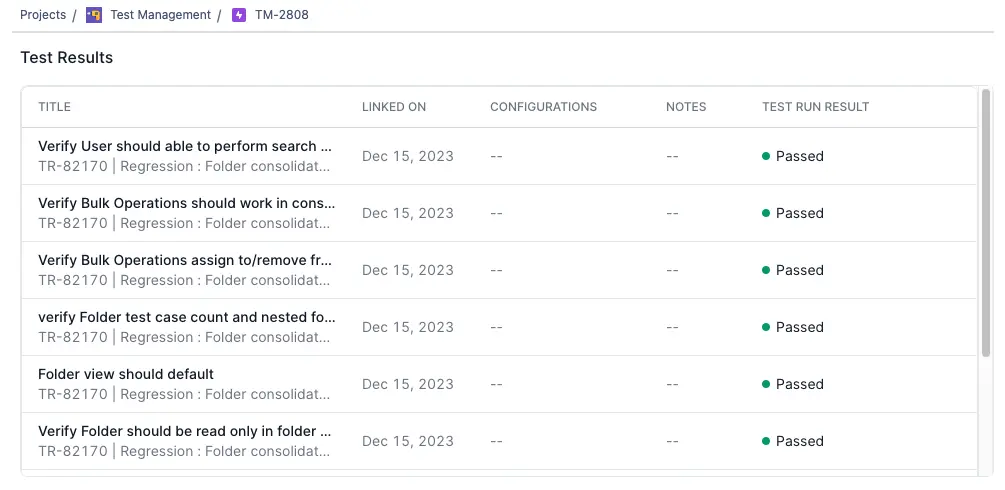
Solution: When you add a result, select the Jira issue in the Issues field under Test Result Fields. The result then shows in that issue’s Execution Results tab. See Add a result.
An announced feature or fix is missing
Small updates to the app install on their own. Updates that change the app’s permissions wait until a Jira administrator approves them. Until then, your site runs the older version. The feature or fix is missing, and Jira shows an update waiting for the BrowserStack app.
Solution: A Jira administrator does the following:
-
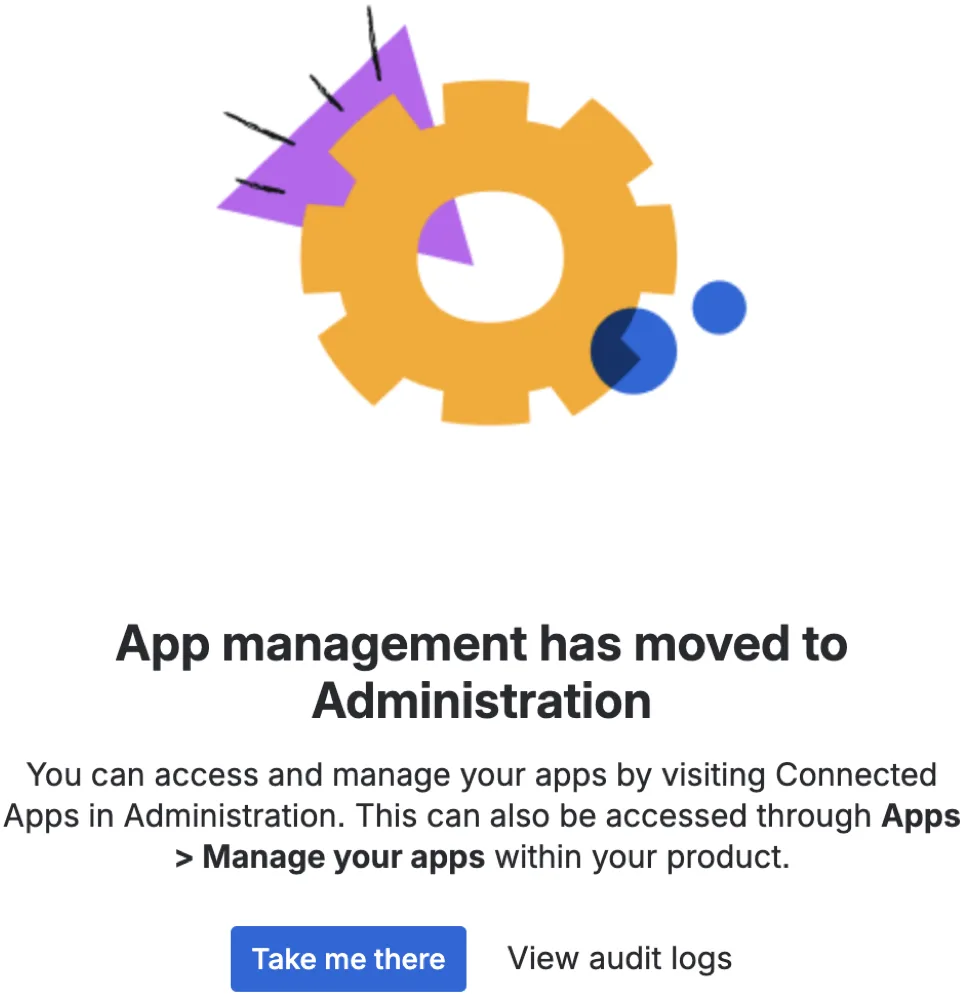
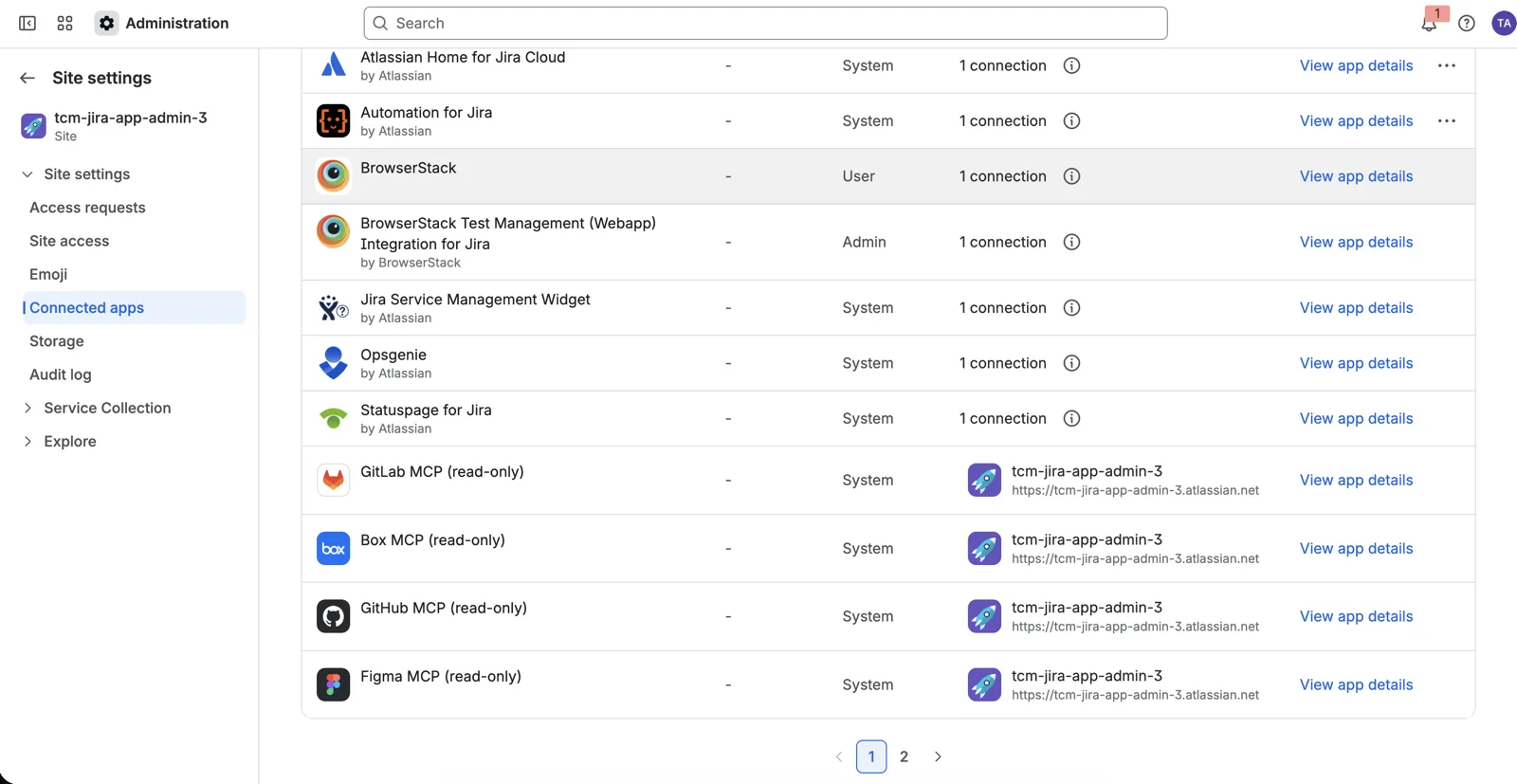
In Jira, navigate to Apps > Manage your apps. If Jira shows that app management has moved to Administration, click Take me there to open Connected apps.
-
Find BrowserStack Test Management (Webapp) Integration for Jira in the list of installed apps.
-
If an update is available, click Update, review the new permissions, and approve them.
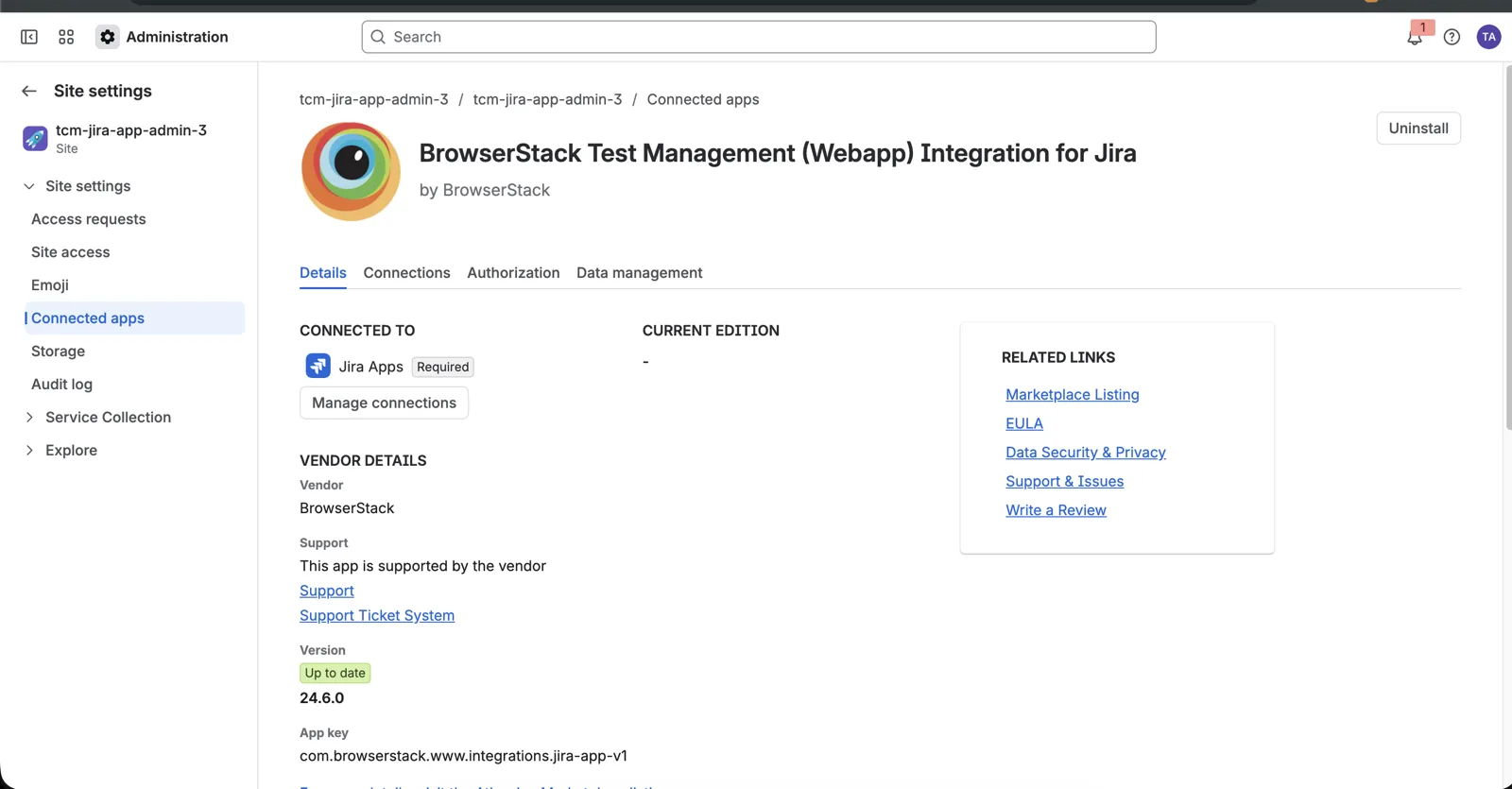
When the app is current, the Version section reads Up to date and no Update button appears.
-
Reload the Jira issue.
Updating keeps the app’s configuration and data. You do not need to uninstall and reinstall the app.
Next steps
- Integrate Test Management with Jira for the full install and configuration steps.
- Role-Based Access Control to assign Test Management roles.
We're sorry to hear that. Please share your feedback so we can do better
Contact our Support team for immediate help while we work on improving our docs.
We're continuously improving our docs. We'd love to know what you liked
We're sorry to hear that. Please share your feedback so we can do better
Contact our Support team for immediate help while we work on improving our docs.
We're continuously improving our docs. We'd love to know what you liked
Thank you for your valuable feedback!