
 Join our Discord
Troubleshoot differences in issue counts between reports
Understand why issue counts differ between App Accessibility reports, how to check for a rule engine update, and how to avoid unexpected differences.
Two BrowserStack App Accessibility reports of tests run on the same app may show different issue counts even when the app hasn’t changed. When you compare these two build runs, the Understand why your issue count has changed dialog on the Compare build runs page lists the likely causes.
Issue counts usually differ for one of the following reasons:
- different scan settings
- a rule engine update between the scans
- changes to the app
- scans that captured different screens
Find the settings a report used
Every report records the settings its scans ran with, including the rule engine version. Compare these details across the two reports before you look at individual issues. The following table shows where to find the details in each type of report:
| Report | Where to find the details | What the details show |
|---|---|---|
| Workflow Analyzer session | Scan Details in the session panel | Build version, package name, device, OS, rule engine version, and the settings for Needs Review, best practices, and experimental rules |
| Manual Test Report | Scan Details in the report header | Build version, package name, device, OS, rule engine version, and the settings for Needs Review, best practices, and experimental rules |
| Consolidated report | View scan details on the All issues tab, for each scan | Source report, device, OS, package, WCAG version, and rule engine version |
| Automated Tests build report | View metadata in the report header | Project name, rule engine version, the settings for Needs Review, best practices, and experimental rules, number of tests, and build ID |
| Compare build runs | Scan details below the page title | For the base run and the new run: WCAG version, rule engine version, Best Practices, Needs Review, Auto Scan, and number of tests |
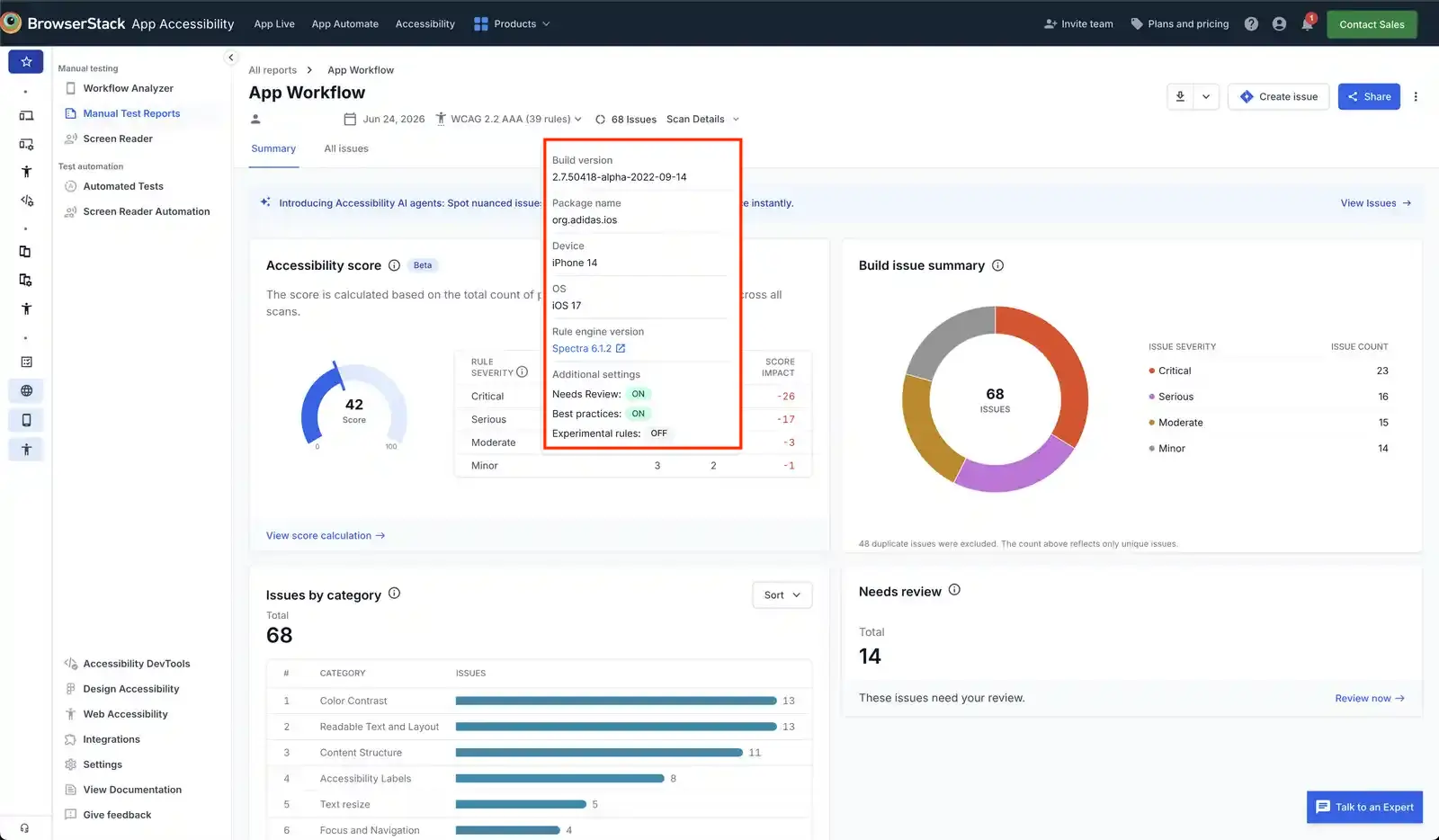
Reports created before rule engine versioning began don’t show the rule engine version in the report details.
Test configuration differs between reports
The accessibility standard and the rules that a scan checks depend on how you configure your tests. Two scans with different settings report different issues even on identical screens. For manual tests, see Configuration options for Workflow Analyzer. For automated tests, see Configuration options.
How to check whether the configuration differs
- Open the details for both reports as described in Find the settings a report used.
- Compare the accessibility standard and each setting.
- For automated tests, also compare the
accessibilityOptionsblock of each build, includingwcagVersion,excludeRule,excludeRuleCategory, and the keys underincludeIssueType. You set these keys in your test configuration file, for examplebrowserstack.yml, or inwdio.conf.jsfor WebdriverIO tests. If your organization enforces rule engine configuration, the report details show the enforced settings, which override these keys. - For a consolidated report, check for the Config differences warning in the report header. The warning appears when the source reports used different standards or settings.
How to avoid configuration differences
- Keep the scan settings the same across the sessions or builds.
- Ask an Owner or Admin to enforce the settings for your organization through the rule engine configuration. Enforced settings apply to sessions and builds started after the change, so earlier scans keep their original settings.
The Compare build runs page compares only builds with the same app package name, build name, accessibility standard, and number of tests. Builds that differ in other settings can be compared, but the comparison view warns that the results might not be fully reliable. See the comparability requirements.
Rule engine updates
BrowserStack updates the Spectra™ rule engine to add rules, refine how existing rules detect issues, and remove rules. When BrowserStack generates two reports using different engine versions, the issue counts can differ even though your app and settings didn’t change. Android and iOS have separate versions, for example Spectra Android 2.0.2 and Spectra iOS 1.0.2.
How to check whether the difference is due to a rule engine update
- Open the details for both reports as described in Find the settings a report used and note the Rule engine version of each.
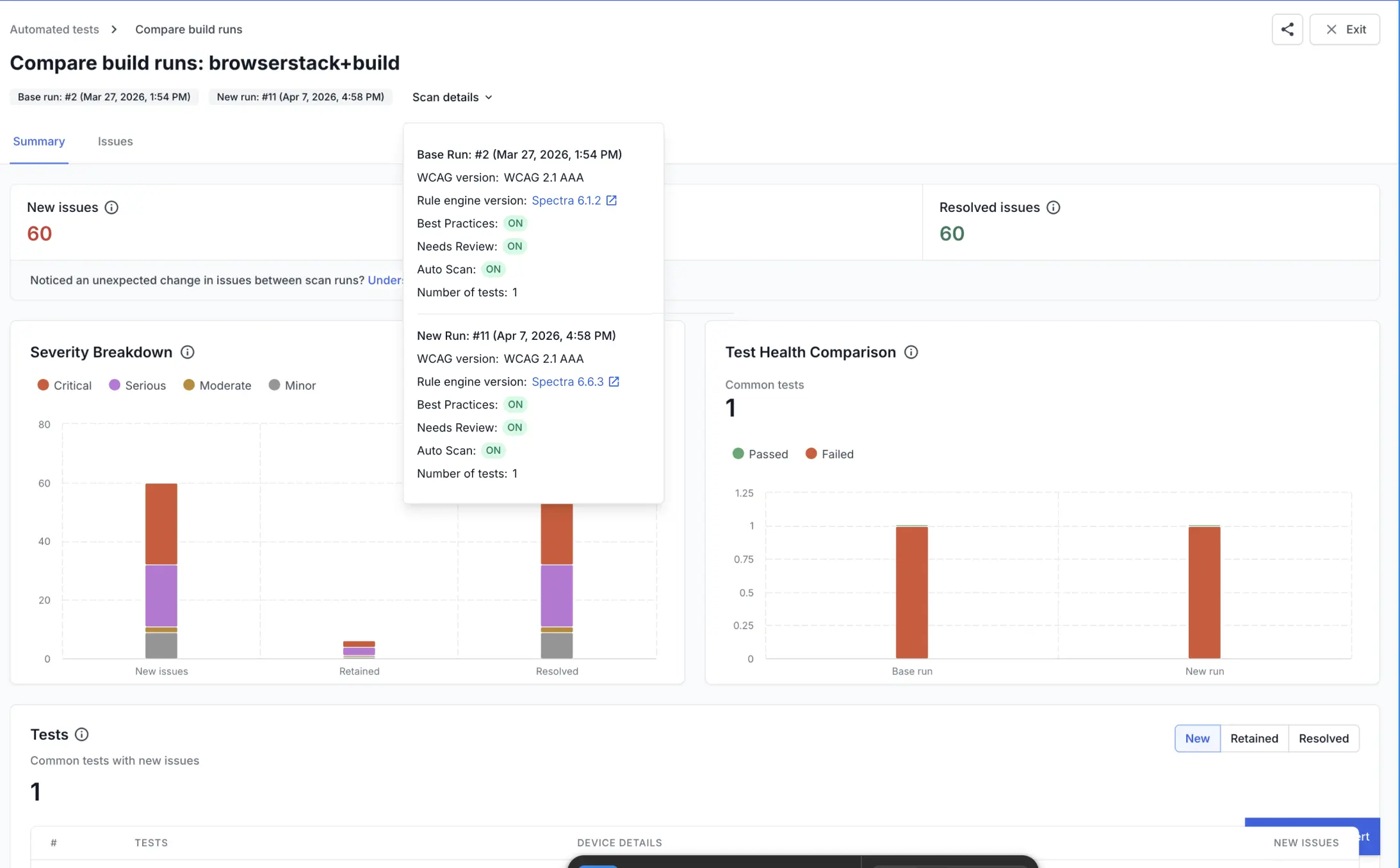
- If the versions differ, click the link for the newer version to open its release notes. If more than one release separates the two versions, also open the release notes for each version in between. All versions are listed on the rule engine release notes page.
- Match the changes in the release notes against the issues that changed between your reports. New or resolved issues under any rule listed as added, updated, or removed between the two versions are due to the update. On the Compare build runs page, open the Issues tab and filter by New issues or Resolved issues to see the rule for each changed issue.
Rule engine updates can also change the accessibility score. For details, see Accessibility score calculation.
App code or content changes
Changes to your app’s code, layouts, or content can introduce new accessibility issues or resolve issues reported earlier.
How to check whether the app changed between the reports
- For Workflow Analyzer sessions and Manual Test Reports, compare the Build version and Package name in the details of both reports. For automated tests, check whether both builds tested the same version of the app.
- Check with your team for new releases, content updates, or layout changes made between the scans.
- Review the new issues and check whether the changed screens or components caused those issues.
Dynamic or variable content
Content that differs from one session to the next changes what each scan captures. Common examples in apps are ads, carousels, promotional banners, one-time onboarding screens, permission prompts, content that loads after a delay, and content that depends on the signed-in account, location, or device language. An issue on an element captured only in the new run is reported as new, and an issue on an element captured only in the base run is reported as resolved.
How to check whether dynamic content caused the difference
- Open the scans in both reports and compare the captured screens.
- Look for issues on elements that are present in one report but not the other.
How to reduce differences from dynamic content
- Use the same test account, test data, and device language for the scans you compare.
- In Workflow Analyzer, wait for a screen to finish loading before you scan it, and dismiss one-time screens the same way in every session. You must turn off continuous scanning to control when a screen is scanned.
- In automated tests, turn off automatic scans and use the start and stop scanning API methods to scan each screen after it has loaded. For instructions, see Start and stop App Accessibility scans.
Different screens scanned or tests run
A report contains issues only from the screens the scans captured, so two reports that cover different screens show different counts.
In Workflow Analyzer, the screens you scan depend on how you move through the app and on whether continuous scanning is on. In automated tests, the screens depend on which tests are in the accessibility testing scope and at which point in the test the scans ran.
How to check whether the reports cover the same screens and tests
- For Workflow Analyzer sessions and Manual Test Reports, compare the number of scans in each report.
- Compare the actual screens the scans captured.
- On the Compare build runs page, check the Test health comparison widget for the number of common tests and for tests that failed in one run.
- For automated tests, compare the
includeTagsInTestingScopeandexcludeTagsInTestingScopekeys in the configuration of each build. These keys determine which tests are in the accessibility testing scope, so a change to either key changes which screens are scanned. Additionally, check whether tests were added, removed, or renamed between the builds. For details on the keys, see Specify testing scope.
How to make sure the same screens are scanned and the same tests are run
- Repeat the same workflow in every Workflow Analyzer session you plan to compare.
- Keep the same tests in the accessibility testing scope across builds, and fix failing tests before you compare.
Different devices or OS versions
The same screen renders differently on different devices and OS versions. Screen size and pixel density affect the results of rules such as touch target size and text truncation. Device settings for font size, display size, and dark mode change the layout and color contrast.
How to check whether the device differs
- Compare the Device and OS in the details of both reports.
- On the Compare build runs page, check the Device details column in the Tests section.
How to avoid device-related differences
- Scan on the same device model and OS version.
- Keep the device’s font size, display size, and dark mode settings the same.
- Compare reports from the same platform, for example Android with Android, and iOS with iOS.
Hidden issues and Needs Review decisions
Actions you take on issues after a scan also change the count. Hiding or un-hiding issues, confirming or rejecting Needs Review issues, and hiding duplicate issues can all create a difference between two scans. A consolidated report also deduplicates across its source reports.
The Compare build runs page counts only confirmed issues and issues in the Needs Review state. The page excludes hidden issues and issues marked as non-issues.
How to check whether these actions caused the difference
- Review the hidden issues in each report.
- Compare the Needs Review counts and the decisions you made on those issues in each report.
Other causes
If none of these causes explains the difference in issue counts, contact BrowserStack Support and share the links to both reports along with the list of issues that changed.
Related topics
- Compare automated test reports
- Consolidate Workflow Analyzer reports
- Rule engine release notes
- Configure the rule engine
- Accessibility score calculation
We're sorry to hear that. Please share your feedback so we can do better
Contact our Support team for immediate help while we work on improving our docs.
We're continuously improving our docs. We'd love to know what you liked
We're sorry to hear that. Please share your feedback so we can do better
Contact our Support team for immediate help while we work on improving our docs.
We're continuously improving our docs. We'd love to know what you liked
Thank you for your valuable feedback!