Get your setup working faster. Join our Discord for optimisation tips from elite testers.Join our Discord
Integrate your TestNG test suite with BrowserStack Automated App Testing
BrowserStack’s Appium TestNG SDK supports a plug-and-play integration. Run your entire appium based automated test suite in parallel with a few steps!
Ready to integrate your existing Java Appium test suite with BrowserStack? This document walks you through the simple steps to connect your tests to our cloud infrastructure and start running them on real devices. You’ll learn how to configure your environment, upload your app, and execute tests seamlessly on BrowserStack’s device cloud.
Prerequisites
An existing appium based automated test suite.
Ensure you’re using Java v8+. If using Gradle, Java v9+ is required.
Maven is installed on your machine, its environment variables are set, and its bin is added to system path, $PATH(This is only applicable to mac/linux systems).
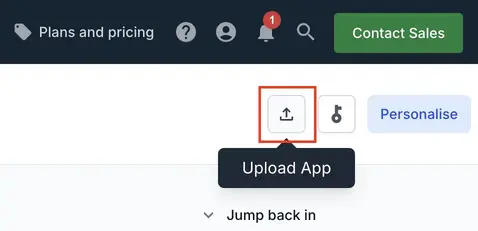
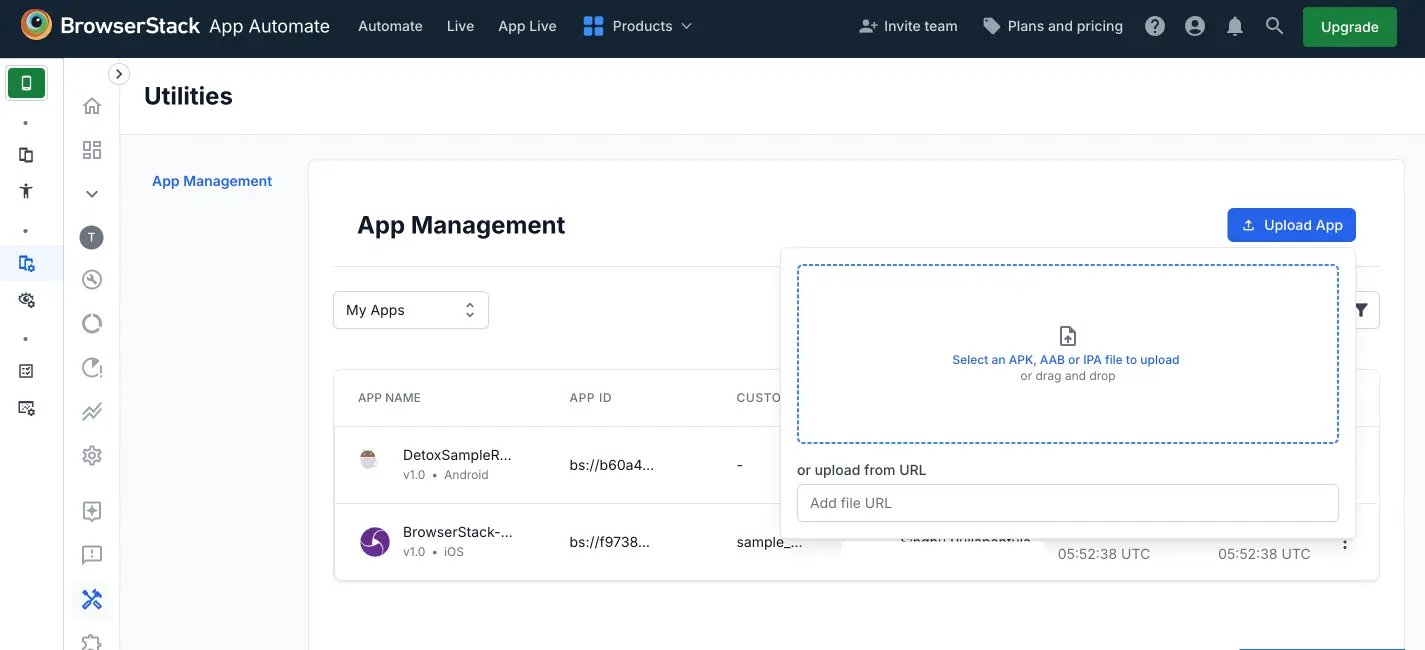
Select the app you want to upload from your filesystem. If you are uploading the app using a public URL, paste the URL of your app in the or upload from URL box.
After selecting the app, choose the App Automate framework you want to use for testing. You can optionally add flags and a custom ID.
Click Upload. The app is uploaded to the BrowserStack servers. You’ll receive an App ID, which you can use to run tests.
Facing issues with app upload? Visit the Troubleshooting section at the bottom of this page.
Configure your test suite with BrowserStack SDK
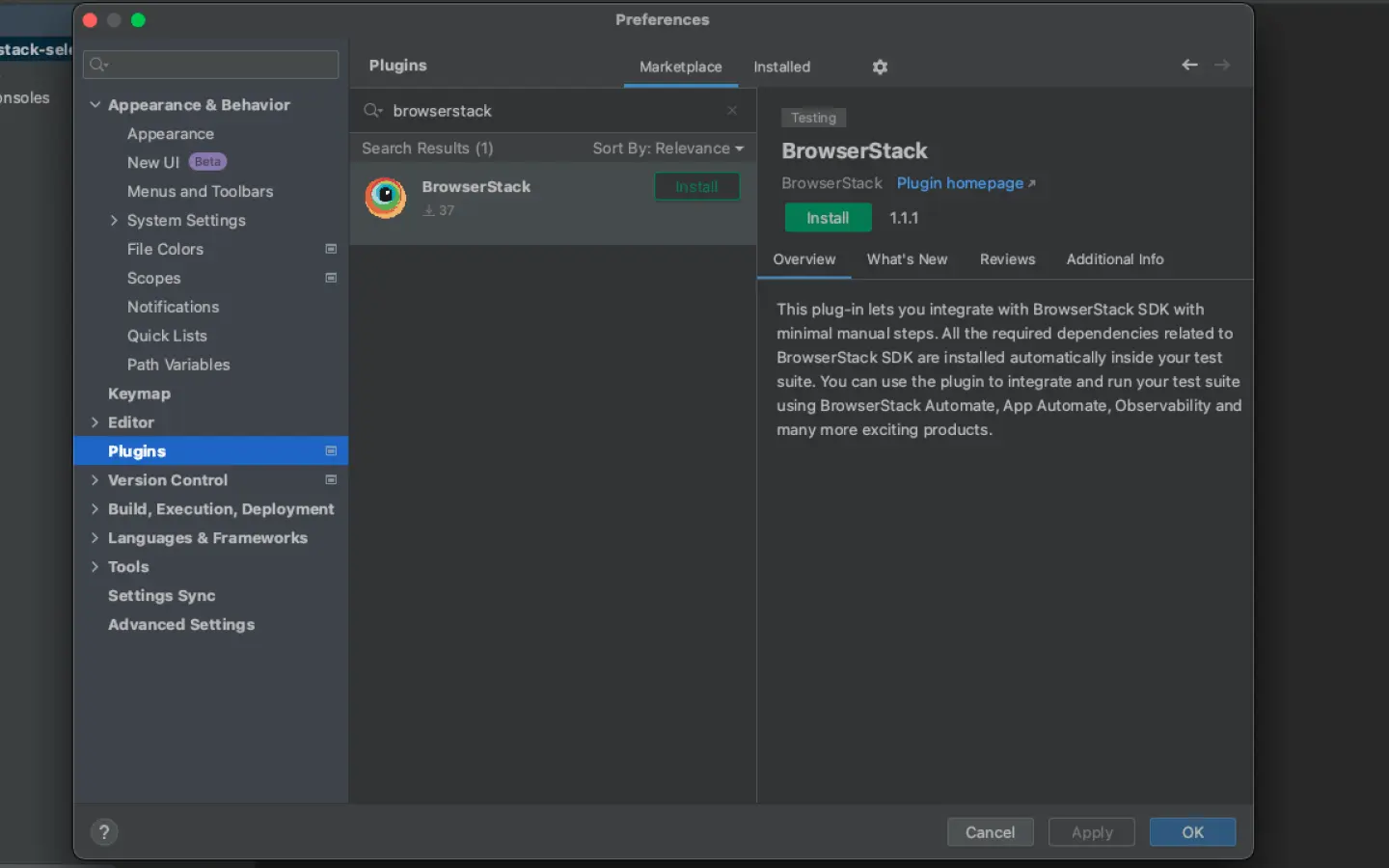
BrowserStack plugin automatically adds the browserstack-java-sdk dependency to your pom.xml file and generates a browserstack.yml configuration file.
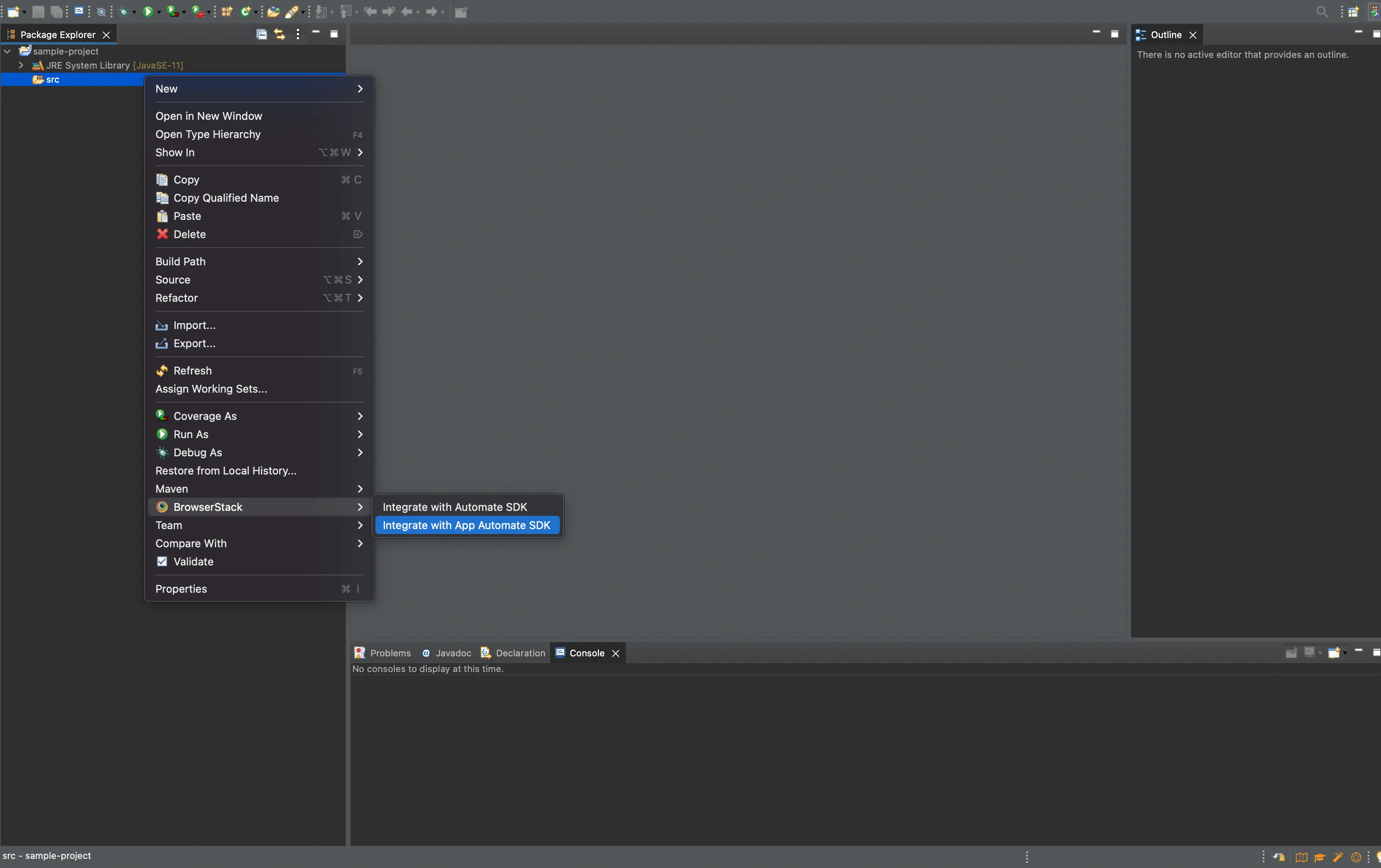
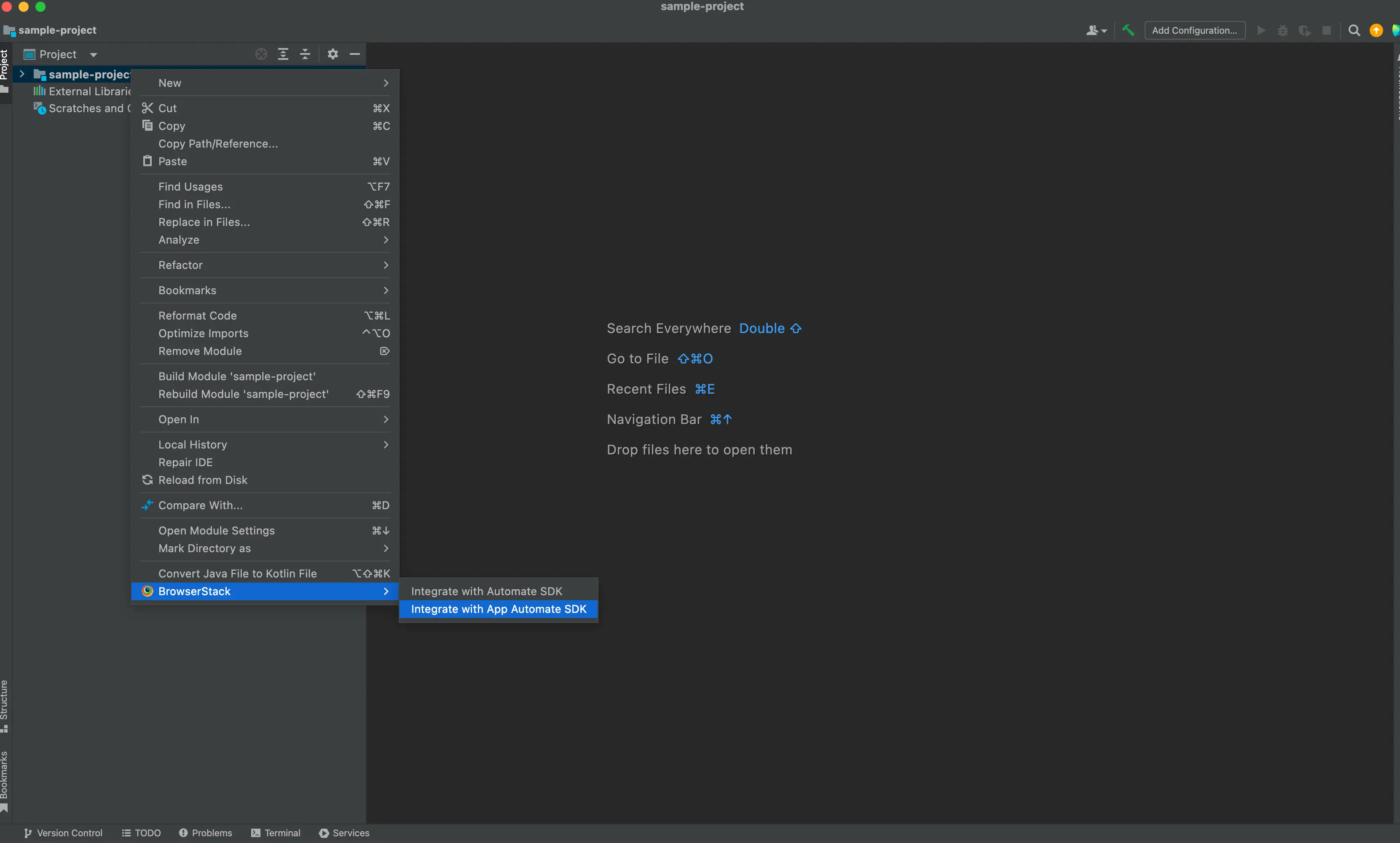
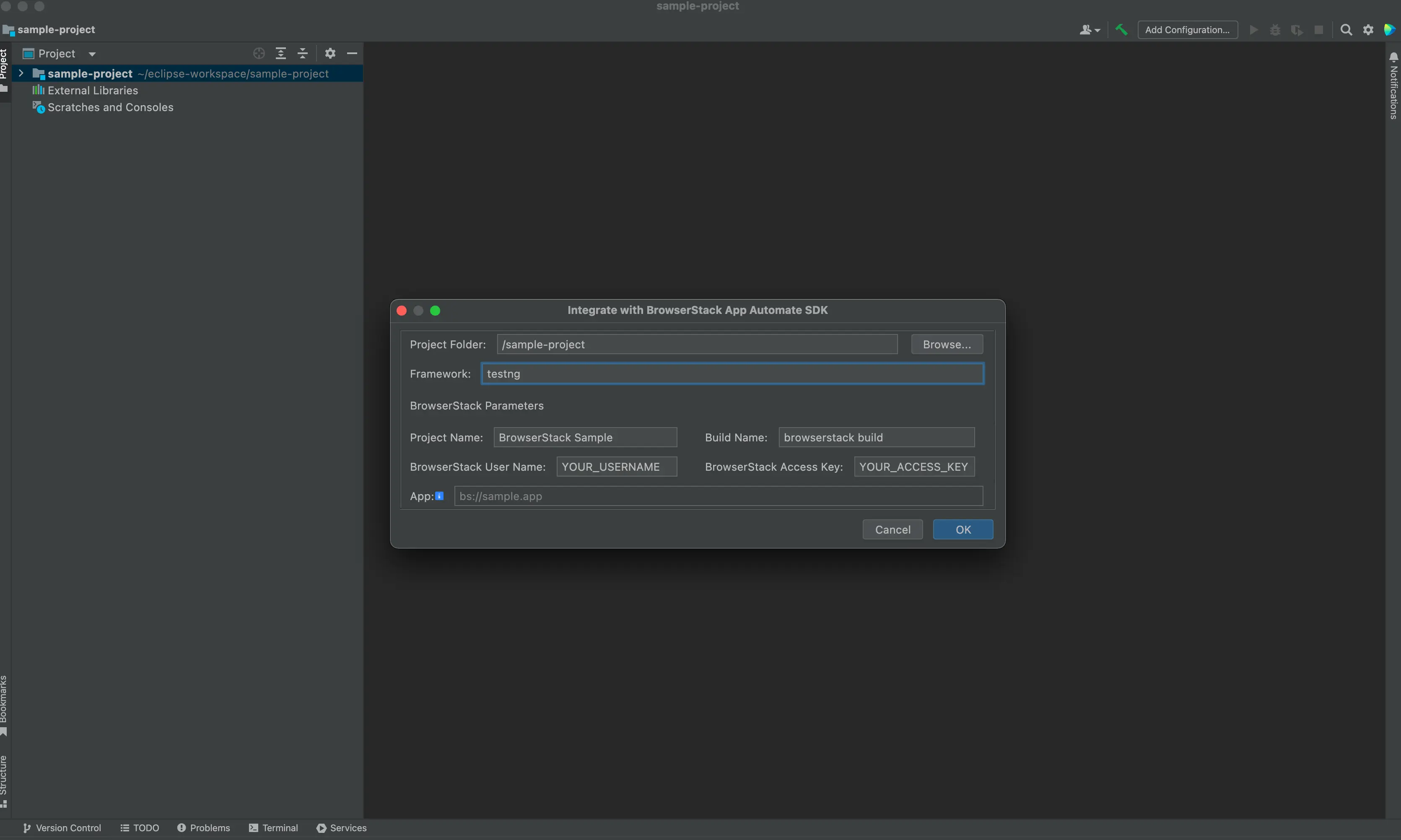
Right-click on your project folder > BrowserStack > select Integrate with App Automate SDK.
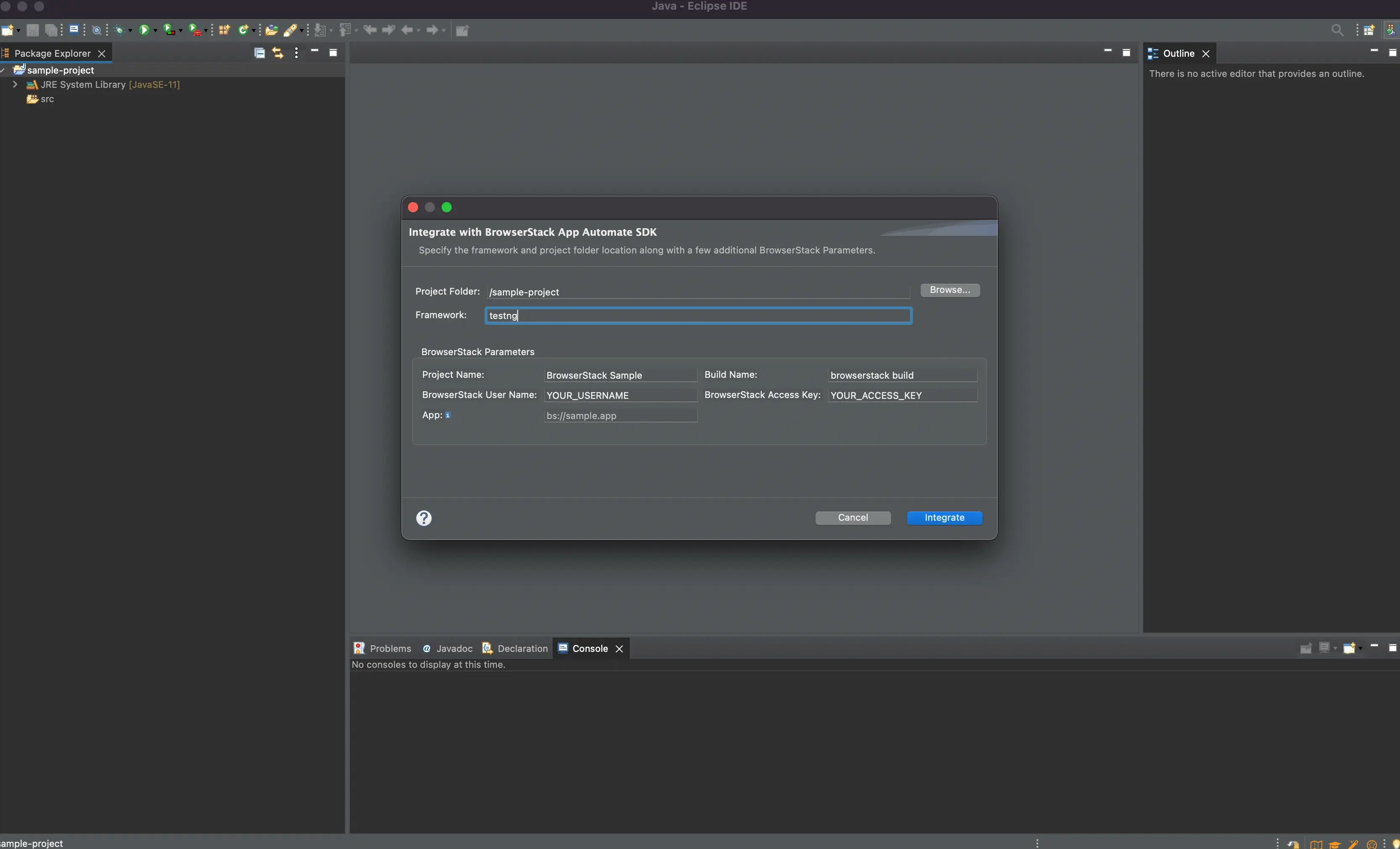
Select your Project Folder, Framework, and other BrowserStack Parameters, and then click Integrate.
Framework: testng
BrowserStack User Name: YOUR_USERNAME
BrowserStack Access Key: YOUR_ACCESS_KEY
Update your BrowserStack config file
After installing the SDK, create a browserstack.yml config file at the root level of your project. This file holds all the required capabilities to run tests on BrowserStack.
Set app to be tested
The app property determines the app to be tested. You can upload an Android app (.apk, .aab, or .xapk file) or an iOS app (.ipa file) from your local filesystem.
Supported method
Description
path(Recommended)
SDK uploads the app using the specified relative or absolute path. Eg: app: ./SampleApp.apk.
Note:
Check out how to create IPA files for iOS app testing on BrowserStack.
App
Set the path to your app. Or, if you have already uploaded your app, provide one of the other acceptable app property values here
Set the devices you want to test under the platforms object.
Parallel thread
#1
Windows 10
Chrome 120
Parallel thread
#2
OS X Monterey
Safari 15.6
Parallel thread
#3
iOS 15
iPhone 13
Do you want to dynamically configure platforms?
To dynamically configure platforms across different tests, you can comment out the platforms capability while still passing platform-specific capabilities.
Set number of parallel threads per platform
The parallelsPerPlatform property determines the number of parallel threads to be executed. BrowserStack’s SDK runner will select the best strategy based on the configured value.
Example 1: If you have configured 3 platforms and set parallelsPerPlatform as 2: a total of 6 (3 x 2) parallel threads will be used on BrowserStack.
Example 2: If you have configured 1 platform and set parallelsPerPlatform as 15: a total of 15 (1 x 15) parallel threads will be used on BrowserStack.
Do you want to perform cross-browser testing without test level parallelization?
Remove the parallelsPerPlatform capability from the configuration file.
Do you want to test parallelization without performing cross-browser testing?
Remove or comment out the platform capability while keeping the parallelsPerPlatform capability intact in the configuration file.
Do you want to skip cross-browser testing as well as parallelization?
Remove or comment out the platform and parallelsPerPlatform capabilities from the configuration file.
BrowserStack Reporting
You can leverage BrowserStack’s extensive reporting features using the following capabilities:
Build Name
Set a name to your build (usually the same as the build ID that’s on your CI/CD platform). Accepted characters: A-Z, a-z, 0-9, ., :, -, [], /, @, &, ', _. All other characters are ignored. Character limit: 255
Project Name
Set a project name for your project
The projectName and buildName config must be static and not change across different runs of the same build. This is a deviation in approach as specified by BrowserStack Automate or App Automate as Test Reporting & Analytics will automatically identify different build runs.
Restrict the characters in your projectName and buildName to alphanumeric characters (A-Z, a-z, 0-9), underscores (_), colons (:), square brackets ([, ]), and hyphens (-). Any other character will be replaced with an underscore (_).
Do you want to enable/disable auto-marking of test status and session?
The sessionName and sessionStatus are the names of your test sessions and status of your test sessions respectively. They are automatically picked from your test class/spec names and statuses. They do not need to be set manually when using the BrowserStack SDK. To override the sessionName and sessionStatus capabilities, use the following in your browserstack.yml file:
You can configure local testing to start without initializing the BrowserStack binary, or even with an existing binary using a local identifier
To enhance your testing experience on BrowserStack, you can enable additional features such as Local Testing, debugging features, visual testing, and accessibility testing by adding the respective capabilities in your browserstack.yml file.
Enable BrowserStack Local
Enable BrowserStack Local
Test apps with local/staging api servers
True
False
Test apps locally with local/staging api servers
BrowserStack’s Local Testing feature connects with locally hosted api servers to run your apps
BrowserStack Local supports all advanced use cases and restricted networks. Contact our support team for assistance in configuring BrowserStack Local for your enterprise.
Use additional debugging features
Use additional debugging features
By default, BrowserStack provides prettified session logs, screenshots on every failed command, and a video of the entire test. Additionally, you can enable the following features:
Visual logs
Enables screenshots for every command ran
True
False
Network logs
Enables network capture for the session in HAR format. Reduces session performance slightly
True
False
Use App Percy Visual Testing
Use App Percy Visual Testing
App Percy is an all-in-one visual testing and review platform enabling teams to automate visual tests, detect visual bugs, and provide valuable insights into UI changes.
Percy Visual Testing
Enable visual testing to automatically identify and highlight visual UI changes.
Note: Using App Percy to perform Visual testing affects the performance of your App Automate tests.
True
False
Percy Capture Mode
Select a capture mode for your visual testing.
auto
auto
testcase
click
screenshot
manual
percyCaptureMode takes effect only if you set percy to true. If you set the capture mode to manual, ensure you use the Percy Screenshot function in your test script.
Use App Accessibility Testing
Use App Accessibility Testing
App Accessibility evaluates and reports app accessibility issues through comprehensive testing and reporting on real devices, ensuring compliance and reaching a wider audience.
App Accessibility Testing
Enable accessibility testing to automatically identify and highlight accessibility issues with your app.
Note: Using App Accessibility testing affects the performance of your App Automate tests.
True
False
Update browserstack.yml file
Update browserstack.yml file in the root folder of your test suite and add the adjacent code to it.
```yml
userName: YOUR_USERNAME
accessKey: YOUR_ACCESS_KEY
framework: testng
app: YOUR_APP_ID
platforms:
- YOUR_FIRST_OS_TYPE: YOUR_FIRST_OS
YOUR_FIRST_BROWSER_TYPE: YOUR_FIRST_BROWSER
YOUR_FIRST_BROWSER_VERSION_TYPE: "YOUR_FIRST_BROWSER_VERSION"
- YOUR_SECOND_OS_TYPE: YOUR_SECOND_OS
YOUR_SECOND_BROWSER_TYPE: YOUR_SECOND_BROWSER
YOUR_SECOND_BROWSER_VERSION_TYPE: "YOUR_SECOND_BROWSER_VERSION"
- YOUR_THIRD_OS_TYPE: YOUR_THIRD_OS
YOUR_THIRD_BROWSER_TYPE: YOUR_THIRD_BROWSER
YOUR_THIRD_BROWSER_VERSION_TYPE: "YOUR_THIRD_BROWSER_VERSION"
parallelsPerPlatform: 1
YOUR_LOCAL_CAPS_TYPE: YOUR_LOCAL_CAPS
YOUR_BUILD_NAME_TYPE: YOUR_BUILD_NAME
YOUR_PROJECT_NAME_TYPE: YOUR_PROJECT_NAME
CUSTOM_TAG_1: "You can set a custom Build Tag here"
# Use CUSTOM_TAG_<N> and set more build tags as you need.
YOUR_DEBUG_CAPS_TYPE: YOUR_DEBUG_CAPS
YOUR_NETWORK_CAPS_TYPE: YOUR_NETWORK_CAPS
YOUR_PERCY_CAPS_TYPE: YOUR_PERCY_CAPS
YOUR_PERCY_CAPTURE_CAPS_TYPE: YOUR_PERCY_CAPTURE_CAPS
YOUR_APP_ACCESSIBILITY_CAPS_TYPE: YOUR_APP_ACCESSIBILITY_CAPS
```
Select the app you want to upload from your filesystem. If you are uploading the app using a public URL, paste the URL of your app in the or upload from URL box.
After selecting the app, choose the App Automate framework you want to use for testing. You can optionally add flags and a custom ID.
Click Upload. The app is uploaded to the BrowserStack servers. You’ll receive an App ID, which you can use to run tests.
Facing issues with app upload? Visit the Troubleshooting section at the bottom of this page.
Configure your test suite with BrowserStack SDK
BrowserStack plugin automatically adds the browserstack-java-sdk dependency to your pom.xml file and generates a browserstack.yml configuration file.
Right-click on your project folder > BrowserStack > select Integrate with App Automate SDK.
Select your Project Folder, add Framework and other BrowserStack Parameters then click OK.
Framework: testng
BrowserStack User Name: YOUR_USERNAME
BrowserStack Access Key: YOUR_ACCESS_KEY
Update your BrowserStack config file
Update browserstack.yml file in the root folder of your test suite and add the following code to it.
Set app to be tested
The app property determines the app to be tested. You can upload an Android app (.apk, .aab, or .xapk file) or an iOS app (.ipa file) from your local filesystem.
Supported method
Description
path(Recommended)
SDK uploads the app using the specified relative or absolute path. Eg: app: ./SampleApp.apk.
Check out how to create IPA files for iOS app testing on BrowserStack.
App
Set the path to your app. Or, if you have already uploaded your app, provide one of the other acceptable app property values here
Set the devices you want to test under the platforms object.
Parallel thread
#1
Windows 10
Chrome 120
Parallel thread
#2
OS X Monterey
Safari 15.6
Parallel thread
#3
iOS 15
iPhone 13
Do you want to dynamically configure platforms?
To dynamically configure platforms across different tests, you can comment out the platforms capability while still passing platform-specific capabilities.
Set number of parallel threads per platform
The parallelsPerPlatform property determines the number of parallel threads to be executed. BrowserStack’s SDK runner will select the best strategy based on the configured value.
Example 1: If you have configured 3 platforms and set parallelsPerPlatform as 2: a total of 6 (3 x 2) parallel threads will be used on BrowserStack.
Example 2: If you have configured 1 platform and set parallelsPerPlatform as 15: a total of 15 (1 x 15) parallel threads will be used on BrowserStack.
Do you want to perform cross-browser testing without test level parallelization?
Remove the parallelsPerPlatform capability from the configuration file.
Do you want to test parallelization without performing cross-browser testing?
Remove or comment out the platform capability while keeping the parallelsPerPlatform capability intact in the configuration file.
Do you want to skip cross-browser testing as well as parallelization?
Remove or comment out the platform and parallelsPerPlatform capabilities from the configuration file.
BrowserStack Reporting
You can leverage BrowserStack’s extensive reporting features using the following capabilities:
Build Name
Set a name to your build (usually the same as the build ID that’s on your CI/CD platform). Accepted characters: A-Z, a-z, 0-9, ., :, -, [], /, @, &, ', _. All other characters are ignored. Character limit: 255
Project Name
Set a project name for your project
The projectName and buildName config must be static and not change across different runs of the same build. This is a deviation in approach as specified by BrowserStack Automate or App Automate as Test Reporting & Analytics will automatically identify different build runs.
Restrict the characters in your projectName and buildName to alphanumeric characters (A-Z, a-z, 0-9), underscores (_), colons (:), square brackets ([, ]), and hyphens (-). Any other character will be replaced with an underscore (_).
Do you want to enable/disable auto-marking of test status and session?
The sessionName and sessionStatus are the names of your test sessions and status of your test sessions respectively. They are automatically picked from your test class/spec names and statuses. They do not need to be set manually when using the BrowserStack SDK. To override the sessionName and sessionStatus capabilities, use the following in your browserstack.yml file:
You can configure local testing to start without initializing the BrowserStack binary, or even with an existing binary using a local identifier
To enhance your testing experience on BrowserStack, you can enable additional features such as Local Testing, debugging features, visual testing, and accessibility testing by adding the respective capabilities in your browserstack.yml file.
Enable BrowserStack Local
Enable BrowserStack Local
Test apps with local/staging api servers
True
False
Test apps locally with local/staging api servers
BrowserStack’s Local Testing feature connects with locally hosted api servers to run your apps
BrowserStack Local supports all advanced use cases and restricted networks. Contact our support team for assistance in configuring BrowserStack Local for your enterprise.
Use additional debugging features
Use additional debugging features
By default, BrowserStack provides prettified session logs, screenshots on every failed command, and a video of the entire test. Additionally, you can enable the following features:
Visual logs
Enables screenshots for every command ran
True
False
Network logs
Enables network capture for the session in HAR format. Reduces session performance slightly
True
False
Use App Percy Visual Testing
Use App Percy Visual Testing
App Percy is an all-in-one visual testing and review platform enabling teams to automate visual tests, detect visual bugs, and provide valuable insights into UI changes.
Percy Visual Testing
Enable visual testing to automatically identify and highlight visual UI changes.
Note: Using App Percy to perform Visual testing affects the performance of your App Automate tests.
True
False
Percy Capture Mode
Select a capture mode for your visual testing.
auto
auto
testcase
click
screenshot
manual
percyCaptureMode takes effect only if you set percy to true. If you set the capture mode to manual, ensure you use the Percy Screenshot function in your test script.
Use App Accessibility Testing
Use App Accessibility Testing
App Accessibility evaluates and reports app accessibility issues through comprehensive testing and reporting on real devices, ensuring compliance and reaching a wider audience.
App Accessibility Testing
Enable accessibility testing to automatically identify and highlight accessibility issues with your app.
Note: Using App Accessibility testing affects the performance of your App Automate tests.
True
False
Update browserstack.yml file
Copy the given code snippet and replace contents of browserstack.yml file in the root folder of your test suite.
```bash
# Set these values in your ~/.zprofile (zsh) or ~/.profile (bash)
export BROWSERSTACK_USERNAME="YOUR_USERNAME"
export BROWSERSTACK_ACCESS_KEY="YOUR_ACCESS_KEY"
```
Select the app you want to upload from your filesystem. If you are uploading the app using a public URL, paste the URL of your app in the or upload from URL box.
After selecting the app, choose the App Automate framework you want to use for testing. You can optionally add flags and a custom ID.
Click Upload. The app is uploaded to the BrowserStack servers. You’ll receive an App ID, which you can use to run tests.
Facing issues with app upload? Visit the Troubleshooting section at the bottom of this page.
Install BrowserStack SDK using Maven Archetype
Maven Archetype provides a template to quickly configure your project. Copy and run the following command on your terminal/command prompt to add browserstack-java-sdk dependency in your pom.xml and browserstack.yml config file in your project.
Once you have installed the SDK, a browserstack.yml config file will be created at the root level of your project. This file holds all the required capabilities to run tests on BrowserStack.
Set app to be tested
The app property determines the app to be tested. You can upload an Android app (.apk, .aab, or .xapk file) or an iOS app (.ipa file) from your local filesystem.
Supported method
Description
path(Recommended)
SDK uploads the app using the specified relative or absolute path. Eg: app: ./SampleApp.apk.
Note:
Check out how to create IPA files for iOS app testing on BrowserStack.
App
Set the path to your app. Or, if you have already uploaded your app, provide one of the other acceptable app property values here
Set the devices you want to test under the platforms object.
Parallel thread
#1
Windows 10
Chrome 120
Parallel thread
#2
OS X Monterey
Safari 15.6
Parallel thread
#3
iOS 15
iPhone 13
Do you want to dynamically configure platforms?
To dynamically configure platforms across different tests, you can comment out the platforms capability while still passing platform-specific capabilities.
Set number of parallel threads per platform
The parallelsPerPlatform property determines the number of parallel threads to be executed. BrowserStack’s SDK runner will select the best strategy based on the configured value.
Example 1: If you have configured 3 platforms and set parallelsPerPlatform as 2: a total of 6 (3 x 2) parallel threads will be used on BrowserStack.
Example 2: If you have configured 1 platform and set parallelsPerPlatform as 15: a total of 15 (1 x 15) parallel threads will be used on BrowserStack.
Do you want to perform cross-browser testing without test level parallelization?
Remove the parallelsPerPlatform capability from the configuration file.
Do you want to test parallelization without performing cross-browser testing?
Remove or comment out the platform capability while keeping the parallelsPerPlatform capability intact in the configuration file.
Do you want to skip cross-browser testing as well as parallelization?
Remove or comment out the platform and parallelsPerPlatform capabilities from the configuration file.
BrowserStack Reporting
You can leverage BrowserStack’s extensive reporting features using the following capabilities:
Build Name
Set a name to your build (usually the same as the build ID that’s on your CI/CD platform). Accepted characters are letters (A-Z, a-z), digits (0-9), periods (.), colons (:), hyphens (-), square brackets ([]), forward slashes (/), asperands (@), ampersands (&), single quotes (‘), and underscores (_ _ ). Any other characters are ignored. Character limit: 255
Project Name
Set a project name for your project
The projectName and buildName config must be static and not change across different runs of the same build. This is a deviation in approach as specified by BrowserStack Automate or App Automate as Test Reporting & Analytics will automatically identify different build runs.
Restrict the characters in your projectName and buildName to alphanumeric characters (A-Z, a-z, 0-9), underscores (_), colons (:), square brackets ([, ]), and hyphens (-). Any other character will be replaced with an underscore (_).
Do you want to enable/disable auto-marking of test status and session?
The sessionName and sessionStatus are the names of your test sessions and status of your test sessions respectively. They are automatically picked from your test class/spec names and statuses. They do not need to be set manually when using the BrowserStack SDK. To override the sessionName and sessionStatus capabilities, use the following in your browserstack.yml file:
You can configure local testing to start without initializing the BrowserStack binary, or even with an existing binary using a local identifier
To enhance your testing experience on BrowserStack, you can enable additional features such as Local Testing, debugging features, visual testing, and accessibility testing by adding the respective capabilities in your browserstack.yml file.
Enable BrowserStack Local
Enable BrowserStack Local
Test apps with local/staging api servers
True
False
Test apps locally with local/staging api servers
BrowserStack’s Local Testing feature connects with locally hosted api servers to run your apps
BrowserStack Local supports all advanced use cases and restricted networks. Contact our support team for assistance in configuring BrowserStack Local for your enterprise.
Use additional debugging features
Use additional debugging features
By default, BrowserStack provides prettified session logs, screenshots on every failed command, and a video of the entire test. Additionally, you can enable the following features:
Visual logs
Enables screenshots for every command ran
True
False
Network logs
Enables network capture for the session in HAR format. Reduces session performance slightly
True
False
Use App Percy Visual Testing
Use App Percy Visual Testing
App Percy is an all-in-one visual testing and review platform enabling teams to automate visual tests, detect visual bugs, and provide valuable insights into UI changes.
Percy Visual Testing
Enable visual testing to automatically identify and highlight visual UI changes.
Note: Using App Percy to perform Visual testing affects the performance of your App Automate tests.
True
False
Percy Capture Mode
Select a capture mode for your visual testing.
auto
auto
testcase
click
screenshot
manual
percyCaptureMode takes effect only if you set percy to true. If you set the capture mode to manual, ensure you use the Percy Screenshot function in your test script.
Use App Accessibility Testing
Use App Accessibility Testing
App Accessibility evaluates and reports app accessibility issues through comprehensive testing and reporting on real devices, ensuring compliance and reaching a wider audience.
App Accessibility Testing
Enable accessibility testing to automatically identify and highlight accessibility issues with your app.
Note: Using App Accessibility testing affects the performance of your App Automate tests.
True
False
Update browserstack.yml file with selected capabilities
Copy the following code snippet and replace contents of browserstack.yml file in the root folder of your test suite.
Here’s a list of troubleshooting options you may find useful.
Errors faced during app upload
When you upload your app to BrowserStack, make sure that the app file and its path or URL are valid. If you see an error during app upload, first check the following:
The file path is correct and the app file exists on your machine.
The app URL is publicly accessible and not behind a firewall or authentication.
The app file type is supported by BrowserStack.
You can upload your app from the App Automate dashboard, App Management UI, or by using the REST API. For detailed information on uploading and managing apps, refer to Uploading and managing apps.
Invalid device OS combination errors
If you face errors related to invalid device OS combinations, ensure that the device and OS version combinations you are trying to run your tests on are supported on BrowserStack.
For detailed information on selecting devices, refer to the Select devices documentation.
To check the list of supported OS versions for devices on BrowserStack, refer to the App Automate supported devices documentation.
Resigned Apps and Third-Party Library Integration Issues
Uploading an unsigned version of an Android app will require us to sign it with our certificates before installing it on our devices. In the same manner, any uploaded .aab files will be converted into a universal APK and signed with our certificates.
If BrowserStack resigns the apps, third-party library integrations such as Google Firebase services, Google Maps SDK, Facebook SDK, etc., may not function properly if the use of API keys is restricted based on the SHA-1 certificate fingerprint of the app’s signing key.
To prevent this issue, it’s recommended to sign the APK with your own certificates before uploading it to BrowserStack.
Disabling Re-Signing for iOS Apps
If you upload an iOS app, we will re-sign the app with our own provisioning profile to be able to install your app on our devices during test execution.
However, if your app is signed using the Apple Developer Enterprise Program, you can disable this behavior to test features such as push notifications on BrowserStack devices.
Capability
Expected values
resignApp
A boolean. To disable re-signing, set the browserstack.resignApp capability to false in your Appium test scripts.

 Join our Discord