
 Join our Discord
Get started with App Low Code Automation
Learn how to write your first test, create and execute a test suite, and review test results using App Low Code Automation.
Start automating your mobile app tests with App Low Code Automation in just a few steps. You do not need advanced coding skills. App Low Code Automation is designed for everyone.
Pre-requisites
Before you begin, ensure you have the following:
- Access to an App Low Code Automation account
- The mobile app you want to test (IPA or APK file).
Create your first test
Creating your first test in App Low Code Automation is simple and intuitive. Just follow these steps:
-
Sign in to App Low Code Automation with your credentials.
-
Select your test device and model
Select an iOS or Android device model to create the test. The App Low Code Automation supports test creation on both platforms.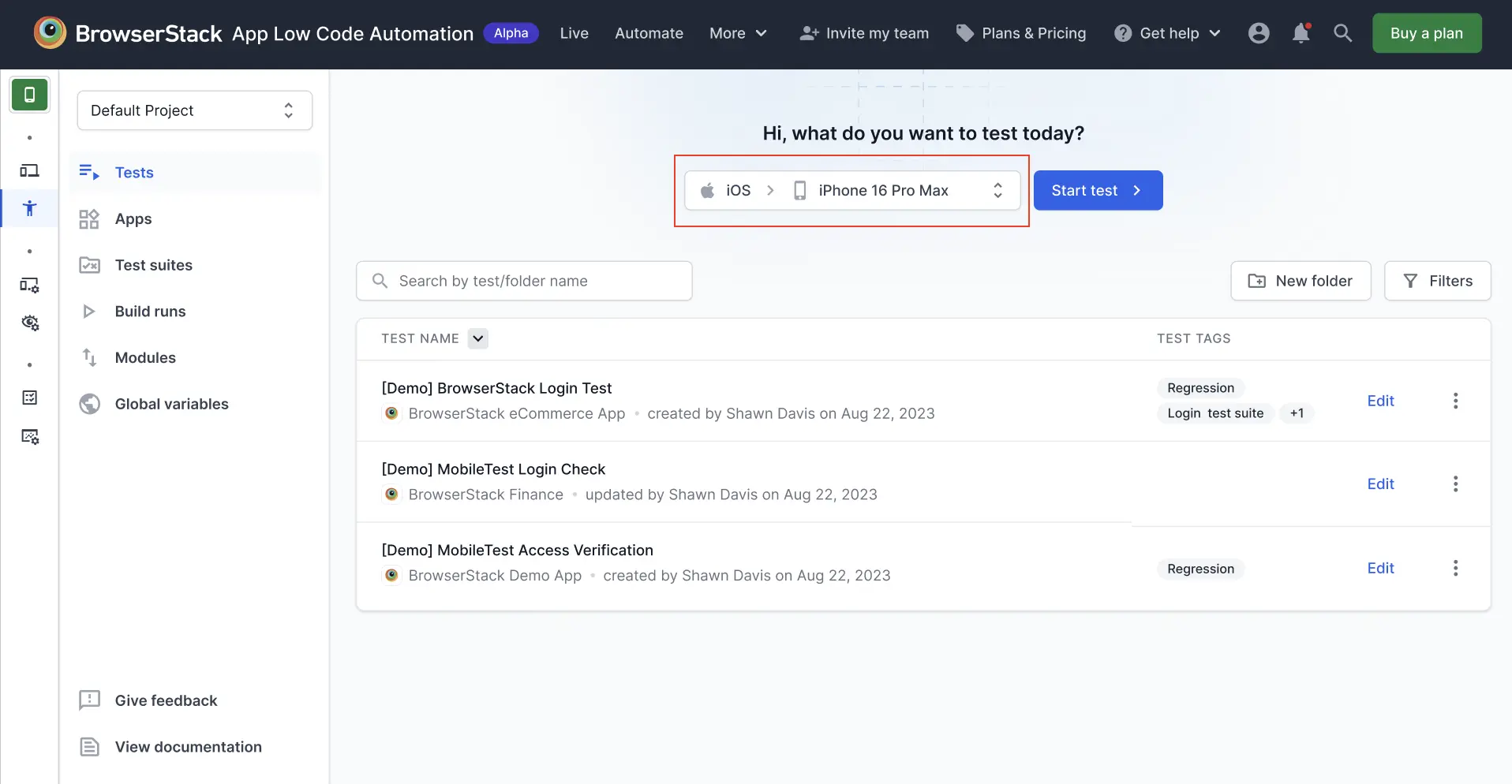
-
Upload your app
Upload your app (IPA or APK file) using the Uploaded app modal, or upload it from the Apps section. A real device is launched on your screen. Whether you upload an IPA or an APK file for test creation, the test executes correctly on both iOS and Android devices.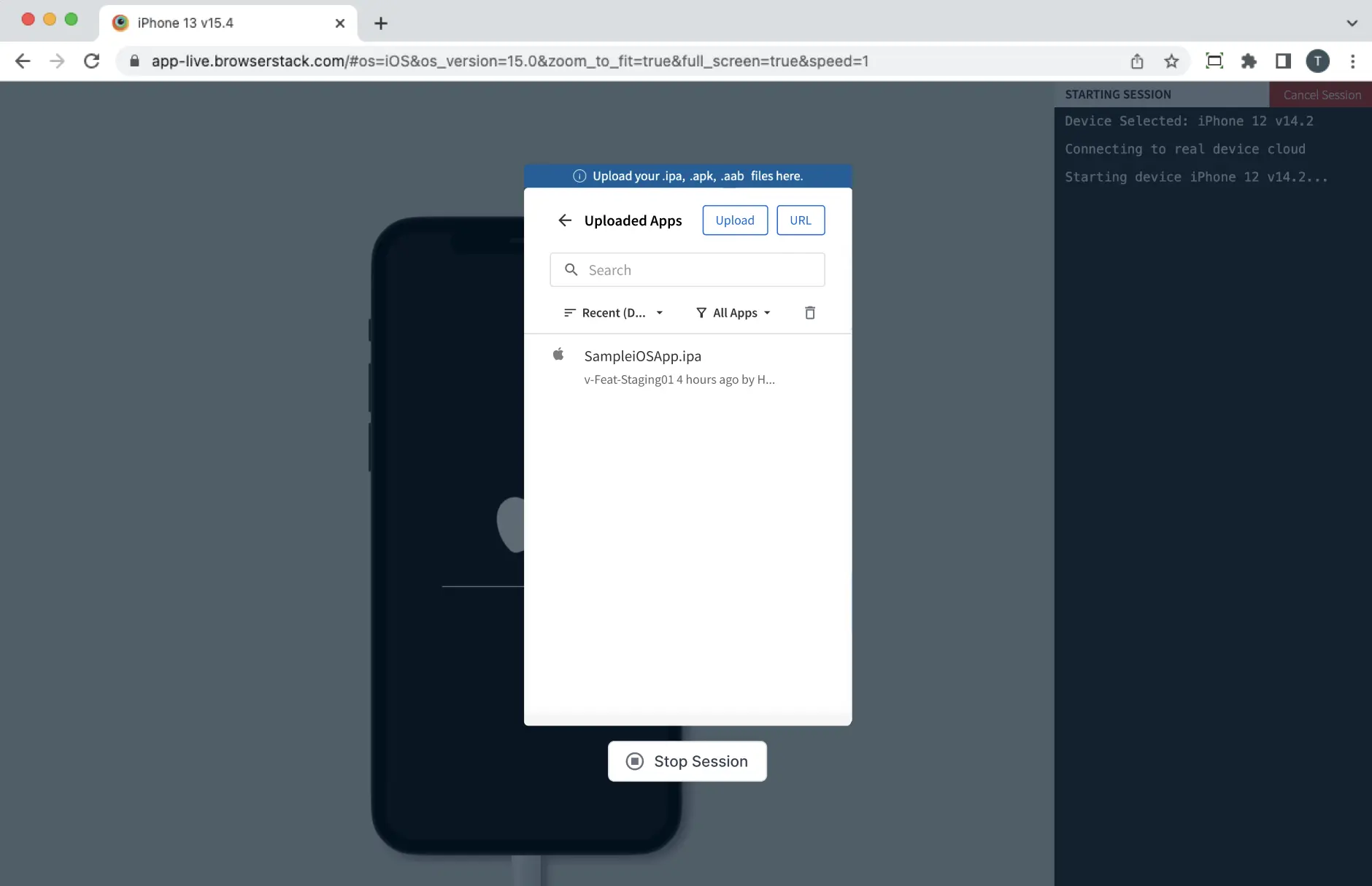
-
Write test steps in plain English
Use natural language syntax to write your test in the test authoring interface. When you execute the steps written, actions are performed live on the device. This allows you to instantly see how your app behaves.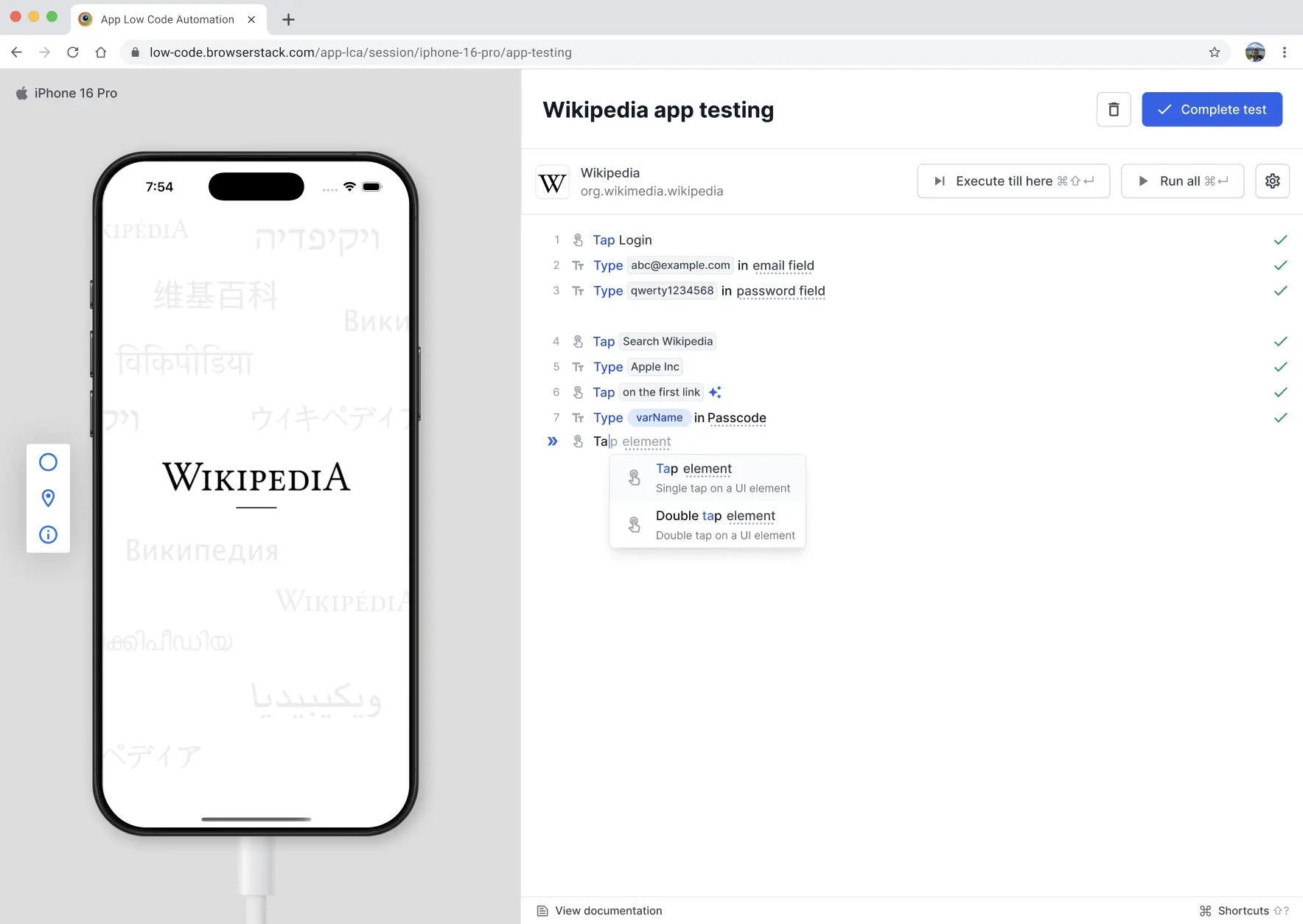
-
Add test logic and validations
- Define Variables for dynamic input
- Add Validations to confirm expected behavior (e.g., element exists, text is visible)
-
Validate your test flow
- Execute till here: Runs the test steps sequentially up to the selected step. This allows you to validate specific parts of your test without executing the entire flow.
- Run all: Executes all the test steps in your test case from start to finish. This provides a complete validation of your test scenario.
-
Save your test
Once you have validated, click Save test.
For more information, refer to the Create tests section.
Create and execute a test suite
After creating your tests, you can create a test suite to organize and manage them efficiently. App Low Code Automation provides the infrastructure and cloud environments needed to build, run, and schedule tests across multiple devices and configurations. Grouping related tests into a suite simplifies complex scenarios and centralizes result monitoring.
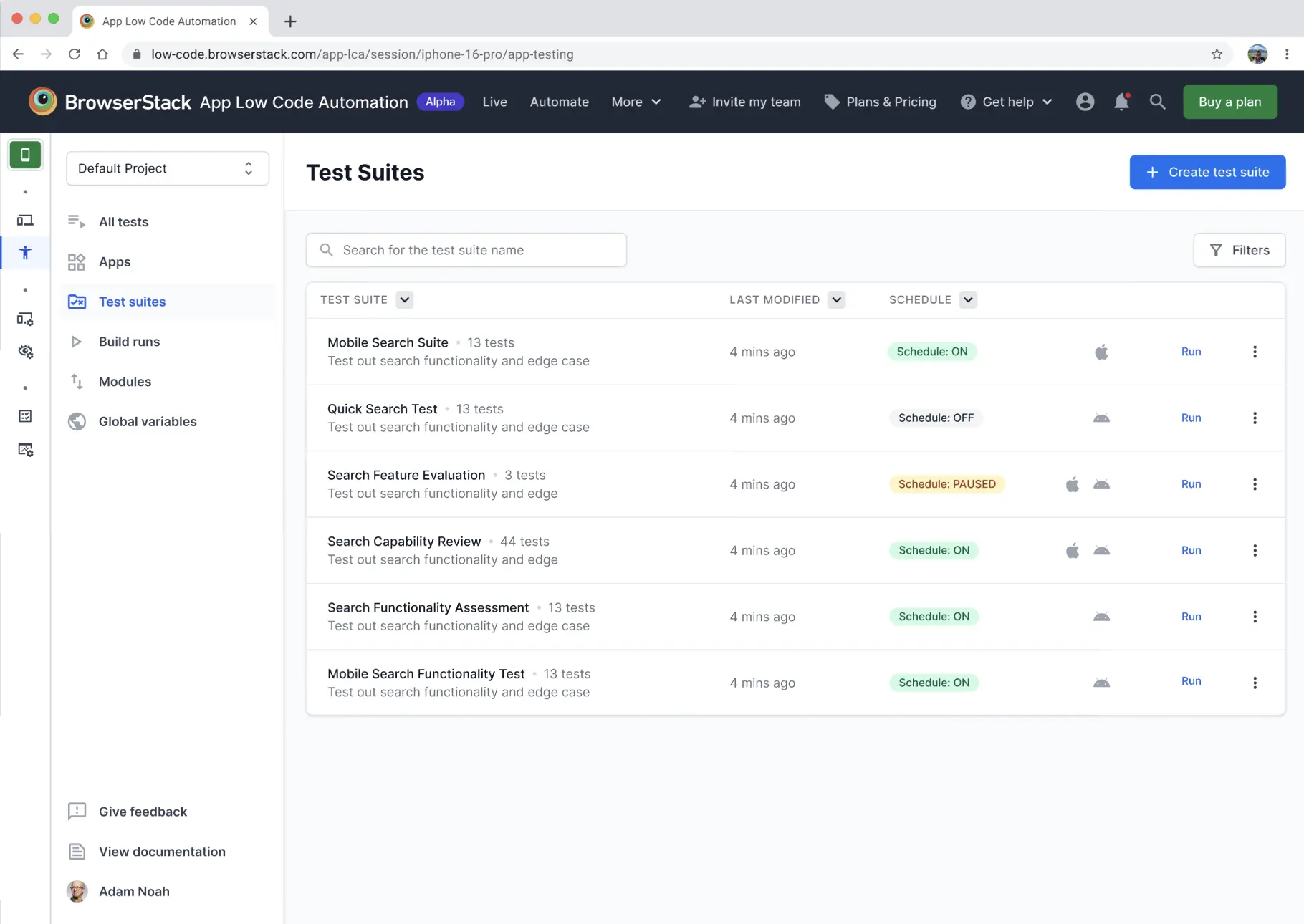
To create and run a test suite in App Low Code Automation, select your tests, configure devices, set a schedule, and execute the suite. For step-by-step instructions, refer to the Test suites document.
View build reports
After the test run, click Build runs in the left navigation panel to view all build reports. The Build runs section displays:
- A list of recent builds with their status (passed, failed, running)
- Test suite names, execution time, and device information
- Pass/fail counts for each test
- Quick access to logs and error details for debugging
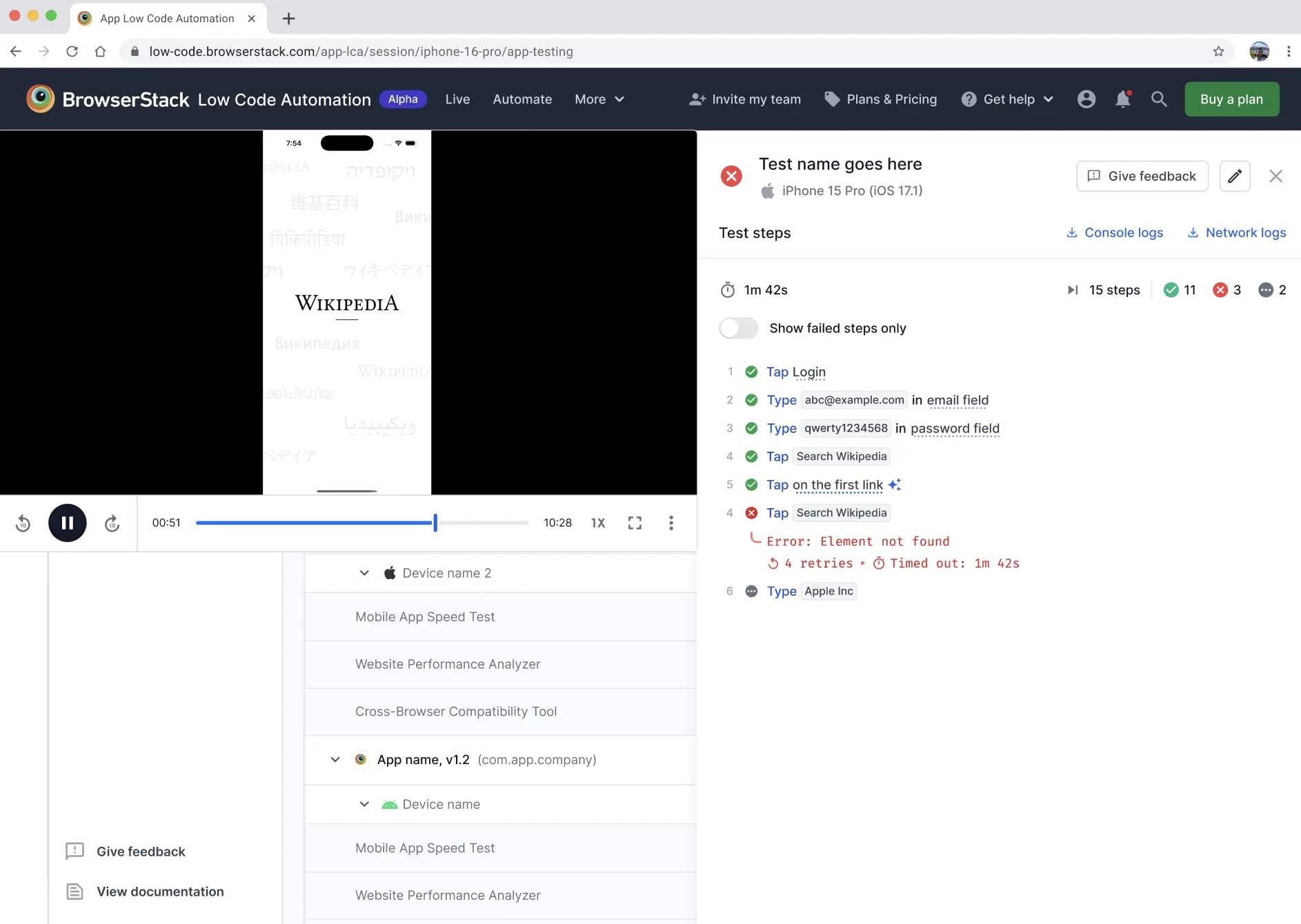
On the Build runs page, use filters and search to find specific builds or test runs. Each build report shows detailed results, including step-by-step execution, screenshots, and logs. Reviewing build reports helps you track outcomes, debug failures, and monitor app quality across devices and test suites.
For more details, refer to the Builds document.
We're sorry to hear that. Please share your feedback so we can do better
Contact our Support team for immediate help while we work on improving our docs.
We're continuously improving our docs. We'd love to know what you liked
We're sorry to hear that. Please share your feedback so we can do better
Contact our Support team for immediate help while we work on improving our docs.
We're continuously improving our docs. We'd love to know what you liked
Thank you for your valuable feedback!