
 Join our Discord
Load testing with Playwright C#
Run a load test using Playwright C# scripts on BrowserStack Load Testing
Use your existing Playwright tests written in C# to generate browser load. BrowserStack restores and builds your .NET test project, then runs it for every virtual user.
Prerequisites
- BrowserStack username and access key. You can find these under your account profile.
- One .NET test project that:
- References the
Microsoft.Playwrightpackage. - Uses NUnit, MSTest, xUnit, or Reqnroll, such as through
Microsoft.Playwright.NUnit,Microsoft.Playwright.MSTest, orMicrosoft.Playwright.Xunit. - Targets
net8.0ornet10.0.
- References the
- Access from the BrowserStack load generator IP addresses to your private NuGet feed, if the feed is behind a firewall. For the list of IP addresses to allowlist, see Test private websites and APIs.
Tests that use the NUnit, MSTest, or xUnit Playwright base classes run without code changes.
Supported versions
BrowserStack supports the following framework versions for Playwright C# load tests:
| Framework | .NET version | Test frameworks | Playwright versions |
|---|---|---|---|
| Playwright C# | .NET 8, .NET 10 | NUnit, MSTest, xUnit, Reqnroll | 1.60, 1.61, 1.62, 1.63, 1.64 |
The table lists the five most recent Playwright versions. The list moves forward with each Playwright release.
Use packages from a private NuGet feed
BrowserStack restores the NuGet packages of your project before the test starts. To use packages from a private feed, follow these steps:
- Place your
nuget.configfile in the folder that you zip, next to the.csprojor.slnfile. - In
nuget.config, write each credential as an environment variable reference, such as%NUGET_TOKEN%. Don’t write the credential itself in the file. - When you configure the test, add each variable as an environment variable and mask it. In the UI Builder, add the variable on the Env Variables tab and click the closed-eye icon next to it. In
browserstack-load.yml, setisMasked: truefor the variable.
The following nuget.config file adds a private feed named company and reads its credentials from the NUGET_USER and NUGET_TOKEN environment variables. NuGet replaces each %NAME% reference with the variable value when it restores the packages:
The element name under packageSourceCredentials must match the key of the feed under packageSources. The key can’t contain spaces.
For more information about masked variables, see Environment variables.
Run a test
Perform the following steps to run a load test for your Playwright test suite written in C#:
Create a load test
You can start a new test from the Quick Start page or the Load Tests page on the Load Testing dashboard.
On the dashboard, click Create Load Test.

Enter a Test Name for your load test, select Browser Only, and click Upload scripts.
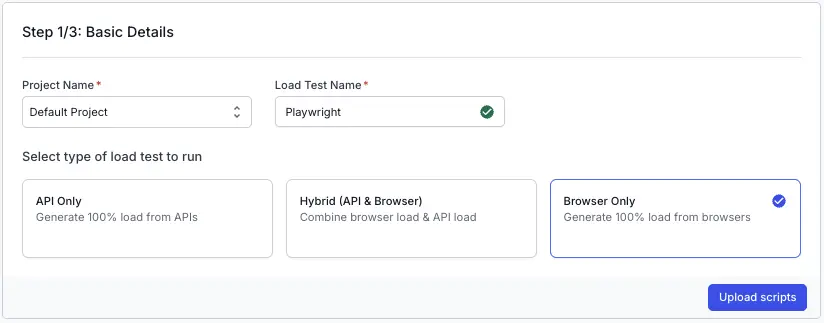
Upload scripts
Zip the folder that contains your .sln file, or the .csproj file of your test project if you don’t use a solution. Leave out the bin/ and obj/ folders. The ZIP file can be up to 250 MB.
On the Load Sources step, under Select Browser Load Source, select Upload Automation Project. From the dropdown, select Playwright - C#. Then, drag and drop your ZIP file or click Upload a Playwright Project to select it.
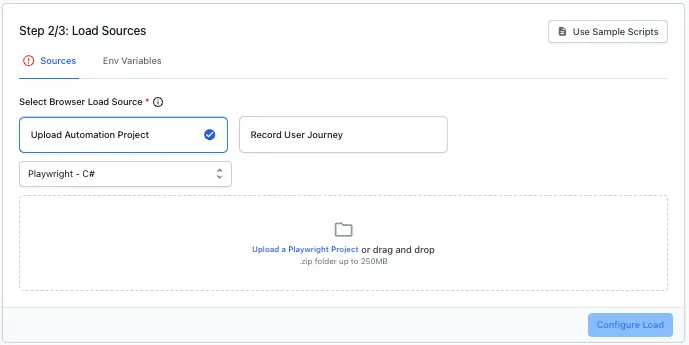
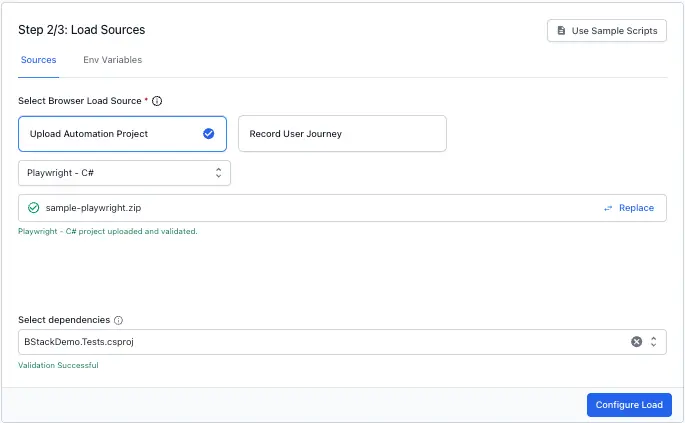
After you upload the ZIP file, BrowserStack validates your project and lists any issues to fix. From the Select dependencies dropdown, select the .csproj file of your test project. For a list of validation messages and fixes, see Troubleshoot C# load tests.
To try Playwright C# load testing before you upload your own project, click Use Sample Scripts on the Load Sources step to run a load test with the Playwright C# sample.
After you verify the configuration, click Configure Load to move to the next step.
Configure load and run test
You can configure the following load parameters to customize your load test:
To run only some of your tests, enable Multiple Scenarios in the Load Configuration section and add one scenario. Filter the scenario by one of the following selectors:
-
Tag: An NUnit or MSTest category, or an xUnit
Categorytrait. - Title: Part of the fully qualified test name.
After you finish configuring load parameters, click RUN TEST.
How BrowserStack runs your C# tests
Review the following behavior before you analyze your test results:
- Browser: BrowserStack runs C# load tests on Chrome. BrowserStack ignores any Firefox and WebKit settings in your project or
.runsettingsfile and shows a note when you upload the project. - Playwright version: BrowserStack runs your project with the closest supported Playwright version. If this version differs from the version in your project, you see a note when you upload the project.
- Test results: Each test appears on the Tests tab. You don’t need to change your project.
- Test data: Your tests can read CSV test data files by their relative paths.
- Setup time: BrowserStack must restore and build your project within 10 minutes.
- Solution files: BrowserStack supports
.slnfiles. BrowserStack doesn’t support.slnxfiles. - Scenarios: Playwright C# load tests accept only one scenario. Filter the scenario by tag or by title.
Troubleshoot C# load tests
BrowserStack validates your project when you upload it and when the test starts. The following table lists the messages you might see when you upload your project:
| Message | How to fix |
|---|---|
| We couldn’t find a .NET test project in your upload. | Add the folder that contains your test .csproj file to the ZIP file and upload it again. |
| Your upload contains more than one test project. | C# load tests run one project. Zip only the project you want to load test and upload it again. |
<project> doesn’t reference Microsoft.Playwright. |
Browser load tests need a Playwright project. Add the Microsoft.Playwright package or select another framework. |
We couldn’t find a test runner in <project>. |
Add a reference to NUnit, MSTest, or xUnit, such as the Microsoft.Playwright.NUnit package, and upload the project again. |
<project> targets <framework>. |
C# load tests run projects that target net8.0 or net10.0. Change TargetFramework in your .csproj file and upload the project again. |
nuget.config uses %NAME%, but no environment variable named NAME is set on this test. |
Add the variable on the Env Variables tab. Without it, the package restore can fail. |
The following table lists the messages you might see when the test starts:
| Message | How to fix |
|---|---|
Restoring NuGet packages failed on <feed>. |
Check the feed URL and the credentials in your environment variables. The logs contain the full NuGet output. |
| The project failed to build. | Review the compiler output in the logs and fix the build errors. |
| Restoring and building the project took longer than 10 minutes. | Reduce the package dependencies of your project or contact support. |
| No tests were found in your test project. | Check that your project references the test adapter for its framework, such as NUnit3TestAdapter, MSTest.TestAdapter, or xunit.runner.visualstudio. Then run the test again. |
If you run into issues, try the troubleshooting steps or contact us for help.
What’s next
- View browser test results: Review summary metrics, Web Vitals, and page load times from your test run.
- Configure load parameters: Set load profiles, load zones, thresholds, and other run settings.
- Fail a load test on threshold breach: Stop a run and mark it as failed when a metric crosses its threshold.
- CI/CD integration: Run load tests automatically from your CI/CD pipeline.
We're sorry to hear that. Please share your feedback so we can do better
Contact our Support team for immediate help while we work on improving our docs.
We're continuously improving our docs. We'd love to know what you liked
We're sorry to hear that. Please share your feedback so we can do better
Contact our Support team for immediate help while we work on improving our docs.
We're continuously improving our docs. We'd love to know what you liked
Thank you for your valuable feedback!