You can start a new test either from the Quick Start page or the Load Tests page on the Load testing dashboard.
On the dashboard, click Create Load Test.
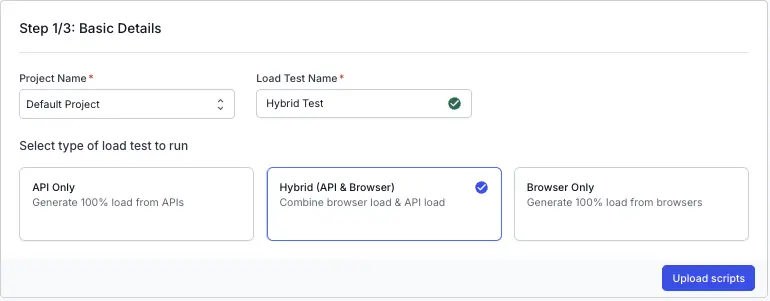
Enter a Test Name for your load test, select Hybrid and click Upload scripts
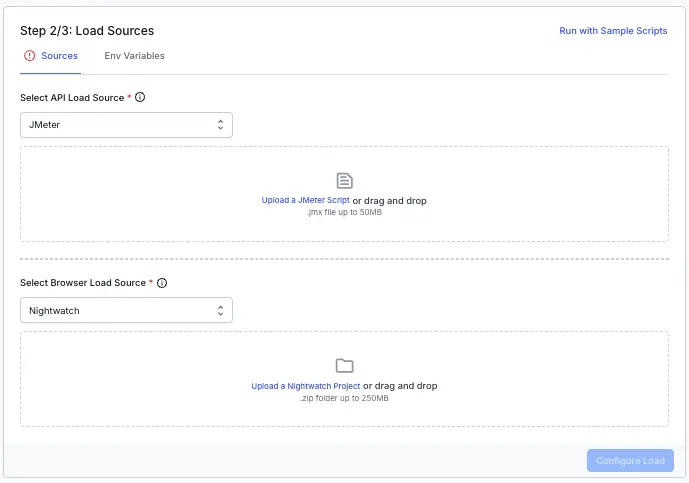
Upload your scripts
The product runs a hybrid test using JMeter and Nightwatch automation projects. JMeter is used to generate API-level load, and Nightwatch drives browser-level load to simulate real user interactions.
You see two sections:
JMeter Script: Upload your JMeter .jmx file (up to 50MB). Drag and drop your file or click to select it.
Automation Project: Select Nightwatch from the dropdown as your automation framework. Then, upload your zipped project files (.zip up to 250MB). Drag and drop the file or click to select it.
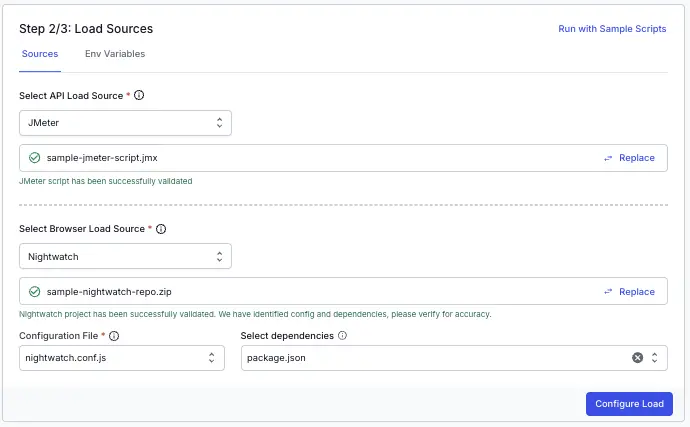
After you upload your ZIP file, the dashboard automatically validates your project. If validation is successful, you will see a confirmation message and a summary of the detected configuration and dependencies.
You can review and confirm the configuration file (your nightwatch config file) and any other dependencies (path of package.json) identified in your project.
Ensure that your package.json and nightwatch.config.js config files are placed at the root level of your project.
Both fields are mandatory for their respective test types. After uploading, click Configure Load to proceed to the next step.
You can also run load tests using the sample scripts if you want to try out the feature before uploading your own files.
You can configure the following load parameters to customize your load test:
Run the following command from the root directory of your test project to generate the browserstack-load.yml file, which contains the configuration required to define and run your load test:
Open the generated browserstack-load.yml file and update it with the relevant test details. Here’s a sample configuration:
Specify the tests
The tests block defines the combination of test types you want to run as part of a hybrid load test. Specify nightwatch as the testType for one sub-block and JMeter for another.
For the nightwatch sub-block,
browserLoadPercent - Specify the percentage of total virtual users to be allocated for Selenium tests.
language - Set this to nodejs.
files - Define the key files needed to install dependencies and identify which tests to execute.
Under dependencies, include the path to files required for environment setup. For Node.js projects, this is typically package.json.
Under testConfigs, provide the path to your nightwatch.conf.js.
For the JMeter sub-block,
apiLoadPercent - Specify the percentage of total virtual users to be allocated for JMeter tests.
testScripts - Set the path to the .jmx file.
Headless mode
You can configure your Nightwatch load tests to run in either headless or headful mode using the headless capability.
Headless mode (default): The browser runs without a visible UI, which is faster and consumes fewer resources. Most CI/CD and automated load tests use headless mode.
Headful mode: The browser UI remains visible during test execution.
If not specified, tests will run in headless mode by default.
Set reporting structure
Use projectName to group related tests under the same project on the dashboard. Use testName to group multiple runs of the same test.
Both projectName and testName must remain consistent across different runs of the same test.
You can use the following characters in projectName and testName:
Letters (A–Z, a–z)
Digits (0–9)
Periods (.), colons (:), hyphens (-), square brackets ([]), forward slashes (/), at signs (@), ampersands (&), single quotes ('), and underscores (_)
All other characters are ignored.
You can configure the following load parameters to customize your load test:
You can start a new test either from the Quick Start page or the Load Tests page on the Load testing dashboard.
On the dashboard, click Create Load Test.
Enter a Test Name for your load test, select Hybrid and click Upload scripts
Upload your scripts
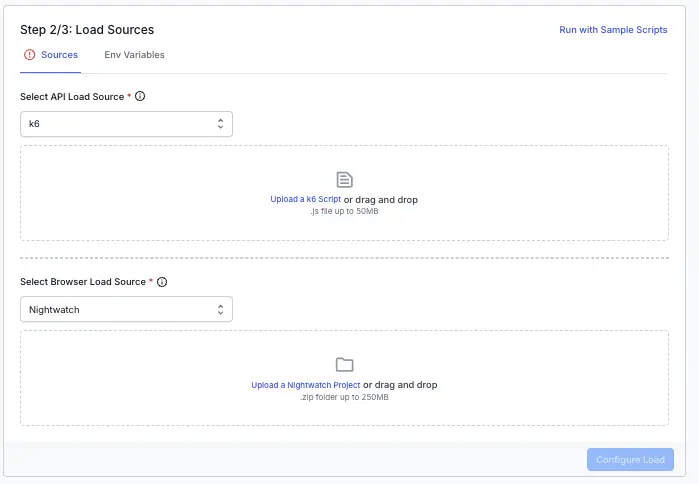
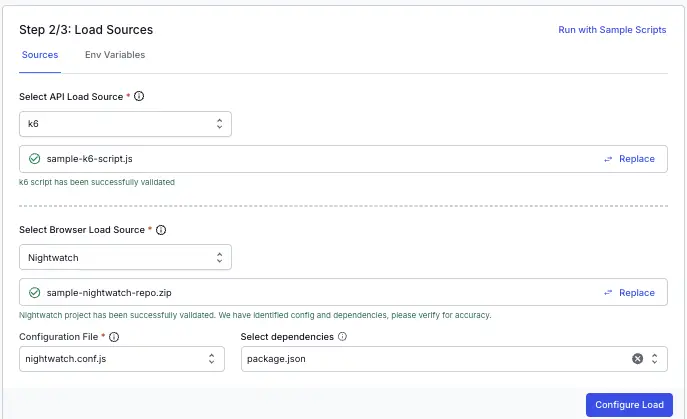
The product runs a hybrid test using k6 and Nightwatch automation projects. k6 is used to generate API-level load, and Nightwatch drives browser-level load to simulate real user interactions.
You see two sections:
k6 Script: Upload your k6 .js file (up to 50MB). Drag and drop your file or click to select it.
Automation Project: Select Nightwatch from the dropdown as your automation framework. Then, upload your zipped project files (.zip up to 250MB). Drag and drop the file or click to select it.
After you upload your ZIP file, the dashboard automatically validates your project. If validation is successful, you will see a confirmation message and a summary of the detected configuration and dependencies.
You can review and confirm the configuration file (your nightwatch config file) and any other dependencies (path of package.json) identified in your project.
Ensure that your package.json and nightwatch.config.js config files are placed at the root level of your project.
Both fields are mandatory for their respective test types. After uploading, click Configure Load to proceed to the next step.
You can also run load tests using the sample scripts if you want to try out the feature before uploading your own files.
You can configure the following load parameters to customize your load test:
Run the following command from the root directory of your test project to generate the browserstack-load.yml file, which contains the configuration required to define and run your load test:
Open the generated browserstack-load.yml file and update it with the relevant test details. Here’s a sample configuration:
Specify the tests
The tests block defines the combination of test types you want to run as part of a hybrid load test. Specify nightwatch as the testType for one sub-block and JMeter for another.
For the nightwatch sub-block,
browserLoadPercent - Specify the percentage of total virtual users to be allocated for Selenium tests.
language - Set this to nodejs.
files - Define the key files needed to install dependencies and identify which tests to execute.
Under dependencies, include the path to files required for environment setup. For Node.js projects, this is typically package.json.
Under testConfigs, provide the path to your nightwatch.conf.js.
For the k6 sub-block,
apiLoadPercent - Specify the percentage of total virtual users to be allocated for k6 tests.
testScripts - Set the path to the .js file.
Headless mode
You can configure your Nightwatch load tests to run in either headless or headful mode using the headless capability.
Headless mode (default): The browser runs without a visible UI, which is faster and consumes fewer resources. Most CI/CD and automated load tests use headless mode.
Headful mode: The browser UI remains visible during test execution.
If not specified, tests will run in headless mode by default.
Set reporting structure
Use projectName to group related tests under the same project on the dashboard. Use testName to group multiple runs of the same test.
Both projectName and testName must remain consistent across different runs of the same test.
You can use the following characters in projectName and testName:
Letters (A–Z, a–z)
Digits (0–9)
Periods (.), colons (:), hyphens (-), square brackets ([]), forward slashes (/), at signs (@), ampersands (&), single quotes ('), and underscores (_)
All other characters are ignored.
You can configure the following load parameters to customize your load test:

 Join our Discord