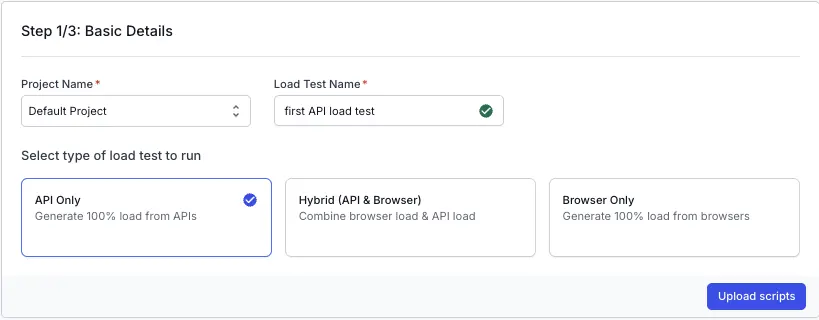
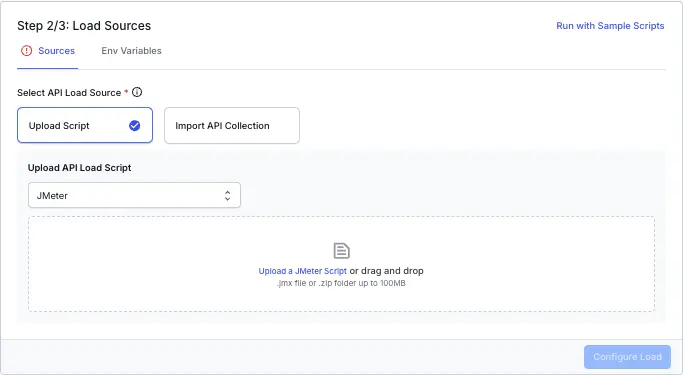
Upload a single Python file (for example, locustfile.py) that contains your Locust test. This option works well when your script has no external dependencies beyond the Locust library and uses only the Python standard library.
The script must:
Import from Locust (for example, from locust import HttpUser, task, between).
Define at least one user class that subclasses HttpUser, FastHttpUser, User, or GrpcUser.
Sample locustfile.py
```python
from locust import HttpUser, task, between
class WebsiteUser(HttpUser):
wait_time = between(1, 5)
@task
def view_home(self):
self.client.get("/")
@task(3)
def view_products(self):
self.client.get("/products")
```
Upload a .zip archive that contains your main Locust script and any additional supporting files. Use this option when your test imports helper modules, reads from data files, or depends on third-party Python packages.
BrowserStack preserves the folder hierarchy inside the ZIP, so relative imports such as from utils.helpers import login continue to work at runtime.
The maximum supported ZIP size is 100 MB. If the archive exceeds this limit, the upload is rejected with a clear error message.
When you upload a .zip file, specify the main script path in the Main script field, relative to the root of the ZIP (for example, tests/locustfile.py). The platform uses this as the Locust entry point. If you leave this field empty or the file is not found, the test configuration shows an error and the run cannot start.
If your test uses third-party Python packages, include a requirements.txt file at the root of your ZIP. BrowserStack installs the listed packages before the run starts. Keep the install lightweight, since the install step has a 120-second timeout.
Once you have verified the configuration, click Configure Load to move to the next step.
You can also run load tests using the sample scripts if you want to try out the feature before uploading your own files.
You can configure the following load parameters to customize your load test:
Open the generated browserstack-load.yml file and update it with the relevant test details. Here’s a sample configuration:
Specify number of virtual users
Set vus to the maximum number of virtual users to simulate during the test.
The maximum limit for this config is currently 1000. Contact us if you want to increase this limit.
Specify the test scripts
The files block defines the key files needed to identify which tests to execute.
Single Locust file
For a test that lives in a single Python file, set testScripts to the absolute path of that file:
If your test depends on helper modules, data files, or third-party Python packages, configure testDir along with testScripts:
testDir: Absolute path to the directory that contains your Locust scripts, helper modules, data files, and requirements.txt. The CLI zips this directory as is and uploads it, so your folder structure is preserved.
testScripts: Absolute path to the main Locust entry script. The path must point to a file inside testDir.
The CLI validates that the entry script defined in testScripts exists inside testDir. If it is missing, the run fails fast with an error.
BrowserStack includes every file and folder under testDir in the upload, so relative imports such as from utils.helpers import login continue to work at runtime.
To add third-party Python packages, place a requirements.txt file at the root of testDir. BrowserStack installs the listed packages before the run starts. Keep the install lightweight, since the install step has a 120-second timeout.
The maximum upload size is 100 MB.
If your test imports a file that is not present under testDir, the test run fails when Locust executes those imports.
Set reporting structure
Use projectName to group related tests under the same project on the dashboard. Use testName to group multiple runs of the same test.
Both projectName and testName must remain consistent across different runs of the same test.
You can use the following characters in projectName and testName:
Letters (A to Z, a to z)
Digits (0 to 9)
Periods (.), colons (:), hyphens (-), square brackets ([]), forward slashes (/), at signs (@), ampersands (&), single quotes (‘), and underscores (_)

 Join our Discord