
 Join our Discord
General settings
Learn about the general settings available for your Website Scanner scans, including notification settings, sitemap refresh, and crawl settings.
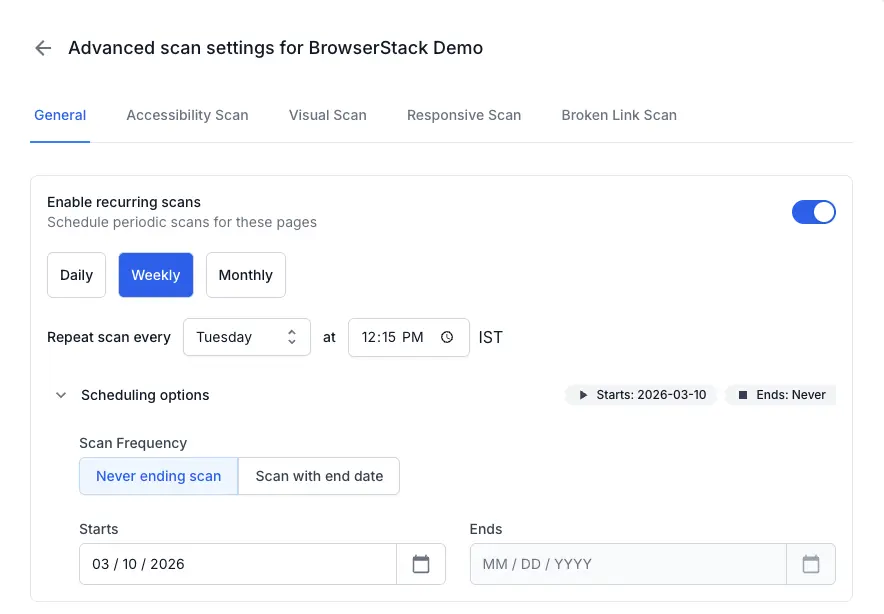
You can schedule recurring scans for your websites to regularly monitor accessibility issues and visual differences on your websites.
Recurring scan scheduling options
You can schedule your scans using the following options:
- Daily: Schedule scans at a specific time each day.
- Weekly: Schedule scans on a specific day and time each week.
- Monthly: Schedule scans on a specific date and time each month.
Scheduling options
Set a specific date range for your scans using the Starts and Ends fields. Choose Never ending scan to run the scan indefinitely, or select Scan with end date to set a specific end date.
Notification settings
Send scan results to your team’s Slack channel, so they can review findings without logging into Website Scanner.
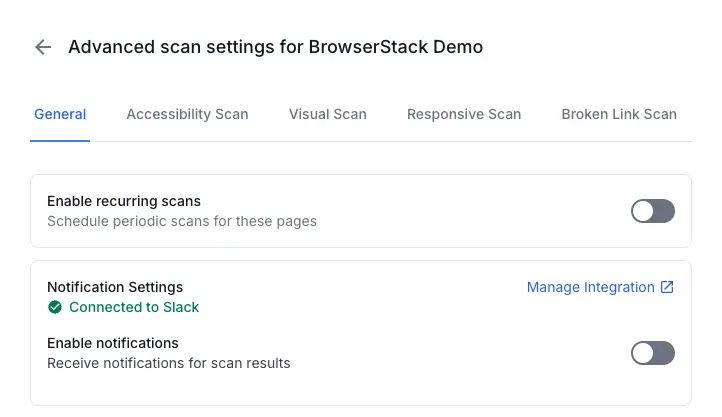
You must connect Slack before you can enable notifications. If Slack is not connected, the notification controls do not appear.
Connect or manage the integration
The Notification Settings section displays the current connection status of your Slack integration. Click Manage Integration to open the Integrations page, where you can connect or disconnect Slack.
Enable notifications
Turn on the Enable Notifications toggle to activate scan result notifications for this scan. Each scan has its own toggle. Disabling the toggle stops notifications for this scan only.
Select a notification channel
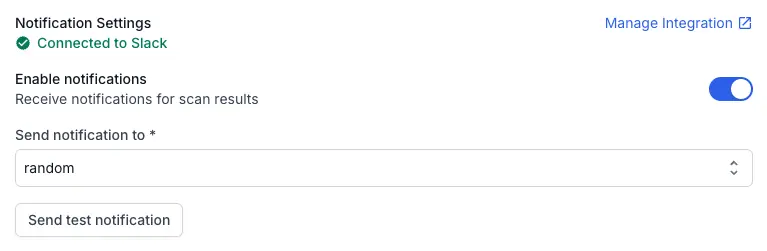
Use the Send Notification to dropdown to choose which Slack channel receives notifications for this scan. The dropdown lists all public channels from your connected Slack workspace.
Each scan can send notifications to a different channel. For example, your accessibility scan can notify #accessibility-team while your performance scan notifies #engineering.
Send a test notification
Click Send test notification to send a sample message to the selected channel. Use this to confirm the channel is correct and that your team can see the messages.
Refresh URLs from sitemap on every scan run
This setting appears for scans created in Sitemap mode. When enabled, Website Scanner re-fetches your sitemap before each scan run and uses the latest set of URLs. New pages added to your sitemap are included automatically without manual reconfiguration.

Enable sitemap refresh
Follow these steps to enable refreshing URLs from your sitemap on every scan run:
-
Open the scan’s Advanced scan settings > General tab.
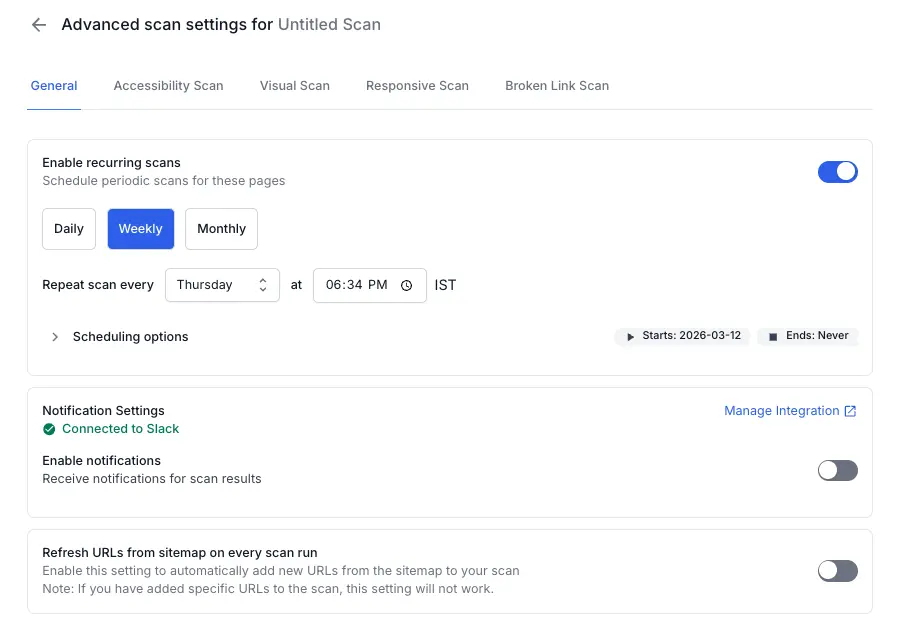
- Turn on the Refresh URLs from sitemap on every scan run toggle.
-
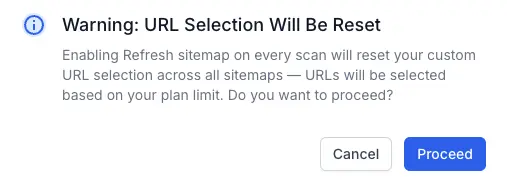
In the warning dialog, review the message and click Proceed to confirm.
How sitemap refresh works
When this setting is enabled, the following happens on each scan run (scheduled or on-demand):
- Website Scanner fetches the sitemap using the same environment and security context as the scan (including local testing and login configurations).
- The sitemap is parsed and a new URL list is derived.
- URLs are selected up to your plan limit.
- The scan runs against the updated URL set.
If the sitemap fetch fails, the scan proceeds with the URLs from the previous run.
Custom URL selection and sitemap refresh
Enabling sitemap refresh resets any custom URL selections you have made across all sitemaps. URLs are selected based on your plan limit instead.
This setting does not work if you have added specific URLs to the scan manually. The two approaches are mutually exclusive:
- Sitemap refresh ON: Website Scanner controls the URL list. All URLs from the sitemap (up to your plan limit) are included.
- Sitemap refresh OFF: You control the URL list. Only the URLs you have selected are scanned.
If you enable sitemap refresh and later select specific URLs manually, the setting turns off automatically. A notification confirms that only your selected URLs will be scanned going forward.
This setting appears only for scans created in Sitemap mode. For scans created in Crawler mode, see Re-crawl website on every scan.
Re-crawl website on every scan
This setting appears for scans created in Crawler mode. When enabled, Website Scanner re-crawls your website before each scan run to discover new URLs.
Enable this setting if your website changes frequently and new pages are added regularly. If you have a stable page list, leave this setting off to keep scan results consistent.
Follow these steps to enable re-crawling your website on every scan:
-
Open the scan’s Advanced scan settings > General tab.
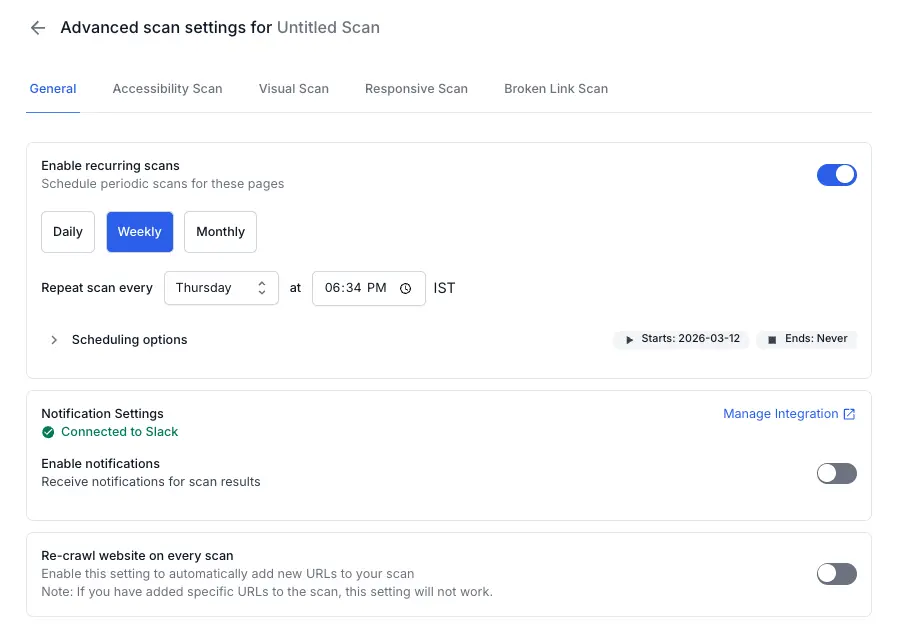
- Turn on the Re-crawl website on every scan toggle.
-
In the warning dialog, review the message and click Proceed to confirm.
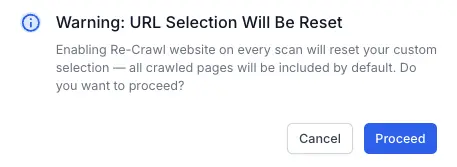
This setting appears only for scans created in Crawler mode. For scans created in Sitemap mode, see Refresh URLs from sitemap on every scan run.
Add delay
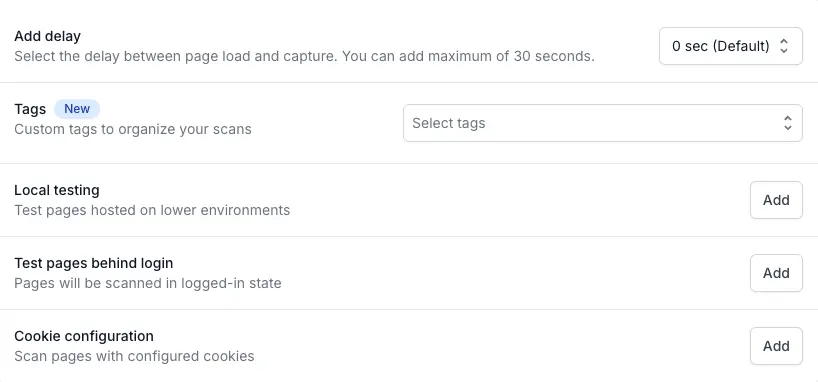
Set the delay between page load and capture. You can add a maximum of 30 seconds. Use a longer delay if your pages rely on JavaScript rendering or lazy-loaded content.
Tags
Add tags to organize your scans. Tags help you filter and group scans on the All Scans page.
Next steps
We're sorry to hear that. Please share your feedback so we can do better
Contact our Support team for immediate help while we work on improving our docs.
We're continuously improving our docs. We'd love to know what you liked
We're sorry to hear that. Please share your feedback so we can do better
Contact our Support team for immediate help while we work on improving our docs.
We're continuously improving our docs. We'd love to know what you liked
Thank you for your valuable feedback!