
 Join our Discord
Integrate your Ruby Cucumber test suite with App Automate
A guide to integrating your Ruby Cucumber automated app tests with BrowserStack SDK. Run tests on BrowserStack’s real device cloud of 3000+ devices and browsers.
Prerequisites
Before you begin, ensure you have the following:
- RSpec 3.x or higher
- Cucumber 6.x or higher
- Ruby 3.0 or higher installed on your system. You can download the latest version from ruby-lang.org installation documentation.
-
Bundlerinstalled on your system. To installBundler, follow the steps in the Bundler installation guide. - Access to your Android app (
.apk,.aab, or.xapkfile) or iOS app (.ipafile)
Integration steps
Follow the steps below to integrate your Ruby Cucumber test suite with BrowserStack App Automate:
Upload app
Upload your Android (.apk or .aab) or iOS (.ipa) apps to BrowserStack servers using one of the following ways:
Upload app using the App Automate dashboard
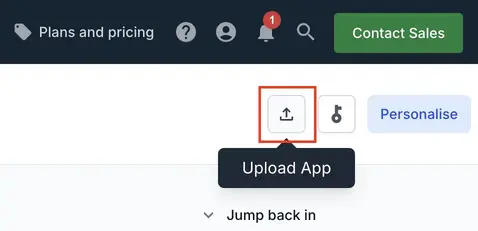
On the App Automate dashboard, click the Upload button on the top-right corner. Select the app you want to upload from your filesystem.
Upload app using App Management UI
To upload an app using the App Management UI, follow the steps below:
-
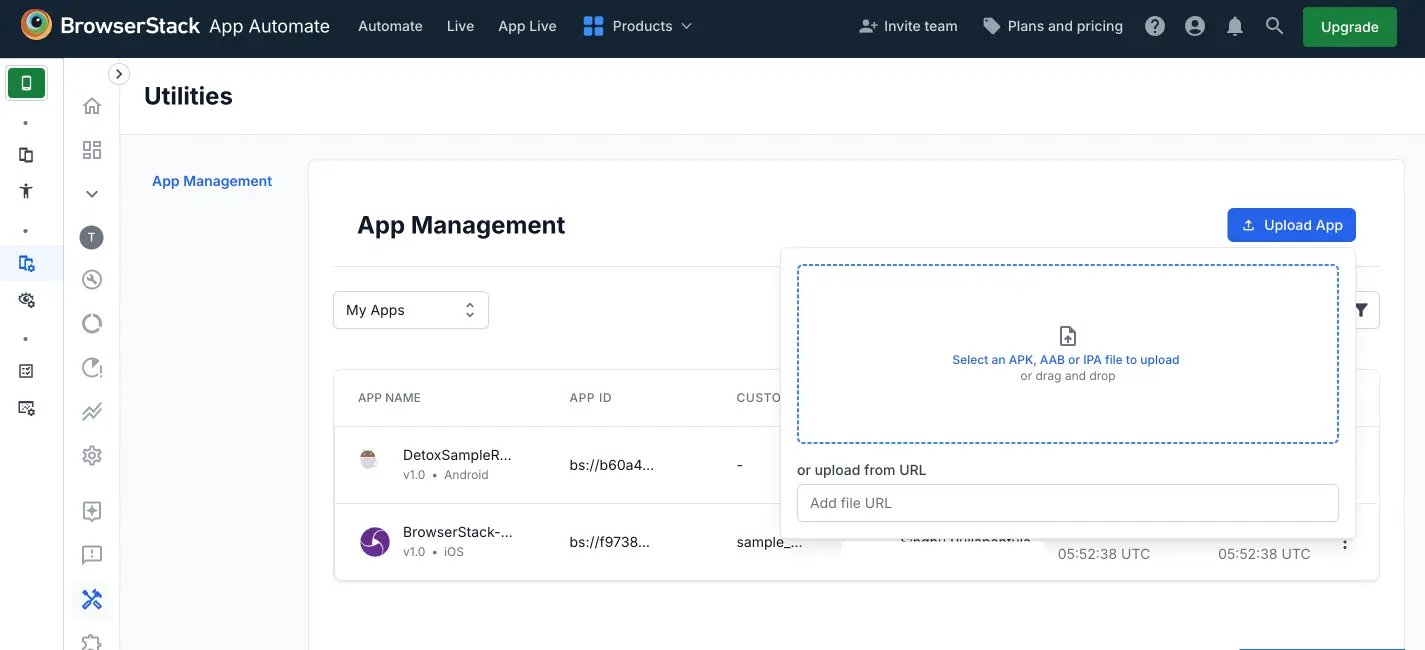
Navigate to App Automate dashboard, on the sidebar, click App Management.
-
On the App Management UI, click Upload App.
-
Select the app you want to upload from your filesystem. If you are uploading the app using a public URL, paste the URL of your app in the or upload from URL box.
-
After selecting the app, choose the App Automate framework you want to use for testing. You can optionally add flags and a custom ID.
-
Click Upload. The app is uploaded to the BrowserStack servers. You’ll receive an App ID, which you can use to run tests.
To manage your apps, refer to the documentation on managing apps using App Management UI.
Facing issues with app upload? Visit the Troubleshooting section at the bottom of this page.
Configure browserstack.yml
Create a browserstack.yml file in your project root to store BrowserStack credentials, target platforms, and feature flags:
Use a configuration similar to the following:
Integrate the SDK with your test framework
Hook the BrowserStack Ruby SDK into your RSpec and Cucumber test lifecycles so it can capture and report test execution:
For RSpec, ensure your spec_helper.rb or rails_helper.rb requires the SDK:
For Cucumber, require the SDK in features/support/env.rb so it can track scenarios and steps:
Run your test suite
Run your tests with the following commands. The BrowserStack SDK intercepts Appium sessions and routes them to BrowserStack:
To run your RSpec suite with BrowserStack integration enabled, run RSpec as you normally do:
To run your Cucumber scenarios, use the BrowserStack SDK wrapper so that the SDK can intercept sessions and send results to BrowserStack:
After the run completes, review your sessions, accessibility scans, and observability data in the BrowserStack dashboard.
Advanced features and use cases
Here’s a list of features and capabilities you may find useful.
Accept insecure certificates
The acceptInsecureCerts capability suppresses warning about self-signed certificates usually found in staging environments.
| Capability | Expected values |
|---|---|
acceptInsecureCerts |
A boolean. Default is False.True if you want to accept all SSL certificates. |
Change device orientation
The deviceOrientation capability changes the default mobile screen orientation for your tests on BrowserStack infra.
- If the parameter is set at the root level, its applicable to all the devices in the test.
- If you wish to apply it to a specific device, set it at the platform level which has the device details.
| Capability | Description | Expected values |
|---|---|---|
resolution |
Set the resolution of your VM before beginning your test | A string. Default resolution is 1024x768 Supported resolutions: Windows (XP, 7): 800x600, 1024x768, 1280x800, 1280x1024, 1366x768, 1440x900, 1680x1050, 1600x1200, 1920x1200, 1920x1080, and 2048x1536 Windows (8, 8.1, 10): 1024x768, 1280x800, 1280x1024, 1366x768, 1440x900, 1680x1050, 1600x1200, 1920x1200, 1920x1080, and 2048x1536 OS X (Golden Gate, Tahoe, Sequoia, Sonoma, Ventura, Monterey, Big Sur, Catalina, Mojave, and High Sierra): 1024x768, 1280x960, 1280x1024, 1600x1200, 1920x1080, 2560x1440, 2560x1600, and 3840x2160 OS X (All other versions): 1024x768, 1280x960, 1280x1024, 1600x1200, and 1920x1080
|
Simulate IP geolocation
The geoLocation capability lets you test your app across different countries.
Note that this capability is supported on the Enterprise plan only. You can contact sales to get an Enterprise plan for your account.
| Capability | Description | Expected values |
|---|---|---|
geoLocation |
Set the country code you want your test to detect | A string. An ISO 2 country code FR for France, CN for China Check out the complete list of 45+ countries we support. |
Simulate network conditions
The networkProfile capability lets you test your app under different network conditions.
| Capability | Description | Expected values |
|---|---|---|
networkProfile |
Set the network profile to start the test with | A string. 2g-gprs-good, 4g-lte-advanced-lossy Check out the complete list of all pre-defined network profiles. |
Others
Following are a few additional links to documentation pages that might help with your test scenarios:
Troubleshooting
Here’s a list of troubleshooting options you may find useful.
Errors faced during app upload
When you upload your app to BrowserStack, make sure that the app file and its path or URL are valid. If you see an error during app upload, first check the following:
- The file path is correct and the app file exists on your machine.
- The app URL is publicly accessible and not behind a firewall or authentication.
- The app file type is supported by BrowserStack. You can upload your app from the App Automate dashboard, App Management UI, or by using the REST API. For detailed information on uploading and managing apps, refer to Uploading and managing apps.
Invalid device OS combination errors
If you face errors related to invalid device OS combinations, ensure that the device and OS version combinations you are trying to run your tests on are supported on BrowserStack.
- For detailed information on selecting devices, refer to the Select devices documentation.
- To use regular expressions to specify device attributes, refer to the Using regex to select devices documentation.
- To check the list of supported OS versions for devices on BrowserStack, refer to the App Automate supported devices documentation.
Resigned Apps and Third-Party Library Integration Issues
-
Uploading an unsigned version of an Android app will require us to sign it with our certificates before installing it on our devices. In the same manner, any uploaded .aab files will be converted into a universal APK and signed with our certificates.
-
If BrowserStack resigns the apps, third-party library integrations such as Google Firebase services, Google Maps SDK, Facebook SDK, etc., may not function properly if the use of API keys is restricted based on the SHA-1 certificate fingerprint of the app’s signing key.
-
To prevent this issue, it’s recommended to sign the APK with your own certificates before uploading it to BrowserStack.
Disabling Re-Signing for iOS Apps
- If you upload an iOS app, we will re-sign the app with our own provisioning profile to be able to install your app on our devices during test execution.
- However, if your app is signed using the Apple Developer Enterprise Program, you can disable this behavior to test features such as push notifications on BrowserStack devices.
| Capability | Expected values |
|---|---|
resignApp |
A boolean. To disable re-signing, set the browserstack.resignApp capability to false in your Appium test scripts. |
We're sorry to hear that. Please share your feedback so we can do better
Contact our Support team for immediate help while we work on improving our docs.
We're continuously improving our docs. We'd love to know what you liked
We're sorry to hear that. Please share your feedback so we can do better
Contact our Support team for immediate help while we work on improving our docs.
We're continuously improving our docs. We'd love to know what you liked
Thank you for your valuable feedback!