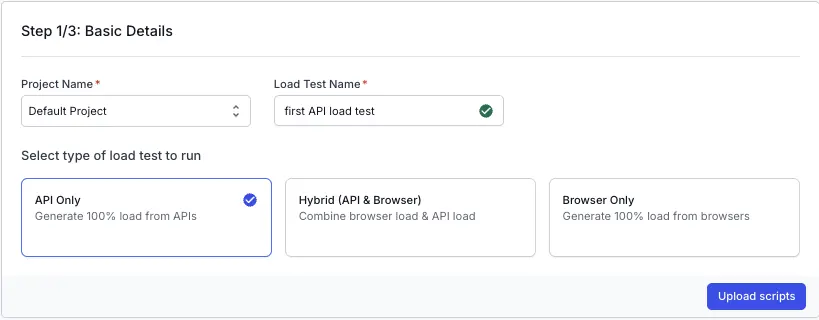
ZIP your complete Maven, Gradle, or SBT project directory. The build config file (pom.xml, build.gradle, build.gradle.kts, or build.sbt) should be at the root of the ZIP or one level deep.
Your simulation files can be written in Scala, Java, or Kotlin.
Build-tool projects use the bundled Gatling 3.10.5 runtime. Ensure your project is compatible with this version. Maximum upload size for Gatling zips is 100 MB.
Standalone simulation files
If you don’t use a build tool, you can compress(ZIP) just the Gatling user-files/ directory structure containing your simulation files and resources. BrowserStack will execute them using the bundled Gatling OSS runtime (Gatling 3.10.5).
Your simulation files can be written in Scala, Java, or Kotlin.
Standalone mode uses the bundled Gatling 3.10.5 runtime. If your simulation requires specific library dependencies beyond the Gatling core, use a build tool project (Option A) instead. Maximum upload size for Gatling zips is 100 MB.
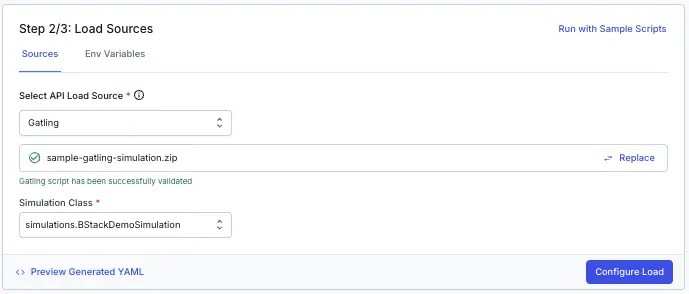
Select the simulation class
After uploading, BrowserStack automatically detects simulation classes (FQCNs) from your project. If one simulation class is found, it is auto-selected. If multiple simulation classes are found, select the one you want to execute from the dropdown. The simulation class is the fully qualified class name of your Gatling simulation to run, for example com.example.BasicSimulation.
Once you have verified the configuration, click Configure Load to move to the next step.
You can also run load tests using the sample scripts if you want to try out the feature before uploading your own files.
You can configure the following load parameters to customize your load test:
Open the generated browserstack-load.yml file and update it with the relevant test details. Here’s a sample configuration:
Specify number of virtual users
Set vus to the maximum number of virtual users to simulate during the test.
The maximum limit for this config is currently 1000. Contact us if you want to increase this limit.
Specify the simulation class
The files block identifies which Gatling simulation to execute. The requirements depend on your project type.
Build-tool projects (Maven/Gradle/SBT)
For projects using build tools, you must specify the simulationClass:
files:simulationClass:com.example.MySimulation
simulationClass: The fully qualified class name (FQCN) of your Gatling simulation (for example, com.example.MySimulation). This field is required for build-tool projects.
The CLI detects build tools by checking for pom.xml, build.gradle, build.gradle.kts, or build.sbt files in your project directory.
Your simulation files can be written in Scala, Java, or Kotlin.
Standalone projects (no build tool)
For standalone projects without a build tool, the files section is optional:
If your project contains only one simulation class, the CLI automatically detects and uses it. No files section is needed.
If your project contains multiple simulation classes, specify the simulationClass to select which one to run.
Project archiving
The CLI automatically zips your entire Gatling project directory for upload. You don’t need to create a ZIP file manually. The maximum upload size is 100 MB.
Backward compatibility
The deprecated testScripts field is maintained for backward compatibility:
files:testScripts:-com.example.MySimulation# Deprecated - use simulationClass instead
testScripts accepts a FQCN string (not a file path). Use simulationClass for new projects.
Set reporting structure
Use projectName to group related tests under the same project on the dashboard. Use testName to group multiple runs of the same test.
Both projectName and testName must remain consistent across different runs of the same test.
You can use the following characters in projectName and testName:
Letters (A–Z, a–z)
Digits (0–9)
Periods (.), colons (:), hyphens (-), square brackets ([]), forward slashes (/), at signs (@), ampersands (&), single quotes (‘), and underscores (_)

 Join our Discord