
 Join our Discord
Protocol load testing using JMeter
Run a protocol load test on BrowserStack Load Testing
Prerequisites
- BrowserStack Username and Access key. You can find these under your account profile.
- An existing JMeter script.
Supported versions
BrowserStack runs your JMeter load tests on the following engine version:
| Tool | Recommended version |
|---|---|
| JMeter | 5.6.3 |
Run a test
Based on your preferred method of performing load tests, use one of the following methods:
You can start a new test either from the Quick Start page or the Load Tests page on the Load testing dashboard.
On the dashboard, click Create Load Test.

Enter a Test Name for your load test, select API Only, and click Upload scripts
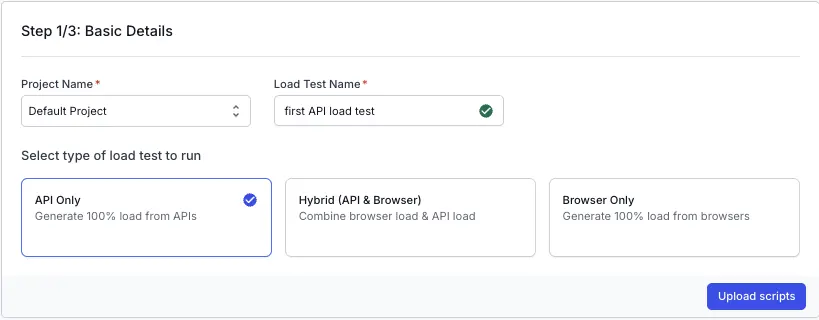
Upload scripts
Upload your JMeter script.
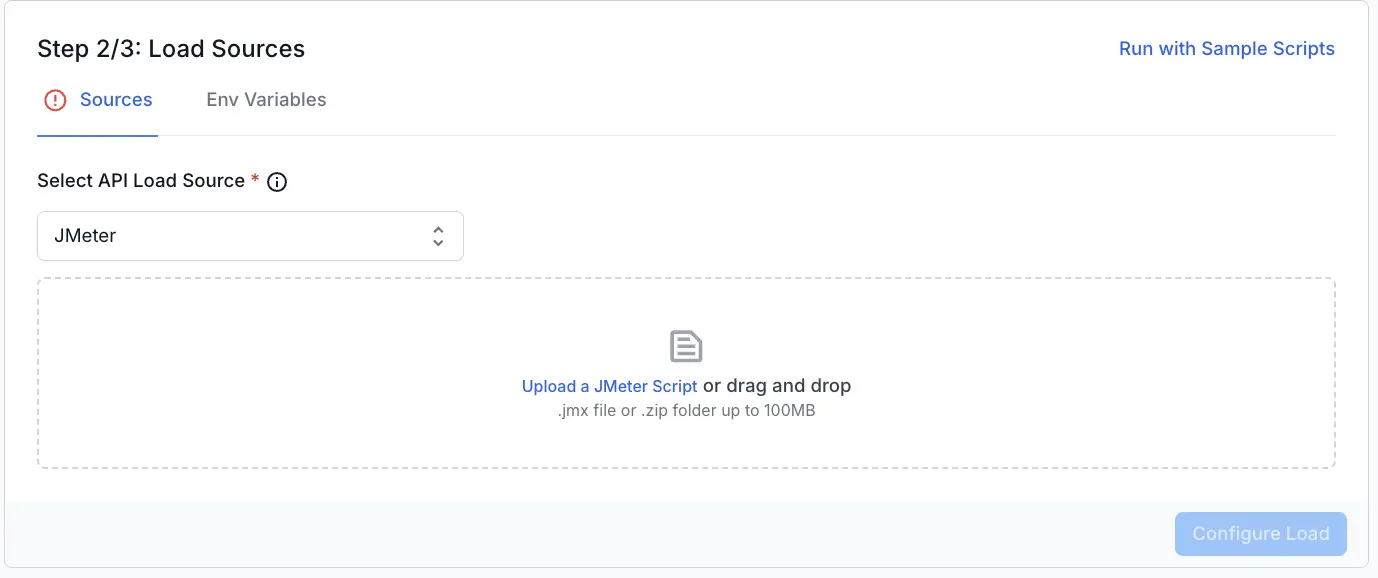
Once you have verified the configuration, click Configure Load to move to the next step.
You can also run load tests using the sample scripts if you want to try out the feature before uploading your own files.
Use multi-file JMeter scripts from the UI
You can upload a modular JMeter test suite that uses multiple .jmx files and dependencies.
Upload scripts
- In the Script section of your load test configuration, choose one of the following:
- Upload a single
.jmxfile. - Alternatively, you can also upload a
.zipfile that contains your main JMeter script and any additional supporting files.
- Upload a single
- When you upload a
.zipfile:- Enter the main script path in the Main script field, relative to the root of the ZIP (for example,
tests/main.jmx). The platform uses this as the JMeter entry point.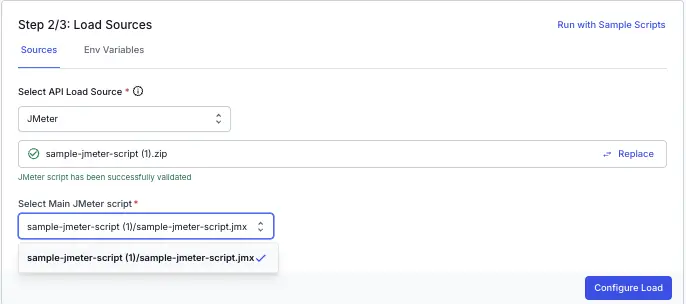
- Keep your folder hierarchy inside the ZIP. Relative imports such as
import { helper } from './utils/helper.jmx'continue to work because the directory structure is preserved during execution.
- Enter the main script path in the Main script field, relative to the root of the ZIP (for example,
Validation rules
- If you upload a ZIP file and leave the Main script field empty, the test configuration shows an error and you cannot start the run until you specify an entry file.
- If the main script you specify does not exist inside the ZIP file, the test configuration shows an error that the entry file cannot be found in the uploaded archive.
- The maximum supported ZIP size is 100 MB. If the archive exceeds this limit, the upload is rejected with a clear error message.
Use these checks to confirm the correct entry path before you run the test, so that all imports resolve successfully at runtime.
Use your JMX script’s load config
On the Load Definition tab, turn on Use JMX script config to run your JMeter script exactly as authored. When it’s on, BrowserStack uses the VUs, duration, and ramp-up parsed from your JMX thread groups, and the Load Profile fields are hidden. The toggle label shows the detected configuration, for example 1 VUs & 0m 1s (Standard Thread Group). Turn it off to customize the load values in BrowserStack instead.
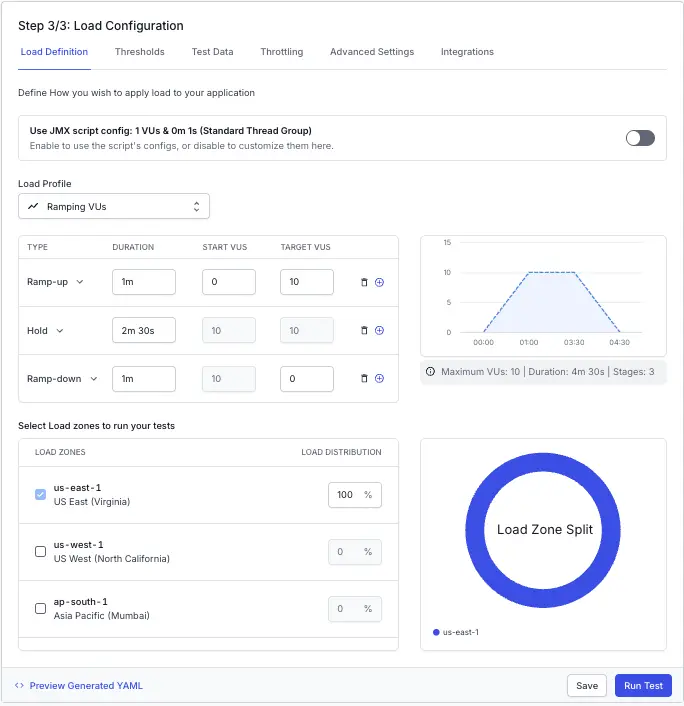
The toggle appears only when BrowserStack can parse your script’s thread groups. If you don’t see it, your script may use thread groups that can’t be parsed.
Set the engine count
On the Advanced Settings tab, set Engine Count to run your test across multiple parallel JMeter engines. VUs are split across the engines, and each engine handles up to 1,000 VUs. Enter a value from 1 to 10, or leave it as Auto to let BrowserStack choose based on your VU count. The engine count must be at least the number of regions, and shouldn’t exceed your VU count.
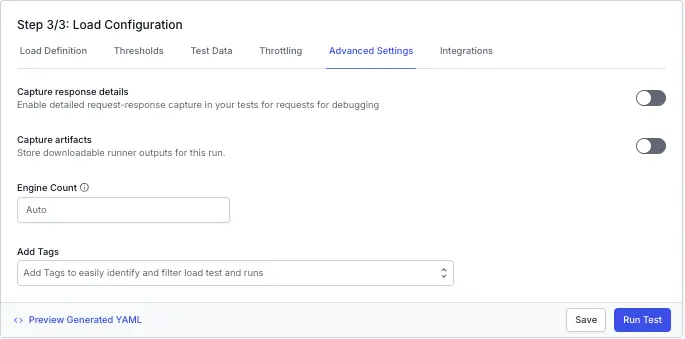
To drive a steady target request rate instead of a fixed number of VUs, select the Throughput load profile on the Load Definition tab. Throughput is available for JMeter and Gatling tests.
You can configure the following load parameters to customize your load test:
Run test
After you finish configuring load parameters, click RUN TEST .
After the run starts, open the Engine Health tab to confirm your engines spawned and see the VU allocation per engine.
Script mode is supported only when you upload a single .jmx file. Uploading a .zip archive or multiple files turns off script mode.
Supported thread groups and limits
Supported thread groups in script mode:
- Standard, Ultimate, and Stepping thread groups are fully honored.
- Open Model thread groups are parsed on a best-effort basis.
- Concurrency and Arrivals thread groups (BlazeMeter plugins) aren’t supported, and turn off script mode.
- setUp and tearDown thread groups run once per engine and aren’t split.
- Parameterized thread counts, for example
${__P(threads,50)}, use their default value.
Limits:
- Engine count ranges from 1 to 10, and is available for API-only JMeter tests, not for hybrid, k6, Gatling, or Locust tests.
- Each engine handles up to 1,000 VUs. Auto mode uses
ceil(VUs / 1000)engines.
JMeter plugin support
Most JMeter plugins work on BrowserStack. Common plugins are pre-installed, and anything else is fetched automatically from Maven Central at the start of the run. For custom or private plugins, bundle the .jar, along with any dependency jars, inside your uploaded .zip. They’re loaded into JMeter before the run.
Unsupported plugins
| Plugin ID | Name |
|---|---|
| JmeterNamesTemplater | DG - JMeter Names Templater |
| UtilityJmeterFunctions | DG - Utility Jmeter Functions |
| awsmeter | AWS Support |
| blazemeter-debugger | BlazeMeter Step-by-step Debugger |
| bzm-http2-legacy | BlazeMeter - HTTP/2 Legacy Plugin |
| bzm-jmeter-citrix-plugin | BlazeMeter - Citrix Plugin |
| bzm-repositories | BlazeMeter - Repositories |
| bzm-siebel | BlazeMeter - Auto Correlation Recorder Plugin |
| custom-soap | Custom SOAP Sampler |
| feather-wand-jmeter-ai-agent | Feather Wand - JMeter AI Agent |
| io.github.sagaraggarwal86-jmx-version-control-system | JVCS - JMX Version Control System |
| io.github.sagaraggarwal86-jmxauditor | JMXAuditor - JMX Static Analyser |
| io.github.vasanthshanmugam-jmeter-auto-correlation-plugin | One-Click Auto-Correlation Plugin |
| jmeter-amqp-plugin | AMQP / RabbitMQ samplers |
| jmeter-atakama-variabilization-plugin | Atakama Variabilization Plugin |
| jmeter-har-import | HAR (HTTP Archive) Import |
| jmeter-prometheus | Prometheus Listener Plugin |
| jmeter-rapi-plugin | Rapi JMeter Plugins |
| jmeter-studio-oss | JMeter Studio - Theme Engine Plugin for Apache JMeter |
| jpgc-cmd | Command-Line Graph Plotting Tool |
| jpgc-filterresults | Filter Results Tool |
| jpgc-mergeresults | Merge Results |
| jpgc-oauth | OAuth Sampler (Deprecated) |
| jpgc-plancheck | Test Plan Check Tool |
| jpgc-standard | jpgc - Standard Set |
| jpgc-sts | HTTP Simple Table Server |
| jpgc-webdriver | Selenium/WebDriver Support |
| kloadgen | Kafka - KLoadGen (schema-registry aware) |
| llm-metrics-visualizer | LLM Metrics Visualizer |
| mock-jutsu | Mock Jutsu - The Ultimate Algorithmic Mock Data Engine |
| pepper-box | Kafka - Pepper-Box |
| perfsage-slo-reporter | PerfSage SLO Reporter |
| prism | Prism - tab-style interface plugin for Apache JMeter |
| rbourga-jmeter-plugins-apdexcalculator | Apdex Score Calculation |
| rbourga-jmeter-plugins-cohendeffectsize | Cohen’s d Results Comparison |
| rbourga-jmeter-plugins-modalitycovcheck | Coefficient of Variation and Modality Check |
| rbourga-jmeter-plugins-tukeyoutlierdetector | Upper Outlier Removal |
| readme-config-element | README Config Element |
| schema-assertion | ApacheJmeter Schema Assertion |
| superkey | SuperKey - JMeter Command Center |
| swagger-postman-importer | Swagger / Postman Importer |
| tilln-wssecurity | WS Security for SOAP |
| ulp-jmeter-autocorrelator-plugin | UbikLoadPack Auto-correlator plugin |
| ulp-jmeter-gwt-plugin | UbikLoadPack GWT plugin |
| ulp-jmeter-videostreaming-plugin | UbikLoadPack Video Streaming plugin |
| ulp-observability-plugin | UbikLoadPack Observability Plugin |
| validate-thread-group | Validate Thread Group |
| vdn-elastic-apm-tool | vdn@github - elastic-apm-tool |
| vdn-har-convertor-jmeter-tool | vdn@github - har-convertor-jmeter-tool |
| vdn-junit-reporter-kpi-compare-jmeter-report-csv | vdn@github - junit-reporter-kpi-compare-jmeter-report-csv |
| vdn-junit-reporter-kpi-from-jmeter-dashboard-stats | vdn@github - junit-reporter-kpi-from-jmeter-dashboard-stats tool |
| vdn-junit-reporter-kpi-from-jmeter-report-csv | vdn@github - junit-reporter-kpi-from-jmeter-report-csv tool |
| vdn-otel-apm-tool | vdn@github - otel-apm-tool |
The runner uses Java 17. A plugin compiled for a newer Java version won’t load. Ship a Java 17-compatible build.
If a plugin’s required class can’t be resolved, the test fails. This happens when the class is neither on Maven Central nor bundled in your .zip. Bundling its .jar guarantees it loads.
What’s next
- Honor your script’s own configuration and thresholds: Run tests using your JMeter assertions as pass or fail criteria instead of overriding them.
- View test results
We're sorry to hear that. Please share your feedback so we can do better
Contact our Support team for immediate help while we work on improving our docs.
We're continuously improving our docs. We'd love to know what you liked
We're sorry to hear that. Please share your feedback so we can do better
Contact our Support team for immediate help while we work on improving our docs.
We're continuously improving our docs. We'd love to know what you liked
Thank you for your valuable feedback!